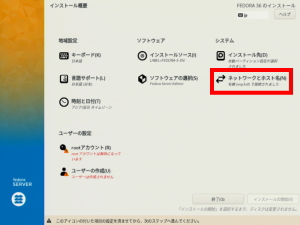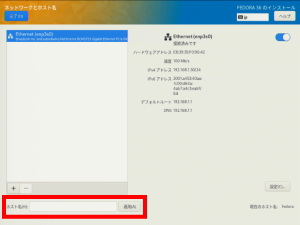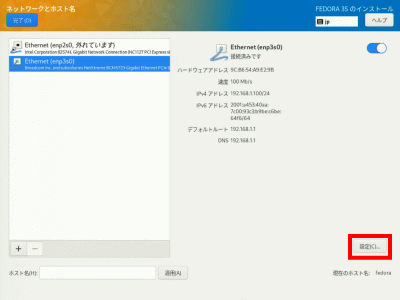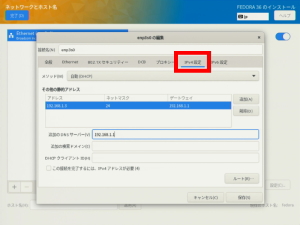
s50
Extend the root file system.
Check and record the top level ( / ) root file system.
[root@www ~]# 50_1df -h
filesys                    size    used  remaining %used mount location
devtmpfs                   3.9G      0  3.9G     0% /dev
tmpfs                      3.9G      0  3.9G     0% /dev/shm
tmpfs                      3.9G   1.1M  3.9G     1% /run
/dev/fedora/fedora-root     15G   1.9G   14G    13% / #Expansion
tmpfs                      3.9G   4.0K  3.9G     1% /tmp
/dev/sda1                  1014M  194M  821M    20% /boot
tmpfs                      783M      0  783M     0% /run/user/1000
s51The root file system is 15Gb by default, so expand it.
Extend the root logical volume at the top level ( / ) you recorded. (Please change to your own file path in the above form.)
[webmaster@www ~]$ 51_1sudo lvextend -l +100%FREE /dev/fedora/fedora-root
s52Extend the topmost ( / ) root filesystem you recorded.
[webmaster@www ~]$ 52_1sudo xfs_growfs /dev/fedora/fedora-root
s53
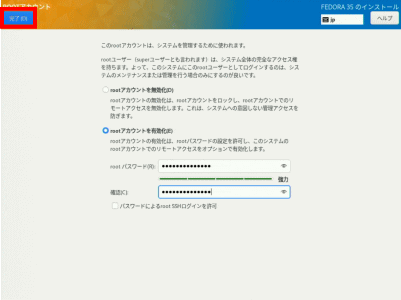
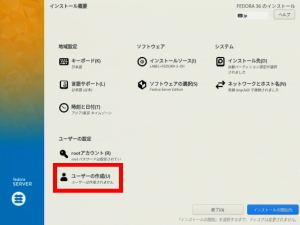
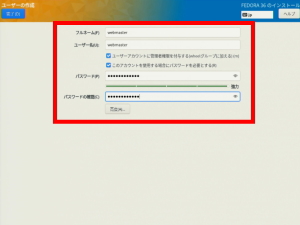
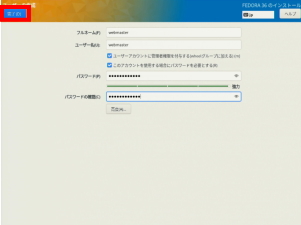
Create a general user.
Log in to root user.
[webmaster@www ~]$ 53_1su -
password:
[root@www ~]#
s54Create a general user.
[root@www ~]# 54_1useradd ユーザー名
s55Set your password.
[root@www ~]# 55_1passwd ユーザー名
New Password:
Re-enter new password:
s56
Limit users who can become root.
Limit users who can become root.
[root@www ~]# 56_1usermod -G wheel webmaster
[root@www ~]# 56_2vi /etc/pam.d/su
s57Remove # to uncomment
#%PAM-1.0
auth            sufficient      pam_rootok.so
# Uncomment the following line to implicitly trust users in the "wheel" group.
#auth           sufficient      pam_wheel.so trust use_uid
# Uncomment the following line to require a user to be in the "wheel" group.
auth            required        pam_wheel.so use_uid
auth            substack        system-auth
auth            include         postlogin
account         sufficient      pam_succeed_if.so uid = 0 use_uid quiet
account         include         system-auth
password        include         system-auth
session         include         system-auth
session         include         postlogin
session         optional        pam_xauth.so
s58
Deletion of general users.
If you want to delete only the user
[root@www ~]# 58_1userdel ユーザー名
s59If you also want to delete your home directory
[root@www ~]# 59_1userdel -r ユーザー名
s60
Disable firewall and SELinux.
Stop the firewall service.
[root@www ~]# 60_1systemctl stop firewalld
s61Disable the autostart setting.
[root@www ~]# 61_1systemctl disable firewalld
rm '/etc/systemd/system/dbus-org.fedoraproject.FirewallD1.service'
rm '/etc/systemd/system/basic.target.wants/firewalld.service'
s62Disable SELinux.
[root@www ~]# 62_1vi /etc/selinux/config
s63Change it to disabled.
# This file controls the state of SELinux on the system.
# SELINUX= can take one of these three values:
# enforcing - SELinux security policy is enforced.
# permissive - SELinux prints warnings instead of enforcing.
# disabled - No SELinux policy is loaded.
SELINUX=63_1disabled #変更
# SELINUXTYPE= can take one of these two values:
# targeted - Targeted processes are protected,
# minimum - Modification of targeted policy. Only selected processes are protected.
# mls - Multi Level Security protection.
SELINUXTYPE=targeted
s64Restart.
[root@www ~]# 64_1reboot
s65
Network settings.
IPv6 を無効にします。
[root@www ~]# 65_1vi /etc/default/grub
s66Line 6: Add “ipv6.disable=1”.
GRUB_CMDLINE_LINUX="66_1ipv6.disable=1 rd.lvm.lv=centos/root..
s67reflect the changes.
[root@www ~]# 67_1grub2-mkconfig -o /boot/grub2/grub.cfg
[root@www ~]# 67_2reboot
s68
router settings
If DHCP fixed IP address can be set on the router, set “MAC address” and “Server IP address” in ” DHCPv4 server setting > DHCP fixed IP address setting ” and record the IP address.
MAC address(例:0c:2e:48:2b:dg:f4)
Server IP address:192.168.1.3
s69
System modernization.
Modernize your system.
[root@www ~]# 69_1dnf -y update
s70
Add module.
Install Node.js 14.
[root@www ~]# 70_1dnf module -y install nodejs:14
s71Check the module.
[root@www ~]# 71_1node -v
v14.14.0
s72Reset Node.js.
[root@www ~]# 72_1dnf module reset nodejs
s73Install Node.js 16.
[root@www ~]# 73_1dnf module enable nodejs:16
[root@www ~]# 73_2dnf module -y install nodejs:16/common
s74Check the module.
[root@www ~]# 74_1node -v
v16.14.0
s75
Package auto-update settings.
Set dnf-automatic.
[root@www ~]# 75_1dnf install dnf-automatic dnf-utils -y
s76dnf-automaticを設定します。
[root@www ~]# 76_1vi /etc/dnf/automatic.conf
s77Enable automatic download & automatic update
# Whether updates should be applied when they are available, by
# dnf-automatic.timer. notifyonly.timer, download.timer and
# install.timer override this setting.
apply_updates = 77_1yes #change
s78Package auto-update auto-start settings
[root@www ~]# 78_1systemctl enable --now dnf-automatic.timer
s79
Web management console settings.
Enable Cockpit to make the web management console available.
[root@www ~]# 79_1systemctl enable --now cockpit.socket
[root@www ~]# 79_2ss -napt
State Recv-Q Send-Q Local Address:Port Peer Address:Port
LISTEN 0 128 0.0.0.0:22 0.0.0.0:* users:(("sshd",pid=831,fd=6))
LISTEN 0 128 [::]:22 [::]:* users:(("sshd",pid=831,fd=8))
LISTEN 0 128 *:9090 *:* users:(("systemd",pid=1,fd=24))
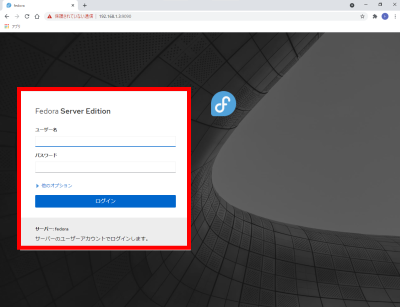
s80Access the web management console using a web browser on the client PC and log in as “root”.
s81
Vim (text editor) settings.
Install Vim (text editor).
[root@www ~]# 81_1dnf -y install vim-enhanced
s82Applies a command alias.
[root@www ~]# 82_1vi /etc/profile
s83Append to the last line.
83_1alias vi='vim'
s84reflect the changes.
[root@www ~]# 84_1source /etc/profile
s85Configure vim.
[root@www ~]# 85_1vi ~/.vimrc
s86Display line numbers (The server settings are explained using line numbers.)
86_1set number
s87WP-Coder title=”section_title”]
Configure sudo (root privileges).
Set root privileges to a specific user.
[root@www ~]# 87_1visudo
s88Append to the last line.
88_1webmaster ALL=(ALL) ALL