Fedora36: Initial settings

s50

Extend the root file system.

Check and record the top level ( / ) root file system.

[root@www ~]# 50_1df -h
filesys                    size    used  remaining %used mount location
devtmpfs                   3.9G      0  3.9G     0% /dev
tmpfs                      3.9G      0  3.9G     0% /dev/shm
tmpfs                      3.9G   1.1M  3.9G     1% /run
/dev/fedora/fedora-root     15G   1.9G   14G    13% / #Expansion
tmpfs                      3.9G   4.0K  3.9G     1% /tmp
/dev/sda1                  1014M  194M  821M    20% /boot
tmpfs                      783M      0  783M     0% /run/user/1000

s51The root file system is 15Gb by default, so expand it.
Extend the root logical volume at the top level ( / ) you recorded. (Please change to your own file path in the above form.)

[webmaster@www ~]$ 51_1sudo lvextend -l +100%FREE /dev/fedora/fedora-root

s52Extend the topmost ( / ) root filesystem you recorded.

[webmaster@www ~]$ 52_1sudo xfs_growfs /dev/fedora/fedora-root

s53

Create a general user.

Log in to root user.

[webmaster@www ~]$ 53_1su -
password:
[root@www ~]#

s54Create a general user.

[root@www ~]# 54_1useradd ユーザー名

s55Set your password.

[root@www ~]# 55_1passwd ユーザー名
New Password:
Re-enter new password:

s56

Limit users who can become root.

Limit users who can become root.

[root@www ~]# 56_1usermod -G wheel webmaster
[root@www ~]# 56_2vi /etc/pam.d/su

s57Remove # to uncomment

#%PAM-1.0
auth            sufficient      pam_rootok.so
# Uncomment the following line to implicitly trust users in the "wheel" group.
#auth           sufficient      pam_wheel.so trust use_uid
# Uncomment the following line to require a user to be in the "wheel" group.
auth            required        pam_wheel.so use_uid
auth            substack        system-auth
auth            include         postlogin
account         sufficient      pam_succeed_if.so uid = 0 use_uid quiet
account         include         system-auth
password        include         system-auth
session         include         system-auth
session         include         postlogin
session         optional        pam_xauth.so

s58

Deletion of general users.

If you want to delete only the user

[root@www ~]# 58_1userdel ユーザー名

s59If you also want to delete your home directory

[root@www ~]# 59_1userdel -r ユーザー名

s60

Disable firewall and SELinux.

Stop the firewall service.

[root@www ~]# 60_1systemctl stop firewalld

s61Disable the autostart setting.

[root@www ~]# 61_1systemctl disable firewalld
rm '/etc/systemd/system/dbus-org.fedoraproject.FirewallD1.service'
rm '/etc/systemd/system/basic.target.wants/firewalld.service'

s62Disable SELinux.

[root@www ~]# 62_1vi /etc/selinux/config

s63Change it to disabled.

# This file controls the state of SELinux on the system.
# SELINUX= can take one of these three values:
# enforcing - SELinux security policy is enforced.
# permissive - SELinux prints warnings instead of enforcing.
# disabled - No SELinux policy is loaded.
SELINUX=63_1disabled #変更
# SELINUXTYPE= can take one of these two values:
# targeted - Targeted processes are protected,
# minimum - Modification of targeted policy. Only selected processes are protected.
# mls - Multi Level Security protection.
SELINUXTYPE=targeted

s64Restart.

[root@www ~]# 64_1reboot

s65

Network settings.

IPv6 を無効にします。

[root@www ~]# 65_1vi /etc/default/grub

s66Line 6: Add “ipv6.disable=1”.

GRUB_CMDLINE_LINUX="66_1ipv6.disable=1 rd.lvm.lv=centos/root..

s67reflect the changes.

[root@www ~]# 67_1grub2-mkconfig -o /boot/grub2/grub.cfg
[root@www ~]# 67_2reboot

s68

router settings

If DHCP fixed IP address can be set on the router, set “MAC address” and “Server IP address” in ” DHCPv4 server setting > DHCP fixed IP address setting ” and record the IP address.

MAC address(例:0c:2e:48:2b:dg:f4)

Server IP address:192.168.1.3
s69

System modernization.

Modernize your system.

[root@www ~]# 69_1dnf -y update

s70

Add module.

Install Node.js 14.

[root@www ~]# 70_1dnf module -y install nodejs:14

s71Check the module.

[root@www ~]# 71_1node -v
v14.14.0

s72Reset Node.js.

[root@www ~]# 72_1dnf module reset nodejs

s73Install Node.js 16.

[root@www ~]# 73_1dnf module enable nodejs:16
[root@www ~]# 73_2dnf module -y install nodejs:16/common

s74Check the module.

[root@www ~]# 74_1node -v
v16.14.0

s75

Package auto-update settings.

Set dnf-automatic.

[root@www ~]# 75_1dnf install dnf-automatic dnf-utils -y

s76dnf-automaticを設定します。

[root@www ~]# 76_1vi /etc/dnf/automatic.conf

s77Enable automatic download & automatic update

# Whether updates should be applied when they are available, by
# dnf-automatic.timer. notifyonly.timer, download.timer and
# install.timer override this setting.
apply_updates = 77_1yes #change

s78Package auto-update auto-start settings

[root@www ~]# 78_1systemctl enable --now dnf-automatic.timer

s79

Web management console settings.

Enable Cockpit to make the web management console available.

[root@www ~]# 79_1systemctl enable --now cockpit.socket
[root@www ~]# 79_2ss -napt
State Recv-Q Send-Q Local Address:Port Peer Address:Port 
LISTEN 0 128 0.0.0.0:22 0.0.0.0:* users:(("sshd",pid=831,fd=6)) 
LISTEN 0 128 [::]:22 [::]:* users:(("sshd",pid=831,fd=8)) 
LISTEN 0 128 *:9090 *:* users:(("systemd",pid=1,fd=24)) 

s80Access the web management console using a web browser on the client PC and log in as “root”.
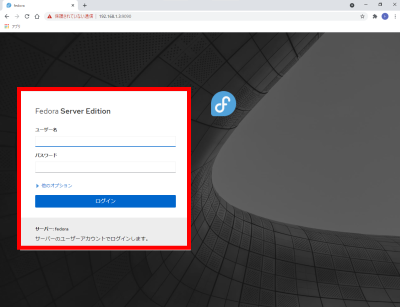
http://192.168.1.3:9090/

s81

Vim (text editor) settings.

Install Vim (text editor).

[root@www ~]# 81_1dnf -y install vim-enhanced

s82Applies a command alias.

[root@www ~]# 82_1vi /etc/profile

s83Append to the last line.

83_1alias vi='vim'

s84reflect the changes.

[root@www ~]# 84_1source /etc/profile

s85Configure vim.

[root@www ~]# 85_1vi ~/.vimrc

s86Display line numbers (The server settings are explained using line numbers.)

86_1set number

s87WP-Coder title=”section_title”]

Configure sudo (root privileges).

Set root privileges to a specific user.

[root@www ~]# 87_1visudo

s88Append to the last line.

88_1webmaster    ALL=(ALL)       ALL

Fedora36: SSH server settings

s50

Install SSH server.

Log in to the server as a “webmaster“.

localhost login: 50_1webmaster
password:

s51Log in as a “root”.

[webmaster@localhost ~]$ 51_1us -
password:

s52Install SSH server.

[root@localhost ~]# 52_1dnf install openssh-server openssh-clients

s53Start SSH server.

[root@localhost ~]# 53_1systemctl start sshd

s54Set the SSH server to start automatically.

[root@localhost ~]# 54_1systemctl enable sshd

s55Check the operation of the SSH server.

[root@localhost ~]# 55_1systemctl status sshd
● sshd.service - OpenSSH server daemon
   Loaded: loaded (/usr/lib/systemd/system/sshd.service; enabled; vendor preset>
   Active: active (running) since Sun 2021-04-11 18:03:51 JST; 5h 16min ago
     Docs: man:sshd(8)
           man:sshd_config(5)
 Main PID: 870 (sshd)
    Tasks: 1 (limit: 23603)
   Memory: 4.6M
   CGroup: /system.slice/sshd.service
           mq870 /usr/sbin/sshd -D -oCiphers=aes256-gcm@openssh.com,chacha20-po>

 4月 11 18:03:51 localhost.localdomain systemd[1]: Starting OpenSSH server daem>
 4月 11 18:03:51 localhost.localdomain sshd[870]: Server listening on 0.0.0.0 p>
 4月 11 18:03:51 localhost.localdomain sshd[870]: Server listening on :: port 2>
 4月 11 18:03:51 localhost.localdomain systemd[1]: Started OpenSSH server daemo>
 4月 11 22:29:36 localhost.localdomain sshd[5425]: Accepted password for webmas>
 4月 11 22:29:36 localhost.localdomain sshd[5425]: pam_unix(sshd:session): sess>
 4月 11 23:19:30 localhost.localdomain sshd[5481]: Accepted password for webmas>
 4月 11 23:19:30 localhost.localdomain sshd[5481]: pam_unix(sshd:session): sess>
lines 1-19/19 (END)

s56Press “q” to exit the display.s57

Check current network settings.

Record the IP address in your network settings.

webmaster@www:~$ 56_1ip addr
span style="color: #ffffff;">1: lo: <LOOPBACK,UP,LOWER_UP> mtu 65536 qdisc noqueue state UNKNOWN group default qlen 1000
link/loopback 00:00:00:00:00:00 brd 00:00:00:00:00:00
inet 127.0.0.1/8 scope host lo
valid_lft forever preferred_lft forever
inet6 ::1/128 scope host
valid_lft forever preferred_lft forever
2: enp14s0: <BROADCAST,MULTICAST,UP,LOWER_UP> mtu 1500 qdisc mq state UP group default qlen 1000
link/ether 0c:2e:48:2b:dg:f4 brd ff:ff:ff:ff:ff:ff
inet 192.168.1.3/24 brd 192.168.1.255 scope global dynamic enp2s0 #IP address, interface name record
valid_lft 11984sec preferred_lft 11984sec
inet6 20sd:ahq23:46dg:7rh9:2dg5:28uf:fls4:dehd/64 scope global dynamic mngtmpaddr noprefixroute
valid_lft 13592sec preferred_lft 11792sec
inet6 fft0::21fg3:2j8f:fo60:djed/64 scope link
valid_lft forever preferred_lft forever

s58Connect with Tera Term from the client PC with the recorded IP address.

Recorded IP address:192.168.1.3

Tera Term

Fedora36: Install

s50

Download Fedora36.

Download the installation disk image from the download page.

Download page
Install disk image:Fedora-Server-dvd-x86_64-36-1.2.iso

s51

Create an installation DVD.

Use ImgBurn to create a Fedora35 installation disk with the installation disk image.
Img Burn

s52

Fedora36 installed.

Set the BIOS to allow DVD boot before installation.
Please check the manufacturer’s site for how to set up your own server.
Install using the created installation DVD.
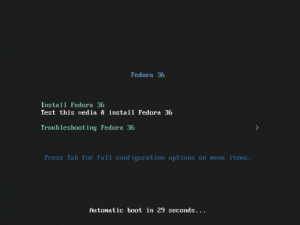
When the screen below appears, press “Enter” on your keyboard.

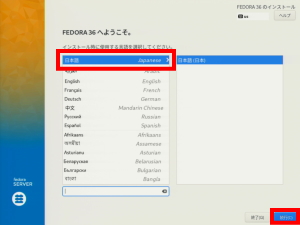
s53Select Japanese and click Continue.

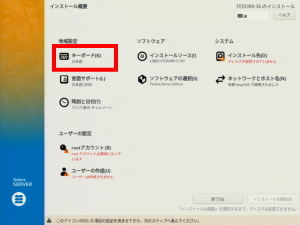
s54Set the keyboard to Japanese.

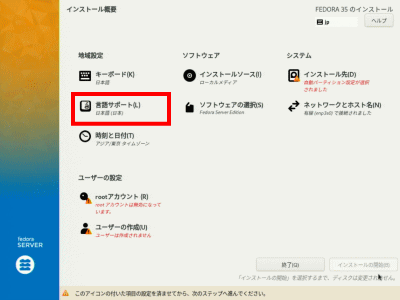
s55Set “Language Support” to Japanese (Japan).

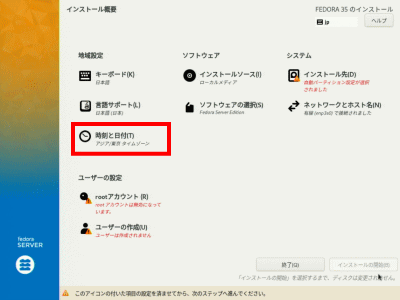
s56Set Date and Time to Asia/Tokyo time zone.

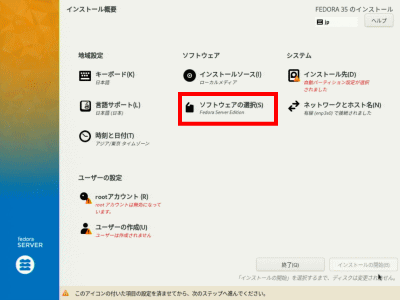
s57Click Select software.

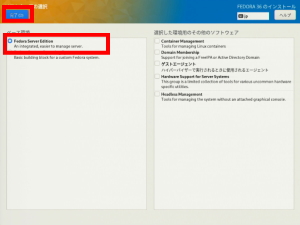
s58Select Fedora Server Edition and click Finish.

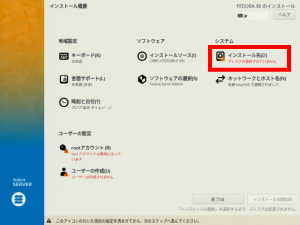
s59Select the automatic partition in “Destination”.

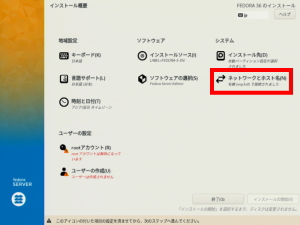
s60Click Network & Hostname.

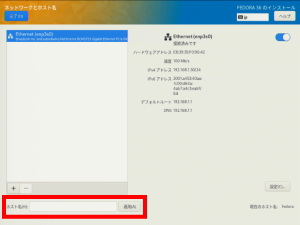
s61Change the Hostname and click Apply.
hostname:linuxserver.jp

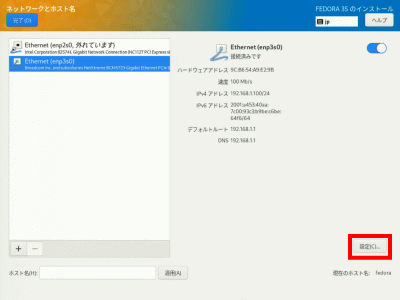
s62Click Settings.

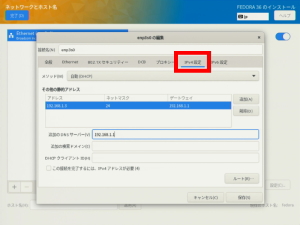
s63Click “IPv4 Settings”.

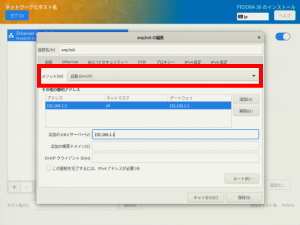
s64Select “Manual” for the method.

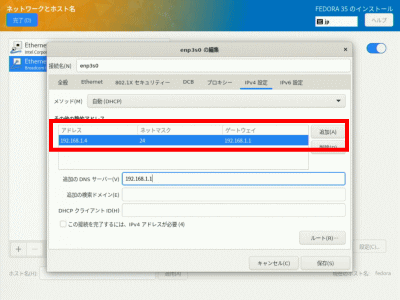
s65Click “Add” and enter the “Address”, “Netmask” and “Gateway”.
address:192.168.1.3
Netmask:twenty four
gateway:192.168.1.1

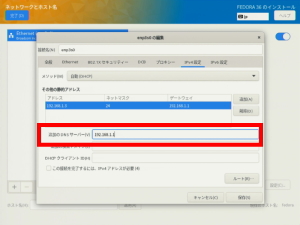
s66Enter “DNS Server”.
DNS server:192.168.1.1

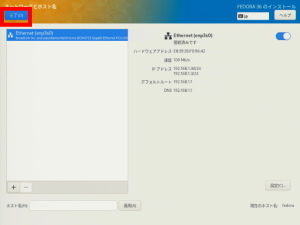
s67Click Save.

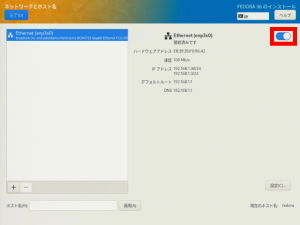
s68Select “On”.

s69Click Done.

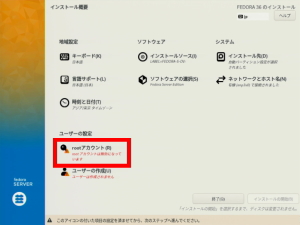
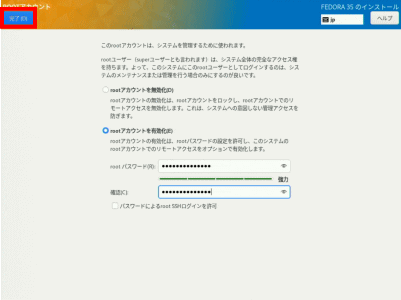
s70Click “root password”.

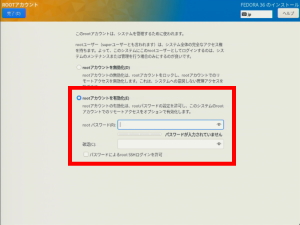
s71Select Enable Root Account and enter the Root Password.

s72Click Done.

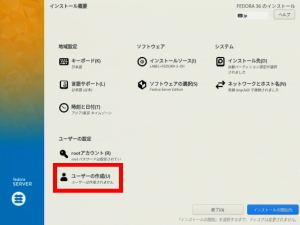
s73Click Create User.

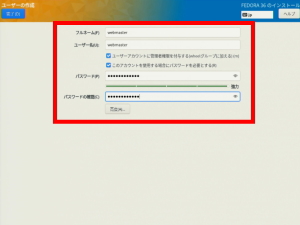
s74Enter “Full Name” and “Username”.
Full name/username:webmaster

s75Select Make this user an administrator.Select Require a password to use this account.

Enter “Password”.

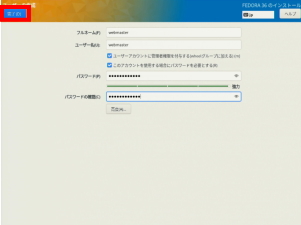
s76Click Done.

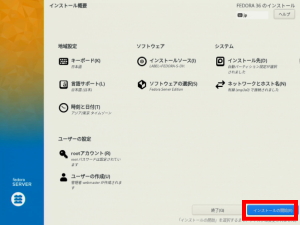
s77Click “Start Installation”.

s78When the installation is complete, click “Reboot system” and remove the installation DVD.

Common Settings: Domain Settings

s50

IP address acquisition script creation.

Create an IP address acquisition script.

[root@www ~]# 50_1vi /var/www/html/ip_add.php
50_2<?php
$ip_address = $_SERVER['REMOTE_ADDR'];
echo $ip_address ;
?>

s51

Domain IP address acquisition script creation.

Create an IP address acquisition script for your domain.

[root@www ~]# 51_1vi /var/www/html/ip_host.php
51_2<?php
$ip_host_address = empty($_GET['host'])?null:gethostbyname($_GET['host']);
echo $ip_host_address;
?>s52

s51

Domain IP address update script creation.

Create an IP address renewal script for your domain.

[root@www ~]# 52_1vi /usr/local/bin/dns-update.sh
52_2#!/bin/bash

UPIPURLMODE=${0}
SCRIPT=${1}
DNSUPURL=${2}

DOMAIN_LOG=${3}
DOMAIN=${4}
if [ "${DOMAIN_LOG}" = "" ]; then
    DOMAIN_JOB=""
else
    DOMAIN_JOB="?${DOMAIN_LOG}=${DOMAIN}"
fi

PASS_LOG=${5}
PASS=${6}
if [ "${PASS_LOG}" = "" ]; then
    PASS_JOB=""
else
    PASS_JOB="&${PASS_LOG}=${PASS}"
fi

IPGET_LOG=${7}

if [ "${UPIPURLMODE}" = "0" ]; then
    HOST_LOG=${8}
    HOST=${9}
elif [ "${UPIPURLMODE}" = "1" ]; then
    OTHERS1_LOG=${8}
    OTHERS1=${9}
    HOST_LOG=${10}
    HOST=${11}
elif [ "${UPIPURLMODE}" = "2" ]; then
    OTHERS1_LOG=${8}
    OTHERS1=${9}
    OTHERS2_LOG=${10}
    OTHERS2=${11}
    HOST_LOG=${12}
    HOST=${13}
else
    HOST_LOG=${8}
    HOST=${9}
fi

if [ "${OTHERS1_LOG}" = "" ]; then
    OTHERS1_JOB=""
else
    OTHERS1_JOB="&${OTHERS1_LOG}=${OTHERS1}"
fi

if [ "${OTHERS2_LOG}" = "" ]; then
    OTHERS1_JOB=""
else
    OTHERS1_JOB="&${OTHERS1_LOG}=${OTHERS1}"
fi

if [ "${HOST_LOG}" = "" ]; then
    HOST_JOB=""
else
    HOST_JOB="&${HOST_LOG}=${HOST}"
fi

#################################################################################

if [ "${HOST}" = "" ]; then
    FQDN=${DOMAIN}
else
    FQDN="${HOST}.${DOMAIN}"
fi

# Get domain ip address
IPGET=`curl /var/www/html/ip_host.php?host=${FQDN} 2>&1`
DOMAINIP=`echo "${IPGET}"|grep "has address"|awk '{ print $NF }'|egrep ^[0-9]+.[0-9]+.[0-9]+.[0-9]+$`
if [ $? -ne 0 ]; then
    echo "${FQDN} Domain ip address detection error" | logger -t $(basename $0)
    echo ${IPGET} | logger -t $(basename $0)
    exit
fi
IPGET_JOB="&${IPGET_LOG}=${IPGET}"

# Server ip address acquisition
IPGET=`curl /var/www/html/ip_add.php 2>&1`
echo "${IPGET}" | egrep ^[0-9]+.[0-9]+.[0-9]+.[0-9]+$ > /dev/null 2>&1
if [ $? -eq 0 ]; then
    SERVERIP=`echo "${IPGET}" | tail -n 1 | awk '{ print $NF }'`
else
    echo "${DOMAIN} Server ip address detection error" | logger -t $(basename $0)
    echo "${IPGET}" | logger -t $(basename $0)
    exit
fi

# Domain ip address update
if [ "${DOMAINIP}" != "${SERVERIP}" ]; then
    IPUPDATE=`wget -q -O - "${DNSUPURL}${DOMAIN_JOB}${PASS_JOB}${HOST_JOB}${SERVERIP_JOB}${OTHERS1_JOB}${OTHERS2_JOB}${IPGET_JOB}"`
    echo ${IPUPDATE}|grep -q OK
    if [ $? -eq 0 ]; then
        echo "${FQDN} Ip address update success ${DOMAINIP} to ${SERVERIP}" | logger -t $(basename $0)
    else
        echo "${FQDN} Ip address update error" | logger -t $(basename $0)
        echo ${IPUPDATE} | logger -t $(basename $0)
        (
        echo IP ADDRESS UPDATE ERROR
        echo ${IPUPDATE}
        )|mail -s "${SCRIPT##*/} ERROR on ${FQDN}" root
        exit 1
    fi
fi
exit

[root@www ~]# 52_2chmod +x /usr/local/bin/dns-update.sh

s53

Execute IP address update script.

Run the IP address update script.

[root@www ~]# 53_1/usr/local/bin/dns-update.sh           

s54

IP address update script regular automatic execution setting.

Execute the IP address update script periodic automatic setting.

[root@www ~]# 54_1 vi /etc/cron.d/dns-update
54_2/usr/local/bin/dns-update.sh           

Preparing to build a home server: SSH server remote connection (Tera Term)

s50

Preparation for SSH server remote connection.

Turn off all connected devices in the home network, turn on the server first, then turn on the client PC (Windows).

s51

How to use Tera Term.

Click the client PC (Windows) icon to start Tera Term.

Tera Term

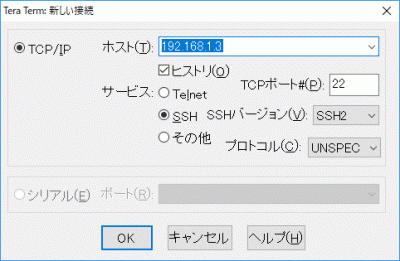
s52Enter the server IP address and click “OK”.

サーバーIPアドレス

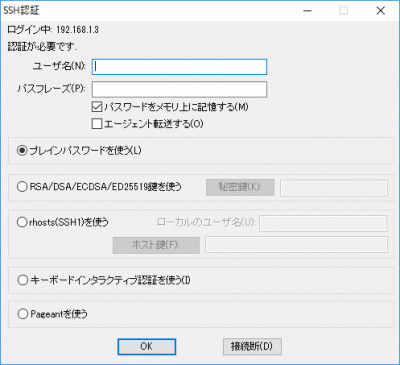
s53Enter your user name and password and click “OK”.

ユーザー名、パスワードを入力

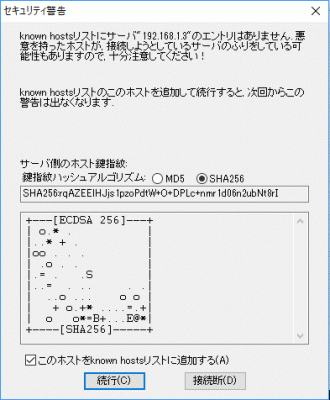
s54A security warning will appear only for the first time, so click “Continue”.

セキュリティ警告s55

root login.

Enter su – (root login command) and click, then enter your root password.
If the line ends with “$”, you are logged in as a local user.
If the line ends with “#”, you are logged in as root (administrator).

[webmaster@www ~]$ 54_1su -
password:

s56

vi editor.

start up.

[root@www ~]# 55_1vi File name

s57Press the “i” key to switch to edit mode.

To erase the characters, press “Back Space” to erase from the back.

Press “Esc” to switch to command mode.。

Quit without saving.

56_1:q

s58Save and exit.

57_1:wq

s59

Move directory.

Move.

[root@www ~]# 58_1cd Directory path

s60Unmove.

[root@www ~]# 59_1cd

s61Restart.

file operations.

Copy.

[root@www ~]# 60_1cp -b Original file Destination file

s62Move. It can also be used for renaming.

[root@www ~]# 61_1mv Original file Destination file

s63Delete.

[root@www ~]# 62_1rm File name

s64

directory operations.

create.

[root@www ~]# 63_1mkdir Directory name

s65Delete.

[root@www ~]# 64_1rm -r Directory name

s66

change permissions.

Access rights (0 + Owner + Group +Others)

Owner Group Others
Create/Delete 7 7 7
Reading and Writing 6 6 6
Execution 5 5 5
Read only 4 4 4
All prohibited
0 0

s67change.

[root@www ~]# 66_1chmod Access permission File name

s68

system operation.

start up.

[root@www ~]# 67_1systemctl start Service name

s69Restart.

[root@www ~]# 68_1systemctl restart Service name

s70stop.

[root@www ~]# 69_1systemctl stop Service name

s71Reset.

[root@www ~]# 70_1systemctl reload Service name

s72Set auto start.

[root@www ~]# 71_1systemctl enable サービス名

s73Disable auto-start.

[root@www ~]# 72_1systemctl disable サービス名

s74

server operations.

Restart.

[root@www ~]# 73_1reboot

s75stop.

[root@www ~]# 74_1hait

Preparing to build a home server: Preparing to build a home server

s50

What is a server?

A server is simply a computer that is open to the public on the Internet.
Generally, it is used for publishing websites, blogs, etc.

There are two ways to use it, such as self-owned and rental, each of which has advantages and disadvantages.

The advantage of a home server is that there are no usage restrictions, but the disadvantages include the cost of electricity and maintenance.

The advantage of a rental server is that it can be used easily without the hassle of maintenance, but the disadvantages are the rental fee and usage restrictions such as capacity, speed, and programs.

A fixed IP address is often used to publish a server, but in the case of a general home Internet line, a dynamic IP address is used in most cases, and using a fixed IP address will incur a usage fee.

A dynamic IP address does not pose a problem when browsing the Internet from home, but since the IP address changes after a certain amount of time, when the server is made public, there will be problems with connections from the domain.

Here’s how to fix the connectivity issue and publish your server with a dynamic IP address.

s51

router settings.

Please check the router setting method on the manufacturer’s site according to your own environment.

Check the IP address/mask length in your DHCPv4 server settings.

Example: 192.168.1.1/24

Please check the setting method to determine the IP address of the web server and publish it to the outside.

Example: 192.168.1.3

Check the current global IP address in “Example”. (It will be changed after a certain amount of time.)

(If the IP address is not displayed in the example, check with “IP address detection CGI”.)

Example: ***.***.***.***

IP address detection CGI

s52

Static NAT settings.

  • Make the web server public. IP address:192.168.1.3
  • Make the FTP server public. IP address:192.168.1.3

DHCPv4 server settings > DHCP fixed IP address settings.

  • MAC address: MAC address of the server (search with the command “ip add” on the terminal)
  • IP address:192.168.1.3

Static IP masquerading settings.

  • Set the conversion target protocol, conversion target port, destination IP address, and destination port.
Converted protocol Converted port Destination IP address destination port
TCP/UDP 53 domain 192.168.1.3 53 domain
TCP/UDP 80 www 192.168.1.3 80 www
TCP/UDP 443 ssl 192.168.1.3 443 ssl
TCP 25 smtp 192.168.1.3 25 smtp
TCP 143 imtp 192.168.1.3 143 imtp
TCP 465 smtp 192.168.1.3 465 smtp
TCP 587 smtp 192.168.1.3 587 smtp
TCP 110 pop3 192.168.1.3 110 pop3
TCP 993 pop3 192.168.1.3 993 pop3
TCP/UDP 20 ftpdata 192.168.1.3 20 ftpdata
TCP/UDP 21 FTP 192.168.1.3 21 FTP

s53

server body.

You can use the server even if you reuse the old PC (intel core i series or higher)

Since it operates 24 hours a day, we recommend a server specification one.

Note: Laptops are not designed for long-term use and should not be used as servers. (There is a risk of fire.)

A keyboard, mouse, and HDD are required separately.

It is recommended to install two HDDs, one for main and one for backup.

For DVD boot, a DVD drive and DVD-R are required.

For USB boot, a USB memory is required.

BIOS setting.

Please check how to start the BIOS according to your environment.

For example: It may appear on the screen immediately after booting.

Manufacturer control key
Fujitsu “F2”
NEC “F2”
Lenovo “F1” or “F2”
HP “F10” or “Esc”
Dell “F2” or “F12”

s54

  • Boot Menu settings. (set boot method to DVD or USB)
  • Save and exit.


s55

domain acquisition.

There are paid and free domains.

You can get a domain of your choice with a paid domain, but there are restrictions on the use of free domains.

Get a paid domain.

Register as a user with VALUE DOMAIN and log in.

Print out the password list and use it for password management.


VALUE DOMAIN Login

password list

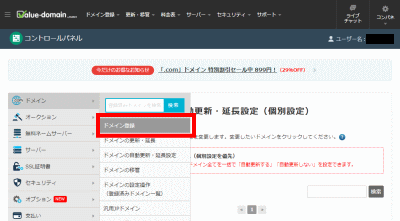
s56Click Domain Registration.
domain registration

s57Get the domain of your choice. (Registered by proxy disclosure)
(Enter “Domain” at the top of the page and click “Change” to change the characters in the sentence.)

Note: The domain name should be alphanumeric only, no symbols or info.

Note: Purchaseable amount and Value Domain Points have an expiration date, so be careful not to make extra deposits.

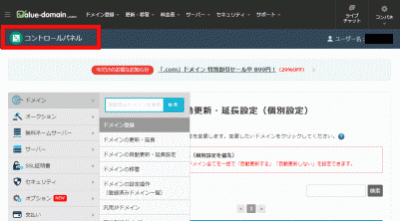
Go back to Control Panel.


Control panel

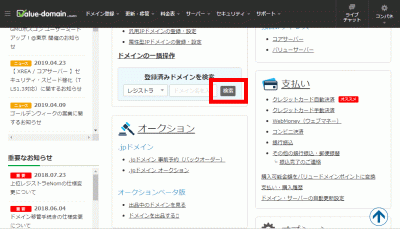
s58Scroll down and click Search.
search

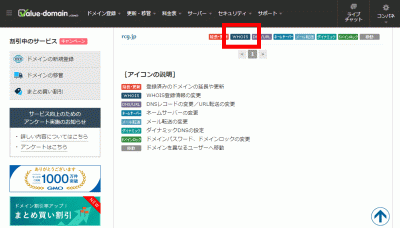
s59Click WHOIS.
Make sure your personal information is not exposed.


WHOIS

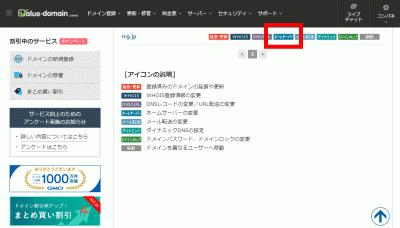
s60Click Nameservers.
name server

s61WP-Coder title=”section_title”]”>Change the nameservers of your domain.

name server 1 NS1.VALUE-DOMAIN.COM
name server 2 NS2.VALUE-DOMAIN.COM

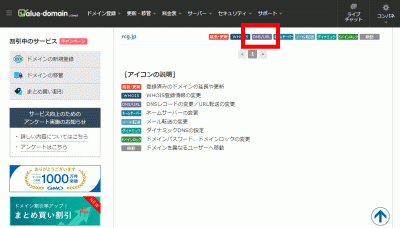
s62Click DNS/URLs.
DNS/URLs

s63Copy and paste the following into your DNS settings.

a****.***.***.***
mx mail.linuxserver.jp. Ten

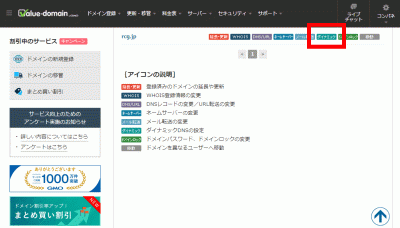
s64Click “Dynamic DNS”.
dynamic DNS

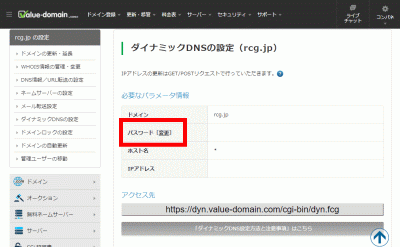
s65Set “Password”.
password

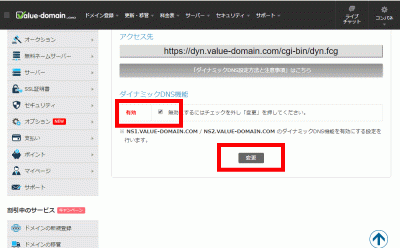
s66Enable the dynamic DNS function and click “Change”.
Dynamic DNS function

s67It takes about 24 to 48 hours to be able to access with the domain name.

s68

Calculating iso file size.

Create installation media using a DVD or USB memory that is larger than the iso file.

s69

ImgBurn (installation DVD creator).

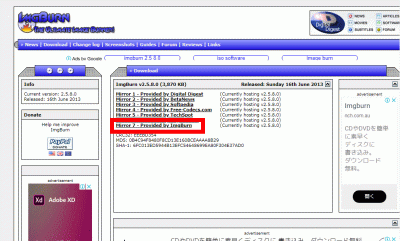
Download install.

Click the download link to download ImgBurn and install it on your Windows machine.


Img Burn

Img Burn

s70

Localizing into Japanese

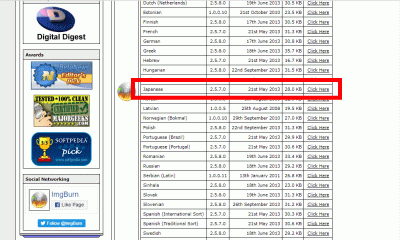
Scroll down and click “japanese” to download.

Unzip the downloaded japanese.zip and copy japanese.lng to Program Files/ImgBurn/Languages. (If you do not have decompression software, please download and install 7-Zip, Lhaplus, etc.)


7-Zip , Lhaplus

japanese.lng

s71

How to create an installation disc.

Right-click the iso file icon and click “Create image disk with ImgBurn”.

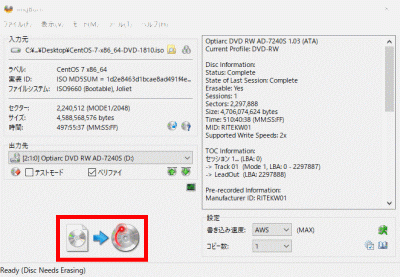
Select “Verify” and click the create icon below. (When verification is finished, the DVD-R is automatically ejected, so insert it again to start writing.)


Create an image disk with ImgBurn

s72

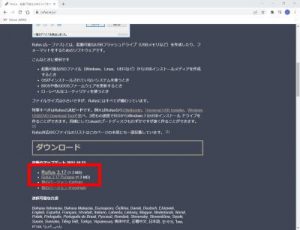
Rufus (installation USB memory creation software).

Download install.

Click the download link to download Rufus and install it on your Windows machine.


Rufus

s73

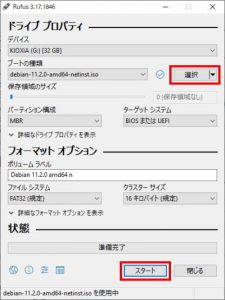
How to create an installation USB memory.

Connect the USB memory to the PC, select the iso file with “Select” and click “Start”.


s74

Tera Term (Terminal).

Download install.

Download and install Tera Term on your Windows machine to remotely connect to your Linux server from your Windows machine.


Tera Term

s75

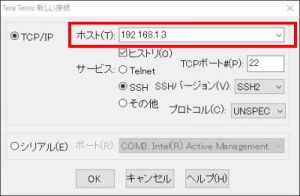
How to use Tera Term.

Enter the IP address of the server in “Host (T):”.


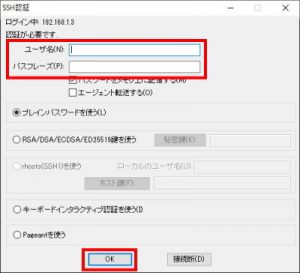
s76
Enter the login user name in “User name (N):”, enter the password in “Passphrase (P):”, and click “OK”.


s77

A list of frequently used terminal commands.

command explanation *option
su- login to root
vi File editor
vi File name
Editor command
i Edit
ESC Unedit
: q Quit without
saving: w Save
: wq Save and quit
cds move directory
cd directory path
cd only unmove
cp copy file
cp * original file path new file path
-i interactive mode
-p preserve file attributes
-R copy whole
-v display copied file name
mv It can also be used to move
files and rename files.
mv original file path new file path
rm delete file
rm * file path
-r Delete directory and all files in directory.
mkdir create folder
mkdir * folder path
-p create nested folders at once
chmod change permissions
chmod 0*** filepath
owner group others
Create/Delete
reading and writing
execution
read only
all prohibited
systemctl service operation
systemctl * service name
start Service restart
restart Service restart
stop Service stop
reload Service reset
enable Service automatic start setting
disable Service automatic start cancellation
netstat Check port
netstat *
-a Display all sockets
-n Display without conversion to service name
-t Display only TCP information
-u Display only UDP information
reboot server restart
hat Server stop

s78

Gmail registration.

Download and install Google Chrome.

Google Chrome   Gmail

s79

Email address registration for server transmission.

Register an email address to send via Gmail as a countermeasure against OP25B on the email server.

Register an email address for forwarding emails to root.

Since a large amount of mail addressed to root accumulates on the server, register an e-mail address to transfer and manage it externally.

s80

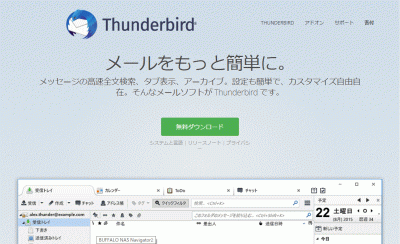
Download and install Thunderbird.

Download and install Thunderbird to register and manage Gmail.


Thunderbird

Download and install Thunderbird

s81

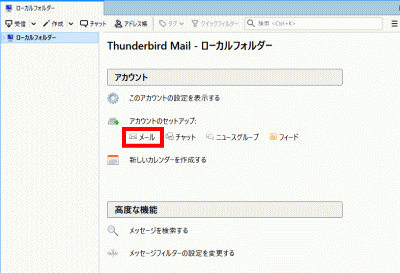
How to register your email address.

Launch Thunderbird and click Mail.


Thunderbird

s82
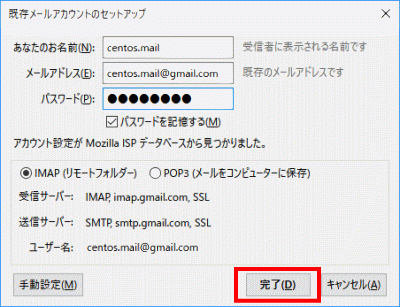
Enter your name, email address, and password, then click Continue.


continue

s83
Click Done.


completion

s84
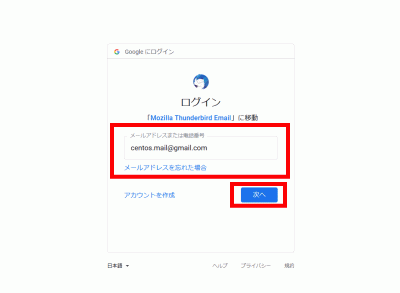
Confirm your email address and click Next.


to the next

s85
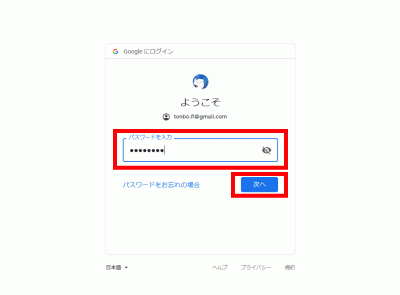
Enter your password and click Next.


to the next

s86
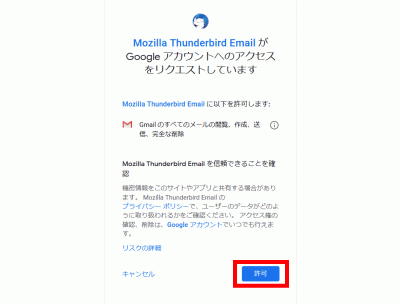
Click Allow.


permission

s87

Download and install UltraVNC.

Install the GNOME Desktop as your desktop environment.

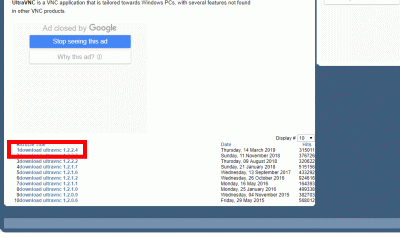
Download the UltraVNC installation file to your client PC. (There is a download link at the bottom of the top page of the UltraVNC site.)


UltraVNC  UltraVNC_1_2_40_X64_Setup.exe

Download UltraVNC

s88
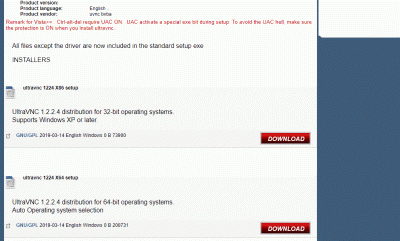
Select 32bit, 64bit and click “DOWNLOAD”.


Select 23bit, 64bit and "DOWNLOAD"

s89
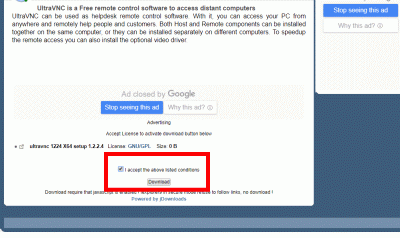
Select “I accept the above listed conditions” and click “Download”.


Select "I accept the above listed conditions" and click "Download"

s90
Double-click the downloaded “UltraVNC_***_Setup.exe” icon to install.


UltraVNC_***_Setup.exe

s91
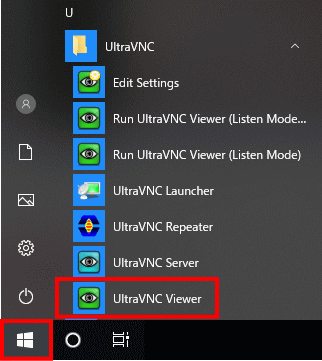
Click “Windows Start Menu” and start “UltraVNC Viewer”.


Windows start menu

s92
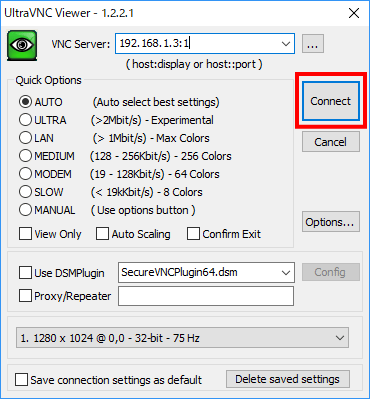
Enter the IP address of the VNC server you started earlier: Display number and click “Connect”.


VNC server IP address: Enter display number

s93
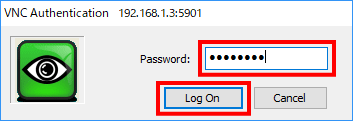
Enter your VNC password and click Log on.


Enter VNC password

s94
Your desktop will appear.


s95

Windows remote desktop functionality.

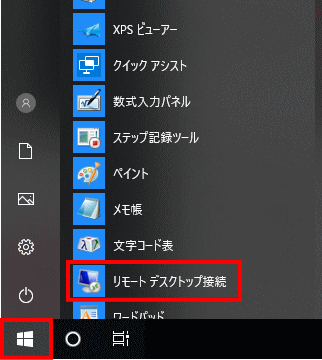
From the Windows Start menu, select “Accessories” → “Remote Desktop Connection” to launch the connection screen.


start menu

s96
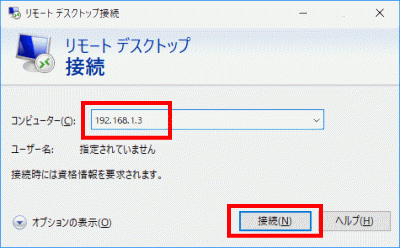
Enter the server IP address and click “Connect”.


Enter the server IP address and click "Connect"

s97
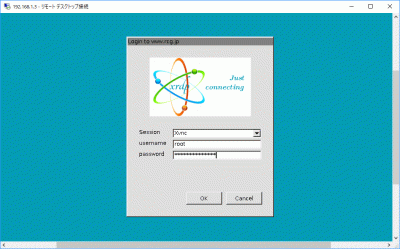
Enter “usermame” (user name), “password” (password) and click “OK”.

Enter "usermame" (user name) and "password" (password) and click "OK"

s98
Your desktop will appear.