Ubuntu18:アップグレード

アップグレード

クライアントPC(Windows)でTera Termを起動します。(Tera Termの使い方

apt updateを実行します。

root@www:~~# apt-get -y update

apt-get upgradeを実行します。

root@www:~~# apt-get -y upgrade

apt dist-upgradeを実行します。

root@www:~~# apt-get -y dist-upgrade

update-manager-coreをインストールします。

root@www:~~# apt-get -y install update-manager-core

アップグレードします。

root@www:~~# do-release-upgrade

「y」で応答します。

続行する[yN] y

「Enter」キーを押下します。

続けるには [ENTER] キーを押してください

「Enter」キーを押下します。

続けるには [ENTER] キーを押してください

「y」の応答します。

続行する[yN] 詳細 [d] y

数回下記のような質問がありますが全て「y」の応答します。

*** sysctl.conf (Y/I/N/O/D/Z) [デフォルト=N] ? y

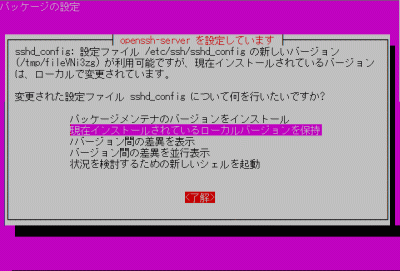
数回下記のような質問がありますが全て「現在インストールされているローカルバージョンを保持」を選択し「了解」をクリックします。(アップグレードではパスワードなどの再設定が必要な場合があります。)

バージョンを確認します。

root@www:~~# cat /etc/issue
Ubuntu 18.04.4 LTS

共通設定:起動不能を復旧

s50

起動不能を復旧.

下記のサイトで「Boot-Repair-Disk」をダウンロードします。

ダウンロードサイト

boot-repair-disk-64bit.iso
s51

インストールDVD作成.

ImgBurnを使いboot-repair-disk-64bit.isoでインストールディスクを作成します。

ライブ起動.

起動しないサーバーにインストールDVDを入れてライブ起動します。(日本語は文字化けしますので英語(English)を選択します。

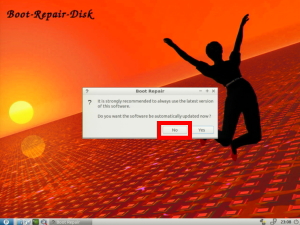
s52「No」をクリックします。

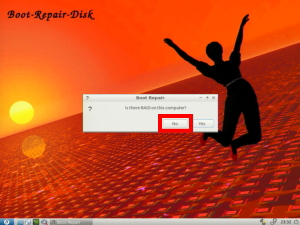
s53「No」をクリックします。

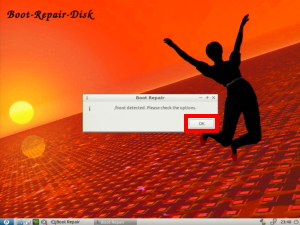
s54「OK」をクリックします。

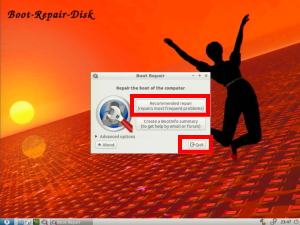
s55「Recommended repair」を選択して「Quit」をクリックします。

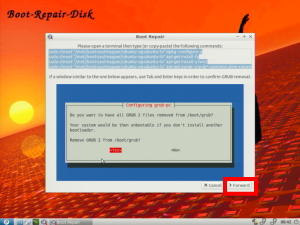
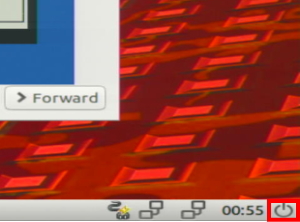
s56「Forward」をクリックします。

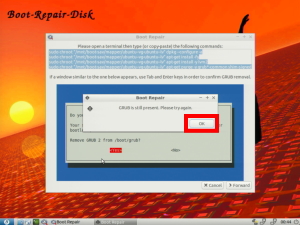
s57「OK」をクリックします。

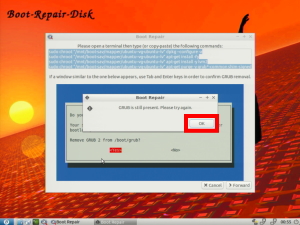
s58「OK」をクリックします。

s59「シャットダウン」をクリックして再起動します。

s60「ENTER」を押下して再起動すれば成功です。

Ubuntu:ブログサイト(Word Press)設定

s50

Webサーバー、PHP設定.

Webサーバー、PHPを設定します。

Webサーバー、PHPの設定
s51

データベース設定.

データベースを設定します。

データベースの設定
s52

ブログ用データーベースを作成.

MariaDBへrootでログインします。

[root@www ~]# 52_1mysql -u root -p
Enter password:
Welcome to the MariaDB monitor.  Commands end with ; or \g.
Your MariaDB connection id is 3
Server version: 5.5.60-MariaDB MariaDB Server

Copyright (c) 2000, 2018, Oracle, MariaDB Corporation Ab and others.

Type 'help;' or '\h' for help. Type '\c' to clear the current input statement.

s53wordpressでデータベースを作成します。

MariaDB [(none)]> 53_1create database wordpress;

s54wordpress_userでユーザーを作成します。

MariaDB [(none)]> 54_1grant all privileges on wordpress.* to wordpress_user@localhost identified by 'パスワード';

s55ログアウトします。

MariaDB [(none)]> 55_1exit

s56

WordPressインストール.

PHP7.4をインストールします。

root@www:~# 56_1apt -y update
root@www:~# 56_2apt -y install php7.4 php7.4-mbstring php-pear
root@www:~# 56_3php -v

s57PHPモジュールをインストールします。

root@www:~# 57_1apt -y install php-common php-gd php-mysql php-enchant hunspell

s58PHPを再起動します。

root@www:~# 58_1systemctl restart php7.4-fpm

s59Webディレクトリへ移動します。

[root@www ~]#59_1 cd /var/www/html

s60WordPressをダウンロードします。

[root@www ~]#60_1 wget https://ja.wordpress.org/latest-ja.tar.gz

s61WordPressを解凍します。

[root@www ~]# 61_1tar xvf latest-ja.tar.gz
[root@www ~]# 61_2rm latest-ja.tar.gz

s62ディレクトリを戻ります。

[root@www ~]# 62_1cd

s63WordPressディレクトリ所有者をApache実行ユーザーへ変更します。

[root@www ~]# 63_1chown -R apache:apache /var/www/html/wordpress/

s64

WordPress設定.

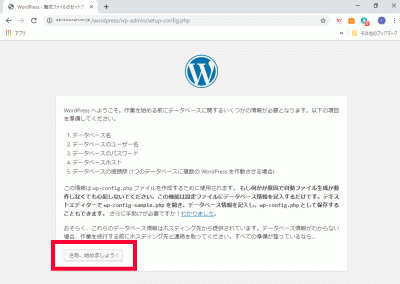
WordPressへアクセスし、「さあ、始めましょう!」をクリックします。

https://fedoraserver.jp/wordpress/

WordPress設定

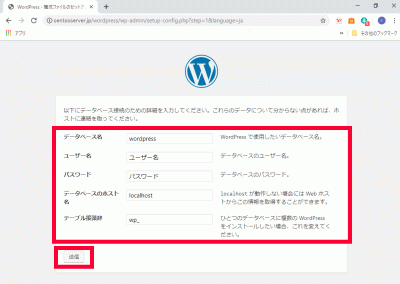
s65「データベース名」、「ユーザー名」、「パスワード」、「データベースの接頭辞」を入力し、「送信」をクリックします。

データベース名:wordpress

ユーザー名:wordpress_user

パスワード:パスワード

データベースの接頭辞:wp_wordpress_

WordPress設定

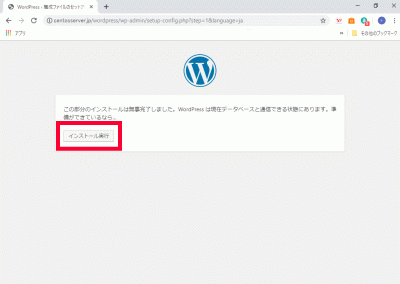
s66「インストール実行」をクリックします。

インストール実行
s67

Apache設定.

WordPress用Apache設定ファイルを作成します。

[root@www ~]# 67_1echo Alias /wordpress /var/www/html/wordpress > /etc/httpd/conf.d/wordpress.conf

s68再起動します。

[root@www ~]# 68_1systemctl reload httpd

s69

WordPress初期設定.

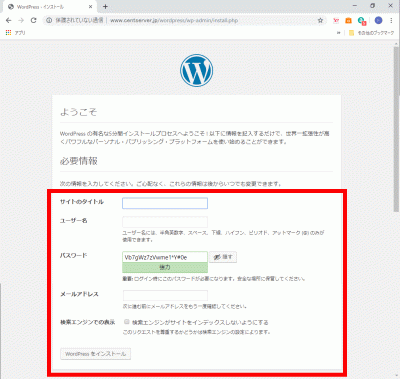
WordPressへアクセスし、任意で決めた、「サイトのタイトル」、「ユーザー名」、「パスワード」、「メールアドレス」を入力して「WordPressをインストール」をクリックします。

https://fedoraserver.jp/wordpress/

WordPress初期設定

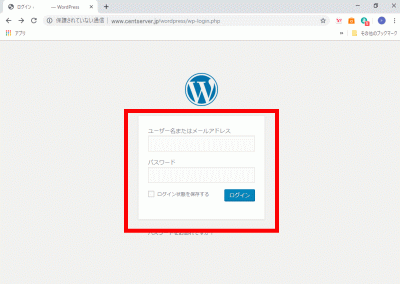
s70「ユーザー名」、「パスワード」を入力して「ログイン」をクリックし、サイト管理へログインします。

サイト管理へログイン
s71

WordPressをドメイン直下での表示設定.

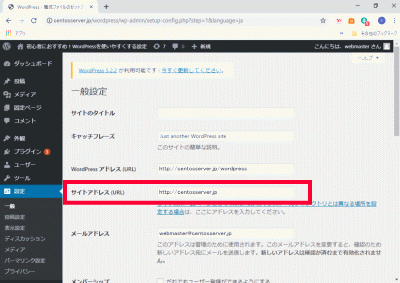
管理画面で「設定」→「一般」を開き、「サイトアドレス(URL)」に「ドメイン」を設定します。

ドメイン:https://linuxserver.jp

サイトアドレス(URL)

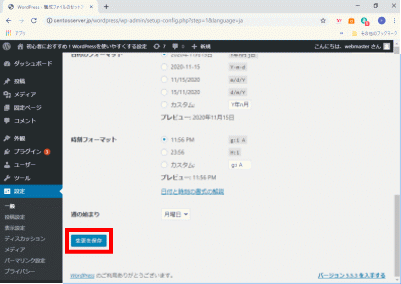
s72「変更を保存」をクリックします。

s73「index.php」をコピーして、ドメイン直下に貼り付けます。

[root@www ~]# 73_1cp /var/www/html/wordpress/index.php /var/www/html/index.php

s74「index.php」を設定します。

[root@www ~]# 74_1vi /var/www/html/index.php

s7517行目:「/wordpress」を追記します。

require( dirname( __FILE__ ) . '75_1/wordpress/wp-blog-header.php' );

s76「.htaccess」を設定します。

[root@www ~]# 76_1vi /var/www/html/.htaccess
76_2# BEGIN WordPress
<IfModule mod_rewrite.c>
    RewriteEngine On
    RewriteBase /
    RewriteRule ^index\.php$ - [L]
    RewriteCond %{REQUEST_FILENAME} !-f
    RewriteCond %{REQUEST_FILENAME} !-d
    RewriteRule . /index.php [L]
</IfModule>
# END WordPress

Ubuntu:複数ドメイン設定

s50

複数ドメイン用ディレクトリ作成.

複数ドメイン用ディレクトリを作成します。

[root@www ~]# 50_1mkdir /var/www/html/virtual.jp

s51パーミッションを設定します。

[root@www ~]# 51_1chmod 777 /var/www/html/virtual.jp

s52複数ドメイン用設定ファイルを作成します。

[root@www ~]# 52_1vi /etc/httpd/conf.d/virtualhost-virtual.jp.conf
53_1<VirtualHost *:80>
    ServerName virtual.jp
    DocumentRoot /var/www/html/virtual.jp
    RewriteEngine On
    RewriteCond %{HTTP_HOST} ^www\.virtual\.jp
    RewriteRule ^(.*)$ http://virtual.jp/$1 [R=301,L]
    ErrorLog logs/virtual.jp-error_log
    CustomLog logs/virtual.jp-access_log combined env=!no_log
</VirtualHost>

s54再起動します。

[root@www ~]# 54_1systemctl restart httpd

s55

テストページ作成.

テストページを作成します。

[root@www ~]# 55_1echo test >> /var/www/html/virtual.jp/index.html

s56Web作動確認サイトで複数ドメインの作動確認をします。

Free Monitoring Test Tools

複数ドメイン:http://virtual.jp
s57

サーバー証明書取得.

サーバー証明書を取得します。

[root@www ~]# 57_1certbot certonly --webroot -w /var/www/html/virtual.jp -m webmasterfedoraserver.jp -d virtual.jp --agree-tos

s58

複数ドメインSSL設定.

メインドメイン設定を表示します。

[root@www ~]# 58_1vi /etc/httpd/conf.d/virtualhost-00-fedoraserver.jp.conf

s59行番号を非表示にします。

59_1:set nonumber

s60SSLの設定項目をコピーしてメモ帳などに貼り付け、設定変更して保存します。

コピー範囲:<VirtualHost _default_:443>~</VirtualHost>

変更内容:<VirtualHost _default_:443> → <VirtualHost *:443>

<VirtualHost 60_1*:443>

# General setup for the virtual host, inherited from global configuration
DocumentRoot "60_2/var/www/html/virtual.jp"
ServerName 60_3virtual.jp:443

# Use separate log files for the SSL virtual host; note that LogLevel
# is not inherited from httpd.conf.
ErrorLog logs/ssl_error_log
TransferLog logs/ssl_access_log
LogLevel warn

#   SSL Engine Switch:
#   Enable/Disable SSL for this virtual host.
SSLEngine on

#   SSL Protocol support:
# List the enable protocol levels with which clients will be able to
# connect.  Disable SSLv2 access by default:
SSLProtocol -All +TLSv1 +TLSv1.1 +TLSv1.2

#   SSL Cipher Suite:
#   List the ciphers that the client is permitted to negotiate.
#   See the mod_ssl documentation for a complete list.
SSLCipherSuite HIGH:3DES:!aNULL:!MD5:!SEED:!IDEA

#   Speed-optimized SSL Cipher configuration:
#   If speed is your main concern (on busy HTTPS servers e.g.),
#   you might want to force clients to specific, performance
#   optimized ciphers. In this case, prepend those ciphers
#   to the SSLCipherSuite list, and enable SSLHonorCipherOrder.
#   Caveat: by giving precedence to RC4-SHA and AES128-SHA
#   (as in the example below), most connections will no longer
#   have perfect forward secrecy - if the server's key is
#   compromised, captures of past or future traffic must be
#   considered compromised, too.
#SSLCipherSuite RC4-SHA:AES128-SHA:HIGH:MEDIUM:!aNULL:!MD5
#SSLHonorCipherOrder on

#   Server Certificate:
# Point SSLCertificateFile at a PEM encoded certificate.  If
# the certificate is encrypted, then you will be prompted for a
# pass phrase.  Note that a kill -HUP will prompt again.  A new
# certificate can be generated using the genkey(1) command.
SSLCertificateFile 61_1/etc/letsencrypt/live/virtual.jp/cert.pem

#   Server Private Key:
#   If the key is not combined with the certificate, use this
#   directive to point at the key file.  Keep in mind that if
#   you've both a RSA and a DSA private key you can configure
#   both in parallel (to also allow the use of DSA ciphers, etc.)
SSLCertificateKeyFile 62_1/etc/letsencrypt/live/virtual.jp/privkey.pem

#   Server Certificate Chain:
#   Point SSLCertificateChainFile at a file containing the
#   concatenation of PEM encoded CA certificates which form the
#   certificate chain for the server certificate. Alternatively
#   the referenced file can be the same as SSLCertificateFile
#   when the CA certificates are directly appended to the server
#   certificate for convinience.
SSLCertificateChainFile 63_1/etc/letsencrypt/live/virtual.jp/chain.pem

#   Certificate Authority (CA):
#   Set the CA certificate verification path where to find CA
#   certificates for client authentication or alternatively one
#   huge file containing all of them (file must be PEM encoded)
#SSLCACertificateFile /etc/pki/tls/certs/ca-bundle.crt

#   Client Authentication (Type):
#   Client certificate verification type and depth.  Types are
#   none, optional, require and optional_no_ca.  Depth is a
#   number which specifies how deeply to verify the certificate
#   issuer chain before deciding the certificate is not valid.
#SSLVerifyClient require
#SSLVerifyDepth  10

#   Access Control:
#   With SSLRequire you can do per-directory access control based
#   on arbitrary complex boolean expressions containing server
#   variable checks and other lookup directives.  The syntax is a
#   mixture between C and Perl.  See the mod_ssl documentation
#   for more details.
#<Location />
#SSLRequire (    %{SSL_CIPHER} !~ m/^(EXP|NULL)/ \
#            and %{SSL_CLIENT_S_DN_O} eq "Snake Oil, Ltd." \
#            and %{SSL_CLIENT_S_DN_OU} in {"Staff", "CA", "Dev"} \
#            and %{TIME_WDAY} >= 1 and %{TIME_WDAY} <= 5 \
#            and %{TIME_HOUR} >= 8 and %{TIME_HOUR} <= 20       ) \
#           or %{REMOTE_ADDR} =~ m/^192\.76\.162\.[0-9]+$/
#</Location>

#   SSL Engine Options:
#   Set various options for the SSL engine.
#   o FakeBasicAuth:
#     Translate the client X.509 into a Basic Authorisation.  This means that
#     the standard Auth/DBMAuth methods can be used for access control.  The
#     user name is the `one line' version of the client's X.509 certificate.
#     Note that no password is obtained from the user. Every entry in the user
#     file needs this password: `xxj31ZMTZzkVA'.
#   o ExportCertData:
#     This exports two additional environment variables: SSL_CLIENT_CERT and
#     SSL_SERVER_CERT. These contain the PEM-encoded certificates of the
#     server (always existing) and the client (only existing when client
#     authentication is used). This can be used to import the certificates
#     into CGI scripts.
#   o StdEnvVars:
#     This exports the standard SSL/TLS related `SSL_*' environment variables.
#     Per default this exportation is switched off for performance reasons,
#     because the extraction step is an expensive operation and is usually
#     useless for serving static content. So one usually enables the
#     exportation for CGI and SSI requests only.
#   o StrictRequire:
#     This denies access when "SSLRequireSSL" or "SSLRequire" applied even
#     under a "Satisfy any" situation, i.e. when it applies access is denied
#     and no other module can change it.
#   o OptRenegotiate:
#     This enables optimized SSL connection renegotiation handling when SSL
#     directives are used in per-directory context.
#SSLOptions +FakeBasicAuth +ExportCertData +StrictRequire
<Files ~ "\.(cgi|shtml|phtml|php3?)$">
    SSLOptions +StdEnvVars
</Files>
<Directory "/var/www/cgi-bin">
    SSLOptions +StdEnvVars
</Directory>

#   SSL Protocol Adjustments:
#   The safe and default but still SSL/TLS standard compliant shutdown
#   approach is that mod_ssl sends the close notify alert but doesn't wait for
#   the close notify alert from client. When you need a different shutdown
#   approach you can use one of the following variables:
#   o ssl-unclean-shutdown:
#     This forces an unclean shutdown when the connection is closed, i.e. no
#     SSL close notify alert is send or allowed to received.  This violates
#     the SSL/TLS standard but is needed for some brain-dead browsers. Use
#     this when you receive I/O errors because of the standard approach where
#     mod_ssl sends the close notify alert.
#   o ssl-accurate-shutdown:
#     This forces an accurate shutdown when the connection is closed, i.e. a
#     SSL close notify alert is send and mod_ssl waits for the close notify
#     alert of the client. This is 100% SSL/TLS standard compliant, but in
#     practice often causes hanging connections with brain-dead browsers. Use
#     this only for browsers where you know that their SSL implementation
#     works correctly.
#   Notice: Most problems of broken clients are also related to the HTTP
#   keep-alive facility, so you usually additionally want to disable
#   keep-alive for those clients, too. Use variable "nokeepalive" for this.
#   Similarly, one has to force some clients to use HTTP/1.0 to workaround
#   their broken HTTP/1.1 implementation. Use variables "downgrade-1.0" and
#   "force-response-1.0" for this.
BrowserMatch "MSIE [2-5]" \
         nokeepalive ssl-unclean-shutdown \
         downgrade-1.0 force-response-1.0

#   Per-Server Logging:
#   The home of a custom SSL log file. Use this when you want a
#   compact non-error SSL logfile on a virtual host basis.
CustomLog logs/ssl_request_log \
          "%t %h %{SSL_PROTOCOL}x %{SSL_CIPHER}x \"%r\" %b"

</VirtualHost>

s64ファイルを設定します。

[root@www ~]# 64_1vi /etc/httpd/conf.d/virtualhost-virtual.jp.conf

s65先に保存したものを最終行に貼り付けます。

<VirtualHost *:80>
    ServerName virtual.jp
    DocumentRoot /var/www/html/virtual.jp
    RewriteEngine On
    RewriteCond %{HTTP_HOST} ^www\.virtual\.jp
    RewriteRule ^(.*)$ http://virtual.jp/$1 [R=301,L]
    ErrorLog logs/virtual.jp-error_log
    CustomLog logs/virtual.jp-access_log combined env=!no_log
</VirtualHost>

<VirtualHost *:443>

# General setup for the virtual host, inherited from global configuration
DocumentRoot "/var/www/html/virtual.jp"
ServerName virtual.jp:443

# Use separate log files for the SSL virtual host; note that LogLevel
# is not inherited from httpd.conf.
ErrorLog logs/ssl_error_log
TransferLog logs/ssl_access_log
LogLevel warn

#   SSL Engine Switch:
#   Enable/Disable SSL for this virtual host.
SSLEngine on

#   SSL Protocol support:
# List the enable protocol levels with which clients will be able to
# connect.  Disable SSLv2 access by default:
SSLProtocol -All +TLSv1 +TLSv1.1 +TLSv1.2

#   SSL Cipher Suite:
#   List the ciphers that the client is permitted to negotiate.
#   See the mod_ssl documentation for a complete list.
SSLCipherSuite HIGH:3DES:!aNULL:!MD5:!SEED:!IDEA

#   Speed-optimized SSL Cipher configuration:
#   If speed is your main concern (on busy HTTPS servers e.g.),
#   you might want to force clients to specific, performance
#   optimized ciphers. In this case, prepend those ciphers
#   to the SSLCipherSuite list, and enable SSLHonorCipherOrder.
#   Caveat: by giving precedence to RC4-SHA and AES128-SHA
#   (as in the example below), most connections will no longer
#   have perfect forward secrecy - if the server's key is
#   compromised, captures of past or future traffic must be
#   considered compromised, too.
#SSLCipherSuite RC4-SHA:AES128-SHA:HIGH:MEDIUM:!aNULL:!MD5
#SSLHonorCipherOrder on

#   Server Certificate:
# Point SSLCertificateFile at a PEM encoded certificate.  If
# the certificate is encrypted, then you will be prompted for a
# pass phrase.  Note that a kill -HUP will prompt again.  A new
# certificate can be generated using the genkey(1) command.
SSLCertificateFile /etc/letsencrypt/live/virtual.jp/cert.pem

#   Server Private Key:
#   If the key is not combined with the certificate, use this
#   directive to point at the key file.  Keep in mind that if
#   you've both a RSA and a DSA private key you can configure
#   both in parallel (to also allow the use of DSA ciphers, etc.)
SSLCertificateKeyFile /etc/letsencrypt/live/virtual.jp/privkey.pem

#   Server Certificate Chain:
#   Point SSLCertificateChainFile at a file containing the
#   concatenation of PEM encoded CA certificates which form the
#   certificate chain for the server certificate. Alternatively
#   the referenced file can be the same as SSLCertificateFile
#   when the CA certificates are directly appended to the server
#   certificate for convinience.
SSLCertificateChainFile /etc/letsencrypt/live/virtual.jp/chain.pem

#   Certificate Authority (CA):
#   Set the CA certificate verification path where to find CA
#   certificates for client authentication or alternatively one
#   huge file containing all of them (file must be PEM encoded)
#SSLCACertificateFile /etc/pki/tls/certs/ca-bundle.crt

#   Client Authentication (Type):
#   Client certificate verification type and depth.  Types are
#   none, optional, require and optional_no_ca.  Depth is a
#   number which specifies how deeply to verify the certificate
#   issuer chain before deciding the certificate is not valid.
#SSLVerifyClient require
#SSLVerifyDepth  10

#   Access Control:
#   With SSLRequire you can do per-directory access control based
#   on arbitrary complex boolean expressions containing server
#   variable checks and other lookup directives.  The syntax is a
#   mixture between C and Perl.  See the mod_ssl documentation
#   for more details.
#<Location />
#SSLRequire (    %{SSL_CIPHER} !~ m/^(EXP|NULL)/ \
#            and %{SSL_CLIENT_S_DN_O} eq "Snake Oil, Ltd." \
#            and %{SSL_CLIENT_S_DN_OU} in {"Staff", "CA", "Dev"} \
#            and %{TIME_WDAY} >= 1 and %{TIME_WDAY} <= 5 \
#            and %{TIME_HOUR} >= 8 and %{TIME_HOUR} <= 20       ) \
#           or %{REMOTE_ADDR} =~ m/^192\.76\.162\.[0-9]+$/
#</Location>

#   SSL Engine Options:
#   Set various options for the SSL engine.
#   o FakeBasicAuth:
#     Translate the client X.509 into a Basic Authorisation.  This means that
#     the standard Auth/DBMAuth methods can be used for access control.  The
#     user name is the `one line' version of the client's X.509 certificate.
#     Note that no password is obtained from the user. Every entry in the user
#     file needs this password: `xxj31ZMTZzkVA'.
#   o ExportCertData:
#     This exports two additional environment variables: SSL_CLIENT_CERT and
#     SSL_SERVER_CERT. These contain the PEM-encoded certificates of the
#     server (always existing) and the client (only existing when client
#     authentication is used). This can be used to import the certificates
#     into CGI scripts.
#   o StdEnvVars:
#     This exports the standard SSL/TLS related `SSL_*' environment variables.
#     Per default this exportation is switched off for performance reasons,
#     because the extraction step is an expensive operation and is usually
#     useless for serving static content. So one usually enables the
#     exportation for CGI and SSI requests only.
#   o StrictRequire:
#     This denies access when "SSLRequireSSL" or "SSLRequire" applied even
#     under a "Satisfy any" situation, i.e. when it applies access is denied
#     and no other module can change it.
#   o OptRenegotiate:
#     This enables optimized SSL connection renegotiation handling when SSL
#     directives are used in per-directory context.
#SSLOptions +FakeBasicAuth +ExportCertData +StrictRequire
<Files ~ "\.(cgi|shtml|phtml|php3?)$">
    SSLOptions +StdEnvVars
</Files>
<Directory "/var/www/cgi-bin">
    SSLOptions +StdEnvVars
</Directory>

#   SSL Protocol Adjustments:
#   The safe and default but still SSL/TLS standard compliant shutdown
#   approach is that mod_ssl sends the close notify alert but doesn't wait for
#   the close notify alert from client. When you need a different shutdown
#   approach you can use one of the following variables:
#   o ssl-unclean-shutdown:
#     This forces an unclean shutdown when the connection is closed, i.e. no
#     SSL close notify alert is send or allowed to received.  This violates
#     the SSL/TLS standard but is needed for some brain-dead browsers. Use
#     this when you receive I/O errors because of the standard approach where
#     mod_ssl sends the close notify alert.
#   o ssl-accurate-shutdown:
#     This forces an accurate shutdown when the connection is closed, i.e. a
#     SSL close notify alert is send and mod_ssl waits for the close notify
#     alert of the client. This is 100% SSL/TLS standard compliant, but in
#     practice often causes hanging connections with brain-dead browsers. Use
#     this only for browsers where you know that their SSL implementation
#     works correctly.
#   Notice: Most problems of broken clients are also related to the HTTP
#   keep-alive facility, so you usually additionally want to disable
#   keep-alive for those clients, too. Use variable "nokeepalive" for this.
#   Similarly, one has to force some clients to use HTTP/1.0 to workaround
#   their broken HTTP/1.1 implementation. Use variables "downgrade-1.0" and
#   "force-response-1.0" for this.
BrowserMatch "MSIE [2-5]" \
         nokeepalive ssl-unclean-shutdown \
         downgrade-1.0 force-response-1.0

#   Per-Server Logging:
#   The home of a custom SSL log file. Use this when you want a
#   compact non-error SSL logfile on a virtual host basis.
CustomLog logs/ssl_request_log \
          "%t %h %{SSL_PROTOCOL}x %{SSL_CIPHER}x \"%r\" %b"

</VirtualHost>

s66

BIND設定.

ホームネットワーク内でドメイン名で表示する様にBIND を設定します。

[root@www ~]# 66_1vi /etc/named.conf

//
// named.conf
//
// Provided by Red Hat bind package to configure the ISC BIND named(8) DNS
// server as a caching only nameserver (as a localhost DNS resolver only).
//
// See /usr/share/doc/bind*/sample/ for example named configuration files.
//
// See the BIND Administrator's Reference Manual (ARM) for details about the
// configuration located in /usr/share/doc/bind-{version}/Bv9ARM.html


options {
        listen-on port 53 { any; };
        listen-on-v6 port 53 { none; };
        directory       "/var/named";
        dump-file       "/var/named/data/cache_dump.db";
        statistics-file "/var/named/data/named_stats.txt";
        memstatistics-file "/var/named/data/named_mem_stats.txt";
        recursing-file  "/var/named/data/named.recursing";
        secroots-file   "/var/named/data/named.secroots";
        allow-query     { localhost; 192.168.1.1/24; };
        allow-transfer      { localhost; 192.168.1.1/24; };

        /*
         - If you are building an AUTHORITATIVE DNS server, do NOT enable recursion.
         - If you are building a RECURSIVE (caching) DNS server, you need to enable
           recursion.
         - If your recursive DNS server has a public IP address, you MUST enable access
           control to limit queries to your legitimate users. Failing to do so will
           cause your server to become part of large scale DNS amplification
           attacks. Implementing BCP38 within your network would greatly
           reduce such attack surface
        */
        recursion yes;

        dnssec-enable yes;
        dnssec-validation yes;

        /* Path to ISC DLV key */
        bindkeys-file "/etc/named.iscdlv.key";

        managed-keys-directory "/var/named/dynamic";

        pid-file "/run/named/named.pid";
        session-keyfile "/run/named/session.key";
};

logging {
        channel default_debug {
                file "data/named.run";
                severity dynamic;
        };
};

view "internal" {
        match-clients {
                localhost;
                192.168.1.1/24;
        };
        zone "." IN {
                type hint;
                file "named.ca";
        };
        zone "fedoraserver.jp" IN {
                type master;
                file "fedoraserver.jp.lan";
                allow-update { none; };
        };
67_1        zone "virtual.jp" IN {
                type master;
                file "virtual.jp.lan";
                allow-update { none; };
        };
        zone "1.168.192.in-addr.arpa" IN {
                type master;
                file "1.168.192.db";
                allow-update { none; };
        };
include "/etc/named.rfc1912.zones";
include "/etc/named.root.key";
};

s68

ゾーン情報の設定.

内部向け正引き情報ファイルを作成します。

[root@www ~]# 68_1vi /var/named/virtual.jp.lan

69_1$TTL 86400
@   IN  SOA     virtual.jp. root.virtual.jp. (
        2014071001  ;Serial
        3600        ;Refresh
        1800        ;Retry
        604800      ;Expire
        86400       ;Minimum TTL
)
        IN  NS      virtual.jp.
        IN  MX 10   virtual.jp.
@       IN  A       192.168.1.3
*       IN  A       192.168.1.3

s70再起動します。

[root@www ~]# 70_1reboot

s71Web作動確認サイトで複数ドメインの作動確認をします。

Free Monitoring Test Tools

複数ドメイン:https://virtual.jp

Ubuntu:サブドメイン設定

s50

サブドメイン用ディレクトリ作成.

サブドメイン用ディレクトリを作成します。

[root@www ~]# 50_1mkdir /var/www/html/sub.ubuntuserver.jp

s51パーミッションを設定します。

[root@www ~]# 51_1chmod 777 /var/www/html/sub.ubuntuserver.jp

s52サブドメイン用設定ファイルを作成します。

[root@www ~]# 52_1vi /etc/httpd/conf.d/virtualhost-sub.ubuntuserver.jp.conf
52_2<VirtualHost *:80>
    ServerName sub.ubuntuserver.jp
    DocumentRoot /var/www/html/sub.ubuntuserver.jp
    RewriteEngine On
    RewriteCond %{HTTP_HOST} ^www\.sub\.ubuntuserver\.jp
    RewriteRule ^(.*)$ http://sub.ubuntuserver.jp/$1 [R=301,L]
    ErrorLog logs/sub.ubuntuserver.jp-error_log
    CustomLog logs/sub.ubuntuserver.jp-access_log combined env=!no_log
</VirtualHost>

s53再起動します。

[root@www ~]# 53_1systemctl restart httpd

s54

テストページ作成.

テストページを作成します。

[root@www ~]# 54_1echo test >> /var/www/html/sub.ubuntuserver.jp/index.html

s55Web作動確認サイトでサブドメインの作動確認をします。

Free Monitoring Test Tools

サブドメイン:http://sub.ubuntuserver.jp
s56

サーバー証明書取得.

サーバー証明書を取得します。

[root@www ~]# 56_1certbot certonly --webroot -w /var/www/html/sub.ubuntuserver.jp -m webmasterubuntuserver.jp -d sub.ubuntuserver.jp --agree-tos

s57

メインドメインSSL設定.

ファイルのバックアップを作成します。

[root@www ~]# 57_1cp /etc/httpd/conf.d/ssl.conf /etc/httpd/conf.d/ssl.conf.bk

s58ファイルを設定します。

[root@www ~]# 58_1vi /etc/httpd/conf.d/ssl.conf

s59行番号を非表示にします。

59_1:set nonumber

s60SSLの設定項目をコピーしてメモ帳などに貼り付け、設定変更して保存します。

コピー範囲:<VirtualHost _default_:443>~</VirtualHost>

変更内容:<VirtualHost _default_:443> → <VirtualHost *:443>

<VirtualHost 60_1*:443>

# General setup for the virtual host, inherited from global configuration
DocumentRoot "/var/www/html"
ServerName ubuntuserver.jp:443

# Use separate log files for the SSL virtual host; note that LogLevel
# is not inherited from httpd.conf.
ErrorLog logs/ssl_error_log
TransferLog logs/ssl_access_log
LogLevel warn

#   SSL Engine Switch:
#   Enable/Disable SSL for this virtual host.
SSLEngine on

#   SSL Protocol support:
# List the enable protocol levels with which clients will be able to
# connect.  Disable SSLv2 access by default:
SSLProtocol -All +TLSv1 +TLSv1.1 +TLSv1.2

#   SSL Cipher Suite:
#   List the ciphers that the client is permitted to negotiate.
#   See the mod_ssl documentation for a complete list.
SSLCipherSuite HIGH:3DES:!aNULL:!MD5:!SEED:!IDEA

#   Speed-optimized SSL Cipher configuration:
#   If speed is your main concern (on busy HTTPS servers e.g.),
#   you might want to force clients to specific, performance
#   optimized ciphers. In this case, prepend those ciphers
#   to the SSLCipherSuite list, and enable SSLHonorCipherOrder.
#   Caveat: by giving precedence to RC4-SHA and AES128-SHA
#   (as in the example below), most connections will no longer
#   have perfect forward secrecy - if the server's key is
#   compromised, captures of past or future traffic must be
#   considered compromised, too.
#SSLCipherSuite RC4-SHA:AES128-SHA:HIGH:MEDIUM:!aNULL:!MD5
#SSLHonorCipherOrder on

#   Server Certificate:
# Point SSLCertificateFile at a PEM encoded certificate.  If
# the certificate is encrypted, then you will be prompted for a
# pass phrase.  Note that a kill -HUP will prompt again.  A new
# certificate can be generated using the genkey(1) command.
SSLCertificateFile /etc/letsencrypt/live/ubuntuserver.jp/cert.pem

#   Server Private Key:
#   If the key is not combined with the certificate, use this
#   directive to point at the key file.  Keep in mind that if
#   you've both a RSA and a DSA private key you can configure
#   both in parallel (to also allow the use of DSA ciphers, etc.)
SSLCertificateKeyFile /etc/letsencrypt/live/ubuntuserver.jp/privkey.pem

#   Server Certificate Chain:
#   Point SSLCertificateChainFile at a file containing the
#   concatenation of PEM encoded CA certificates which form the
#   certificate chain for the server certificate. Alternatively
#   the referenced file can be the same as SSLCertificateFile
#   when the CA certificates are directly appended to the server
#   certificate for convinience.
SSLCertificateChainFile /etc/letsencrypt/live/ubuntuserver.jp/chain.pem

#   Certificate Authority (CA):
#   Set the CA certificate verification path where to find CA
#   certificates for client authentication or alternatively one
#   huge file containing all of them (file must be PEM encoded)
#SSLCACertificateFile /etc/pki/tls/certs/ca-bundle.crt

#   Client Authentication (Type):
#   Client certificate verification type and depth.  Types are
#   none, optional, require and optional_no_ca.  Depth is a
#   number which specifies how deeply to verify the certificate
#   issuer chain before deciding the certificate is not valid.
#SSLVerifyClient require
#SSLVerifyDepth  10

#   Access Control:
#   With SSLRequire you can do per-directory access control based
#   on arbitrary complex boolean expressions containing server
#   variable checks and other lookup directives.  The syntax is a
#   mixture between C and Perl.  See the mod_ssl documentation
#   for more details.
#<Location />
#SSLRequire (    %{SSL_CIPHER} !~ m/^(EXP|NULL)/ \
#            and %{SSL_CLIENT_S_DN_O} eq "Snake Oil, Ltd." \
#            and %{SSL_CLIENT_S_DN_OU} in {"Staff", "CA", "Dev"} \
#            and %{TIME_WDAY} >= 1 and %{TIME_WDAY} <= 5 \
#            and %{TIME_HOUR} >= 8 and %{TIME_HOUR} <= 20       ) \
#           or %{REMOTE_ADDR} =~ m/^192\.76\.162\.[0-9]+$/
#</Location>

#   SSL Engine Options:
#   Set various options for the SSL engine.
#   o FakeBasicAuth:
#     Translate the client X.509 into a Basic Authorisation.  This means that
#     the standard Auth/DBMAuth methods can be used for access control.  The
#     user name is the `one line' version of the client's X.509 certificate.
#     Note that no password is obtained from the user. Every entry in the user
#     file needs this password: `xxj31ZMTZzkVA'.
#   o ExportCertData:
#     This exports two additional environment variables: SSL_CLIENT_CERT and
#     SSL_SERVER_CERT. These contain the PEM-encoded certificates of the
#     server (always existing) and the client (only existing when client
#     authentication is used). This can be used to import the certificates
#     into CGI scripts.
#   o StdEnvVars:
#     This exports the standard SSL/TLS related `SSL_*' environment variables.
#     Per default this exportation is switched off for performance reasons,
#     because the extraction step is an expensive operation and is usually
#     exportation for CGI and SSI requests only.
#   o StrictRequire:
#     This denies access when "SSLRequireSSL" or "SSLRequire" applied even
#     under a "Satisfy any" situation, i.e. when it applies access is denied
#     and no other module can change it.
#   o OptRenegotiate:
#     This enables optimized SSL connection renegotiation handling when SSL
#     directives are used in per-directory context.
#SSLOptions +FakeBasicAuth +ExportCertData +StrictRequire
<Files ~ "\.(cgi|shtml|phtml|php3?)$">
    SSLOptions +StdEnvVars
</Files>
<Directory "/var/www/cgi-bin">
    SSLOptions +StdEnvVars
</Directory>

#   SSL Protocol Adjustments:
#   The safe and default but still SSL/TLS standard compliant shutdown
#   approach is that mod_ssl sends the close notify alert but doesn't wait for
#   the close notify alert from client. When you need a different shutdown
#   approach you can use one of the following variables:
#   o ssl-unclean-shutdown:
#     This forces an unclean shutdown when the connection is closed, i.e. no
#     SSL close notify alert is send or allowed to received.  This violates
#     the SSL/TLS standard but is needed for some brain-dead browsers. Use
#     this when you receive I/O errors because of the standard approach where
#     mod_ssl sends the close notify alert.
#   o ssl-accurate-shutdown:
#     This forces an accurate shutdown when the connection is closed, i.e. a
#     SSL close notify alert is send and mod_ssl waits for the close notify
#     alert of the client. This is 100% SSL/TLS standard compliant, but in
#     practice often causes hanging connections with brain-dead browsers. Use
#     this only for browsers where you know that their SSL implementation
#     works correctly.
#   Notice: Most problems of broken clients are also related to the HTTP
#   keep-alive facility, so you usually additionally want to disable
#   keep-alive for those clients, too. Use variable "nokeepalive" for this.
#   Similarly, one has to force some clients to use HTTP/1.0 to workaround
#   their broken HTTP/1.1 implementation. Use variables "downgrade-1.0" and
#   "force-response-1.0" for this.
BrowserMatch "MSIE [2-5]" \
         nokeepalive ssl-unclean-shutdown \
         downgrade-1.0 force-response-1.0

#   Per-Server Logging:
#   The home of a custom SSL log file. Use this when you want a
#   compact non-error SSL logfile on a virtual host basis.
CustomLog logs/ssl_request_log \
          "%t %h %{SSL_PROTOCOL}x %{SSL_CIPHER}x \"%r\" %b"

</VirtualHost>

s62ファイルを設定します。

[root@www ~]# 62_1vi /etc/httpd/conf.d/virtualhost-00-ubuntuserver.jp.conf

s63先に保存したものを最終行に貼り付けます。

<VirtualHost *:80>
    ServerName ubuntuserver.jp
    DocumentRoot /var/www/html/ubuntuserver.jp
    RewriteEngine On
    RewriteCond %{HTTP_HOST} ^www\.ubuntuserver\.jp
    RewriteRule ^(.*)$ http://ubuntuserver.jp/$1 [R=301,L]
</VirtualHost>

<VirtualHost *:443>

# General setup for the virtual host, inherited from global configuration
DocumentRoot "/var/www/html"
ServerName ubuntuserver.jp:443

# Use separate log files for the SSL virtual host; note that LogLevel
# is not inherited from httpd.conf.
ErrorLog logs/ssl_error_log
TransferLog logs/ssl_access_log
LogLevel warn

#   SSL Engine Switch:
#   Enable/Disable SSL for this virtual host.
SSLEngine on

#   SSL Protocol support:
# List the enable protocol levels with which clients will be able to
# connect.  Disable SSLv2 access by default:
SSLProtocol -All +TLSv1 +TLSv1.1 +TLSv1.2

#   SSL Cipher Suite:
#   List the ciphers that the client is permitted to negotiate.
#   See the mod_ssl documentation for a complete list.
SSLCipherSuite HIGH:3DES:!aNULL:!MD5:!SEED:!IDEA

#   Speed-optimized SSL Cipher configuration:
#   If speed is your main concern (on busy HTTPS servers e.g.),
#   you might want to force clients to specific, performance
#   optimized ciphers. In this case, prepend those ciphers
#   to the SSLCipherSuite list, and enable SSLHonorCipherOrder.
#   Caveat: by giving precedence to RC4-SHA and AES128-SHA
#   (as in the example below), most connections will no longer
#   have perfect forward secrecy - if the server's key is
#   compromised, captures of past or future traffic must be
#   considered compromised, too.
#SSLCipherSuite RC4-SHA:AES128-SHA:HIGH:MEDIUM:!aNULL:!MD5
#SSLHonorCipherOrder on

#   Server Certificate:
# Point SSLCertificateFile at a PEM encoded certificate.  If
# the certificate is encrypted, then you will be prompted for a
# pass phrase.  Note that a kill -HUP will prompt again.  A new
# certificate can be generated using the genkey(1) command.
SSLCertificateFile /etc/letsencrypt/live/ubuntuserver.jp/cert.pem

#   Server Private Key:
#   If the key is not combined with the certificate, use this
#   directive to point at the key file.  Keep in mind that if
#   you've both a RSA and a DSA private key you can configure
#   both in parallel (to also allow the use of DSA ciphers, etc.)
SSLCertificateKeyFile /etc/letsencrypt/live/ubuntuserver.jp/privkey.pem

#   Server Certificate Chain:
#   Point SSLCertificateChainFile at a file containing the
#   concatenation of PEM encoded CA certificates which form the
#   certificate chain for the server certificate. Alternatively
#   the referenced file can be the same as SSLCertificateFile
#   when the CA certificates are directly appended to the server
#   certificate for convinience.
SSLCertificateChainFile /etc/letsencrypt/live/ubuntuserver.jp/chain.pem

#   Certificate Authority (CA):
#   Set the CA certificate verification path where to find CA
#   certificates for client authentication or alternatively one
#   huge file containing all of them (file must be PEM encoded)
#SSLCACertificateFile /etc/pki/tls/certs/ca-bundle.crt

#   Client Authentication (Type):
#   Client certificate verification type and depth.  Types are
#   none, optional, require and optional_no_ca.  Depth is a
#   number which specifies how deeply to verify the certificate
#   issuer chain before deciding the certificate is not valid.
#SSLVerifyClient require
#SSLVerifyDepth  10

#   Access Control:
#   With SSLRequire you can do per-directory access control based
#   on arbitrary complex boolean expressions containing server
#   variable checks and other lookup directives.  The syntax is a
#   mixture between C and Perl.  See the mod_ssl documentation
#   for more details.
#<Location />
#SSLRequire (    %{SSL_CIPHER} !~ m/^(EXP|NULL)/ \
#            and %{SSL_CLIENT_S_DN_O} eq "Snake Oil, Ltd." \
#            and %{SSL_CLIENT_S_DN_OU} in {"Staff", "CA", "Dev"} \
#            and %{TIME_WDAY} >= 1 and %{TIME_WDAY} <= 5 \
#            and %{TIME_HOUR} >= 8 and %{TIME_HOUR} <= 20       ) \
#           or %{REMOTE_ADDR} =~ m/^192\.76\.162\.[0-9]+$/
#</Location>

#   SSL Engine Options:
#   Set various options for the SSL engine.
#   o FakeBasicAuth:
#     Translate the client X.509 into a Basic Authorisation.  This means that
#     the standard Auth/DBMAuth methods can be used for access control.  The
#     user name is the `one line' version of the client's X.509 certificate.
#     Note that no password is obtained from the user. Every entry in the user
#     file needs this password: `xxj31ZMTZzkVA'.
#   o ExportCertData:
#     This exports two additional environment variables: SSL_CLIENT_CERT and
#     SSL_SERVER_CERT. These contain the PEM-encoded certificates of the
#     server (always existing) and the client (only existing when client
#     authentication is used). This can be used to import the certificates
#     into CGI scripts.
#   o StdEnvVars:
#     This exports the standard SSL/TLS related `SSL_*' environment variables.
#     Per default this exportation is switched off for performance reasons,
#     because the extraction step is an expensive operation and is usually
#     useless for serving static content. So one usually enables the
#     exportation for CGI and SSI requests only.
#   o StrictRequire:
#     This denies access when "SSLRequireSSL" or "SSLRequire" applied even
#     under a "Satisfy any" situation, i.e. when it applies access is denied
#     and no other module can change it.
#   o OptRenegotiate:
#     This enables optimized SSL connection renegotiation handling when SSL
#     directives are used in per-directory context.
#SSLOptions +FakeBasicAuth +ExportCertData +StrictRequire
<Files ~ "\.(cgi|shtml|phtml|php3?)$">
    SSLOptions +StdEnvVars
</Files>
<Directory "/var/www/cgi-bin">
    SSLOptions +StdEnvVars
</Directory>

#   SSL Protocol Adjustments:
#   The safe and default but still SSL/TLS standard compliant shutdown
#   approach is that mod_ssl sends the close notify alert but doesn't wait for
#   the close notify alert from client. When you need a different shutdown
#   approach you can use one of the following variables:
#   o ssl-unclean-shutdown:
#     This forces an unclean shutdown when the connection is closed, i.e. no
#     SSL close notify alert is send or allowed to received.  This violates
#     the SSL/TLS standard but is needed for some brain-dead browsers. Use
#     this when you receive I/O errors because of the standard approach where
#     mod_ssl sends the close notify alert.
#   o ssl-accurate-shutdown:
#     This forces an accurate shutdown when the connection is closed, i.e. a
#     SSL close notify alert is send and mod_ssl waits for the close notify
#     alert of the client. This is 100% SSL/TLS standard compliant, but in
#     practice often causes hanging connections with brain-dead browsers. Use
#     this only for browsers where you know that their SSL implementation
#     works correctly.
#   Notice: Most problems of broken clients are also related to the HTTP
#   keep-alive facility, so you usually additionally want to disable
#   keep-alive for those clients, too. Use variable "nokeepalive" for this.
#   Similarly, one has to force some clients to use HTTP/1.0 to workaround
#   their broken HTTP/1.1 implementation. Use variables "downgrade-1.0" and
#   "force-response-1.0" for this.
BrowserMatch "MSIE [2-5]" \
         nokeepalive ssl-unclean-shutdown \
         downgrade-1.0 force-response-1.0

#   Per-Server Logging:
#   The home of a custom SSL log file. Use this when you want a
#   compact non-error SSL logfile on a virtual host basis.
CustomLog logs/ssl_request_log \
          "%t %h %{SSL_PROTOCOL}x %{SSL_CIPHER}x \"%r\" %b"

</VirtualHost>

s64ファイルを設定します。

[root@www ~]# 64_1vi /etc/httpd/conf.d/ssl.conf

s65<VirtualHost _default_:443>~</VirtualHost>を削除します。

#
# When we also provide SSL we have to listen to the
# the HTTPS port in addition.
#
Listen 443 https

##
##  SSL Global Context
##
##  All SSL configuration in this context applies both to
##  the main server and all SSL-enabled virtual hosts.
##

#   Pass Phrase Dialog:
#   Configure the pass phrase gathering process.
#   The filtering dialog program (`builtin' is a internal
#   terminal dialog) has to provide the pass phrase on stdout.
SSLPassPhraseDialog exec:/usr/libexec/httpd-ssl-pass-dialog

#   Inter-Process Session Cache:
#   Configure the SSL Session Cache: First the mechanism
#   to use and second the expiring timeout (in seconds).
SSLSessionCache         shmcb:/run/httpd/sslcache(512000)
SSLSessionCacheTimeout  300

#   Pseudo Random Number Generator (PRNG):
#   Configure one or more sources to seed the PRNG of the
#   SSL library. The seed data should be of good random quality.
#   WARNING! On some platforms /dev/random blocks if not enough entropy
#   is available. This means you then cannot use the /dev/random device
#   because it would lead to very long connection times (as long as
#   it requires to make more entropy available). But usually those
#   platforms additionally provide a /dev/urandom device which doesn't
#   block. So, if available, use this one instead. Read the mod_ssl User
#   Manual for more details.
SSLRandomSeed startup file:/dev/urandom  256
SSLRandomSeed connect builtin
#SSLRandomSeed startup file:/dev/random  512
#SSLRandomSeed connect file:/dev/random  512
#SSLRandomSeed connect file:/dev/urandom 512

#
# Use "SSLCryptoDevice" to enable any supported hardware
# accelerators. Use "openssl engine -v" to list supported
# engine names.  NOTE: If you enable an accelerator and the
# server does not start, consult the error logs and ensure
# your accelerator is functioning properly.
#
SSLCryptoDevice builtin
#SSLCryptoDevice ubsec
#以下を削除

s66

サブドメインSSL設定.

先に保存したものをサブドメイン設定に修正します。

1行目:「_default_」を「*」に変更し、全てのドメインをサブドメインに変更します。

ドメイン:debianserver.jp

サブドメイン:sub.debianserver.jp

<VirtualHost 66_1*:443>

# General setup for the virtual host, inherited from global configuration
DocumentRoot "/var/www/html66_2/sub.ubuntuserver.jp"
ServerName 66_3 sub.ubuntuserver.jp:443

# Use separate log files for the SSL virtual host; note that LogLevel
# is not inherited from httpd.conf.
ErrorLog logs/ssl_error_log
TransferLog logs/ssl_access_log
LogLevel warn

#   SSL Engine Switch:
#   Enable/Disable SSL for this virtual host.
SSLEngine on

#   SSL Protocol support:
# List the enable protocol levels with which clients will be able to
# connect.  Disable SSLv2 access by default:
SSLProtocol -All +TLSv1 +TLSv1.1 +TLSv1.2

#   SSL Cipher Suite:
#   List the ciphers that the client is permitted to negotiate.
#   See the mod_ssl documentation for a complete list.
SSLCipherSuite HIGH:3DES:!aNULL:!MD5:!SEED:!IDEA

#   Speed-optimized SSL Cipher configuration:
#   If speed is your main concern (on busy HTTPS servers e.g.),
#   you might want to force clients to specific, performance
#   optimized ciphers. In this case, prepend those ciphers
#   to the SSLCipherSuite list, and enable SSLHonorCipherOrder.
#   Caveat: by giving precedence to RC4-SHA and AES128-SHA
#   (as in the example below), most connections will no longer
#   have perfect forward secrecy - if the server's key is
#   compromised, captures of past or future traffic must be
#   considered compromised, too.
#SSLCipherSuite RC4-SHA:AES128-SHA:HIGH:MEDIUM:!aNULL:!MD5
#SSLHonorCipherOrder on

#   Server Certificate:
# Point SSLCertificateFile at a PEM encoded certificate.  If
# the certificate is encrypted, then you will be prompted for a
# pass phrase.  Note that a kill -HUP will prompt again.  A new
# certificate can be generated using the genkey(1) command.
SSLCertificateFile /etc/letsencrypt/live/66_4sub.ubuntuserver.jp/cert.pem

#   Server Private Key:
#   If the key is not combined with the certificate, use this
#   directive to point at the key file.  Keep in mind that if
#   you've both a RSA and a DSA private key you can configure
#   both in parallel (to also allow the use of DSA ciphers, etc.)
SSLCertificateKeyFile /etc/letsencrypt/live/66_5sub.ubuntuserver.jp/privkey.pem

#   Server Certificate Chain:
#   Point SSLCertificateChainFile at a file containing the
#   concatenation of PEM encoded CA certificates which form the
#   certificate chain for the server certificate. Alternatively
#   the referenced file can be the same as SSLCertificateFile
#   when the CA certificates are directly appended to the server
#   certificate for convinience.
SSLCertificateChainFile /etc/letsencrypt/live/66_6sub.ubuntuserver.jp/chain.pem

#   Certificate Authority (CA):
#   Set the CA certificate verification path where to find CA
#   certificates for client authentication or alternatively one
#   huge file containing all of them (file must be PEM encoded)
#SSLCACertificateFile /etc/pki/tls/certs/ca-bundle.crt

#   Client Authentication (Type):
#   Client certificate verification type and depth.  Types are
#   none, optional, require and optional_no_ca.  Depth is a
#   number which specifies how deeply to verify the certificate
#   issuer chain before deciding the certificate is not valid.
#SSLVerifyClient require
#SSLVerifyDepth  10

#   Access Control:
#   With SSLRequire you can do per-directory access control based
#   on arbitrary complex boolean expressions containing server
#   variable checks and other lookup directives.  The syntax is a
#   mixture between C and Perl.  See the mod_ssl documentation
#   for more details.
#<Location />
#SSLRequire (    %{SSL_CIPHER} !~ m/^(EXP|NULL)/ \
#            and %{SSL_CLIENT_S_DN_O} eq "Snake Oil, Ltd." \
#            and %{SSL_CLIENT_S_DN_OU} in {"Staff", "CA", "Dev"} \
#            and %{TIME_WDAY} >= 1 and %{TIME_WDAY} <= 5 \
#            and %{TIME_HOUR} >= 8 and %{TIME_HOUR} <= 20       ) \
#           or %{REMOTE_ADDR} =~ m/^192\.76\.162\.[0-9]+$/
#</Location>

#   SSL Engine Options:
#   Set various options for the SSL engine.
#   o FakeBasicAuth:
#     Translate the client X.509 into a Basic Authorisation.  This means that
#     the standard Auth/DBMAuth methods can be used for access control.  The
#     user name is the `one line' version of the client's X.509 certificate.
#     Note that no password is obtained from the user. Every entry in the user
#     file needs this password: `xxj31ZMTZzkVA'.
#   o ExportCertData:
#     This exports two additional environment variables: SSL_CLIENT_CERT and
#     SSL_SERVER_CERT. These contain the PEM-encoded certificates of the
#     server (always existing) and the client (only existing when client
#     authentication is used). This can be used to import the certificates
#     into CGI scripts.
#   o StdEnvVars:
#     This exports the standard SSL/TLS related `SSL_*' environment variables.
#     Per default this exportation is switched off for performance reasons,
#     because the extraction step is an expensive operation and is usually
#     useless for serving static content. So one usually enables the
#     exportation for CGI and SSI requests only.
#   o StrictRequire:
#     This denies access when "SSLRequireSSL" or "SSLRequire" applied even
#     under a "Satisfy any" situation, i.e. when it applies access is denied
#     and no other module can change it.
#   o OptRenegotiate:
#     This enables optimized SSL connection renegotiation handling when SSL
#     directives are used in per-directory context.
#SSLOptions +FakeBasicAuth +ExportCertData +StrictRequire
<Files ~ "\.(cgi|shtml|phtml|php3?)$">
    SSLOptions +StdEnvVars
</Files>
<Directory "/var/www/cgi-bin">
    SSLOptions +StdEnvVars
</Directory>

#   SSL Protocol Adjustments:
#   The safe and default but still SSL/TLS standard compliant shutdown
#   approach is that mod_ssl sends the close notify alert but doesn't wait for
#   the close notify alert from client. When you need a different shutdown
#   approach you can use one of the following variables:
#   o ssl-unclean-shutdown:
#     This forces an unclean shutdown when the connection is closed, i.e. no
#     SSL close notify alert is send or allowed to received.  This violates
#     the SSL/TLS standard but is needed for some brain-dead browsers. Use
#     this when you receive I/O errors because of the standard approach where
#     mod_ssl sends the close notify alert.
#   o ssl-accurate-shutdown:
#     This forces an accurate shutdown when the connection is closed, i.e. a
#     SSL close notify alert is send and mod_ssl waits for the close notify
#     alert of the client. This is 100% SSL/TLS standard compliant, but in
#     practice often causes hanging connections with brain-dead browsers. Use
#     this only for browsers where you know that their SSL implementation
#     works correctly.
#   Notice: Most problems of broken clients are also related to the HTTP
#   keep-alive facility, so you usually additionally want to disable
#   keep-alive for those clients, too. Use variable "nokeepalive" for this.
#   Similarly, one has to force some clients to use HTTP/1.0 to workaround
#   their broken HTTP/1.1 implementation. Use variables "downgrade-1.0" and
#   "force-response-1.0" for this.
BrowserMatch "MSIE [2-5]" \
         nokeepalive ssl-unclean-shutdown \
         downgrade-1.0 force-response-1.0

#   Per-Server Logging:
#   The home of a custom SSL log file. Use this when you want a
#   compact non-error SSL logfile on a virtual host basis.
CustomLog logs/ssl_request_log \
          "%t %h %{SSL_PROTOCOL}x %{SSL_CIPHER}x \"%r\" %b"

</VirtualHost>

s67ファイルを設定します。

[root@www ~]# 67_1vi /etc/httpd/conf.d/virtualhost-sub.ubuntuserver.jp.conf

s68先に修正したものを最終行に貼り付けます。

<VirtualHost *:80>
    ServerName sub.ubuntuserver.jp
    DocumentRoot /var/www/html/sub.ubuntuserver.jp
    RewriteEngine On
    RewriteCond %{HTTP_HOST} ^www\.sub\.ubuntuserver\.jp
    RewriteRule ^(.*)$ http://sub.ubuntuserver.jp/$1 [R=301,L]
    ErrorLog logs/sub.ubuntuserver.jp-error_log
    CustomLog logs/sub.ubuntuserver.jp-access_log combined env=!no_log
</VirtualHost>

<VirtualHost *:443>

# General setup for the virtual host, inherited from global configuration
DocumentRoot "/var/www/html/sub.ubuntuserver.jp"
ServerName sub.ubuntuserver.jp:443

# Use separate log files for the SSL virtual host; note that LogLevel
# is not inherited from httpd.conf.
ErrorLog logs/ssl_error_log
TransferLog logs/ssl_access_log
LogLevel warn

#   SSL Engine Switch:
#   Enable/Disable SSL for this virtual host.
SSLEngine on

#   SSL Protocol support:
# List the enable protocol levels with which clients will be able to
# connect.  Disable SSLv2 access by default:
SSLProtocol -All +TLSv1 +TLSv1.1 +TLSv1.2

#   SSL Cipher Suite:
#   List the ciphers that the client is permitted to negotiate.
#   See the mod_ssl documentation for a complete list.
SSLCipherSuite HIGH:3DES:!aNULL:!MD5:!SEED:!IDEA

#   Speed-optimized SSL Cipher configuration:
#   If speed is your main concern (on busy HTTPS servers e.g.),
#   you might want to force clients to specific, performance
#   optimized ciphers. In this case, prepend those ciphers
#   to the SSLCipherSuite list, and enable SSLHonorCipherOrder.
#   Caveat: by giving precedence to RC4-SHA and AES128-SHA
#   (as in the example below), most connections will no longer
#   have perfect forward secrecy - if the server's key is
#   compromised, captures of past or future traffic must be
#   considered compromised, too.
#SSLCipherSuite RC4-SHA:AES128-SHA:HIGH:MEDIUM:!aNULL:!MD5
#SSLHonorCipherOrder on

#   Server Certificate:
# Point SSLCertificateFile at a PEM encoded certificate.  If
# the certificate is encrypted, then you will be prompted for a
# pass phrase.  Note that a kill -HUP will prompt again.  A new
# certificate can be generated using the genkey(1) command.
SSLCertificateFile /etc/letsencrypt/live/sub.ubuntuserver.jp/cert.pem

#   Server Private Key:
#   If the key is not combined with the certificate, use this
#   directive to point at the key file.  Keep in mind that if
#   you've both a RSA and a DSA private key you can configure
#   both in parallel (to also allow the use of DSA ciphers, etc.)
SSLCertificateKeyFile /etc/letsencrypt/live/sub.ubuntuserver.jp/privkey.pem

#   Server Certificate Chain:
#   Point SSLCertificateChainFile at a file containing the
#   concatenation of PEM encoded CA certificates which form the
#   certificate chain for the server certificate. Alternatively
#   the referenced file can be the same as SSLCertificateFile
#   when the CA certificates are directly appended to the server
#   certificate for convinience.
SSLCertificateChainFile /etc/letsencrypt/live/sub.ubuntuserver.jp/chain.pem

#   Certificate Authority (CA):
#   Set the CA certificate verification path where to find CA
#   certificates for client authentication or alternatively one
#   huge file containing all of them (file must be PEM encoded)
#SSLCACertificateFile /etc/pki/tls/certs/ca-bundle.crt

#   Client Authentication (Type):
#   Client certificate verification type and depth.  Types are
#   none, optional, require and optional_no_ca.  Depth is a
#   number which specifies how deeply to verify the certificate
#   issuer chain before deciding the certificate is not valid.
#SSLVerifyClient require
#SSLVerifyDepth  10

#   Access Control:
#   With SSLRequire you can do per-directory access control based
#   on arbitrary complex boolean expressions containing server
#   variable checks and other lookup directives.  The syntax is a
#   mixture between C and Perl.  See the mod_ssl documentation
#   for more details.
#<Location />
#SSLRequire (    %{SSL_CIPHER} !~ m/^(EXP|NULL)/ \
#            and %{SSL_CLIENT_S_DN_O} eq "Snake Oil, Ltd." \
#            and %{SSL_CLIENT_S_DN_OU} in {"Staff", "CA", "Dev"} \
#            and %{TIME_WDAY} >= 1 and %{TIME_WDAY} <= 5 \
#            and %{TIME_HOUR} >= 8 and %{TIME_HOUR} <= 20       ) \
#           or %{REMOTE_ADDR} =~ m/^192\.76\.162\.[0-9]+$/
#</Location>

#   SSL Engine Options:
#   Set various options for the SSL engine.
#   o FakeBasicAuth:
#     Translate the client X.509 into a Basic Authorisation.  This means that
#     the standard Auth/DBMAuth methods can be used for access control.  The
#     user name is the `one line' version of the client's X.509 certificate.
#     Note that no password is obtained from the user. Every entry in the user
#     file needs this password: `xxj31ZMTZzkVA'.
#   o ExportCertData:
#     This exports two additional environment variables: SSL_CLIENT_CERT and
#     SSL_SERVER_CERT. These contain the PEM-encoded certificates of the
#     server (always existing) and the client (only existing when client
#     authentication is used). This can be used to import the certificates
#     into CGI scripts.
#   o StdEnvVars:
#     This exports the standard SSL/TLS related `SSL_*' environment variables.
#     Per default this exportation is switched off for performance reasons,
#     because the extraction step is an expensive operation and is usually
#     useless for serving static content. So one usually enables the
#     exportation for CGI and SSI requests only.
#   o StrictRequire:
#     This denies access when "SSLRequireSSL" or "SSLRequire" applied even
#     under a "Satisfy any" situation, i.e. when it applies access is denied
#     and no other module can change it.
#   o OptRenegotiate:
#     This enables optimized SSL connection renegotiation handling when SSL
#     directives are used in per-directory context.
#SSLOptions +FakeBasicAuth +ExportCertData +StrictRequire
<Files ~ "\.(cgi|shtml|phtml|php3?)$">
    SSLOptions +StdEnvVars
</Files>
<Directory "/var/www/cgi-bin">
    SSLOptions +StdEnvVars
</Directory>

#   SSL Protocol Adjustments:
#   The safe and default but still SSL/TLS standard compliant shutdown
#   approach is that mod_ssl sends the close notify alert but doesn't wait for
#   the close notify alert from client. When you need a different shutdown
#   approach you can use one of the following variables:
#   o ssl-unclean-shutdown:
#     This forces an unclean shutdown when the connection is closed, i.e. no
#     SSL close notify alert is send or allowed to received.  This violates
#     the SSL/TLS standard but is needed for some brain-dead browsers. Use
#     this when you receive I/O errors because of the standard approach where
#     mod_ssl sends the close notify alert.
#   o ssl-accurate-shutdown:
#     This forces an accurate shutdown when the connection is closed, i.e. a
#     SSL close notify alert is send and mod_ssl waits for the close notify
#     alert of the client. This is 100% SSL/TLS standard compliant, but in
#     practice often causes hanging connections with brain-dead browsers. Use
#     this only for browsers where you know that their SSL implementation
#     works correctly.
#   Notice: Most problems of broken clients are also related to the HTTP
#   keep-alive facility, so you usually additionally want to disable
#   keep-alive for those clients, too. Use variable "nokeepalive" for this.
#   Similarly, one has to force some clients to use HTTP/1.0 to workaround
#   their broken HTTP/1.1 implementation. Use variables "downgrade-1.0" and
#   "force-response-1.0" for this.
BrowserMatch "MSIE [2-5]" \
         nokeepalive ssl-unclean-shutdown \
         downgrade-1.0 force-response-1.0

#   Per-Server Logging:
#   The home of a custom SSL log file. Use this when you want a
#   compact non-error SSL logfile on a virtual host basis.
CustomLog logs/ssl_request_log \
          "%t %h %{SSL_PROTOCOL}x %{SSL_CIPHER}x \"%r\" %b"

</VirtualHost>

s70再起動します。

[root@www ~]# 70_1systemctl restart httpd

s71Web作動確認サイトでサブドメインの作動確認をします。

Free Monitoring Test Tools

サブドメイン:https://sub.ubuntuserver.jp

Ubuntu16:Usermin設定

Userminインストール

必要なモジュールをインストールします。

root@www:~# apt-get -y install python apt-show-versions libapt-pkg-perl libauthen-pam-perl libio-pty-perl libnet-ssleay-perl

Userminモジュールをインストールします。

root@www:~# curl -L -O http://www.webmin.com/download/deb/usermin-current.deb
root@www:~# dpkg -i usermin-current.deb

miniserv.confを設定します。

root@www:~# vi /etc/usermin/miniserv.conf

最終行についきします。

allow=127.0.0.1 192.168.1.1/24
denyusers=root
keyfile=/etc/letsencrypt/live/ubuntuserver.jp/privkey.pem
certfile=/etc/letsencrypt/live/ubuntuserver.jp/fullchain.pem

起動します。

root@www:~# systemctl restart usermin

起動確認

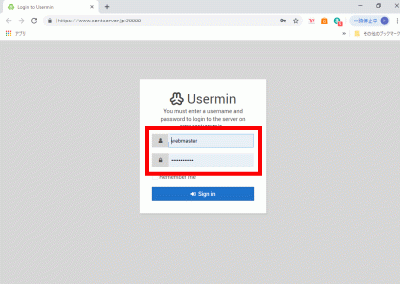
Webブラウザを起動し、「https://ubuntuserver.jp:20000/」へアクセスし、ユーザーでログインします。

「Sign in」でログイン

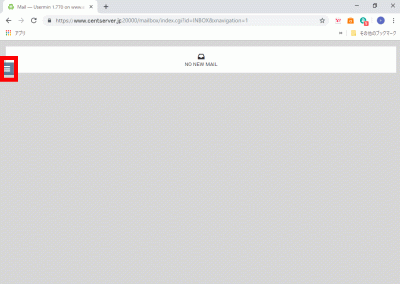
クリックします。

「Sign in」でログイン

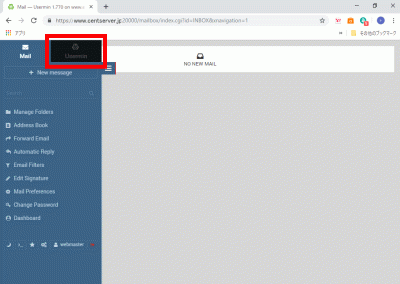
クリックします。

「Sign in」でログイン

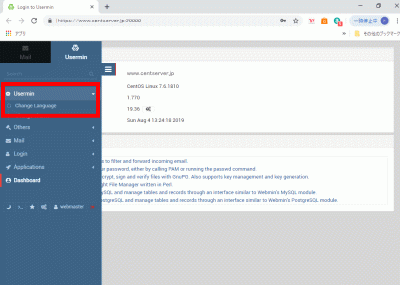
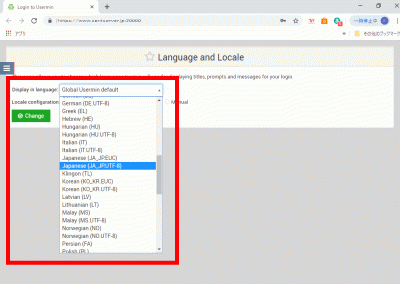
「Usermin」→「Change Language」を選択して、日本語化します。

Usermin

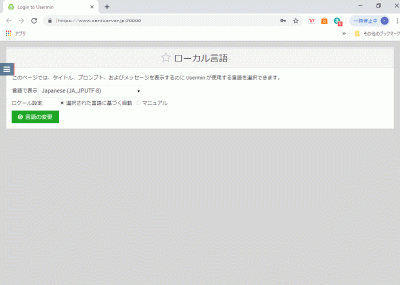
「Display in language:」→「Japanese(JA_JP,UTF-8)」を選択して、「Change」をクリックします。

「Change」をクリック

「F5」キー押下して、「日本語表示」を確認します。

日本語表示

Ubuntu16:Webmin設定

Webminインストール

必要な パケージをインストールします。

root@www:~# apt-get -y install python apt-show-versions libapt-pkg-perl libauthen-pam-perl libio-pty-perl libnet-ssleay-perl

Webmin をインストールします。

root@www:~# curl -L -O http://www.webmin.com/download/deb/webmin-current.deb
root@www:~# dpkg -i webmin-current.deb

miniserv.confを設定します。

root@www:~# vi /etc/webmin/miniserv.conf

最終行にアクセス許可するIPを追記します。

allow=127.0.0.1 192.168.1.1/24
keyfile=/etc/letsencrypt/live/ubuntuserver.jp/privkey.pem
certfile=/etc/letsencrypt/live/ubuntuserver.jp/fullchain.pem

再起動します。

root@www:~# systemctl restart webmin

起動確認

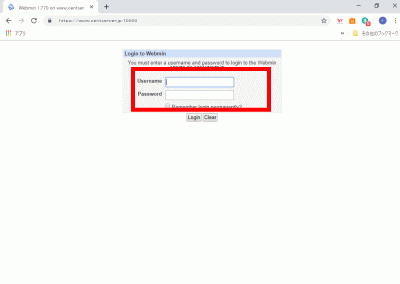
Webブラウザを起動し、「https://ubuntuserver.jp:10000/」へアクセスし, root ユーザーでログインします。

root ユーザーでログイン

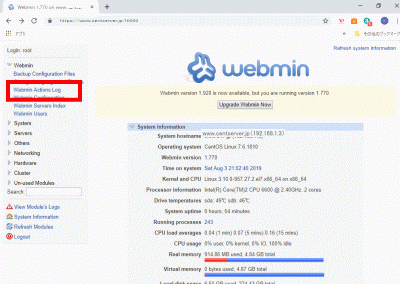
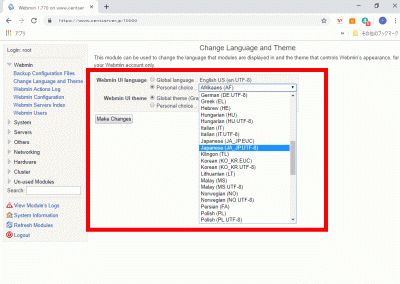
「Change Language and Theme」をクリックします。

Change Language and Theme

「Personal choice ..」、Japanese(JA_JP.UTF-8)を選択して、「Make Changes」をクリックします。

Personal choice ..

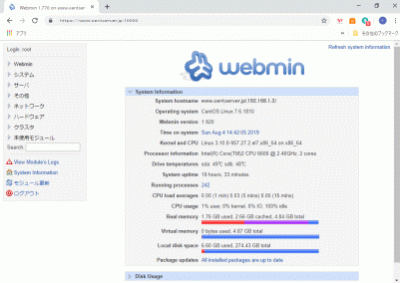
「F5」キー押下して、「日本語表示」を確認します。

日本語表示

Ubuntu16:システム監視設定

Nagiosのインストール

nagiosユーザーを作成します。

root@www:~# useradd -d /usr/local/nagios/ -M nagios

Nagiosをダウンロードします。

root@www:~# wget https://downloads.sourceforge.net/project/nagios/nagios-4.x/nagios-4.2.4/nagios-4.2.4.tar.gz

Nagiosを展開します。

root@www:~# tar zxvf nagios-4.2.4.tar.gz

Nagios展開先ディレクトリへ移動します。

root@www:~# cd nagios-4.2.4

Nagios日本語化パッチをダウンロードします。

root@www:nagios-4.2.4# wget http://ftp.momo-i.org/pub/security/nagios/patches/nagios-jp-4.2.4.patch.gz

Nagios日本語化パッチを施行します。

root@www:nagios-4.2.4# gzip -dc nagios-jp-4.2.4.patch.gz |patch -p1

Nagiosをインストールします。

root@www:nagios-4.2.4# ./configure && make all && make fullinstall && make install-config

ディレクトリを抜けます。

root@www:nagios-4.2.4# cd

Nagios展開先ディレクトリを削除します。

root@www:~# rm -rf nagios-4.2.4

ダウンロードしたファイルを削除します。

root@www:~# rm -f nagios-4.2.4.tar.gz

Nagiosプラグインインストール

mysql-clientをインストールします。

root@www:~# apt-get -y install mysql-client

libmysqlclient-devをインストールします。

root@www:~# apt-get -y install libmysqlclient-dev

Nagiosプラグインをダウンロードします。

root@www:~# wget https://nagios-plugins.org/download/nagios-plugins-2.1.4.tar.gz

Nagiosプラグインを展開します。

root@www:~# tar zxvf nagios-plugins-2.1.4.tar.gz

Nagiosプラグイン展開先ディレクトリへ移動します。

root@www:~# cd nagios-plugins-2.1.4

Nagiosプラグインをインストールします。

root@www:nagios-plugins-2.1.4# ./configure && make && make install

ディレクトリを抜けます。

root@www:nagios-plugins-2.1.4# cd

Nagiosプラグイン展開先ディレクトリを削除します。

root@www:~# rm -rf nagios-plugins-2.1.4

ダウンロードしたファイルを削除します。

root@www:~# rm -f nagios-plugins-2.1.4.tar.gz

Nagios設定

nagios.cfgを設定します。

root@www:~# vi /usr/local/nagios/etc/nagios.cfg

51行目:行頭の「#」を削除してコメント解除し、サーバー監視設定有効化の設定します。

cfg_dir=/usr/local/nagios/etc/servers

1094行目:日付書式をYYYY-MM-DD HH:MM:SSにするを設定します。

date_format=iso8601

サーバー監視設定ファイル格納ディレクトリを作成します。

root@www:~# mkdir /usr/local/nagios/etc/servers

contacts.cfgを設定します。

root@www:~# vi /usr/local/nagios/etc/objects/contacts.cfg

34行目:管理者メールアドレスを指定を設定します。

define contact{
        contact_name                    nagiosadmin             ; Short name of user
        use                             generic-contact         ; Inherit default values from generic-contact template (defined above)
        alias                           Nagios Admin            ; Full name of user

        email                           root@localhost
        }

localhost.cfgを設定します。

root@www:~# vi /usr/local/nagios/etc/objects/localhost.cfg

141行目:SSH状態変化時に通知するを設定します。

define service{
        use                             local-service         ; Name of service template to use
        host_name                       localhost
        service_description             SSH
        check_command                   check_ssh
        notifications_enabled           1
        }

154行目:SSH状態変化時に通知するを設定します。

define service{
        use                             local-service         ; Name of service template to use
        host_name                       localhost
        service_description             HTTP
        check_command                   check_http
        notifications_enabled           1
        }

commands.cfgを設定します。

root@www:~# vi /usr/local/nagios/etc/objects/commands.cfg

29行目:nkfコマンドのメール本文文字化け対策の設定します。

# 'notify-host-by-email' command definition
define command{
        command_name    notify-host-by-email
        command_line    /usr/bin/printf "%b" "***** Nagios *****\n\nNotification Type: $NOTIFICATIONTYPE$\nHost: $HOSTNAME$\nState: $HOSTSTATE$\nAddress: $HOSTADDRESS$\nInfo: $HOSTOUTPUT$\n\nDate/Time: $LONGDATETIME$\n" | /usr/bin/nkf -j | /bin/mail -s "** $NOTIFICATIONTYPE$ Host Alert: $HOSTNAME$ is $HOSTSTATE$ **" $CONTACTEMAIL$
        }

35行目:nkfコマンドのメール本文文字化け対策の設定します。

# 'notify-service-by-email' command definition
define command{
        command_name    notify-service-by-email
        command_line    /usr/bin/printf "%b" "***** Nagios *****\n\nNotification Type: $NOTIFICATIONTYPE$\n\nService: $SERVICEDESC$\nHost: $HOSTALIAS$\nAddress: $HOSTADDRESS$\nState: $SERVICESTATE$\n\nDate/Time: $LONGDATETIME$\n\nAdditional Info:\n\n$SERVICEOUTPUT$" | /usr/bin/nkf -j | /bin/mail -s "** $NOTIFICATIONTYPE$ Service Alert: $HOSTALIAS$/$SERVICEDESC$ is $SERVICESTATE$ **" $CONTACTEMAIL$
        }

Apache2設定

Nagios用Apache2設定ファイルを設定します。

root@www:~# vi /etc/apache2/sites-available/nagios.conf

16行目:追記します。

      <RequireAny>

17行目:行頭に「#」を追記してコメント化し、内部からのみアクセス可能にする設定をします。

#         Require all granted

19行目:内部ネットワーク(192.168.1.1/24)からのみアクセス可能にする設定をします。

         Require ip 192.168.1.1/24

20行目:追記します。

      </RequireAny>

49行目:追記します。

      <RequireAny>

50行目:行頭に「#」を追記してコメント化し、内部からのみアクセス可能にする設定をします。

#         Require all granted

52行目:内部ネットワーク(192.168.1.1/24)からのみアクセス可能にする設定をします。

         Require ip 192.168.1.1/24

53行目:追記します。

      </RequireAny>

Webサーバー設定反映を設定します。

root@www:~# systemctl restart apache2

Nagios管理ユーザー(nagiosadmin)を作成します。

root@www:~# htpasswd -c /usr/local/nagios/etc/htpasswd.users nagiosadmin

パスワードを設定します。

New password:
Re-type new password:
Adding password for user nagiosadmin

Nagios起動

起動します。

root@www:~# systemctl restart nagios

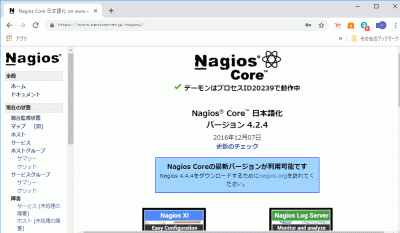
Webブラウザを起動し、「http://ubuntuserver.jp/nagios/」にアクセスし、管理ユーザー:nagiosadmin、登録済パスワードでログインして動作確認をします。

nagios

Ubuntu16:ログ解析設定

Webアクセスログ解析(AWStats)のインストール

AWStatsをインストールします。

root@www:~# apt-get -y install awstats

ファイルを設定します。

root@www:~# vi /etc/awstats/awstats.ubuntuserver.jp.conf 

122行目:変更します。

LogFormat=1

153行目:ホスト名を設定します。

SiteDomain="ubuntuserver.jp"

168行目:除外したドメイン名やIPアドレスを追記します。

HostAliases="localhost 127.0.0.1 REGEX[^.*ubuntuserver\.jp$] REGEX[^192\.168\.1\.]"

ファイルを作成します。

root@www:~# cp /usr/share/doc/awstats/examples/apache.conf /etc/apache2/conf-available/awstats.conf

ファイルを設定します。

root@www:~# vi /etc/apache2/conf-available/awstats.conf 

12行目、21行目、30行目:アクセス許可IPを追記します。

        Allow from 192.168.1.1/24

45行目:行頭に「#」を追記してコメント化します。

#ScriptAlias /cgi-bin/ /usr/lib/cgi-bin/

設定有効にします。

root@www:~# a2enconf awstats serve-cgi-bin

再起動します。

root@www:~# systemctl restart apache2
root@www:~# sed -i -e "s/www-data/root/g" /etc/cron.d/awstats

10分毎に自動更新する設定をします。

root@www:~# /usr/share/awstats/tools/update.sh

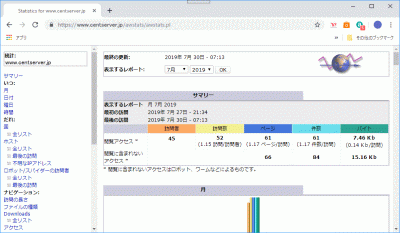
Web ブラウザを起動し、「http://ubuntuserver.jp/cgi-bin/awstats.pl」にアクセスして、作動確認します。

awstats

メールログ解析(Pfiogsumm)のインストール

pflogsumm をインストールします。

root@www:~# apt-get -y install pflogsumm

メールログのサマリーを出力します。

root@www:~# perl /usr/sbin/pflogsumm -d yesterday /var/log/maillog
Postfix log summaries for Jul 29

Grand Totals
------------
messages

      8   received
      8   delivered
      2   forwarded
      1   deferred  (1  deferrals)
      0   bounced
      0   rejected (0%)
      0   reject warnings
      0   held
      0   discarded (0%)

   2428k  bytes received
   2429k  bytes delivered
      3   senders
      2   sending hosts/domains
      2   recipients
      2   recipient hosts/domains


Per-Hour Traffic Summary
------------------------
    time          received  delivered   deferred    bounced     rejected
    --------------------------------------------------------------------
    0000-0100           0          0          0          0          0
    0100-0200           0          0          0          0          0
    0200-0300           0          0          0          0          0
…

root宛てにメール送信する設定をします。

root@www:~# crontab -e

最終行に毎日午前1時にメール送信する設定を追記します。

00 01 * * * perl /usr/sbin/pflogsumm -e -d yesterday /var/log/mail.log | mail -s 'Logwatch for Postfix' root

Ubuntu16:MAILサーバー設定

Postfixの設定

外部からWebアクセスできるようにします。

root@www:~# vi /etc/apache2/sites-available/virtualhost-00-ubuntuserver.jp.conf
<VirtualHost *:80>
    ServerName ubuntuserver.jp
    DocumentRoot /var/www/html
    ServerAlias mail.ubuntuserver.jp
    RewriteEngine On
    RewriteCond %{HTTP_HOST} ^ubuntuserver\.jp
    RewriteRule ^(.*)$ http://ubuntuserver.jp/$1 [R=301,L]
</VirtualHost>

Postfixをインストールします。

root@www:~# apt-get -y install postfix

← →キーで「了解」を選択して「Enter」キーを押下します。
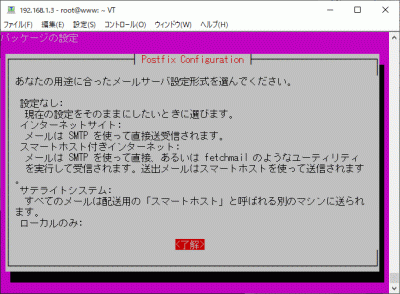
↑ ↓ キーで「設定なし」を選択し、← →キーで「了解」を選択して「Enter」キーを押下します。
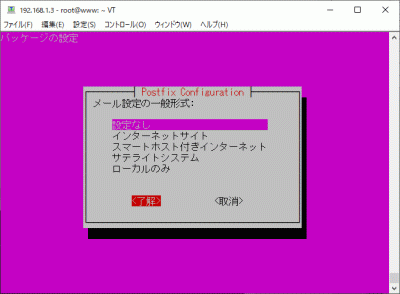
Postfixを設定します。

root@www:~# cp /usr/share/postfix/main.cf.dist /etc/postfix/main.cf
root@www:~# vi /etc/postfix/main.cf

78行目:行頭の「#」を削除してコメント解除します。

mail_owner = postfix

94行目:行頭の「#」を削除してコメント解除し、メールサーバードメイン名を指定します。

myhostname = mail.ubuntuserver.jp

102行目:行頭の「#」を削除してコメント解除し、ドメイン名を指定します。

mydomain =  ubuntuserver.jp

123日行目:行頭の「#」を削除してコメント解除し、送信元メールアドレスにドメイン名を指定します。

myorigin = $mydomain

137行目:行頭の「#」を削除してコメント解除します。

inet_interfaces = all

185行目:行頭の「#」を削除してコメント解除し、ドメインメールを受信する設定に変更します。

mydestination = $myhostname, localhost.$mydomain, localhost, $mydomain

228行目:行頭の「#」を削除してコメント解除します。

local_recipient_maps = unix:passwd.byname $alias_maps

270行目:行頭の「#」を削除してコメント解除します。

mynetworks_style = subnet

287行目:ネットワーク設定を追記します。

mynetworks = 127.0.0.0/8, 192.168.1.1/24

407行目:行頭の「#」を削除してコメント解除します。

alias_maps = hash:/etc/aliases

418行目:行頭の「#」を削除してコメント解除します。

alias_database = hash:/etc/aliases

440行目:行頭の「#」を削除してコメント解除し、メール格納形式をMaildir形式にする設定をします。

home_mailbox = Maildir/

576行目:行頭に「#」を追記してコメント化します。

#smtpd_banner = $myhostname ESMTP $mail_name (Ubuntu)

577行目:メールサーバーソフト名の隠蔽化の設定を追記します。

smtpd_banner = $myhostname ESMTP unknown

650行目:sendmailパスの設定を追記します。

sendmail_path = /usr/sbin/postfix

655行目:メールの転送の設定を追記します。

newaliases_path = /usr/bin/newaliases

660行目:メールキューの設定を追記します。

mailq_path = /usr/bin/mailq

666行目:送信メッセージの一時格納場所のグループの設定を追記します。

setgid_group = postdrop

670行目:行頭に「#」を追記してコメント化します。

#html_directory =

674行目:行頭に「#」を追記してコメント化します。

#manpage_directory =

679行目:行頭に「#」を追記してコメント化します。

#sample_directory =

683行目:行頭に「#」を追記してコメント化します。

#readme_directory =

SMTP認証の設定を最終行へ追加します。

smtpd_sasl_type = dovecot
smtpd_sasl_path = private/auth
smtpd_sasl_auth_enable = yes
smtpd_sasl_security_options = noanonymous
smtpd_sasl_local_domain = $myhostname
smtpd_recipient_restrictions = permit_mynetworks, permit_auth_destination, permit_sasl_authenticated, reject

受信メールサイズを10MB=10*1024*1024に制限する設定を最終行へ追記します。

message_size_limit = 10485760

master.cfを設定します。

root@www:~# vi /etc/postfix/master.cf

17行目:行頭の「#」を削除してコメント解除します。

submission inet n    -    n    -    -    smtpd

20行目:行頭の「#」を削除してコメント解除します。

 -o smtpd_sasl_auth_enable=yes

設定を有効にします。

root@www:~# newaliases

再起動します。

root@www:~# systemctl restart postfix

Dovecotのインストール

root@www:~# apt-get -y install dovecot-core dovecot-pop3d dovecot-imapd

dovecot.confを設定します。

root@www:~# vi /etc/dovecot/dovecot.conf

30行目:行頭「#」を削除してコメント解除し、IPv6を無効にする設定に変更します。

listen = *

10-mail.confを設定します。

root@www:~# vi /etc/dovecot/conf.d/10-mail.conf

31行目:メール格納形式をMaildir形式にする設定に変更します。

mail_location = maildir:~/Maildir

10-auth.confを設定します。

root@www:~# vi /etc/dovecot/conf.d/10-auth.conf

10行目:行頭「#」を削除してコメント解除し、プレインテキスト認証を許可する設定を追記します。

disable_plaintext_auth = no

10-ssl.confを設定します。

root@www:~# vi /etc/dovecot/conf.d/10-ssl.conf

6行目:SSL接続を無効にする設定に変更します。

ssl = no

起動します。

root@www:~# systemctl restart dovecot

SMTP認証設定

cyrus-saslをインストールします。

root@www:~# apt-get -y install sasl2-bin cyrus-sasl-plain

起動します。

root@www:~# systemctl start saslauthd

Maildir形式メールボックスの作成

新規ユーザー追加時に自動でMaildir形式メールボックス作成する設定をします。

root@www:~# mkdir -p /etc/skel/Maildir/{new,cur,tmp}

メールボックスパーミッションを設定します。

root@www:~# chmod -R 700 /etc/skel/Maildir/

起動します。

root@www:~# systemctl restart postfix

現在のユーザーのMaildir形式メールボックス作成する設定をします。

[root@www ~]# wget https://rcg.jp/perfect_maildir/perfect_maildir.pl -O /usr/local/bin/perfect_maildir.pl
[root@www ~]# chmod +x /usr/local/bin/perfect_maildir.pl

Maildir変換に必要なPerlのTimeDateモジュールインストールします。

[root@www ~]# apt-get -y install perl-TimeDate

Postfixを停止します。

[root@www ~]# systemctl stop postfix

Maildir一括変換スクリプトを作成します。

[root@www ~]# vi migrate-maildir.sh
#!/bin/bash
#
#Maildir一括変換スクリプト
#
#メールボックス=>Maildir形式変換スクリプト
#http://perfectmaildir.home-dn.net/
FOLDERCONVERT=/usr/local/bin/perfect_maildir.pl
#一般ユーザリスト
USERLIST=`ls /home/`
#ログ
MIGRATELOG=/tmp/migrate-maildir.log
rm -f $MIGRATELOG
#引数(変換元メールボックス形式)チェック
if [ "$1" != "mbox" ] && [ "$1" != "Mailbox" ]; then
echo "Usage: migrate-maildir.sh {mbox|Mailbox}"
exit
fi
#一般ユーザメールボックス移行
for user in $USERLIST;
do
if [ "$1" = "mbox" ]; then
inbox="/var/spool/mail/${user}"
else
inbox="/home/${user}/Mailbox"
fi
if [ -f "${inbox}" ]; then
newdir="/home/${user}/Maildir/"
mkdir -p "$newdir"
mkdir -p "$newdir"/cur
mkdir -p "$newdir"/new
mkdir -p "$newdir"/tmp
chmod -R 700 "${newdir}"
$FOLDERCONVERT "$newdir" < "${inbox}" >> $MIGRATELOG 2>&1
chown -R ${user}. "$newdir"
find "$newdir" -type f -exec chmod 600 {} \;
fi
done
#rootユーザメールボックス移行
user="root"
if [ "$1" = "mbox" ]; then
inbox="/var/spool/mail/${user}"
else
inbox="/${user}/Mailbox"
fi
if [ -f "${inbox}" ]; then
newdir="/${user}/Maildir/"
mkdir -p "$newdir"
mkdir -p "$newdir"/cur
mkdir -p "$newdir"/new
mkdir -p "$newdir"/tmp
chmod -R 700 "${newdir}"
$FOLDERCONVERT "$newdir" < "${inbox}" >> $MIGRATELOG 2>&1
chown -R ${user}. "$newdir"
find "$newdir" -type f -exec chmod 600 {} \;
fi
[ -a $MIGRATELOG ] && cat $MIGRATELOG;rm -f $MIGRATELOG

一括変換スクリプトを実行します。

[root@www ~]# sh migrate-maildir.sh mbox

Maildir一括変換スクリプトを削除します。

[root@www ~]# rm -f migrate-maildir.sh

Maildir変換ツールを削除します。

[root@www ~]# rm -f /usr/local/bin/perfect_maildir.pl

起動します。

[root@www ~]# systemctl restart postfix dovecot

webmasterユーザーをメール使用する場合は「/etc/aliases」を変更します。

[root@www ~]# vi /etc/aliases

行頭に#を追加して転送を無効にします。

#webmaster: root

転送設定を反映します。

[root@www ~]# newaliases

TCP25番、TCP587番ポート開放

ルーターの設定で、TCP25番、TCP587番ポートを開放します。(設定方法はご自身の環境に合わせて調べてください。

ポート開放テスト

こちらのサイトで「ホスト名(ubuntuserver.jp)」、「ポート番号(25,587)」の開放確認をします。

メールサーバーのOP25B対策

メールサーバーのOP25B対策として送信メールをGmailを経由して送信するように設定します。

Postfixを設定します。

root@www:~# vi /etc/postfix/main.cf

以下を最終行へ追加します。

relayhost = [smtp.gmail.com]:587
smtp_use_tls = yes
smtp_sasl_auth_enable = yes
smtp_sasl_password_maps = hash:/etc/postfix/sasl_passwd
smtp_sasl_tls_security_options = noanonymous
smtp_sasl_mechanism_filter = plain

SMTP認証情報を設定します。

root@www:~# echo [smtp.gmail.com]:587 Gmailアドレス:Gmailパスワード > /etc/postfix/sasl_passwd

root以外参照できないようにパーミッション変更します。

root@www:~# chmod 640 /etc/postfix/sasl_passwd

SMTP認証情報をデータベース化します。

root@www:~# postmap /etc/postfix/sasl_passwd

Postfixを再起動します。

root@www:~# systemctl reload postfix

Gmailのメール転送設定

先にThunderbirdへGmail(送信用メール)を設定します。

Thunderbirdを起動し、送信用メールアドレスで「ブロックされたログインについてご確認ください」を開き、「安全性の低いアプリへのアクセスを許可」をクリックします。
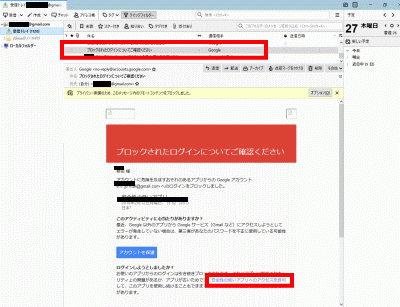
Gmailのメール転送設定

ブラウザでGmailにログインします。

Gmailにログイン

右上のユーザーアイコンを右クリック→「Googleアカウントの管理」→「セキュリティ」→「安全性の低いアプリのアクセス」でアクセスを有効にします。
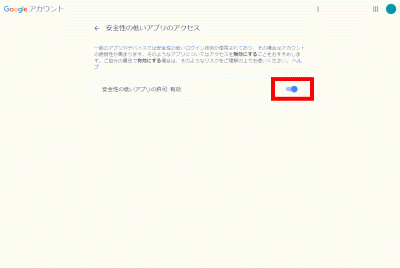
安全性の低いアプリの許可を有効

TCP110番またはTCP143番ポート開放

ルーターの設定で、TCP110番またはTCP143番ポートを開放します。(設定方法はご自身の環境に合わせて調べてください。

ポート開放テスト

こちらのサイトで「ホスト名(ubuntuserver.jp)」、「ポート番号(110または143)」の開放確認をします。

メールユーザーの追加

ユーザーを追加します。(ユーザー例:ubuntu)

root@www:~# useradd ubuntu

パスワードを設定します。

root@www:~# passwd ubuntu
Changing password for user ubuntu.
New UNIX password:
Retype new UNIX password:

「/etc/ssh/sshd_config」を編集して、秘密鍵での認証接続を無効にする

sshd_configを編集します。

root@www:~# vi /etc/ssh/sshd_config

52行目:「no」→「yes」に変更します。

PasswordAuthentication yes

SSHを再起動します。

root@www:~# systemctl restart sshd

TeraTermにubuntuで新しい接続をします。

SSHサーバー公開鍵認証方式接続の設定をします。

メールソフトの登録

Thunderbirdを起動し、メールをクリックします。
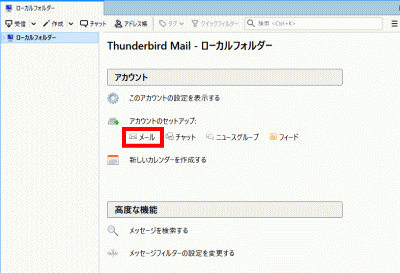
Thunderbird

あなたのお名前、メールアドレス(ubuntu@ubuntuserver.jp)、パスワードを入力し、「続ける」をクリックします。
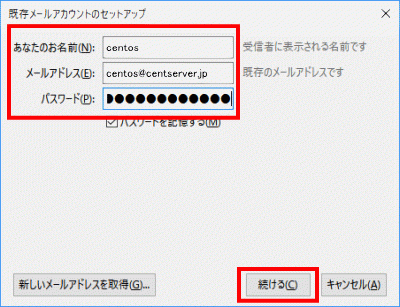
メールアドレス

「手動設定」をクリックします。

手動設定

サーバーのホスト名 ポート番号 SSL 認証方式
受信サーバー POP3 mail.ubuntuserver.jp 110 接続の保護なし 通常のパスワード認証
送信サーバー SMTP mail.ubuntuserver.jp 587 接続の保護なし 通常のパスワード認証

上の表を参考にして設定し、「完了」をクリックします。

完了

「接続する上での危険性を理解しました」を選択して「完了」をクリックします。
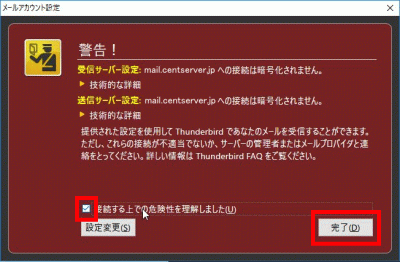
接続する上での危険性を理解しました

サーバー証明書の取得

Certbotをインストールします。

root@www:~# apt -y install certbot

証明書を取得します。

ドキュメントルート:/var/www/html/

メールアドレス:webmasterubuntuerver.jp

メールサーバー名:mail.ubuntuserver.jp

root@www:~# certbot certonly --webroot -w /var/www/html/ -m webmaster@ubuntuserver.jp  -d mail.ubuntuserver.jp --agree-tos

証明書自動更新を設定します。

root@www:~# vi /etc/cron.d/letsencrypt

下記を追記します。

00 16 * * 2 root /usrobin/certbot renew --post-hook "service httpd restart"

SSLの設定

main.cfを設定します。

root@www:~# vi /etc/postfix/main.cf

下記を最終行に追記します。

smtp_tls_security_level = may
smtpd_tls_security_level = may
smtpd_tls_cert_file = /etc/letsencrypt/live/mail.ubuntuserver.jp/fullchain.pem
smtpd_tls_key_file = /etc/letsencrypt/live/mail.ubuntuserver.jp/privkey.pem
smtpd_tls_session_cache_database = btree:/var/lib/postfix/smtpd_scache

tls_high_cipherlist = kEECDH:+kEECDH+SHA:kEDH:+kEDH+SHA:+kEDH+CAMELLIA:kECDH:+kECDH+SHA:kRSA:+kRSA+SHA:+kRSA+CAMELLIA:!aNULL:!eNULL:!SSLv2:!RC4:!MD5:!DES:!EXP:!SEED:!IDEA:!3DES
smtp_tls_ciphers = high
smtpd_tls_ciphers = high
smtpd_tls_mandatory_ciphers = high

smtpd_tls_mandatory_protocols=!SSLv2,!SSLv3
smtp_tls_mandatory_protocols=!SSLv2,!SSLv3
smtpd_tls_protocols=!SSLv2,!SSLv3
smtp_tls_protocols=!SSLv2,!SSLv3

master.cfを設定します。

root@www:~# vi /etc/postfix/master.cf

17行目:行頭に「#」を追加してコメント化し、SUBMISSIONポートを無効化します。

#submission inet n    -    n    -    -    smtpd

20行目:行頭に「#」を追加してコメント化し、SUBMISSIONポートのSMTP認証を無効化します。

#  -o smtpd_sasl_auth_enable=yes

28行目:行頭の「#」を削除してコメント解除し、SMTPSを有効化します。

smtps    inet n    -    n    -    -    smtpd

30行目:行頭の「#」を削除してコメント解除し、SMTPSを有効化します。

 -o smtpd_tls_wrappermode=yes

31行目:行頭の「#」を削除してコメント解除し、SMTPSを有効化します。

 -o smtpd_sasl_auth_enable=yes

44行目:行頭の「#」を削除してコメント解除し、SMTPSを有効化します。

tlsmgr    unix    -    -    n    300    1    tlsmgr

再起動します。

root@www:~# systemctl restart postfix

TCP465番ポート開放

ルーターの設定で、TCP465番ポートを開放します。(設定方法はご自身の環境に合わせて調べてください。

ポート開放テスト

こちらのサイトで「ホスト名(mail.ubuntuserver.jp)」、「ポート番号(465)」の開放確認をします。

TCP587番ポート閉鎖

ルーターの設定で、TCP587番ポートを閉鎖します。(設定方法はご自身の環境に合わせて調べてください。

ポート開放テスト

こちらのサイトで「ホスト名(mail.ubuntuserver.jp)」、「ポート番号(587)」の開放されていないことを確認をします。

Dovecot設定

10-auth.confを設定します。

root@www:~# vi /etc/dovecot/conf.d/10-ssl.conf

6行目:SSL接続を有効にする設定に変更します。

ssl = yes

12行目:行頭の「#」を削除してコメント解除し、サーバー証明書+中間証明書を指定します。

ssl_cert = </etc/letsencrypt/live/mail.ubuntuserver.jp/fullchain.pem

13行目:行頭の「#」を削除してコメント解除し、秘密鍵を指定します。

ssl_key = </etc/letsencrypt/live/mail.ubuntuserver.jp/privkey.pem

49行目:行頭の「#」を削除してコメント解除し、脆弱性のある暗号化方式(SSLv2,SSLv3)を無効化します。

ssl_protocols = !SSLv2 !SSLv3

52行目:行頭の「#」を削除してコメント解除し、使用する暗号化方法を指定します。

ssl_cipher_list = EECDH+AESGCM+AES128:EECDH+AESGCM+AES256:EDH+AESGCM+AES128:EDH+AESGCM+AES256:EECDH+SHA256+AES128:EECDH+SHA384+AES256:EDH+SHA256+AES128:EDH+SHA256+AES256:EECDH+SHA1+AES128:EECDH+SHA1+AES256:EDH+SHA1+AES128:EDH+SHA1+AES256:EECDH+HIGH:EDH+HIGH:AESGCM+AES128:AESGCM+AES256:SHA256+AES128:SHA256+AES256:SHA1+AES128:SHA1+AES256:HIGH:!aNULL:!eNULL:!EXPORT:!DES:!RC4:!MD5:!PSK:!KRB5:!aECDH:!3DES

再起動します。

root@www:~# systemctl restart dovecot

TCP995番またはTCP993番ポート開放

ルーターの設定で、TCP995番またはTCP993番ポートを開放します。(設定方法はご自身の環境に合わせて調べてください。

ポート開放テスト

こちらのサイトで「ホスト名(mail.ubuntuserver.jp)」、「ポート番号(995または993)」の開放確認をします。

メールソフトの設定変更

Thunderbirdを起動し、メールアドレスを選択し、「このアカウントの設定を表示する」をクリックします。
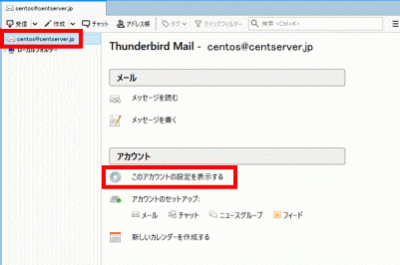
このアカウントの設定を表示する

「サーバー設定」をクリックし、「接続の保護」で「SSL/TLS」を選択します。
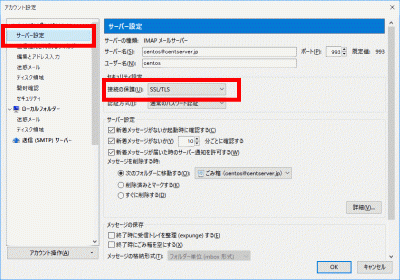
サーバー設定

「送信(SMTP)サーバー」をクリックし、SMTPサーバーを選択して「編集」をクリックします。
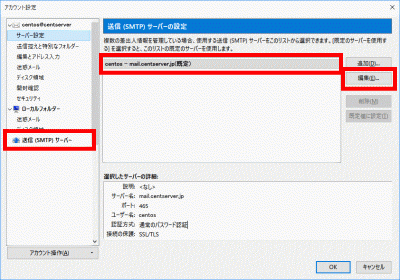
送信(SMTP)サーバー

「ポート番号」に「465」を入力し、「接続の保護」で「SSL/TLS」を選択して、「OK」をクリックします。
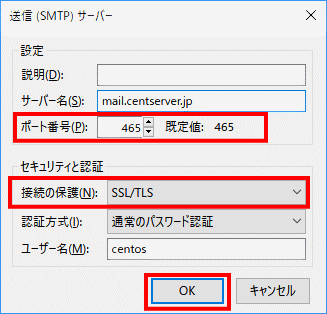
ポート番号

「OK」をクリックします。

「OK」をクリック

アンチウィルスソフトの連携(Clamav)

Clamav をインストールします。

root@www:~# apt-get -y install clamav-daemon clamsmtp

clamsmtpd.confを設定します。

root@www:~# vi /etc/clamsmtpd.conf

27行目:行頭の「#」を削除してコメント解除します。

Header: X-AV-Checked: ClamAV using ClamSMTP

45行目:変更します。

User: clamav

設定を有効にします。

root@www:~# chown -R clamav. /var/spool/clamsmtp
root@www:~# chown -R clamav. /var/run/clamsmtp

main.cfを設定します。

root@www:~# vi /etc/postfix/main.cf

最終行へ追記します。

content_filter = scan:127.0.0.1:10026

master.cfを設定します。

root@www:~# vi /etc/postfix/master.cf

最終行へ追記します。

scan unix - - n - 16 smtp

-o smtp_data_done_timeout=1200
-o smtp_send_xforward_command=yes
-o disable_dns_lookups=yes
127.0.0.1:10025 inet n - n - 16 smtpd
-o content_filter=
-o local_recipient_maps=
-o relay_recipient_maps=
-o smtpd_restriction_classes=
-o smtpd_client_restrictions=
-o smtpd_helo_restrictions=
-o smtpd_sender_restrictions=
-o smtpd_recipient_restrictions=permit_mynetworks,reject
-o mynetworks_style=host
-o smtpd_authorized_xforward_hosts=127.0.0.0/8

再起動します。

root@www:~# systemctl restart clamav-daemon clamsmtp postfix