CentOS7:パーティション操作

Gpartedをインストール

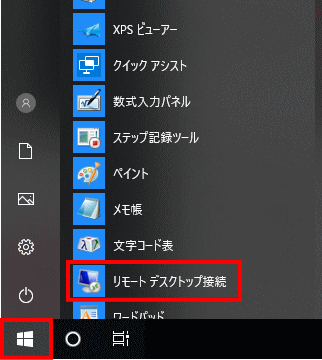
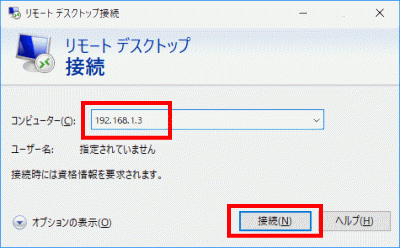
Windows スタートメニューから「アクセサリ」→「リモートデスクトップ接続」 を選択して接続画面を起動します。

スタートメニュー

サーバーIPアドレスを入力し「接続」をクリックします。

サーバーIPアドレスを入力し「接続」をクリック

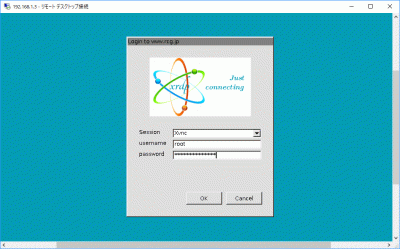
「root」(ユーザー名)、「password」(パスワード)を入力し「OK」をクリックします。

「usermame」(ユーザー名)、「password」(パスワード)を入力し「OK」をクリック

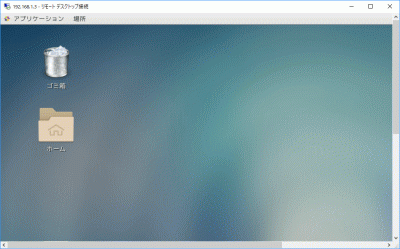
ディスクトップが表示されます。

ディスクトップ

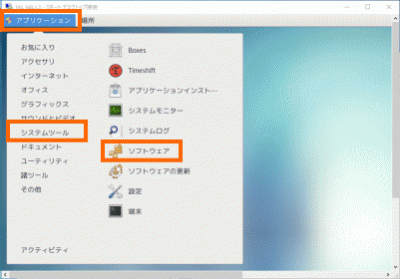
「アプリケーション」→「システムツール」→「ソフトウェア」をクリックします。

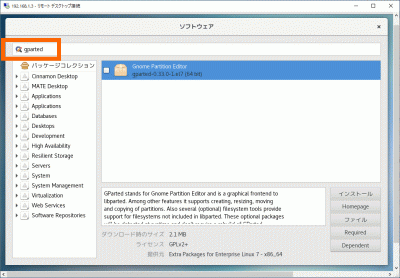
「gparted」を入力し「Enter」キーを押下します。

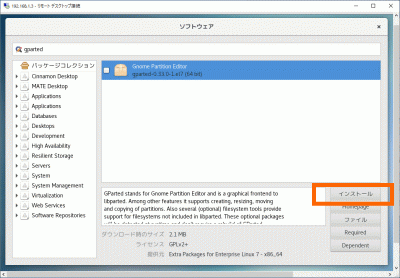
「gparted」をチェックして「インストール」をクリックします。

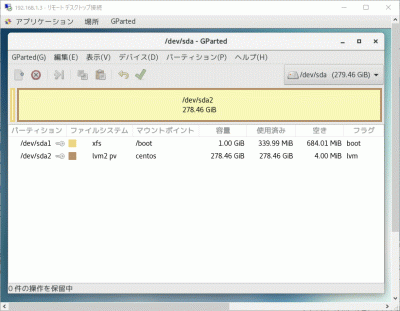
パーテーション操作は「アプリケーション」→「システムツール」→「Gparted」をクリックします。

CentOS:ブログサイト(Word Press)設定

Webサーバー、PHP設定

Webサーバー、PHPの設定をします。

データベース設定

データベースの設定をします。

ブログ用データーベースを作成

MariaDBへrootでログインします。

[root@www ~]# mysql -u root -p
Enter password:
Welcome to the MariaDB monitor.  Commands end with ; or \g.
Your MariaDB connection id is 3
Server version: 5.5.60-MariaDB MariaDB Server

Copyright (c) 2000, 2018, Oracle, MariaDB Corporation Ab and others.

Type 'help;' or '\h' for help. Type '\c' to clear the current input statement.

wordpressでデータベースを作成します。

MariaDB [(none)]> create database wordpress;

wordpress_userでユーザーを作成します。

MariaDB [(none)]> grant all privileges on wordpress.* to wordpress_user@localhost identified by 'パスワード';

ログアウトします。

MariaDB [(none)]> exit

WordPressインストール

php-mysqlをインストールします。

[root@www ~]# yum -y install php-mysql

/var/www/html」ディレクトリ下へ移動します。

[root@www ~]# cd /var/www/html

WordPressをダウンロードします。

[root@www ~]# wget https://ja.wordpress.org/wordpress-4.9.8-ja.tar.gz

WordPressを解凍します。

[root@www ~]# tar xvzf wordpress-4.9.8-ja.tar.gz

ディレクトリを戻ります。

[root@www ~]# cd

WordPressディレクトリ所有者をApache実行ユーザーへ変更します。

[root@www ~]# chown -R apache:apache /var/www/html/wordpress/

WordPress設定

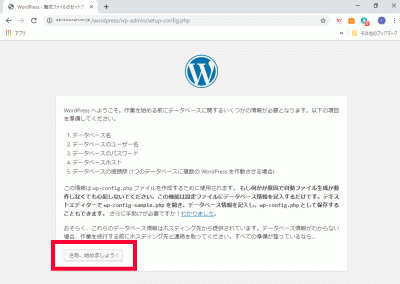
https://centserver.jp/wordpress/へアクセスし、「さあ、始めましょう!」をクリックします。

WordPress設定

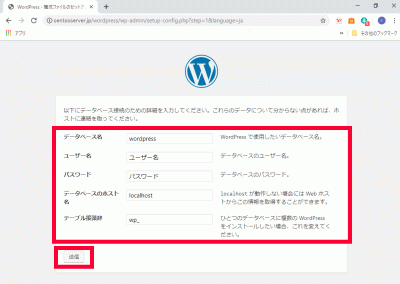
「データベース名(wordpress)」、「ユーザー名(wordpress_user)」、「パスワード(パスワード)」、「データベースの接頭辞(wp_wordpress_)」を入力し、「送信」をクリックします。

WordPress設定

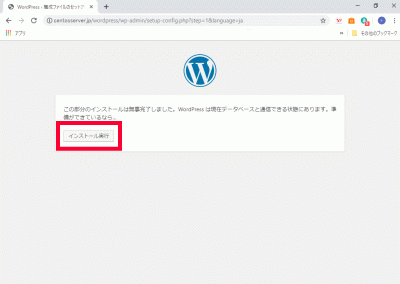
「インストール実行」をクリックします。

インストール実行

Apache設定

WordPress用Apache設定ファイルを作成します。

[root@www ~]# echo Alias /wordpress /var/www/html/wordpress > /etc/httpd/conf.d/wordpress.conf

再起動します。

[root@www ~]# systemctl reload httpd

WordPress初期設定

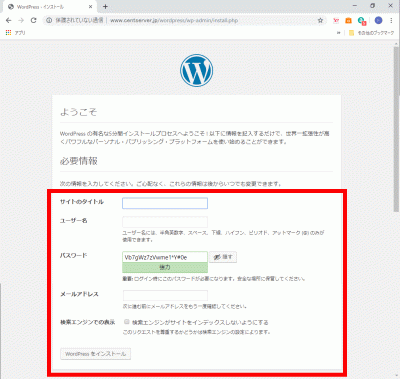
https://centserver.jp/wordpress/へアクセスし、「サイトのタイトル」、「ユーザー名」、「パスワード」、「メールアドレス」を入力して「WordPressをインストール」をクリックします。

WordPress初期設定

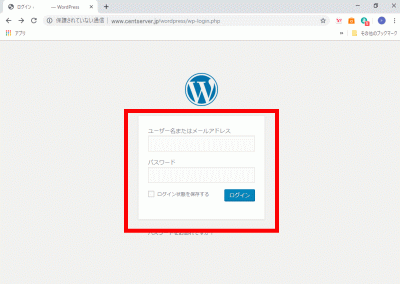
「ユーザー名」、「パスワード」を入力して「ログイン」をクリックし、サイト管理へログインします。

サイト管理へログイン

WordPressをドメイン直下での表示設定

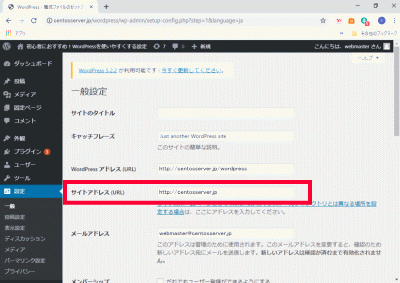
管理画面で「設定」→「一般」を開き、「サイトアドレス(URL)」に「https://centserver.jp」を設定します。

サイトアドレス(URL)

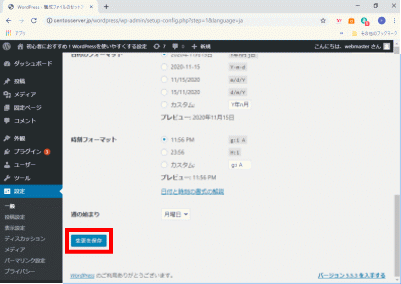
「変更を保存」をクリックします。

/var/www/html/wordpress/index.php」をコピーして、「/var/www/html/index.php」に貼り付けます。

[root@www ~]# cp /var/www/html/wordpress/index.php /var/www/html/index.php

/var/www/html/index.php」を設定します。

[root@www ~]# vi /var/www/html/index.php

17行目:「/wordpress」を追記します。

require( dirname( __FILE__ ) . '/wordpress/wp-blog-header.php' );

「.htaccess」を設定します。

[root@www ~]# vi /var/www/html/.htaccess
# BEGIN WordPress
<IfModule mod_rewrite.c>
    RewriteEngine On
    RewriteBase /
    RewriteRule ^index\.php$ - [L]
    RewriteCond %{REQUEST_FILENAME} !-f
    RewriteCond %{REQUEST_FILENAME} !-d
    RewriteRule . /index.php [L]
</IfModule>
# END WordPress

CentOS:複数ドメイン設定

複数ドメイン用ディレクトリ作成

複数ドメイン用ディレクトリを作成します。

[root@www ~]# mkdir /var/www/html/virtual.jp

パーミッションを設定します。

[root@www ~]# chmod 777 /var/www/html/virtual.jp

複数ドメイン用設定ファイルを作成します。

[root@www ~]# vi /etc/httpd/conf.d/virtualhost-virtual.jp.conf
<VirtualHost *:80>
    ServerName virtual.jp
    DocumentRoot /var/www/html/virtual.jp
    RewriteEngine On
    RewriteCond %{HTTP_HOST} ^www\.virtual\.jp
    RewriteRule ^(.*)$ http://virtual.jp/$1 [R=301,L]
    ErrorLog logs/virtual.jp-error_log
    CustomLog logs/virtual.jp-access_log combined env=!no_log
</VirtualHost>

再起動します。

[root@www ~]# systemctl restart httpd

テストページ作成

テストページを作成します。

[root@www ~]# echo test >> /var/www/html/virtual.jp/index.html

Free Monitoring Test Toolsで「http://virtual.jp」の作動確認をします。

サーバー証明書取得

サーバー証明書を取得します。

[root@www ~]# certbot certonly --webroot -w /var/www/html/virtual.jp -m webmastercentserver.jp -d virtual.jp --agree-tos

複数ドメインSSL設定

メインドメイン設定を表示します。

[root@www ~]# vi /etc/httpd/conf.d/virtualhost-00-centserver.jp.conf

行番号を非表示にします。

:set nonumber

<VirtualHost *:443>~</VirtualHost>をコピーしてメモ帳などに貼り付け、複数ドメインを設定します。

<VirtualHost *:443>

# General setup for the virtual host, inherited from global configuration
DocumentRoot "/var/www/html/virtual.jp"
ServerName virtual.jp:443

# Use separate log files for the SSL virtual host; note that LogLevel
# is not inherited from httpd.conf.
ErrorLog logs/ssl_error_log
TransferLog logs/ssl_access_log
LogLevel warn

#   SSL Engine Switch:
#   Enable/Disable SSL for this virtual host.
SSLEngine on

#   SSL Protocol support:
# List the enable protocol levels with which clients will be able to
# connect.  Disable SSLv2 access by default:
SSLProtocol -All +TLSv1 +TLSv1.1 +TLSv1.2

#   SSL Cipher Suite:
#   List the ciphers that the client is permitted to negotiate.
#   See the mod_ssl documentation for a complete list.
SSLCipherSuite HIGH:3DES:!aNULL:!MD5:!SEED:!IDEA

#   Speed-optimized SSL Cipher configuration:
#   If speed is your main concern (on busy HTTPS servers e.g.),
#   you might want to force clients to specific, performance
#   optimized ciphers. In this case, prepend those ciphers
#   to the SSLCipherSuite list, and enable SSLHonorCipherOrder.
#   Caveat: by giving precedence to RC4-SHA and AES128-SHA
#   (as in the example below), most connections will no longer
#   have perfect forward secrecy - if the server's key is
#   compromised, captures of past or future traffic must be
#   considered compromised, too.
#SSLCipherSuite RC4-SHA:AES128-SHA:HIGH:MEDIUM:!aNULL:!MD5
#SSLHonorCipherOrder on

#   Server Certificate:
# Point SSLCertificateFile at a PEM encoded certificate.  If
# the certificate is encrypted, then you will be prompted for a
# pass phrase.  Note that a kill -HUP will prompt again.  A new
# certificate can be generated using the genkey(1) command.
SSLCertificateFile /etc/letsencrypt/live/virtual.jp/cert.pem

#   Server Private Key:
#   If the key is not combined with the certificate, use this
#   directive to point at the key file.  Keep in mind that if
#   you've both a RSA and a DSA private key you can configure
#   both in parallel (to also allow the use of DSA ciphers, etc.)
SSLCertificateKeyFile /etc/letsencrypt/live/virtual.jp/privkey.pem

#   Server Certificate Chain:
#   Point SSLCertificateChainFile at a file containing the
#   concatenation of PEM encoded CA certificates which form the
#   certificate chain for the server certificate. Alternatively
#   the referenced file can be the same as SSLCertificateFile
#   when the CA certificates are directly appended to the server
#   certificate for convinience.
SSLCertificateChainFile /etc/letsencrypt/live/virtual.jp/chain.pem

#   Certificate Authority (CA):
#   Set the CA certificate verification path where to find CA
#   certificates for client authentication or alternatively one
#   huge file containing all of them (file must be PEM encoded)
#SSLCACertificateFile /etc/pki/tls/certs/ca-bundle.crt

#   Client Authentication (Type):
#   Client certificate verification type and depth.  Types are
#   none, optional, require and optional_no_ca.  Depth is a
#   number which specifies how deeply to verify the certificate
#   issuer chain before deciding the certificate is not valid.
#SSLVerifyClient require
#SSLVerifyDepth  10

#   Access Control:
#   With SSLRequire you can do per-directory access control based
#   on arbitrary complex boolean expressions containing server
#   variable checks and other lookup directives.  The syntax is a
#   mixture between C and Perl.  See the mod_ssl documentation
#   for more details.
#<Location />
#SSLRequire (    %{SSL_CIPHER} !~ m/^(EXP|NULL)/ \
#            and %{SSL_CLIENT_S_DN_O} eq "Snake Oil, Ltd." \
#            and %{SSL_CLIENT_S_DN_OU} in {"Staff", "CA", "Dev"} \
#            and %{TIME_WDAY} >= 1 and %{TIME_WDAY} <= 5 \
#            and %{TIME_HOUR} >= 8 and %{TIME_HOUR} <= 20       ) \
#           or %{REMOTE_ADDR} =~ m/^192\.76\.162\.[0-9]+$/
#</Location>

#   SSL Engine Options:
#   Set various options for the SSL engine.
#   o FakeBasicAuth:
#     Translate the client X.509 into a Basic Authorisation.  This means that
#     the standard Auth/DBMAuth methods can be used for access control.  The
#     user name is the `one line' version of the client's X.509 certificate.
#     Note that no password is obtained from the user. Every entry in the user
#     file needs this password: `xxj31ZMTZzkVA'.
#   o ExportCertData:
#     This exports two additional environment variables: SSL_CLIENT_CERT and
#     SSL_SERVER_CERT. These contain the PEM-encoded certificates of the
#     server (always existing) and the client (only existing when client
#     authentication is used). This can be used to import the certificates
#     into CGI scripts.
#   o StdEnvVars:
#     This exports the standard SSL/TLS related `SSL_*' environment variables.
#     Per default this exportation is switched off for performance reasons,
#     because the extraction step is an expensive operation and is usually
#     useless for serving static content. So one usually enables the
#     exportation for CGI and SSI requests only.
#   o StrictRequire:
#     This denies access when "SSLRequireSSL" or "SSLRequire" applied even
#     under a "Satisfy any" situation, i.e. when it applies access is denied
#     and no other module can change it.
#   o OptRenegotiate:
#     This enables optimized SSL connection renegotiation handling when SSL
#     directives are used in per-directory context.
#SSLOptions +FakeBasicAuth +ExportCertData +StrictRequire
<Files ~ "\.(cgi|shtml|phtml|php3?)$">
    SSLOptions +StdEnvVars
</Files>
<Directory "/var/www/cgi-bin">
    SSLOptions +StdEnvVars
</Directory>

#   SSL Protocol Adjustments:
#   The safe and default but still SSL/TLS standard compliant shutdown
#   approach is that mod_ssl sends the close notify alert but doesn't wait for
#   the close notify alert from client. When you need a different shutdown
#   approach you can use one of the following variables:
#   o ssl-unclean-shutdown:
#     This forces an unclean shutdown when the connection is closed, i.e. no
#     SSL close notify alert is send or allowed to received.  This violates
#     the SSL/TLS standard but is needed for some brain-dead browsers. Use
#     this when you receive I/O errors because of the standard approach where
#     mod_ssl sends the close notify alert.
#   o ssl-accurate-shutdown:
#     This forces an accurate shutdown when the connection is closed, i.e. a
#     SSL close notify alert is send and mod_ssl waits for the close notify
#     alert of the client. This is 100% SSL/TLS standard compliant, but in
#     practice often causes hanging connections with brain-dead browsers. Use
#     this only for browsers where you know that their SSL implementation
#     works correctly.
#   Notice: Most problems of broken clients are also related to the HTTP
#   keep-alive facility, so you usually additionally want to disable
#   keep-alive for those clients, too. Use variable "nokeepalive" for this.
#   Similarly, one has to force some clients to use HTTP/1.0 to workaround
#   their broken HTTP/1.1 implementation. Use variables "downgrade-1.0" and
#   "force-response-1.0" for this.
BrowserMatch "MSIE [2-5]" \
         nokeepalive ssl-unclean-shutdown \
         downgrade-1.0 force-response-1.0

#   Per-Server Logging:
#   The home of a custom SSL log file. Use this when you want a
#   compact non-error SSL logfile on a virtual host basis.
CustomLog logs/ssl_request_log \
          "%t %h %{SSL_PROTOCOL}x %{SSL_CIPHER}x \"%r\" %b"

</VirtualHost>

virtualhost-virtual.jp.confを設定します。

[root@www ~]# vi /etc/httpd/conf.d/virtualhost-virtual.jp.conf

先に保存したものを最終行に貼り付けます。

<VirtualHost *:443>

# General setup for the virtual host, inherited from global configuration
DocumentRoot "/var/www/html/virtual.jp"
ServerName virtual.jp:443

# Use separate log files for the SSL virtual host; note that LogLevel
# is not inherited from httpd.conf.
ErrorLog logs/ssl_error_log
TransferLog logs/ssl_access_log
LogLevel warn

#   SSL Engine Switch:
#   Enable/Disable SSL for this virtual host.
SSLEngine on

#   SSL Protocol support:
# List the enable protocol levels with which clients will be able to
# connect.  Disable SSLv2 access by default:
SSLProtocol -All +TLSv1 +TLSv1.1 +TLSv1.2

#   SSL Cipher Suite:
#   List the ciphers that the client is permitted to negotiate.
#   See the mod_ssl documentation for a complete list.
SSLCipherSuite HIGH:3DES:!aNULL:!MD5:!SEED:!IDEA

#   Speed-optimized SSL Cipher configuration:
#   If speed is your main concern (on busy HTTPS servers e.g.),
#   you might want to force clients to specific, performance
#   optimized ciphers. In this case, prepend those ciphers
#   to the SSLCipherSuite list, and enable SSLHonorCipherOrder.
#   Caveat: by giving precedence to RC4-SHA and AES128-SHA
#   (as in the example below), most connections will no longer
#   have perfect forward secrecy - if the server's key is
#   compromised, captures of past or future traffic must be
#   considered compromised, too.
#SSLCipherSuite RC4-SHA:AES128-SHA:HIGH:MEDIUM:!aNULL:!MD5
#SSLHonorCipherOrder on

#   Server Certificate:
# Point SSLCertificateFile at a PEM encoded certificate.  If
# the certificate is encrypted, then you will be prompted for a
# pass phrase.  Note that a kill -HUP will prompt again.  A new
# certificate can be generated using the genkey(1) command.
SSLCertificateFile /etc/letsencrypt/live/virtual.jp/cert.pem

#   Server Private Key:
#   If the key is not combined with the certificate, use this
#   directive to point at the key file.  Keep in mind that if
#   you've both a RSA and a DSA private key you can configure
#   both in parallel (to also allow the use of DSA ciphers, etc.)
SSLCertificateKeyFile /etc/letsencrypt/live/virtual.jp/privkey.pem

#   Server Certificate Chain:
#   Point SSLCertificateChainFile at a file containing the
#   concatenation of PEM encoded CA certificates which form the
#   certificate chain for the server certificate. Alternatively
#   the referenced file can be the same as SSLCertificateFile
#   when the CA certificates are directly appended to the server
#   certificate for convinience.
SSLCertificateChainFile /etc/letsencrypt/live/virtual.jp/chain.pem

#   Certificate Authority (CA):
#   Set the CA certificate verification path where to find CA
#   certificates for client authentication or alternatively one
#   huge file containing all of them (file must be PEM encoded)
#SSLCACertificateFile /etc/pki/tls/certs/ca-bundle.crt

#   Client Authentication (Type):
#   Client certificate verification type and depth.  Types are
#   none, optional, require and optional_no_ca.  Depth is a
#   number which specifies how deeply to verify the certificate
#   issuer chain before deciding the certificate is not valid.
#SSLVerifyClient require
#SSLVerifyDepth  10

#   Access Control:
#   With SSLRequire you can do per-directory access control based
#   on arbitrary complex boolean expressions containing server
#   variable checks and other lookup directives.  The syntax is a
#   mixture between C and Perl.  See the mod_ssl documentation
#   for more details.
#<Location />
#SSLRequire (    %{SSL_CIPHER} !~ m/^(EXP|NULL)/ \
#            and %{SSL_CLIENT_S_DN_O} eq "Snake Oil, Ltd." \
#            and %{SSL_CLIENT_S_DN_OU} in {"Staff", "CA", "Dev"} \
#            and %{TIME_WDAY} >= 1 and %{TIME_WDAY} <= 5 \
#            and %{TIME_HOUR} >= 8 and %{TIME_HOUR} <= 20       ) \
#           or %{REMOTE_ADDR} =~ m/^192\.76\.162\.[0-9]+$/
#</Location>

#   SSL Engine Options:
#   Set various options for the SSL engine.
#   o FakeBasicAuth:
#     Translate the client X.509 into a Basic Authorisation.  This means that
#     the standard Auth/DBMAuth methods can be used for access control.  The
#     user name is the `one line' version of the client's X.509 certificate.
#     Note that no password is obtained from the user. Every entry in the user
#     file needs this password: `xxj31ZMTZzkVA'.
#   o ExportCertData:
#     This exports two additional environment variables: SSL_CLIENT_CERT and
#     SSL_SERVER_CERT. These contain the PEM-encoded certificates of the
#     server (always existing) and the client (only existing when client
#     authentication is used). This can be used to import the certificates
#     into CGI scripts.
#   o StdEnvVars:
#     This exports the standard SSL/TLS related `SSL_*' environment variables.
#     Per default this exportation is switched off for performance reasons,
#     because the extraction step is an expensive operation and is usually
#     useless for serving static content. So one usually enables the
#     exportation for CGI and SSI requests only.
#   o StrictRequire:
#     This denies access when "SSLRequireSSL" or "SSLRequire" applied even
#     under a "Satisfy any" situation, i.e. when it applies access is denied
#     and no other module can change it.
#   o OptRenegotiate:
#     This enables optimized SSL connection renegotiation handling when SSL
#     directives are used in per-directory context.
#SSLOptions +FakeBasicAuth +ExportCertData +StrictRequire
<Files ~ "\.(cgi|shtml|phtml|php3?)$">
    SSLOptions +StdEnvVars
</Files>
<Directory "/var/www/cgi-bin">
    SSLOptions +StdEnvVars
</Directory>

#   SSL Protocol Adjustments:
#   The safe and default but still SSL/TLS standard compliant shutdown
#   approach is that mod_ssl sends the close notify alert but doesn't wait for
#   the close notify alert from client. When you need a different shutdown
#   approach you can use one of the following variables:
#   o ssl-unclean-shutdown:
#     This forces an unclean shutdown when the connection is closed, i.e. no
#     SSL close notify alert is send or allowed to received.  This violates
#     the SSL/TLS standard but is needed for some brain-dead browsers. Use
#     this when you receive I/O errors because of the standard approach where
#     mod_ssl sends the close notify alert.
#   o ssl-accurate-shutdown:
#     This forces an accurate shutdown when the connection is closed, i.e. a
#     SSL close notify alert is send and mod_ssl waits for the close notify
#     alert of the client. This is 100% SSL/TLS standard compliant, but in
#     practice often causes hanging connections with brain-dead browsers. Use
#     this only for browsers where you know that their SSL implementation
#     works correctly.
#   Notice: Most problems of broken clients are also related to the HTTP
#   keep-alive facility, so you usually additionally want to disable
#   keep-alive for those clients, too. Use variable "nokeepalive" for this.
#   Similarly, one has to force some clients to use HTTP/1.0 to workaround
#   their broken HTTP/1.1 implementation. Use variables "downgrade-1.0" and
#   "force-response-1.0" for this.
BrowserMatch "MSIE [2-5]" \
         nokeepalive ssl-unclean-shutdown \
         downgrade-1.0 force-response-1.0

#   Per-Server Logging:
#   The home of a custom SSL log file. Use this when you want a
#   compact non-error SSL logfile on a virtual host basis.
CustomLog logs/ssl_request_log \
          "%t %h %{SSL_PROTOCOL}x %{SSL_CIPHER}x \"%r\" %b"

</VirtualHost>

BIND設定

ホームネットワーク内でドメイン名で表示する様にBIND を設定します。

[root@www ~]# vi /etc/named.conf

//
// named.conf
//
// Provided by Red Hat bind package to configure the ISC BIND named(8) DNS
// server as a caching only nameserver (as a localhost DNS resolver only).
//
// See /usr/share/doc/bind*/sample/ for example named configuration files.
//
// See the BIND Administrator's Reference Manual (ARM) for details about the
// configuration located in /usr/share/doc/bind-{version}/Bv9ARM.html


options {
        listen-on port 53 { any; };
        listen-on-v6 port 53 { none; };
        directory       "/var/named";
        dump-file       "/var/named/data/cache_dump.db";
        statistics-file "/var/named/data/named_stats.txt";
        memstatistics-file "/var/named/data/named_mem_stats.txt";
        recursing-file  "/var/named/data/named.recursing";
        secroots-file   "/var/named/data/named.secroots";
        allow-query     { localhost; 192.168.1.1/24; };
        allow-transfer      { localhost; 192.168.1.1/24; };

        /*
         - If you are building an AUTHORITATIVE DNS server, do NOT enable recursion.
         - If you are building a RECURSIVE (caching) DNS server, you need to enable
           recursion.
         - If your recursive DNS server has a public IP address, you MUST enable access
           control to limit queries to your legitimate users. Failing to do so will
           cause your server to become part of large scale DNS amplification
           attacks. Implementing BCP38 within your network would greatly
           reduce such attack surface
        */
        recursion yes;

        dnssec-enable yes;
        dnssec-validation yes;

        /* Path to ISC DLV key */
        bindkeys-file "/etc/named.iscdlv.key";

        managed-keys-directory "/var/named/dynamic";

        pid-file "/run/named/named.pid";
        session-keyfile "/run/named/session.key";
};

logging {
        channel default_debug {
                file "data/named.run";
                severity dynamic;
        };
};

view "internal" {
        match-clients {
                localhost;
                192.168.1.1/24;
        };
        zone "." IN {
                type hint;
                file "named.ca";
        };
        zone "centserver.jp" IN {
                type master;
                file "centserver.jp.lan";
                allow-update { none; };
        };
        zone "virtual.jp" IN {
                type master;
                file "virtual.jp.lan";
                allow-update { none; };
        };
        zone "1.168.192.in-addr.arpa" IN {
                type master;
                file "1.168.192.db";
                allow-update { none; };
        };
include "/etc/named.rfc1912.zones";
include "/etc/named.root.key";
};

ゾーン情報の設定

内部向け正引き情報ファイルを作成します。

[root@www ~]# vi /var/named/virtual.jp.lan

$TTL 86400
@   IN  SOA     virtual.jp. root.virtual.jp. (
        2014071001  ;Serial
        3600        ;Refresh
        1800        ;Retry
        604800      ;Expire
        86400       ;Minimum TTL
)
        IN  NS      virtual.jp.
        IN  MX 10   virtual.jp.
@       IN  A       192.168.1.3
*       IN  A       192.168.1.3

再起動します。

[root@www ~]# reboot

Free Monitoring Test Toolsで「https://virtual.jp」の作動確認をします。

CentOS:サブドメイン設定

複数ドメイン用ディレクトリ作成

複数ドメイン用ディレクトリを作成します。

[root@www ~]# mkdir /var/www/html/virtual.jp

パーミッションを設定します。

[root@www ~]# chmod 777 /var/www/html/virtual.jp

複数ドメイン用設定ファイルを作成します。

[root@www ~]# vi /etc/httpd/conf.d/virtualhost-virtual.jp.conf
<VirtualHost *:80>
    ServerName virtual.jp
    DocumentRoot /var/www/html/virtual.jp
    RewriteEngine On
    RewriteCond %{HTTP_HOST} ^www\.virtual\.jp
    RewriteRule ^(.*)$ http://virtual.jp/$1 [R=301,L]
    ErrorLog logs/virtual.jp-error_log
    CustomLog logs/virtual.jp-access_log combined env=!no_log
</VirtualHost>

再起動します。

[root@www ~]# systemctl restart httpd

テストページ作成

テストページを作成します。

[root@www ~]# echo test >> /var/www/html/virtual.jp/index.html

Free Monitoring Test Toolsで「http://virtual.jp」の作動確認をします。

サーバー証明書取得

サーバー証明書を取得します。

[root@www ~]# certbot certonly --webroot -w /var/www/html/virtual.jp -m webmastercentserver.jp -d virtual.jp --agree-tos

複数ドメインSSL設定

メインドメイン設定を表示します。

[root@www ~]# vi /etc/httpd/conf.d/virtualhost-00-centserver.jp.conf

行番号を非表示にします。

:set nonumber

<VirtualHost *:443>~</VirtualHost>をコピーしてメモ帳などに貼り付け、複数ドメインを設定します。

<VirtualHost *:443>

# General setup for the virtual host, inherited from global configuration
DocumentRoot "/var/www/html/virtual.jp"
ServerName virtual.jp:443

# Use separate log files for the SSL virtual host; note that LogLevel
# is not inherited from httpd.conf.
ErrorLog logs/ssl_error_log
TransferLog logs/ssl_access_log
LogLevel warn

#   SSL Engine Switch:
#   Enable/Disable SSL for this virtual host.
SSLEngine on

#   SSL Protocol support:
# List the enable protocol levels with which clients will be able to
# connect.  Disable SSLv2 access by default:
SSLProtocol -All +TLSv1 +TLSv1.1 +TLSv1.2

#   SSL Cipher Suite:
#   List the ciphers that the client is permitted to negotiate.
#   See the mod_ssl documentation for a complete list.
SSLCipherSuite HIGH:3DES:!aNULL:!MD5:!SEED:!IDEA

#   Speed-optimized SSL Cipher configuration:
#   If speed is your main concern (on busy HTTPS servers e.g.),
#   you might want to force clients to specific, performance
#   optimized ciphers. In this case, prepend those ciphers
#   to the SSLCipherSuite list, and enable SSLHonorCipherOrder.
#   Caveat: by giving precedence to RC4-SHA and AES128-SHA
#   (as in the example below), most connections will no longer
#   have perfect forward secrecy - if the server's key is
#   compromised, captures of past or future traffic must be
#   considered compromised, too.
#SSLCipherSuite RC4-SHA:AES128-SHA:HIGH:MEDIUM:!aNULL:!MD5
#SSLHonorCipherOrder on

#   Server Certificate:
# Point SSLCertificateFile at a PEM encoded certificate.  If
# the certificate is encrypted, then you will be prompted for a
# pass phrase.  Note that a kill -HUP will prompt again.  A new
# certificate can be generated using the genkey(1) command.
SSLCertificateFile /etc/letsencrypt/live/virtual.jp/cert.pem

#   Server Private Key:
#   If the key is not combined with the certificate, use this
#   directive to point at the key file.  Keep in mind that if
#   you've both a RSA and a DSA private key you can configure
#   both in parallel (to also allow the use of DSA ciphers, etc.)
SSLCertificateKeyFile /etc/letsencrypt/live/virtual.jp/privkey.pem

#   Server Certificate Chain:
#   Point SSLCertificateChainFile at a file containing the
#   concatenation of PEM encoded CA certificates which form the
#   certificate chain for the server certificate. Alternatively
#   the referenced file can be the same as SSLCertificateFile
#   when the CA certificates are directly appended to the server
#   certificate for convinience.
SSLCertificateChainFile /etc/letsencrypt/live/virtual.jp/chain.pem

#   Certificate Authority (CA):
#   Set the CA certificate verification path where to find CA
#   certificates for client authentication or alternatively one
#   huge file containing all of them (file must be PEM encoded)
#SSLCACertificateFile /etc/pki/tls/certs/ca-bundle.crt

#   Client Authentication (Type):
#   Client certificate verification type and depth.  Types are
#   none, optional, require and optional_no_ca.  Depth is a
#   number which specifies how deeply to verify the certificate
#   issuer chain before deciding the certificate is not valid.
#SSLVerifyClient require
#SSLVerifyDepth  10

#   Access Control:
#   With SSLRequire you can do per-directory access control based
#   on arbitrary complex boolean expressions containing server
#   variable checks and other lookup directives.  The syntax is a
#   mixture between C and Perl.  See the mod_ssl documentation
#   for more details.
#<Location />
#SSLRequire (    %{SSL_CIPHER} !~ m/^(EXP|NULL)/ \
#            and %{SSL_CLIENT_S_DN_O} eq "Snake Oil, Ltd." \
#            and %{SSL_CLIENT_S_DN_OU} in {"Staff", "CA", "Dev"} \
#            and %{TIME_WDAY} >= 1 and %{TIME_WDAY} <= 5 \
#            and %{TIME_HOUR} >= 8 and %{TIME_HOUR} <= 20       ) \
#           or %{REMOTE_ADDR} =~ m/^192\.76\.162\.[0-9]+$/
#</Location>

#   SSL Engine Options:
#   Set various options for the SSL engine.
#   o FakeBasicAuth:
#     Translate the client X.509 into a Basic Authorisation.  This means that
#     the standard Auth/DBMAuth methods can be used for access control.  The
#     user name is the `one line' version of the client's X.509 certificate.
#     Note that no password is obtained from the user. Every entry in the user
#     file needs this password: `xxj31ZMTZzkVA'.
#   o ExportCertData:
#     This exports two additional environment variables: SSL_CLIENT_CERT and
#     SSL_SERVER_CERT. These contain the PEM-encoded certificates of the
#     server (always existing) and the client (only existing when client
#     authentication is used). This can be used to import the certificates
#     into CGI scripts.
#   o StdEnvVars:
#     This exports the standard SSL/TLS related `SSL_*' environment variables.
#     Per default this exportation is switched off for performance reasons,
#     because the extraction step is an expensive operation and is usually
#     useless for serving static content. So one usually enables the
#     exportation for CGI and SSI requests only.
#   o StrictRequire:
#     This denies access when "SSLRequireSSL" or "SSLRequire" applied even
#     under a "Satisfy any" situation, i.e. when it applies access is denied
#     and no other module can change it.
#   o OptRenegotiate:
#     This enables optimized SSL connection renegotiation handling when SSL
#     directives are used in per-directory context.
#SSLOptions +FakeBasicAuth +ExportCertData +StrictRequire
<Files ~ "\.(cgi|shtml|phtml|php3?)$">
    SSLOptions +StdEnvVars
</Files>
<Directory "/var/www/cgi-bin">
    SSLOptions +StdEnvVars
</Directory>

#   SSL Protocol Adjustments:
#   The safe and default but still SSL/TLS standard compliant shutdown
#   approach is that mod_ssl sends the close notify alert but doesn't wait for
#   the close notify alert from client. When you need a different shutdown
#   approach you can use one of the following variables:
#   o ssl-unclean-shutdown:
#     This forces an unclean shutdown when the connection is closed, i.e. no
#     SSL close notify alert is send or allowed to received.  This violates
#     the SSL/TLS standard but is needed for some brain-dead browsers. Use
#     this when you receive I/O errors because of the standard approach where
#     mod_ssl sends the close notify alert.
#   o ssl-accurate-shutdown:
#     This forces an accurate shutdown when the connection is closed, i.e. a
#     SSL close notify alert is send and mod_ssl waits for the close notify
#     alert of the client. This is 100% SSL/TLS standard compliant, but in
#     practice often causes hanging connections with brain-dead browsers. Use
#     this only for browsers where you know that their SSL implementation
#     works correctly.
#   Notice: Most problems of broken clients are also related to the HTTP
#   keep-alive facility, so you usually additionally want to disable
#   keep-alive for those clients, too. Use variable "nokeepalive" for this.
#   Similarly, one has to force some clients to use HTTP/1.0 to workaround
#   their broken HTTP/1.1 implementation. Use variables "downgrade-1.0" and
#   "force-response-1.0" for this.
BrowserMatch "MSIE [2-5]" \
         nokeepalive ssl-unclean-shutdown \
         downgrade-1.0 force-response-1.0

#   Per-Server Logging:
#   The home of a custom SSL log file. Use this when you want a
#   compact non-error SSL logfile on a virtual host basis.
CustomLog logs/ssl_request_log \
          "%t %h %{SSL_PROTOCOL}x %{SSL_CIPHER}x \"%r\" %b"

</VirtualHost>

virtualhost-virtual.jp.confを設定します。

[root@www ~]# vi /etc/httpd/conf.d/virtualhost-virtual.jp.conf

先に保存したものを最終行に貼り付けます。

<VirtualHost *:443>

# General setup for the virtual host, inherited from global configuration
DocumentRoot "/var/www/html/virtual.jp"
ServerName virtual.jp:443

# Use separate log files for the SSL virtual host; note that LogLevel
# is not inherited from httpd.conf.
ErrorLog logs/ssl_error_log
TransferLog logs/ssl_access_log
LogLevel warn

#   SSL Engine Switch:
#   Enable/Disable SSL for this virtual host.
SSLEngine on

#   SSL Protocol support:
# List the enable protocol levels with which clients will be able to
# connect.  Disable SSLv2 access by default:
SSLProtocol -All +TLSv1 +TLSv1.1 +TLSv1.2

#   SSL Cipher Suite:
#   List the ciphers that the client is permitted to negotiate.
#   See the mod_ssl documentation for a complete list.
SSLCipherSuite HIGH:3DES:!aNULL:!MD5:!SEED:!IDEA

#   Speed-optimized SSL Cipher configuration:
#   If speed is your main concern (on busy HTTPS servers e.g.),
#   you might want to force clients to specific, performance
#   optimized ciphers. In this case, prepend those ciphers
#   to the SSLCipherSuite list, and enable SSLHonorCipherOrder.
#   Caveat: by giving precedence to RC4-SHA and AES128-SHA
#   (as in the example below), most connections will no longer
#   have perfect forward secrecy - if the server's key is
#   compromised, captures of past or future traffic must be
#   considered compromised, too.
#SSLCipherSuite RC4-SHA:AES128-SHA:HIGH:MEDIUM:!aNULL:!MD5
#SSLHonorCipherOrder on

#   Server Certificate:
# Point SSLCertificateFile at a PEM encoded certificate.  If
# the certificate is encrypted, then you will be prompted for a
# pass phrase.  Note that a kill -HUP will prompt again.  A new
# certificate can be generated using the genkey(1) command.
SSLCertificateFile /etc/letsencrypt/live/virtual.jp/cert.pem

#   Server Private Key:
#   If the key is not combined with the certificate, use this
#   directive to point at the key file.  Keep in mind that if
#   you've both a RSA and a DSA private key you can configure
#   both in parallel (to also allow the use of DSA ciphers, etc.)
SSLCertificateKeyFile /etc/letsencrypt/live/virtual.jp/privkey.pem

#   Server Certificate Chain:
#   Point SSLCertificateChainFile at a file containing the
#   concatenation of PEM encoded CA certificates which form the
#   certificate chain for the server certificate. Alternatively
#   the referenced file can be the same as SSLCertificateFile
#   when the CA certificates are directly appended to the server
#   certificate for convinience.
SSLCertificateChainFile /etc/letsencrypt/live/virtual.jp/chain.pem

#   Certificate Authority (CA):
#   Set the CA certificate verification path where to find CA
#   certificates for client authentication or alternatively one
#   huge file containing all of them (file must be PEM encoded)
#SSLCACertificateFile /etc/pki/tls/certs/ca-bundle.crt

#   Client Authentication (Type):
#   Client certificate verification type and depth.  Types are
#   none, optional, require and optional_no_ca.  Depth is a
#   number which specifies how deeply to verify the certificate
#   issuer chain before deciding the certificate is not valid.
#SSLVerifyClient require
#SSLVerifyDepth  10

#   Access Control:
#   With SSLRequire you can do per-directory access control based
#   on arbitrary complex boolean expressions containing server
#   variable checks and other lookup directives.  The syntax is a
#   mixture between C and Perl.  See the mod_ssl documentation
#   for more details.
#<Location />
#SSLRequire (    %{SSL_CIPHER} !~ m/^(EXP|NULL)/ \
#            and %{SSL_CLIENT_S_DN_O} eq "Snake Oil, Ltd." \
#            and %{SSL_CLIENT_S_DN_OU} in {"Staff", "CA", "Dev"} \
#            and %{TIME_WDAY} >= 1 and %{TIME_WDAY} <= 5 \
#            and %{TIME_HOUR} >= 8 and %{TIME_HOUR} <= 20       ) \
#           or %{REMOTE_ADDR} =~ m/^192\.76\.162\.[0-9]+$/
#</Location>

#   SSL Engine Options:
#   Set various options for the SSL engine.
#   o FakeBasicAuth:
#     Translate the client X.509 into a Basic Authorisation.  This means that
#     the standard Auth/DBMAuth methods can be used for access control.  The
#     user name is the `one line' version of the client's X.509 certificate.
#     Note that no password is obtained from the user. Every entry in the user
#     file needs this password: `xxj31ZMTZzkVA'.
#   o ExportCertData:
#     This exports two additional environment variables: SSL_CLIENT_CERT and
#     SSL_SERVER_CERT. These contain the PEM-encoded certificates of the
#     server (always existing) and the client (only existing when client
#     authentication is used). This can be used to import the certificates
#     into CGI scripts.
#   o StdEnvVars:
#     This exports the standard SSL/TLS related `SSL_*' environment variables.
#     Per default this exportation is switched off for performance reasons,
#     because the extraction step is an expensive operation and is usually
#     useless for serving static content. So one usually enables the
#     exportation for CGI and SSI requests only.
#   o StrictRequire:
#     This denies access when "SSLRequireSSL" or "SSLRequire" applied even
#     under a "Satisfy any" situation, i.e. when it applies access is denied
#     and no other module can change it.
#   o OptRenegotiate:
#     This enables optimized SSL connection renegotiation handling when SSL
#     directives are used in per-directory context.
#SSLOptions +FakeBasicAuth +ExportCertData +StrictRequire
<Files ~ "\.(cgi|shtml|phtml|php3?)$">
    SSLOptions +StdEnvVars
</Files>
<Directory "/var/www/cgi-bin">
    SSLOptions +StdEnvVars
</Directory>

#   SSL Protocol Adjustments:
#   The safe and default but still SSL/TLS standard compliant shutdown
#   approach is that mod_ssl sends the close notify alert but doesn't wait for
#   the close notify alert from client. When you need a different shutdown
#   approach you can use one of the following variables:
#   o ssl-unclean-shutdown:
#     This forces an unclean shutdown when the connection is closed, i.e. no
#     SSL close notify alert is send or allowed to received.  This violates
#     the SSL/TLS standard but is needed for some brain-dead browsers. Use
#     this when you receive I/O errors because of the standard approach where
#     mod_ssl sends the close notify alert.
#   o ssl-accurate-shutdown:
#     This forces an accurate shutdown when the connection is closed, i.e. a
#     SSL close notify alert is send and mod_ssl waits for the close notify
#     alert of the client. This is 100% SSL/TLS standard compliant, but in
#     practice often causes hanging connections with brain-dead browsers. Use
#     this only for browsers where you know that their SSL implementation
#     works correctly.
#   Notice: Most problems of broken clients are also related to the HTTP
#   keep-alive facility, so you usually additionally want to disable
#   keep-alive for those clients, too. Use variable "nokeepalive" for this.
#   Similarly, one has to force some clients to use HTTP/1.0 to workaround
#   their broken HTTP/1.1 implementation. Use variables "downgrade-1.0" and
#   "force-response-1.0" for this.
BrowserMatch "MSIE [2-5]" \
         nokeepalive ssl-unclean-shutdown \
         downgrade-1.0 force-response-1.0

#   Per-Server Logging:
#   The home of a custom SSL log file. Use this when you want a
#   compact non-error SSL logfile on a virtual host basis.
CustomLog logs/ssl_request_log \
          "%t %h %{SSL_PROTOCOL}x %{SSL_CIPHER}x \"%r\" %b"

</VirtualHost>

BIND設定

ホームネットワーク内でドメイン名で表示する様にBIND を設定します。

[root@www ~]# vi /etc/named.conf

//
// named.conf
//
// Provided by Red Hat bind package to configure the ISC BIND named(8) DNS
// server as a caching only nameserver (as a localhost DNS resolver only).
//
// See /usr/share/doc/bind*/sample/ for example named configuration files.
//
// See the BIND Administrator's Reference Manual (ARM) for details about the
// configuration located in /usr/share/doc/bind-{version}/Bv9ARM.html


options {
        listen-on port 53 { any; };
        listen-on-v6 port 53 { none; };
        directory       "/var/named";
        dump-file       "/var/named/data/cache_dump.db";
        statistics-file "/var/named/data/named_stats.txt";
        memstatistics-file "/var/named/data/named_mem_stats.txt";
        recursing-file  "/var/named/data/named.recursing";
        secroots-file   "/var/named/data/named.secroots";
        allow-query     { localhost; 192.168.1.1/24; };
        allow-transfer      { localhost; 192.168.1.1/24; };

        /*
         - If you are building an AUTHORITATIVE DNS server, do NOT enable recursion.
         - If you are building a RECURSIVE (caching) DNS server, you need to enable
           recursion.
         - If your recursive DNS server has a public IP address, you MUST enable access
           control to limit queries to your legitimate users. Failing to do so will
           cause your server to become part of large scale DNS amplification
           attacks. Implementing BCP38 within your network would greatly
           reduce such attack surface
        */
        recursion yes;

        dnssec-enable yes;
        dnssec-validation yes;

        /* Path to ISC DLV key */
        bindkeys-file "/etc/named.iscdlv.key";

        managed-keys-directory "/var/named/dynamic";

        pid-file "/run/named/named.pid";
        session-keyfile "/run/named/session.key";
};

logging {
        channel default_debug {
                file "data/named.run";
                severity dynamic;
        };
};

view "internal" {
        match-clients {
                localhost;
                192.168.1.1/24;
        };
        zone "." IN {
                type hint;
                file "named.ca";
        };
        zone "centserver.jp" IN {
                type master;
                file "centserver.jp.lan";
                allow-update { none; };
        };
        zone "virtual.jp" IN {
                type master;
                file "virtual.jp.lan";
                allow-update { none; };
        };
        zone "1.168.192.in-addr.arpa" IN {
                type master;
                file "1.168.192.db";
                allow-update { none; };
        };
include "/etc/named.rfc1912.zones";
include "/etc/named.root.key";
};

ゾーン情報の設定

内部向け正引き情報ファイルを作成します。

[root@www ~]# vi /var/named/virtual.jp.lan

$TTL 86400
@   IN  SOA     virtual.jp. root.virtual.jp. (
        2014071001  ;Serial
        3600        ;Refresh
        1800        ;Retry
        604800      ;Expire
        86400       ;Minimum TTL
)
        IN  NS      virtual.jp.
        IN  MX 10   virtual.jp.
@       IN  A       192.168.1.3
*       IN  A       192.168.1.3

再起動します。

[root@www ~]# reboot

Free Monitoring Test Toolsで「https://virtual.jp」の作動確認をします。

CentOS7:Usermin設定

Userminインストール

必要なモジュールをインストールします。

[root@www ~]# yum --enablerepo=epel -y install perl-Net-SSLeay perl-Authen-PAM

Userminモジュールをインストールします。

[root@www ~]# yum -y install http://download.webmin.com/download/yum/usermin-1.770-1.noarch.rpm

miniserv.confを設定します。

[root@www ~]# vi /etc/usermin/miniserv.conf

最終行についきします。

allow=127.0.0.1 192.168.1.1/24
denyusers=root
keyfile=/etc/letsencrypt/live/centserver.jp/privkey.pem
certfile=/etc/letsencrypt/live/centserver.jp/fullchain.pem

起動します。

[root@www ~]# /etc/rc.d/init.d/usermin start

起動確認.

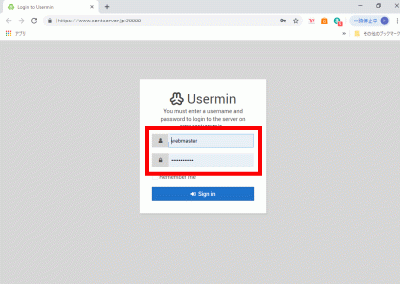
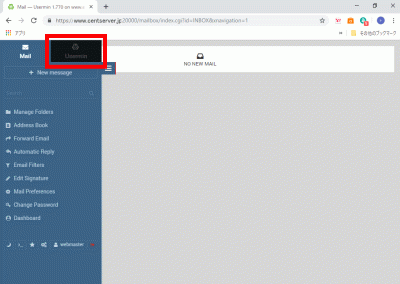
Webブラウザを起動し、「https://centserver.jp:20000/」へアクセスし、ユーザーでログインします。

「Sign in」でログイン

クリックします。

「Sign in」でログイン

クリックします。

「Sign in」でログイン

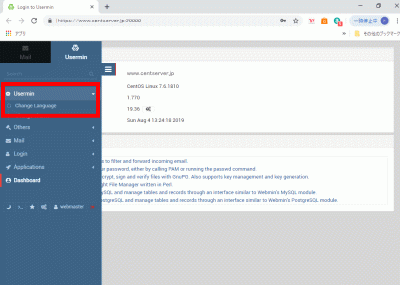
「Usermin」→「Change Language」を選択して、日本語化します。

Usermin

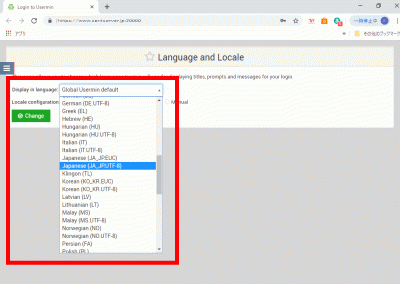
「Display in language:」→「Japanese(JA_JP,UTF-8)」を選択して、「Change」をクリックします。

「Change」をクリック

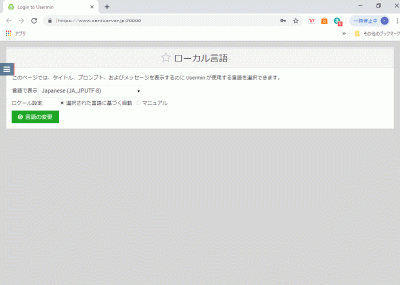
「F5」キー押下して、「日本語表示」を確認します。

日本語表示

CentOS7:Webサーバー設定

httpdのインストール

httpd をインストールします。

[root@www ~]# yum -y install httpd

ウェルカムページを削除します。

[root@www ~]# rm -f /etc/httpd/conf.d/welcome.conf

httpd を設定します。

[root@www ~]# vi /etc/httpd/conf/httpd.conf

95行目:行頭の「#」を削除してコメント解除し、サーバー名を指定します。

ServerName centserver.jp:80

151行目:変更します。

AllowOverride All

164行目:ディレクトリ名のみでアクセスできるファイル名を追記します。

DirectoryIndex index.html index.cgi index.php index.rb index.py

316行目:行頭に「#」を追記してコメント化し、文字化け対応します。

#AddDefaultCharset UTF-8

最終行に追記します。(gateway timeoutエラー対策)

Timeout 300
KeepAlive On
MaxKeepAliveRequests 100
KeepAliveTimeout 15

ドキュメントルート所有者を編集ユーザー(webmaster)に変更します。

[root@www ~]# chown webmaster. /var/www/html/

ドキュメントルート所有者を確認します。

[root@www ~]# ll /var/www/
合計 0
drwxr-xr-x 2 root root 6 4月 24 22:46 cgi-bin
drwxr-xr-x 2 webmaster webmaster 6 4月 24 22:46 html

URLのwwwを設定します。

[root@www ~]# vi /etc/httpd/conf.d/virtualhost-00-centserver.jp.conf

wwwなしに統一します。

<VirtualHost *:80>
    ServerName centserver.jp
    DocumentRoot /var/www/html
    RewriteEngine On
    RewriteCond %{HTTP_HOST} ^www\.centserver\.jp
    RewriteRule ^(.*)$ http://centserver.jp/$1 [R=301,L]
</VirtualHost>

起動します。

[root@www ~]# systemctl start httpd

自動起動設定します。

[root@www ~]# systemctl enable httpd

HTMLテストページを作成します。

[root@www ~]# vi /var/www/html/index.html
<html>
<body>
<div style="width: 100%; font-size: 20px; font-weight: bold; text-align: center;">
Test Page
</div>
</body>
</html>

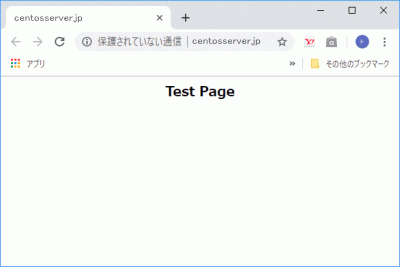
Webブラウザを起動し、「http://centserver.jp」にアクセスし、動作確認をします。

Webブラウザを起動

TCP80番ポート開放

ルーターの設定で、TCP80番ポートを開放します。(設定方法はご自身の環境に合わせて調べてください。

ポート開放テスト

こちらのサイトで「ホスト名(centserver.jp)」、「ポート番号(80)」の開放確認をします。

Perlのインストール

Perl をインストールします。

[root@www ~]# yum -y install perl perl-CGI

「html」ディレクトリで CGI の実行を許可する設定します。

[root@www ~]# vi /etc/httpd/conf.d/html.conf

拡張子 cgi、pl、rb、py を CGI として設定します。

<Directory "/var/www/html">
    Options +ExecCGI
    AddHandler cgi-script .cgi .pl .rb .py
</Directory>

「/usr/local/bin/perl」で、Perlコマンドへアクセスできるようにします。

[root@www ~]# ln -s /usr/bin/perl /usr/local/bin/perl

Perlのパスを確認します。

[root@www ~]# whereis perl
perl: /usr/bin/perl /usr/local/bin/perl /usr/share/man/man1/perl.1.gz

再起動します。

[root@www ~]# systemctl restart httpd

CGIテストページを作成します。

[root@www ~]# vi /var/www/html/index.cgi
#!/usr/bin/perl

print "Content-type: text/html\n\n";
print "<html>\n<body>\n";
print "<div style=\"width: 100%; font-size: 20px; font-weight: bold; text-align: center;\">\n";
print "CGI Test Page";
print "\n</div>\n";
print "</body>\n</html>\n";

パーミッションを設定します。

[root@www ~]# chmod 705 /var/www/html/index.cgi

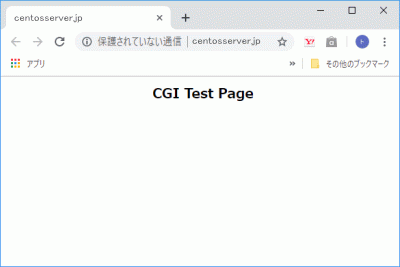
Webブラウザを起動し、「http://centserver.jp/index.cgi」にアクセスし、動作確認をします。

Webブラウザを起動

PHPのインストール

PHP をインストールします。

[root@www ~]# yum -y install php php-mbstring php-pear

PHP を設定します。

[root@www ~]# vi /etc/php.ini

878行目:行頭の「;」を削除してコメント解除し、自身のタイムゾーンを追記します。

date.timezone = "Asia/Tokyo"

再起動します。

[root@www ~]# systemctl restart httpd

PHPテストページを作成します。

[root@www ~]# vi /var/www/html/index.php
<html>
<body>
<div style="width: 100%; font-size: 20px; font-weight: bold; text-align: center;">
<?php
print "PHP Test Page";
?>
</div>
</body>
</html>

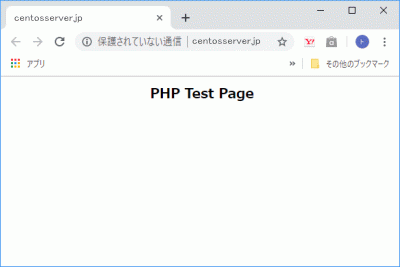
Webブラウザを起動し、「http://centserver.jp/index.php」にアクセスし、動作確認をします。

Webブラウザを起動

Rubyのインストール

Ruby をインストールします。

[root@www ~]# yum -y install ruby

再起動します。

[root@www ~]# systemctl restart httpd

Rubyテストページを作成します。

[root@www ~]# vi /var/www/html/index.rb
#!/usr/bin/ruby

print "Content-type: text/html\n\n";
print "<html>\n<body>\n";
print "<div style=\"width: 100%; font-size: 20px; font-weight: bold; text-align: center;\">\n";
print "Ruby Test Page";
print "\n</div>\n";
print "</body>\n</html>\n";

パーミッションを設定します。

[root@www ~]# chmod 705 /var/www/html/index.rb

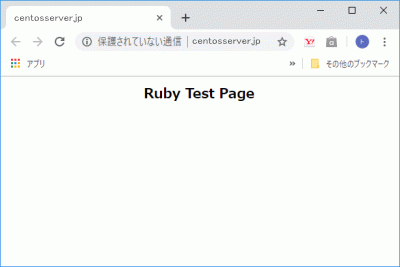
Webブラウザを起動し、「http://centserver.jp/index.rb」にアクセスし、動作確認をします。

Webブラウザを起動

Pythonのインストール

Python をインストールします。

[root@www ~]# yum -y install python

再起動します。

[root@www ~]# systemctl restart httpd

Python テストページを作成します。

[root@www ~]# vi /var/www/html/index.py
#!/usr/bin/env python

print "Content-type: text/html\n\n";
print "<html>\n<body>\n";
print "<div style=\"width: 100%; font-size: 20px; font-weight: bold; text-align: center;\">\n";
print "Python Test Page";
print "\n</div>\n";
print "</body>\n</html>\n";

パーミッションを設定します。

[root@www ~]# chmod 705 /var/www/html/index.py

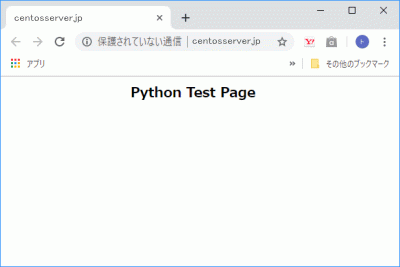
Webブラウザを起動し、「http://centserver.jp/index.py」にアクセスし、動作確認をします。

Webブラウザを起動

Perlモジュールのインストール

チェックを入れて「OK」をクリックするとインストールログが表示されます。

モジュール名 説明
全て
Jcode 日本語文字コードの変換
Getopt::Long コマンドライン引数のオプションを処理する
Archive::Tar tarファイルの展開と作成(v5.10以降)
Cwd カレントディレクトリのパスを取得する
File::Basename ファイルのベース名とディレクトリ名の取得
File::Copy ファイルの移動とコピー
File::Path 複数階層のディレクトリの作成と削除
File::Spec ファイル名に対する移植性のある処理
File::Temp 一時ファイルの作成
File::Find ファイルの検索
FindBin スクリプトが存在するディレクトリのパスの取得
Encode 日本語などのマルチバイト文字列を適切に処理する
utf8 ソースコード内の文字列を内部文字列に変換
Carp モジュールの呼び出し元の観点で例外を発生させる
lib モジュールの検索パスの追加
Time::Piece 日付・時刻を扱うための標準モジュール(v5.10からコアモジュール)
Time::Local localtime,gmtimeの逆返還
base クラスの継承
Data::Dumper 変数の内容を出力する
Benchmark ベンチマーク(性能比較)を行う
JSON JSONデータの解析
MIME::Base64 Base64形式へのエンコード
MIME::QuotedPrint quoted-printable形式へのエンコード
Digest::MD5 MD5値を求める
Digest::SHA 各種SHA値を求める (v5.10以降)
Storable データのシリアライズ化
Scalar::Util スカラ値に関するユーティリティ
List::Util 配列に対するさまざまな操作
Hash::Uti ハッシュのキーの制限
Sys::Hostname ホスト名の取得
Net::FTP FTPクライアント
Net::Ping リモートホストの生存確認
Exporter 関数のエクスポート
CPAN CPANからモジュールをインストールする
Pod::Usage PODドキュメントの出力
Errno システムのエラー番号をあらわす定数
POSIX POSIXで定義された関数
Math::BigInt 大きな数の計算
Math::BigFloat 大きな数の計算
Mojolicious Webフレームワーク
Mojolicious::Plugin::AutoRoute ルートを自動的に生成
MIME::Lite メールを簡単に送信
Class::Accessor::Fast アクセサの作成
Object::Simple デフォルト値つきのアクセサの作成
DDP データをく出力する
DBIx::Custom データベース簡単操作
MySQL::Diff MySQLの差分を表示
DateTime 日付の汎用的な処理
PDL 統計解析
Imager 画像編集
Text::CSV::Encoded 日本語を含んだCSVファイルを取り扱う
Text::Diff テキストの差分確認
XML::Simple シンプルなXMLパーサ
Validator::Custom HTMLフォームの検証
Data::Page ページング処理の支援
Data::Page::Navigation ページのナビゲーションの作成
Module::Starter モジュールの雛形を作成する
Devel::NYTProf 使いやすいプロファイラ
perltidy ソースコードの整形
Net::Ping::External pingコマンドの実行
IO::ScalarArray 標準入力の自動試験
IO::Capture 標準出力、標準エラー出力の自動試験
FFI::Raw ダイナミックライブラリ内の関数を呼び出す
Math::Trig さまざまな三角関数
FFI::Platypus 機能豊富なFFIモジュール
Time::Moment 日付・時刻の高速な処理
CGI CGIモジュール
CGI::Carp HTTPD(またはその他)にエラーログを書込む
DBI 各種データベースをアクセスする
strict 文法チェックを厳しくする
LWP::UserAgent Web 上のデータに アクセスする
LWP::Protocol::https LWP::UserAgentでSSLに アクセスする
Net::SSLeay LWP::UserAgentでSSLに アクセスする
Net::SSL LWP::UserAgentでSSLに アクセスする
Crypt::SSLeay LWP::UserAgentでSSLに アクセスする
Encode::Guess 文字コードを判別
Image::ExifTool Exifの情報を取得する
Archive::Tar tar 展開、作成、ファイルの追加
Image::Magick ImageMagick のコマンドラインツール
Archive::Zip zip 展開、作成、ファイルの追加

モジュールをインストールします。

[root@www ~]# 

ImageMagikのインストール

ImageMagickをインストールします。

[root@www ~]# yum -y install ImageMagick

perl ImageMagickをインストールします。

[root@www ~]# yum -y install ImageMagick-perl

サーバー証明書の取得

Certbotをインストールします。

[root@www ~]# yum --enablerepo=epel -y install certbot

証明書を取得します。

ドキュメントルート:/var/www/html/

メールアドレス:webmastercentserver.jp

Webサーバー名:centserver.jp

[root@www ~]# certbot certonly --webroot -w /var/www/html/ -m webmaster@centserver.jp  -d centserver.jp --agree-tos

証明書自動更新を設定します。

[root@www ~]# vi /etc/cron.d/letsencrypt

下記を追記します。

00 16 * * 2 root /usr/bin/certbot renew --post-hook "service httpd restart"

SSLの設定

SSLをインストールして、暗号化通信ができるように設定します。

[root@www ~]# yum install mod_ssl

SSLを設定します。

[root@www ~]# vi /etc/httpd/conf.d/ssl.conf

59行目:行頭の「#」を削除してコメントを解除します。

DocumentRoot "/var/www/html"

75行目:変更します。

SSLProtocol -All +TLSv1 +TLSv1.1 +TLSv1.2

100行目:取得した証明書を指定します。

SSLCertificateFile /etc/letsencrypt/live/centserver.jp/cert.pem

107行目:取得した鍵ファイルを指定します。

SSLCertificateKeyFile /etc/letsencrypt/live/centserver.jp/privkey.pem

116行目:取得した中間証明書を指定します。

SSLCertificateChainFile /etc/letsencrypt/live/centserver.jp/chain.pem

再起動します。

[root@www ~]# systemctl restart httpd

Free Monitoring Test Toolsで「https://centserver.jp」の作動確認をします。

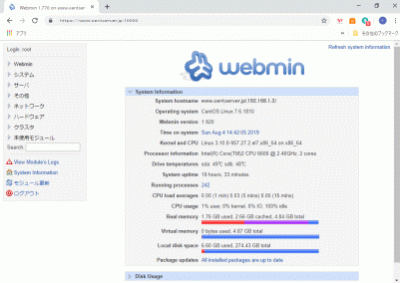
CentOS7:Webmin設定

Webminインストール

必要な パケージをインストールします。

[root@www ~]# yum -y install perl-Net-SSLeay

Webmin をインストールします。

[root@www ~]# yum -y install http://download.webmin.com/download/yum/webmin-1.770-1.noarch.rpm

miniserv.confを設定します。

[root@www ~]# vi /etc/webmin/miniserv.conf

最終行にアクセス許可するIPを追記します。

allow=127.0.0.1 192.168.1.1/24
keyfile=/etc/letsencrypt/live/centserver.jp/privkey.pem
certfile=/etc/letsencrypt/live/centserver.jp/fullchain.pem

再起動します。

[root@www ~]# /etc/rc.d/init.d/webmin restart

起動確認.

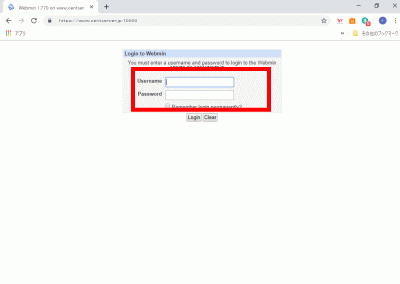
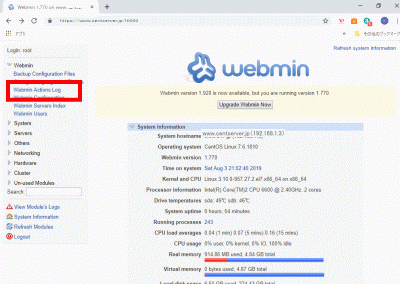
Webブラウザを起動し、「https://centserver.jp:10000/」へアクセスし, root ユーザーでログインします。

root ユーザーでログイン

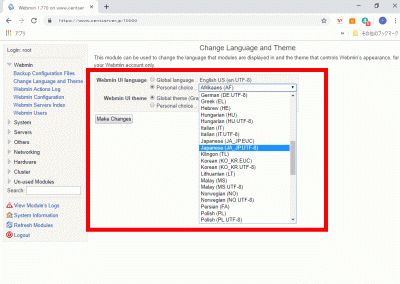
「Change Language and Theme」をクリックします。

Change Language and Theme

「Personal choice ..」、Japanese(JA_JP.UTF-8)を選択して、「Make Changes」をクリックします。

Personal choice ..

「F5」キー押下して、「日本語表示」を確認します。

日本語表示

CentOS7:システム監視設定

Nagiosのインストール

Nagiosに必要なgd-develをインストールします。

[root@www ~]# yum -y install gd-devel

nagiosユーザーを作成します。

[root@www ~]# useradd -d /usr/local/nagios/ -M nagios

Nagiosをダウンロードします。

[root@www ~]# wget https://downloads.sourceforge.net/project/nagios/nagios-4.x/nagios-4.2.4/nagios-4.2.4.tar.gz

Nagiosを展開します。

[root@www ~]# tar zxvf nagios-4.2.4.tar.gz

Nagios展開先ディレクトリへ移動します。

[root@www ~]# cd nagios-4.2.4

Nagios日本語化パッチをダウンロードします。

[root@www nagios-4.2.4]# wget http://ftp.momo-i.org/pub/security/nagios/patches/nagios-jp-4.2.4.patch.gz

Nagios日本語化パッチを施行します。

[root@www nagios-4.2.4]# gzip -dc nagios-jp-4.2.4.patch.gz |patch -p1

Nagiosをインストールします。

[root@www nagios-4.2.4]# ./configure && make all && make fullinstall && make install-config

ディレクトリを抜けます。

[root@www nagios-4.2.4]# cd

Nagios展開先ディレクトリを削除します。

[root@www ~]# rm -rf nagios-4.2.4

ダウンロードしたファイルを削除します。

[root@www ~]# rm -f nagios-4.2.4.tar.gz

Nagiosプラグインインストール

MySQLの監視を行なうmysql-develをインストールします。

[root@www ~]# yum -y install mysql-devel

Nagiosプラグインをダウンロードします。

[root@www ~]# wget https://nagios-plugins.org/download/nagios-plugins-2.1.4.tar.gz

Nagiosプラグインを展開します。

[root@www ~]# tar zxvf nagios-plugins-2.1.4.tar.gz

Nagiosプラグイン展開先ディレクトリへ移動します。

[root@www ~]# cd nagios-plugins-2.1.4

Nagiosプラグインをインストールします。

[root@www nagios-plugins-2.1.4]# ./configure && make && make install

ディレクトリを抜けます。

[root@www nagios-plugins-2.1.4]# cd

Nagiosプラグイン展開先ディレクトリを削除します。

[root@www ~]# rm -rf nagios-plugins-2.1.4

ダウンロードしたファイルを削除します。

[root@www ~]# rm -f nagios-plugins-2.1.4.tar.gz

Nagios設定

nagios.cfgを設定します。

[root@www ~]# vi /usr/local/nagios/etc/nagios.cfg

51行目:行頭の「#」を削除してコメント解除し、サーバー監視設定有効化を設定します。

cfg_dir=/usr/local/nagios/etc/servers

1094行目:日付書式をYYYY-MM-DD HH:MM:SSにするを設定します。

date_format=iso8601

サーバー監視設定ファイル格納ディレクトリを作成します。

[root@www ~]# mkdir /usr/local/nagios/etc/servers

contacts.cfgを設定します。

[root@www ~]# vi /usr/local/nagios/etc/objects/contacts.cfg

34行目:管理者メールアドレスを指定を設定します。

define contact{
        contact_name                    nagiosadmin             ; Short name of user
        use                             generic-contact         ; Inherit default values from generic-contact template (defined above)
        alias                           Nagios Admin            ; Full name of user

        email                           root@localhost
        }

localhost.cfgを設定します。

[root@www ~]# vi /usr/local/nagios/etc/objects/localhost.cfg

141行目:SSH状態変化時に通知するを設定します。

define service{
        use                             local-service         ; Name of service template to use
        host_name                       localhost
        service_description             SSH
        check_command                   check_ssh
        notifications_enabled           1
        }

154行目:SSH状態変化時に通知するを設定します。

define service{
        use                             local-service         ; Name of service template to use
        host_name                       localhost
        service_description             HTTP
        check_command                   check_http
        notifications_enabled           1
        }

commands.cfgを設定します。

[root@www ~]# vi /usr/local/nagios/etc/objects/commands.cfg

29行目:nkfコマンドのメール本文文字化け対策を設定します。

# 'notify-host-by-email' command definition
define command{
        command_name    notify-host-by-email
        command_line    /usr/bin/printf "%b" "***** Nagios *****\n\nNotification Type: $NOTIFICATIONTYPE$\nHost: $HOSTNAME$\nState: $HOSTSTATE$\nAddress: $HOSTADDRESS$\nInfo: $HOSTOUTPUT$\n\nDate/Time: $LONGDATETIME$\n" | /usr/bin/nkf -j | /bin/mail -s "** $NOTIFICATIONTYPE$ Host Alert: $HOSTNAME$ is $HOSTSTATE$ **" $CONTACTEMAIL$
        }

35行目:nkfコマンドのメール本文文字化け対策を設定します。

# 'notify-service-by-email' command definition
define command{
        command_name    notify-service-by-email
        command_line    /usr/bin/printf "%b" "***** Nagios *****\n\nNotification Type: $NOTIFICATIONTYPE$\n\nService: $SERVICEDESC$\nHost: $HOSTALIAS$\nAddress: $HOSTADDRESS$\nState: $SERVICESTATE$\n\nDate/Time: $LONGDATETIME$\n\nAdditional Info:\n\n$SERVICEOUTPUT$" | /usr/bin/nkf -j | /bin/mail -s "** $NOTIFICATIONTYPE$ Service Alert: $HOSTALIAS$/$SERVICEDESC$ is $SERVICESTATE$ **" $CONTACTEMAIL$
        }

Apache設定

apacheユーザーをnagiosグループに所属させるを設定します。

[root@www ~]# usermod -G nagios apache

Nagios用Apache設定ファイルを設定します。

[root@www ~]# vi /etc/httpd/conf.d/nagios.conf

16行目:追記します。

      <RequireAny>

17行目:行頭に「#」を追記してコメント化し、内部からのみアクセス可能にする設定をします。

#         Require all granted

19行目:内部ネットワーク(192.168.1.1/24)からのみアクセス可能にする設定をします。

         Require ip 192.168.1.1/24

20行目:追記します。

      </RequireAny>

49行目:追記します。

      <RequireAny>

50行目:行頭に「#」を追記してコメント化し、内部からのみアクセス可能にする設定をします。

#         Require all granted

52行目:内部ネットワーク(192.168.1.1/24)からのみアクセス可能にする設定をします。

         Require ip 192.168.1.1/24

53行目:追記します。

      </RequireAny>

Webサーバー設定反映を設定します。

[root@www ~]# systemctl reload httpd

Nagios管理ユーザー(nagiosadmin)を作成します。

[root@www ~]# htpasswd -c /usr/local/nagios/etc/htpasswd.users nagiosadmin

パスワードを設定します。

New password:
Re-type new password:
Adding password for user nagiosadmin

Nagios起動

起動します。

[root@www ~]# /etc/rc.d/init.d/nagios start

自動起動設定します。

[root@www ~]# chkconfig nagios on

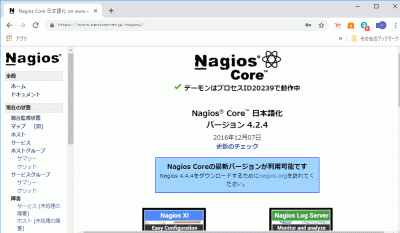
Webブラウザを起動し、「http://centserver.jp/nagios/」にアクセスし、管理ユーザー:nagiosadmin、登録済パスワードでログインして動作確認をします。

nagios

CentOS7:ログ解析設定

Webアクセスログ解析(AWStats)のインストール

AWStatsをインストールします。

[root@www ~]# yum --enablerepo=epel -y install awstats

自動作成されているawstats.centserver.jp.conf を設定します。

[root@www ~]# vi /etc/awstats/awstats.centserver.jp.conf 

125行目:変更します。

LogFormat=1

156行目:ホスト名を設定します。

SiteDomain="centserver.jp"

171行目:除外したドメイン名やIPアドレスを追記します。

HostAliases="localhost 127.0.0.1 REGEX[^.*centserver\.jp$] REGEX[^192\.168\.1\.]"

awstats.confを設定します。

[root@www ~]# vi /etc/httpd/conf.d/awstats.conf

30行目:アクセス許可IPを追記します。

        Require ip 192.168.1.1/24

再起動します。

[root@www ~]# systemctl restart httpd

1時間毎に自動更新する設定をします。

[root@www ~]# /usr/share/awstats/wwwroot/cgi-bin/awstats.pl -config=centserver.jp -update

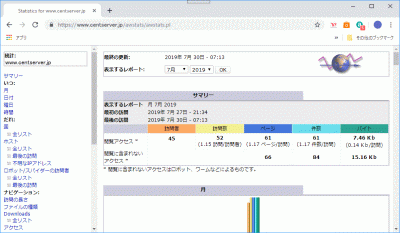
Web ブラウザを起動し、「http://centserver.jp/awstats/awstats.pl」にアクセスして、作動確認します。

awstats

メールログ解析(Pfiogsumm)のインストール

pflogsumm をインストールします。

[root@www ~]# yum -y install postfix-perl-scripts

メールログのサマリーを出力します。

[root@www ~]# perl /usr/sbin/pflogsumm -d yesterday /var/log/maillog
Postfix log summaries for Jul 29

Grand Totals
------------
messages

      8   received
      8   delivered
      2   forwarded
      1   deferred  (1  deferrals)
      0   bounced
      0   rejected (0%)
      0   reject warnings
      0   held
      0   discarded (0%)

   2428k  bytes received
   2429k  bytes delivered
      3   senders
      2   sending hosts/domains
      2   recipients
      2   recipient hosts/domains


Per-Hour Traffic Summary
------------------------
    time          received  delivered   deferred    bounced     rejected
    --------------------------------------------------------------------
    0000-0100           0          0          0          0          0
    0100-0200           0          0          0          0          0
    0200-0300           0          0          0          0          0
…

root宛てにメール送信する設定をします。

[root@www ~]# crontab -e

毎日午前1時にメール送信する設定をします。

[root@www ~]# 00 01 * * * perl /usr/sbin/pflogsumm -e -d yesterday /var/log/maillog | mail -s 'Logwatch for Postfix' root

CentOS7:MAILサーバー設定

Postfixの設定

外部からWebアクセスできるように追記します。

[root@www ~]# vi /etc/httpd/conf.d/virtualhost-00-centserver.jp.conf
<VirtualHost *:80>
    ServerName centserver.jp
    DocumentRoot /var/www/html
    ServerAlias mail.centserver.jp
    RewriteEngine On
    RewriteCond %{HTTP_HOST} ^www\.centserver\.jp
    RewriteRule ^(.*)$ http://centserver.jp/$1 [R=301,L]
</VirtualHost>

Postfixをインストールをします。

[root@www ~]# yum install postfix

Postfixを設定します。

[root@www ~]# vi /etc/postfix/main.cf

77行目:メールサーバードメイン名の指定を追記します。

myhostname = mail.centserver.jp

84行目:ドメイン名の指定を追記します。

mydomain = centserver.jp

100行目:送信元メールアドレスにドメイン名の指定を追記します。

myorigin = $mydomain

116行目:外部からのメール受信を許可する設定に変更します。

inet_interfaces = all

164行目:ドメインメールを受信する設定に変更します。

mydestination = $myhostname, localhost.$mydomain, localhost, $mydomain

420行目:メール格納形式をMaildir形式にする設定を追記します。

home_mailbox = Maildir/

574行目:メールサーバーソフト名の隠蔽化する設定を追記します。

smtpd_banner = $myhostname ESMTP unknown

SMTP認証の設定を最終行へ追加します。

smtpd_sasl_auth_enable = yes

smtpd_recipient_restrictions =
    permit_mynetworks
    permit_sasl_authenticated
    reject_unauth_destination

受信メールサイズを10MB=10*1024*1024に制限する設定を最終行へ追記します。

message_size_limit = 10485760

master.cfを設定します。

[root@www ~]# vi /etc/postfix/master.cf

16行目:行頭の「#」を削除してコメント解除します。

submission inet n    -    n    -    -    smtpd

19行目:行頭の「#」を削除してコメント解除します。

 -o smtpd_sasl_auth_enable=yes

SMTP認証設定

cyrus-saslをインストールします。

[root@www ~]# yum install cyrus-sasl cyrus-sasl-plain

起動します。

[root@www ~]# systemctl start saslauthd

自動起動設定します。

[root@www ~]# systemctl enable saslauthd

Maildir形式メールボックスの作成

新規ユーザー追加時に自動でMaildir形式メールボックス作成する設定をします。

[root@www ~]# mkdir -p /etc/skel/Maildir/{new,cur,tmp}

メールボックスパーミッションを設定します。

[root@www ~]# chmod -R 700 /etc/skel/Maildir/

起動します。

[root@www ~]# systemctl restart postfix

現在のユーザーのMaildir形式メールボックス作成する設定をします。

[root@www ~]# wget https://rcg.jp/perfect_maildir/perfect_maildir.pl -O /usr/local/bin/perfect_maildir.pl
[root@www ~]# chmod +x /usr/local/bin/perfect_maildir.pl

Maildir変換に必要なPerlのTimeDateモジュールインストールします。

[root@www ~]# yum -y install perl-TimeDate

Postfixを停止します。

[root@www ~]# systemctl stop postfix

Maildir一括変換スクリプトを作成します。

[root@www ~]# vi migrate-maildir.sh
#!/bin/bash
#
#Maildir一括変換スクリプト
#
#メールボックス=>Maildir形式変換スクリプト
#http://perfectmaildir.home-dn.net/
FOLDERCONVERT=/usr/local/bin/perfect_maildir.pl
#一般ユーザリスト
USERLIST=`ls /home/`
#ログ
MIGRATELOG=/tmp/migrate-maildir.log
rm -f $MIGRATELOG
#引数(変換元メールボックス形式)チェック
if [ "$1" != "mbox" ] && [ "$1" != "Mailbox" ]; then
echo "Usage: migrate-maildir.sh {mbox|Mailbox}"
exit
fi
#一般ユーザメールボックス移行
for user in $USERLIST;
do
if [ "$1" = "mbox" ]; then
inbox="/var/spool/mail/${user}"
else
inbox="/home/${user}/Mailbox"
fi
if [ -f "${inbox}" ]; then
newdir="/home/${user}/Maildir/"
mkdir -p "$newdir"
mkdir -p "$newdir"/cur
mkdir -p "$newdir"/new
mkdir -p "$newdir"/tmp
chmod -R 700 "${newdir}"
$FOLDERCONVERT "$newdir" < "${inbox}" >> $MIGRATELOG 2>&1
chown -R ${user}. "$newdir"
find "$newdir" -type f -exec chmod 600 {} \;
fi
done
#rootユーザメールボックス移行
user="root"
if [ "$1" = "mbox" ]; then
inbox="/var/spool/mail/${user}"
else
inbox="/${user}/Mailbox"
fi
if [ -f "${inbox}" ]; then
newdir="/${user}/Maildir/"
mkdir -p "$newdir"
mkdir -p "$newdir"/cur
mkdir -p "$newdir"/new
mkdir -p "$newdir"/tmp
chmod -R 700 "${newdir}"
$FOLDERCONVERT "$newdir" < "${inbox}" >> $MIGRATELOG 2>&1
chown -R ${user}. "$newdir"
find "$newdir" -type f -exec chmod 600 {} \;
fi
[ -a $MIGRATELOG ] && cat $MIGRATELOG;rm -f $MIGRATELOG

一括変換スクリプトを実行します。

[root@www ~]# sh migrate-maildir.sh mbox

Maildir一括変換スクリプトを削除します。

[root@www ~]# rm -f migrate-maildir.sh

Maildir変換ツールを削除します。

[root@www ~]# rm -f /usr/local/bin/perfect_maildir.pl

起動します。

[root@www ~]# systemctl restart postfix

webmasterユーザーをメール使用する場合は「/etc/aliases」を変更します。

[root@www ~]# vi /etc/aliases

行頭に#を追加して転送を無効にします。

#webmaster: root

転送設定を反映します。

[root@www ~]# newaliases

TCP25番、TCP587番ポート開放

ルーターの設定で、TCP25番、TCP587番ポートを開放します。(設定方法はご自身の環境に合わせて調べてください。

ポート開放テスト

こちらのサイトで「ホスト名(centserver.jp)」、「ポート番号(25,587)」の開放確認をします。

OP25B対策

OP25B対策はこちらをご覧ください。

Dovecotのインストール

[root@www ~]# yum -y install dovecot

dovecot.confを設定します。

[root@www ~]# vi /etc/dovecot/dovecot.conf

24行目:行頭「#」を削除してコメント解除します。

protocols = imap pop3 lmtp

30行目:行頭「#」を削除してコメント解除し、IPv6を無効にする設定に変更します。

listen = *

10-mail.confを設定します。

[root@www ~]# vi /etc/dovecot/conf.d/10-mail.conf

31行目:メール格納形式をMaildir形式にする設定を追記します。

mail_location = maildir:~/Maildir

10-auth.confを設定します。

[root@www ~]# vi /etc/dovecot/conf.d/10-auth.conf

11行目:プレインテキスト認証を許可する設定を追記します。

disable_plaintext_auth = no

10-ssl.confを設定します。

[root@www ~]# vi /etc/dovecot/conf.d/10-ssl.conf

8行目:SSL接続を無効にする設定に変更します。

ssl = no

起動します。

[root@www ~]# systemctl start dovecot

自動起動を設定します。

[root@www ~]# systemctl enable dovecot

TCP110番またはTCP143番ポート開放

ルーターの設定で、TCP110番またはTCP143番ポートを開放します。(設定方法はご自身の環境に合わせて調べてください。

ポート開放テスト

こちらのサイトで「ホスト名(centserver.jp)」、「ポート番号(110または143)」の開放確認をします。

メールユーザーの追加

ユーザーを追加します。(ユーザー例:centos)

[root@www ~]# useradd centos

パスワードを設定します。

[root@www ~]# passwd centos
Changing password for user centos.
New UNIX password:
Retype new UNIX password:

「/etc/ssh/sshd_config」を編集して、秘密鍵での認証接続を無効にする

sshd_configを編集します。

[root@www ~]# vi /etc/ssh/sshd_config

65行目:「no」→「yes」に変更します。

PasswordAuthentication yes

SSHを再起動します。

[root@www ~]# systemctl restart sshd

TeraTermにcentosで新しい接続をします。

SSHサーバー公開鍵認証方式接続の設定をします。

sendmailパスの確認

main.cfを開きます。

[root@www ~]# vi /etc/postfix/main.cf

646行目:sendmailパスの確認します。

sendmail_path = /usr/sbin/sendmail.postfix

メールソフトの登録

先にThunderbirdへGmail(送信用メール)を設定します。

Thunderbirdを起動し、メールをクリックします。
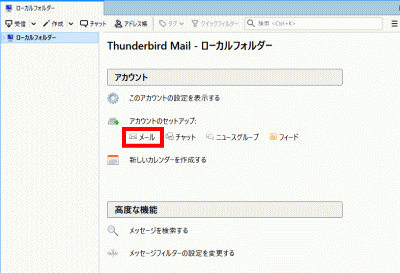
Thunderbird

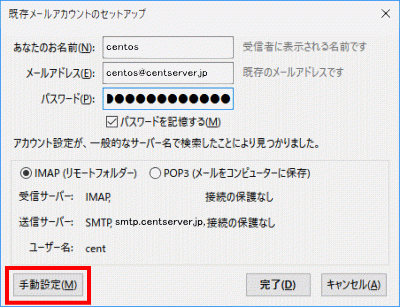
あなたのお名前、メールアドレス(centos@centserver.jp)、パスワードを入力し、「続ける」をクリックします。
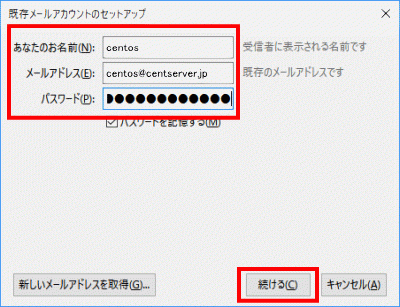
メールアドレス

「手動設定」をクリックします。

手動設定

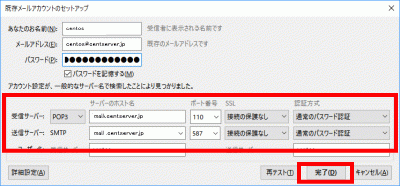
サーバーのホスト名 ポート番号 SSL 認証方式
受信サーバー POP3 mail.centserver.jp 110 接続の保護なし 通常のパスワード認証
送信サーバー SMTP mail.centserver.jp 587 接続の保護なし 通常のパスワード認証

上の表を参考にして設定し、「完了」をクリックします。

完了

「接続する上での危険性を理解しました」を選択して「完了」をクリックします。
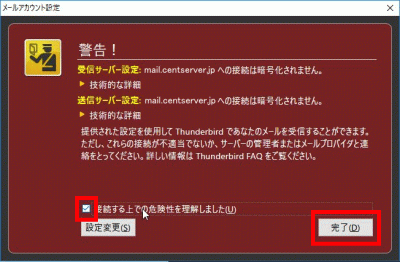
接続する上での危険性を理解しました

サーバー証明書の取得

Certbotをインストールします。

[root@www ~]# yum --enablerepo=epel -y install certbot

証明書を取得します。

ドキュメントルート:/var/www/html/

メールアドレス:webmastercentserver.jp

メールサーバー名:mail.centserver.jp

[root@www ~]# certbot certonly --webroot -w /var/www/html/ -m webmaster@centserver.jp  -d mail.centserver.jp --agree-tos

証明書自動更新を設定します。

[root@www ~]# vi /etc/cron.d/letsencrypt

下記を追記します。

00 16 * * 2 root /usrobin/certbot renew --post-hook "service httpd restart"

SSLの設定

main.cfを設定します。

[root@www ~]# vi /etc/postfix/main.cf

下記を最終行に追記します。

smtp_tls_security_level = may
smtpd_tls_security_level = may
smtpd_tls_cert_file = /etc/letsencrypt/live/mail.centserver.jp/fullchain.pem
smtpd_tls_key_file = /etc/letsencrypt/live/mail.centserver.jp/privkey.pem
smtpd_tls_session_cache_database = btree:/var/lib/postfix/smtpd_scache

tls_high_cipherlist = kEECDH:+kEECDH+SHA:kEDH:+kEDH+SHA:+kEDH+CAMELLIA:kECDH:+kECDH+SHA:kRSA:+kRSA+SHA:+kRSA+CAMELLIA:!aNULL:!eNULL:!SSLv2:!RC4:!MD5:!DES:!EXP:!SEED:!IDEA:!3DES
smtp_tls_ciphers = high
smtpd_tls_ciphers = high
smtpd_tls_mandatory_ciphers = high

smtpd_tls_mandatory_protocols=!SSLv2,!SSLv3
smtp_tls_mandatory_protocols=!SSLv2,!SSLv3
smtpd_tls_protocols=!SSLv2,!SSLv3
smtp_tls_protocols=!SSLv2,!SSLv3

master.cfを設定します。

[root@www ~]# vi /etc/postfix/master.cf

16行目:行頭に「#」を追加してコメント化し、SUBMISSIONポートを無効化します。

#submission inet n    -    n    -    -    smtpd

19行目:行頭に「#」を追加してコメント化し、SUBMISSIONポートのSMTP認証を無効化します。

#  -o smtpd_sasl_auth_enable=yes

26行目:行頭の「#」を削除してコメント解除し、SMTPSを有効化します。

smtps    inet n    -    n    -    -    smtpd

28行目:行頭の「#」削除してコメント解除し、SMTPSを有効化します。

 -o smtpd_tls_wrappermode=yes

29行目:行頭の「#」を削除してコメント解除し、SMTPSを有効化します。

 -o smtpd_sasl_auth_enable=yes

41行目:行頭の「#」を削除してコメント解除し、SMTPSを有効化します。

tlsmgr    unix    -    -    n    300    1    tlsmgr

再起動します。

[root@www ~]# systemctl restart postfix

TCP465番ポート開放

ルーターの設定で、TCP465番ポートを開放します。(設定方法はご自身の環境に合わせて調べてください。

ポート開放テスト

こちらのサイトで「ホスト名(mail.centserver.jp)」、「ポート番号(465)」の開放確認をします。

TCP587番ポート閉鎖

ルーターの設定で、TCP587番ポートを閉鎖します。(設定方法はご自身の環境に合わせて調べてください。

ポート開放テスト

こちらのサイトで「ホスト名(mail.centserver.jp)」、「ポート番号(587)」の開放されていないことを確認をします。

Dovecot設定

10-auth.confを設定します。

[root@www ~]# vi /etc/dovecot/conf.d/10-ssl.conf

8行目:SSL接続を有効にする設定に変更します。

ssl = yes

14行目:サーバー証明書+中間証明書を指定します。

ssl_cert = </etc/letsencrypt/live/mail.centserver.jp/fullchain.pem

15行目:秘密鍵を指定します。

ssl_key = </etc/letsencrypt/live/mail.centserver.jp/privkey.pem

51行目:行頭の「#」を削除してコメント解除し、脆弱性のある暗号化方式(SSLv2,SSLv3)を無効化します。

ssl_protocols = !SSLv2 !SSLv3

54行目:行頭の「#」を削除してコメント解除し、使用する暗号化方法を指定します。

ssl_cipher_list = EECDH+AESGCM+AES128:EECDH+AESGCM+AES256:EDH+AESGCM+AES128:EDH+AESGCM+AES256:EECDH+SHA256+AES128:EECDH+SHA384+AES256:EDH+SHA256+AES128:EDH+SHA256+AES256:EECDH+SHA1+AES128:EECDH+SHA1+AES256:EDH+SHA1+AES128:EDH+SHA1+AES256:EECDH+HIGH:EDH+HIGH:AESGCM+AES128:AESGCM+AES256:SHA256+AES128:SHA256+AES256:SHA1+AES128:SHA1+AES256:HIGH:!aNULL:!eNULL:!EXPORT:!DES:!RC4:!MD5:!PSK:!KRB5:!aECDH:!3DES

再起動します。

[root@www ~]# systemctl restart dovecot

TCP995番またはTCP993番ポート開放

ルーターの設定で、TCP995番またはTCP993番ポートを開放します。(設定方法はご自身の環境に合わせて調べてください。

ポート開放テスト

こちらのサイトで「ホスト名(mail.centserver.jp)」、「ポート番号(995または993)」の開放確認をします。

メールソフトの設定変更

Thunderbirdを起動し、メールアドレスを選択し、「このアカウントの設定を表示する」をクリックします。
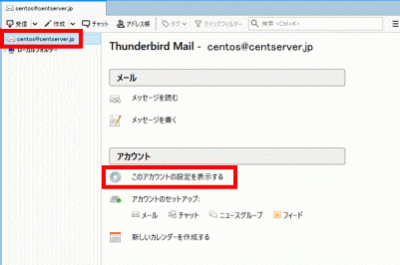
このアカウントの設定を表示する

「サーバー設定」をクリックし、「接続の保護」で「SSL/TLS」を選択します。
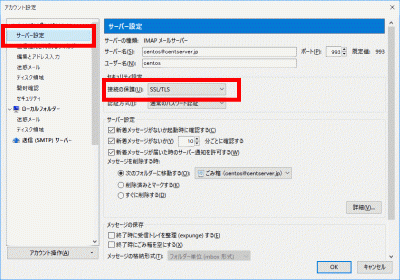
サーバー設定

「送信(SMTP)サーバー」をクリックし、SMTPサーバーを選択して「編集」をクリックします。
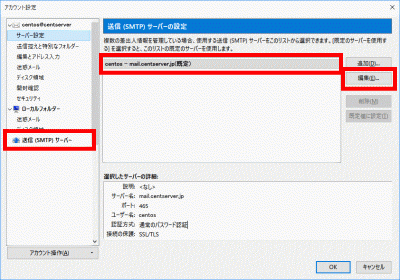
送信(SMTP)サーバー

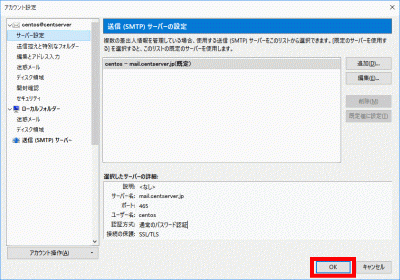
「ポート番号」に「465」を入力し、「接続の保護」で「SSL/TLS」を選択して、「OK」をクリックします。
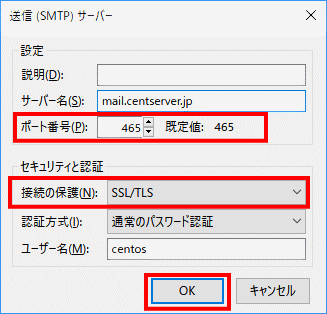
ポート番号

「OK」をクリックします。

「OK」をクリック

アンチウィルスソフトの連携(Clamav+Amavisd)

Amavisd および Clamav Server をインストールします。

[root@www ~]# yum --enablerepo=epel -y install amavisd-new clamav-scanner clamav-scanner-systemd

amavisd.confを設定します。

[root@www ~]# vi /etc/amavisd/amavisd.conf

23行目:ドメイン名を設定します。

$mydomain = 'centserver.jp';

155行目:行頭の「#」を削除してコメント解除し、メールサーバーを設定します。

$myhostname = 'mail.centserver.jp';

157行目、158行目:行頭の「#」を削除してコメント解除します。

$notify_method = 'smtp:[127.0.0.1]:10025';
$forward_method = 'smtp:[127.0.0.1]:10025';

386行目:以下のようになっているか確認します。

['ClamAV-clamd',
\&ask_daemon, ["CONTSCAN {}\n", "/var/run/clamd.amavisd/clamd.sock"],
qr/\bOK$/m, qr/\bFOUND$/m,
qr/^.*?: (?!Infected Archive)(.*) FOUND$/m ],

起動します。

[root@www ~]# systemctl start clamd@amavisd amavisd spamassassin

自動起動を設定します。

[root@www ~]# systemctl enable clamd@amavisd amavisd spamassassin

main.cfの設定です。

[root@www ~]# vi /etc/postfix/main.cf

最終行に追記します。

content_filter=smtp-amavis:[127.0.0.1]:10024

master.cfの設定です。

[root@www ~]# vi /etc/postfix/master.cf

最終行に追記します。

smtp-amavis unix -    -    n    -    2 smtp

    -o smtp_data_done_timeout=1200
    -o smtp_send_xforward_command=yes
    -o disable_dns_lookups=yes
127.0.0.1:10025 inet n    -    n    -    -    smtpd
    -o content_filter=
    -o local_recipient_maps=
    -o relay_recipient_maps=
    -o smtpd_restriction_classes=
    -o smtpd_client_restrictions=
    -o smtpd_helo_restrictions=
    -o smtpd_sender_restrictions=
    -o smtpd_recipient_restrictions=permit_mynetworks,reject
    -o mynetworks=127.0.0.0/8
    -o strict_rfc821_envelopes=yes
    -o smtpd_error_sleep_time=0
    -o smtpd_soft_error_limit=1001
    -o smtpd_hard_error_limit=1000

再起動します。

[root@www ~]# systemctl restart postfix