Fedora36:ドメイン設定

s50

DiCEのインストール.

wget パッケージと glibc パッケージをインストールします。

[root@www ~]# 50_1dnf -y install wget
[root@www ~]# 50_2dnf -y install glibc

s51DiCE をダウンロードし、解凍します。

[root@www ~]# 51_1cd /usr/local/bin
[root@www bin]# 51_2wget https://rcg.jp/download/DiCE.tar.gz
[root@www bin]# 51_3tar xzvf DiCE.tar.gz
[root@www bin]# 51_4rm -f DiCE.tar.gz
[root@www bin]# 51_5cd

s52

DiCE の設定.

ライブラリをインストールします。

[root@www ~]# 52_1dnf install ld-linux.so.2

s53「y」で応答します。

Is this ok [y/d/N]: 53_1y

s54

文字コードを「EUC-JP」に変更.

「設定」→「端末」を選択します。
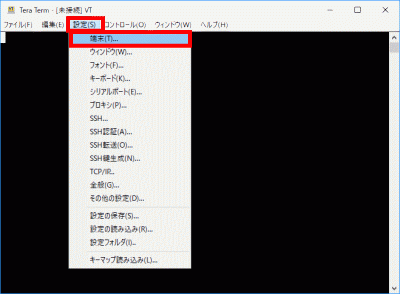
「設定」→「端末」を選択

s55「漢字-受信」、「漢字-送信」をEUCに変更し、「OK」をクリックします。
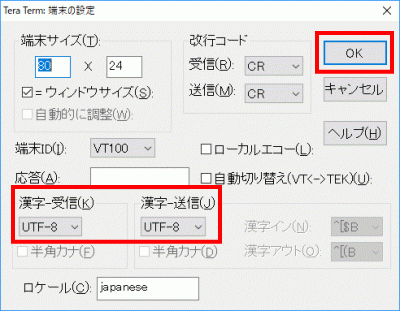
「漢字-受信」、「漢字-送信」をEUCに変更し、「OK」をクリック

s56セットアップします。

[root@www ~]# 56_1setarch `uname -m` /usr/local/bin/DiCE/diced
=-=-=- DiCE DynamicDNS Client -=-=-=
Version 0.19 for Japanese
Copyright(c) 2001 sarad

:56_2setup
s57IPアドレスの検出方法を指定してください
(0) 自動検出
(1) ローカルのネットワークアダプタから検出
(2) 外部のスクリプトから検出
<現在:0>
(N)変更しない  (P)戻る
>57_12
-------------------------------------------------
s58スクリプトのURLを入力してください
<現在:>
(N)変更しない (P)戻る
>58_1http://dyn.value-domain.com/cgi-bin/dyn.fcg?
-------------------------------------------------
s59プライベートIPアドレスも検出対象ですか? (Y/N)
<現在:いいえ>
(P)戻る
>59_1N
-------------------------------------------------
s60IPアドレスの検出をテストしますか? (Y/N)
(P)戻る
>60_1Y
検出IPアドレス>***.***.***.*** 
s61上記の検出IPアドレスが表示しない場合の確認はこちら、IPアドレス確認
-------------------------------------------------
s62IPアドレスの検出をテストしますか? (Y/N) 
(P)戻る 
>62_1N
-------------------------------------------------
s63IPアドレスをチェックする間隔を指定してください(分)
設定可能範囲は5分以上です
<現在:60>
(N)変更しない  (P)戻る
>63_15
=================================================
s64DNSサーバーの負荷を軽減するために頻繁なDNS更新を防ぐ必要があります
前回の更新から一定時間DNS更新処理を行わないように保護時間を設定して
ください(分)  設定可能範囲は10分から1440分です
<現在:60>
(N)変更しない  (P)戻る
>64_110
=================================================
s65設定を保存しますか? (Y/N)
(P)戻る
>65_1Y
s66設定を保存しました
=================================================

s67

DiCEイベントの追加.

ドメイン(VALUE DOMAIN)に合わせて設定します。

:67_1add
s68新しくイベントを追加します

DynamicDNSサービス名を入力してください
"?"で対応しているサービスを一覧表示します
(P)戻る
>?
           ZENNO.COM            livedoor            MyDNS.JP
              pcc.jp              JPN.ch             MyIP.US
              @nifty         StaticCling            MyServer
             ddns.ca                 p2p      did.expoze.com
              Dynamx          WebReactor               unicc
               Earth              DNS2Go              instat
              Now.nu           dynDNS.it          onamae.com
                DION                 ODN         RegisterFly
                 DHS          Netservers                todd
                 USA                 cjb              Dyn.ee
             BIGLOBE                dnip             3domain
             miniDNS           my-domain            ZoneEdit
                ZiVE                  yi                ysdn
              theBBS            SelfHOsT              ddo.jp
               No-IP             nicolas                eNom
           CyberGate            EveryDNS           Microtech
            ieServer          HAMMERNODE             GetmyIP
               Dynup                Dynu                dyns
              DynDSL            DynDNSdk              dyndns
               DtDNS                dnsQ                 dhs
             DDNS.nu            cheapnet            changeIP
            ARTofDNS         68_1VALUEDOMAIN                 ODS
              JSPEED               IPDYN            DnsTokyo
=================================================
s69新しくイベントを追加します


ホスト名を入力してください
(P)戻る
>69_1VALUEDOMAIN
=================================================
s70ドメイン名を入力してください
"?"でドメイン一覧を表示します
(P)戻る
>ドメイン名
=================================================
s71ホスト名を入力してください
(P)戻る
>71_1*
=================================================
s72ログインユーザ名を入力してください
(P)戻る
>
=================================================
s73ログインパスワードを入力してください
(P)戻る
>ログインパスワード
=================================================
s74登録するIPアドレスを入力してください
空白にすると現在のIPアドレスを自動検出します
(P)戻る
>
=================================================
s75このイベントに題名を付けてください
(P)戻る
>75_1VALUEDOMAIN-75_1ドメイン名

s76このイベントを実行するスケジュールを設定します
-------------------------------------------------
実行する頻度を指定してください (番号入力)
(0)1回のみ (1)1日1回 (2)1週間に1回 (3)1ヵ月に1回
(4)その他の周期 (5)IPアドレス変化時 (6)起動時
(P)戻る
>76_14
-------------------------------------------------
s77実行する周期を指定してください
<現在:9>
(0)3分毎   (1)5分毎   (2)10分毎  (3)30分毎
(4)1時間毎 (5)2時間毎 (6)6時間毎 (7)12時間毎
(8)24時間毎(9)7日毎   (10)14日毎 (11)21日毎
(12)28日毎 (13)35日毎 (14)56日毎 (15)84日毎
(N)変更しない  (P)戻る
>77_10
=================================================
=================================================
s78このイベントを有効にしますか? (Y/N)
(イベントの有効/無効は"EN/DIS"コマンドで切替えられます)
>78_1Y
=================================================
s79イベントを保存しますか? (Y/N)
>79_1Y
イベント"VALUE-DOMAIN-server.jp"を保存しました
=================================================
:

s80転送を有効化して終了します。

:80_1ex 0
+ 4/8 17:00 にVALUEDOMAIN-server.jpが実行されました
  IPアドレスを更新しました
:80_2quit

s81「漢字-受信」、「漢字-送信」をUTF-8に変更し、「OK」をクリックします。

「漢字-受信」、「漢字-送信」をUTF-8に変更し、「OK」をクリック

その他の方法

IPアドレス更新スクリプトを作成します。

[root@www ~]# vi /usr/local/bin/update_ip_script.sh
#!/bin/bash

# Store your domain, password, hostname, and current IP address in variables
DOMAIN=${1}
PASS=${2}
HOST=${3}

# Store URLs and values in variables
IPINFO_URL="http://ipinfo.io/ip"
VD_UPDATE_BASE_URL="http://dyn.value-domain.com/cgi-bin/dyn.fcg"
NS_SERVER="ns1.value-domain.com"  # Store the DNS server address

DOMAIN_LOG="d"
PASS_LOG="p"
HOST_LOG="h"
CURRENTIP_LOG="i"

if [ "${HOST}" = "" ]; then
    FQDN=${DOMAIN}
else
    FQDN="${HOST}.${DOMAIN}"
fi

# Error Messages
ERROR_MSG_VDIP="Error detecting IP address configured in VALUE-DOMAIN settings"
ERROR_MSG_CURRENTIP="Error detecting current IP address"
UPDATE_SUCCESS_MSG="IP address update successful"
UPDATE_ERROR_MSG="IP address update error"
EMAIL_SUBJECT="IP address update error"

# Obtain IP address configured in VALUE-DOMAIN settings
IPGETLOG=`host ${FQDN} ${NS_SERVER} 2>&1`
VDIP=`echo "${IPGETLOG}" | grep "has address" | awk '{ print $NF }' | egrep ^[0-9]+\.[0-9]+\.[0-9]+\.[0-9]+$`
if [ $? -ne 0 ]; then
    echo "${FQDN} ${ERROR_MSG_VDIP}" | logger -t $(basename $0)
    echo ${IPGETLOG} | logger -t $(basename $0)
    exit
fi

# Obtain current IP address
IPGETLOG=`curl "${IPINFO_URL}" 2>&1`
echo "${IPGETLOG}" | egrep ^[0-9]+\.[0-9]+\.[0-9]+\.[0-9]+$ > /dev/null 2>&1
if [ $? -eq 0 ]; then
    CURRENTIP=`echo "${IPGETLOG}" | tail -n 1 | awk '{ print $NF }'`
else
    echo "${DOMAIN} ${ERROR_MSG_CURRENTIP}" | logger -t $(basename $0)
    echo "${IPGETLOG}" | logger -t $(basename $0)
    exit
fi

# Create URL query parameters
QUERY_PARAMS="${DOMAIN_LOG}=${DOMAIN}&${PASS_LOG}=${PASS}&${HOST_LOG}=${HOST}&${CURRENTIP_LOG}=${CURRENTIP}"

# Combine with the base URL for VALUE-DOMAIN update
VD_UPDATE_URL="${VD_UPDATE_BASE_URL}?${QUERY_PARAMS}"

# Update VALUE-DOMAIN configured IP address
# (Only if VALUE-DOMAIN configured IP address is different from current IP address)
if [ "${VDIP}" != "${CURRENTIP}" ]; then
    IPUPDATE=`wget -q -O - "${VD_UPDATE_URL}"`
    echo ${IPUPDATE} | grep -q OK
    if [ $? -eq 0 ]; then
        echo "${FQDN} ${UPDATE_SUCCESS_MSG} ${VDIP} to ${CURRENTIP}" | logger -t $(basename $0)
    else
        echo "${FQDN} ${UPDATE_ERROR_MSG}" | logger -t $(basename $0)
        echo ${IPUPDATE} | logger -t $(basename $0)
        (
        echo ${UPDATE_ERROR_MSG}
        echo ${IPUPDATE}
        ) | mail -s "${SCRIPT##*/}${EMAIL_SUBJECT}" root
        exit 1
    fi
fi
exit

IPアドレス更新スクリプトへ実行権限付加します。

[root@www ~]# chmod +x /usr/local/bin/update_ip_script.sh

IPアドレス更新スクリプトを実行します。

[root@www ~]# /usr/local/bin/update_ip_script.sh ドメイン パスワード "*"

IPアドレス更新スクリプトを定期自動実行ファイルを作成します。(3分毎に実行します。)

[root@www ~]# vi /etc/cron.d/ddns-update
*/3 * * * * root /usr/local/bin/update_ip_script.sh ドメイン パスワード "*"

Fedora36:セキュリティ対策

s50

アンチウィルスソフトの導入(Clam AntiVirus).

Clam AntiVirus をインストールします。

[root@www ~]# 50_1dnf -y install clamav clamav-update

s51Clam AntiVirus を設定します。

[root@www ~]# 51_1vi /etc/freshclam.conf

s528行目:行頭に「#」を追記してコメント化します。

52_1#Example

s53パターンファイルを更新します。

[root@www ~]# 53_1freshclam

ClamAV update process started at Sun Jun 30 23:51:01 2019
main.cvd is up to date (version: 58, sigs: 4566249, f-level: 60, builder: sigmgr)
daily.cld is up to date (version: 25496, sigs: 1606212, f-level: 63, builder: raynman)
bytecode.cvd is up to date (version: 328, sigs: 94, f-level: 63, builder: neo)

s54スキャンを実行して動作確認します。

[root@www ~]# 54_1clamscan --infected --remove --recursive /home


----------- SCAN SUMMARY -----------
Known viruses: 6163086
Engine version: 0.101.2
Scanned directories: 38
Scanned files: 23
Infected files: 0
Data scanned: 0.00 MB
Data read: 0.00 MB (ratio 0.00:1)
Time: 179.738 sec (2 m 59 s)

s55テスト用無害ウィルスをダウンロードします。

[root@www ~]# 55_1wget http://www.eicar.org/download/eicar.com

s56スキャンを実行して動作確認します。

[root@www ~]# 56_1clamscan --infected --remove --recursive .

----------- SCAN SUMMARY -----------
Known viruses: 6163097
Engine version: 0.101.2
Scanned directories: 3
Scanned files: 10
Infected files: 1
Data scanned: 0.00 MB
Data read: 0.00 MB (ratio 0.00:1)
Time: 179.738 sec (2 m 59 s)

s57

ファイル改竄検知システムの導入(Tripwire).

Tripwire をインストールします。

[root@www ~]# 57_1dnf -y install tripwire

s58Tripwire の初期設定をします。

[root@www ~]# 58_1tripwire-setup-keyfiles

s59サイトキーファイルのパスフレーズを設定します。

Enter the site keyfile passphrase: サイトキーファイルのパスフレーズ(英数字)
Verify the site keyfile passphrase: サイトキーファイルのパスフレーズ(英数字)

s60ローカルキーファイルのパスフレーズを設定します。

Enter the local keyfile passphrase: ローカルキーファイルのパスフレーズ(英数字)
Verify the local keyfile passphrase: ローカルキーファイルのパスフレーズ(英数字)

s61サイトキーファイルのパスフレーズを入力します。

Please enter your site passphrase: サイトキーファイルのパスフレーズ

s62サイトキーファイルのパスフレーズを入力します。

Please enter your site passphrase: サイトキーファイルのパスフレーズ

s63「/etc/tripwire」へディレクトリを移動します。

[root@www ~]# 63_1cd /etc/tripwire

s64初期設定をします。

[root@www tripwire]# 64_1vi twcfg.txt

s6512行目:報告レベルを最大に変更します。

REPORTLEVEL = 65_14

s66設定ファイルを生成します。

[root@www tripwire]# 66_1twadmin -m F -c tw.cfg -S site.key twcfg.txt

s67サイトキーファイルのパスフレーズを入力します。

Please enter your site passphrase: サイトキーファイルのパスフレーズ
Wrote configuration file: /etc/tripwire/tw.cfg

s68ポリシーを最適化します。

[root@www tripwire]# 68_1vi twpolmake.pl

s69行頭に「#」が自動挿入される場合は2回に分けて作成します。

69_1#!/usr/bin/perl
# ----------------------------------------------------------------
# Copyright (C) 2003 Hiroaki Izumi
# This program is free software; you can redistribute it and/or
# modify it under the terms of the GNU General Public License
# as published by the Free Software Foundation; either version 2
# of the License, or (at your option) any later version.
# This program is distributed in the hope that it will be useful,
# but WITHOUT ANY WARRANTY; without even the implied warranty of
# MERCHANTABILITY or FITNESS FOR A PARTICULAR PURPOSE. See the
# GNU General Public License for more details.
# You should have received a copy of the GNU General Public License
# along with this program; if not, write to the Free Software
# Foundation, Inc., 59 Temple Place - Suite 330, Boston, MA 02111-1307, USA.
# ----------------------------------------------------------------
# Usage:
# perl twpolmake.pl {Pol file}
# ----------------------------------------------------------------
#
#ここまでを1回目で作成して行頭に「#」の無い行を作成して、以下をコピペします。
69_2$POLFILE=$ARGV[0];

open(POL,"$POLFILE") or die "open error: $POLFILE" ;
my($myhost,$thost) ;
my($sharp,$tpath,$cond) ;
my($INRULE) = 0 ;

while (<POL>) {
    chomp;
    if (($thost) = /^HOSTNAME\s*=\s*(.*)\s*;/) {
        $myhost = `hostname` ; chomp($myhost) ;
        if ($thost ne $myhost) {
            $_="HOSTNAME=\"$myhost\";" ;
        }
    }
    elsif ( /^{/ ) {
        $INRULE=1 ;
    }
    elsif ( /^}/ ) {
        $INRULE=0 ;
    }
    elsif ($INRULE == 1 and ($sharp,$tpath,$cond) = /^(\s*\#?\s*)(\/\S+)\b(\s+->\s+.+)$/) {
        $ret = ($sharp =~ s/\#//g) ;
        if ($tpath eq '/sbin/e2fsadm' ) {
            $cond =~ s/;\s+(tune2fs.*)$/; \#$1/ ;
        }
        if (! -s $tpath) {
            $_ = "$sharp#$tpath$cond" if ($ret == 0) ;
        }
        else {
            $_ = "$sharp$tpath$cond" ;
        }
    }
    print "$_\n" ;
}
close(POL) ;

[root@www tripwire]# 69_3perl twpolmake.pl twpol.txt > twpol.txt.new
[root@www tripwire]# 69_4twadmin -m P -c tw.cfg -p tw.pol -S site.key twpol.txt.new

s71サイトキーファイルのパスフレーズを入力します。

Please enter your site passphrase: サイトキーファイルのパスフレーズ
Wrote configuration file: /etc/tripwire/tw.pol

s72データベースを作成します。

[root@www tripwire]# 72_1tripwire -m i -s -c tw.cfg

s73ローカルキーファイルのパスフレーズを入力します。

Please enter your local passphrase: ローカルキーファイルのパスフレーズ

s74ディレクトリを戻ります。

[root@www tripwire]# 74_1cd

s75チェックを実行します。(定期チェックは日次でチェック実行されます。)

[root@www ~]# 75_1tripwire -m c -s -c /etc/tripwire/tw.cfg
Open Source Tripwire(R) 2.4.2.2 Integrity Check Report

Report generated by:          root
...
...
...
All rights reserved.

s76チェック結果を確認します。

[root@www ~]# 76_1ll /var/lib/tripwire/report
total 4
-rw-r--r-- 1 root root 1821526 6月 29 07:58 server.jp-20190629-075230.twr
-rw-r--r-- 1 root root 1830182 6月 30 06:09 server.jp-20190630-060029.twr
-rw-r--r-- 1 root root 1829590 7月 1 09:29 server.jp-20190701-092314.twr
-rw-r--r-- 1 root root 1828518 7月 1 17:27 server.jp-20190701-171400.twr

s77レポートを指定してデータベースを更新します。

[root@www ~]# 77_1tripwire -m u -a -s -c /etc/tripwire/tw.cfg -r /var/lib/tripwire/report/server.jp-20190701-171400.twr

s78ローカルキーファイルのパスフレーズを入力します。

Please enter your local passphrase: ローカルキーファイルのパスフレーズ

s79

rootkit検知システム導入(RkHunter).

RKHunter をインストールします。

[root@www ~]# 79_1dnf -y install rkhunter

s80RKHunter を設定します。

[root@www ~]# 80_1vi /etc/sysconfig/rkhunter

s81レポートを送信する宛先とスキャンモードを設定します。

81_1#レポートを送信する宛先
MAILTO=root@localhost
#スキャンモード
DIAG_SCAN=no

s82データベースをアップデートします。

[root@www ~]# 82_1rkhunter --update

s83システムのファイル情報をアップデートします。

[root@www ~]# 83_1rkhunter --propupd

s84チェックを実行します。

[root@www ~]# 84_1rkhunter --check --sk
[ Rootkit Hunter version 1.4.2 ]

Checking system commands...
...
...
No warnings were found while checking the system.

s85

SSHサーバー公開鍵認証方式接続の設定.

サーバーの公開鍵の作成.

TeraTermを起動し、ユーザーでログインし公開鍵、秘密鍵を作成します。

[webmaster@www ~]$ 85_1ssh-keygen -t ecdsa

s86「Enter」を押下します。

Generating public/private ecdsa key pair.
Enter file in which to save the key (/home/webmaster/.ssh/id_ecdsa):

s87「パスフレーズ」を設定します。

Enter passphrase (empty for no passphrase):パスフレーズ
Enter same passphrase again:パスフレーズ

s88公開鍵を「.ssh/」へ転送します。

[webmaster@www ~]$ 88_1mv ~/.ssh/id_ecdsa.pub ~/.ssh/authorized_keys

s89ログイン設定を行います。

[webmaster@www ~]$ 89_1chmod 700 .ssh/

s90rootでログインして秘密鍵を「/samba/share」に転送します。

[root@www ~]# 90_1mv /home/webmaster/.ssh/id_ecdsa /samba/share
[root@www ~]# 90_2chmod 777 /samba/share/id_ecdsa

s91クライアントPCのSambaショートカットから「id_ecdsa」ファイルを任意の場所(SSH鍵/秘密鍵/)に保存します。

接続テスト.

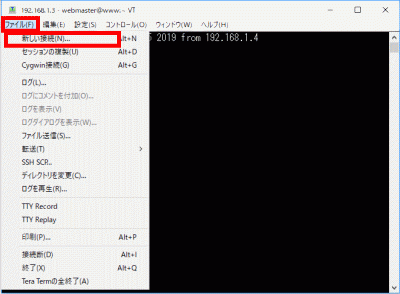
「新しい接続」を選択します。

新しい接続

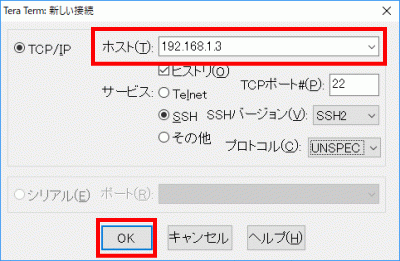
s92「ホスト」にIPアドレスを入力して、「OK」をクリックします。

IPアドレス

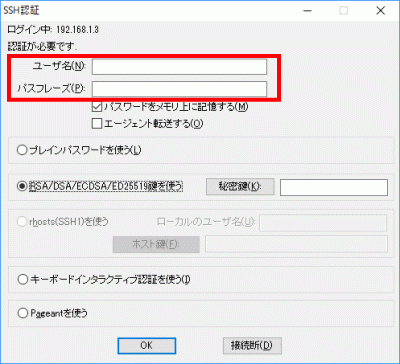
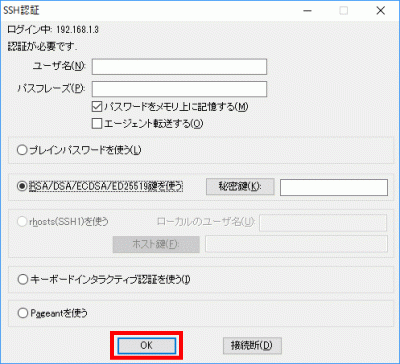
s93「ユーザー名」、「パスフレーズ(鍵のパスフレーズ)」を入力します。

「ユーザー名」、「パスフレーズ(鍵のパスフレーズ)」を入力

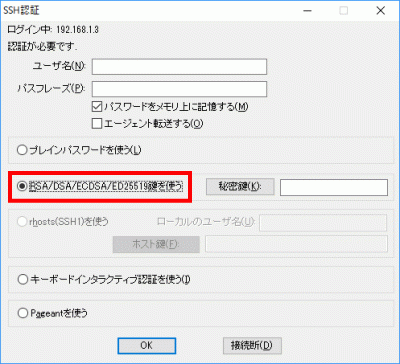
s94「RSA/DSA/ECDSA/ED25519鍵を使う」を選択します。

RSA/DSA/ECDSA/ED25519鍵を使う

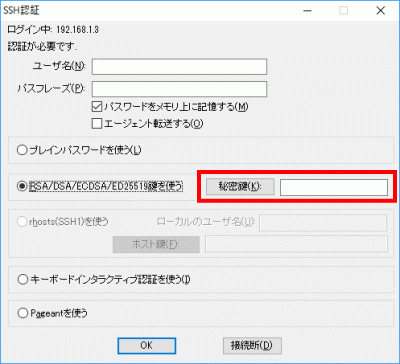
s95「秘密鍵」をクリックして、保存した「SSH鍵/秘密鍵/id_ecdsa」を選択します。

SSH鍵/秘密鍵/id_rsa

s96「OK」をクリックして接続を確認します。

「OK」をクリックして接続を確認

s97rootへログインします。

[webmaster@www ~]$ 97_1su -
パスワード:

s98

秘密鍵での認証接続.

バックアップを作成します。

[root@www ~]# 98_1cp -p /etc/ssh/sshd_config /etc/ssh/sshd_config_bck

s99編集します。

[root@www ~]# 99_1vi /etc/ssh/sshd_config

s10065行目:「yes」→「no」に変更します。

PasswordAuthentication 100_1no

s101SSHを再起動します。

[root@www ~]# 101_1systemctl restart sshd

Fedora36:NTPサーバー設定(Chrony)

s50

NTPサーバー設定(Chrony)

Chrony をインストールして、時刻同期します。

[root@www ~]# 50_1dnf -y install chrony

s51Chronyを設定します。

[root@www ~]# 51_1vi /etc/chrony.conf

s523行目: 行頭に「#」を追記してコメント解除し、時刻同期する NTP サーバーを追加します。

52_1#pool 2.linuxserver.pool.ntp.org iburst
52_2pool ntp.nict.jp iburst

s5324行目: ネットワークを追記します。

53_1allow 192.168.1.1/24

s54自動起動を設定します。

[root@www ~]# 54_1systemctl enable --now chronyd

s55作動確認します。

[root@www ~]# 55_1chronyc sources
210 Number of sources = 4
MS Name/IP address Stratum Poll Reach LastRx Last sample
===============================================================================
^- ec2-13-230-38-136.ap-nor> 2 10 377 299 +3241us[+3241us] +/- 38ms
^* ntp-a2.nict.go.jp 1 10 377 478 +371us[ +563us] +/- 11ms
^- ntp-5.jonlight.com 2 10 377 236 +460us[ +460us] +/- 40ms
^- 122x215x240x51.ap122.ftt> 2 10 377 298 -957us[ -957us] +/- 40ms

Fedora36:ファイルサーバー設定

s50

sambaのインストール.

sambaをインストールします。

[root@www ~]# 50_1dnf install samba samba-client samba-common -y

s51

sambaの初期設定.

sambaの設定ファイルをバックアップ。

[root@www ~]# 51_1mv /etc/samba/smb.conf /etc/samba/smb.conf.bk

s52sambaを設定します。

[root@www ~]# 52_1vi /etc/samba/smb.conf

s53ファイルを作成します。

53_1[global]
workgroup = WORKGROUP
server string = Samba Server %v
netbios name = fedora
security = user
map to guest = bad user
dns proxy = no
ntlm auth = yes
#==========================================================
[Share]
#共有フォルダ
path = /samba/share/
#マイネットワークに表示の有無
browsable = yes
#書き込み許可
writable = yes
#ゲストユーザのログイン許可
guest ok = yes
#読込みの許可
read only = no
#ファイル属性
force create mode = 0777
#ディレクトリ属性
force directory mode = 0777

s60共有フォルダを作成します。

root@www:~# mkdir /samba
root@www:~# mkdir /samba/share
root@www:~# 60_21chown nobody:nobody /samba/share
root@www:~# 60_22chmod 0777 /samba/share

s61自動起動します。

[root@www ~]# 61_1systemctl enable --now smb.service
[root@www ~]# 61_2systemctl enable --now nmb.service

s62再起動します。

[root@www ~]# 62_1reboot

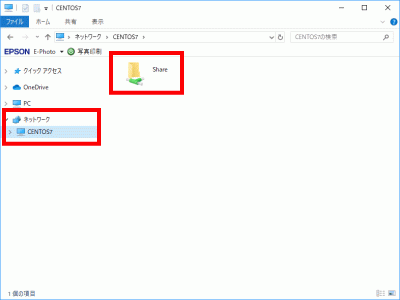
s63クライアントWindowsPCを再起動し、「ネットワーク」→「linux」→「Share」を開いて書き込みができることを確認します。(「ネットワーク」→「linux」が表示されない場合はディスクトップの任意の場所で右クリックで新規フォルダを作成して、その新規フォルダを右クリックしてショートカットを作成し、そのショートカットを右クリックしてプロパティを開いてリンク先を「\\linux」に変更し接続します。)

WindowsPC

Fedora36:デスクトップ環境設定

s50

デスクトップ環境インストール.

デスクトップ環境をインストールします。

[root@www ~]# 50_1dnf -y group install "Basic Desktop" GNOME

s51デスクトップを起動します。(設定後端末がフリーズする場合がありますので再度端末を開いて設定を進めてください。)

[root@www ~]# 51_1startx

s52ログイン設定をします。

[root@www ~]# 52_1systemctl set-default graphical.target
[root@www ~]# 52_2systemctl set-default
[root@www ~]# 52_3ll /etc/systemd/system/default.target

s53再起動します。

[root@www ~]# 53_1reboot

s54注意:VNCサーバーかXrdpサーバーのどちらか一つをインストールしてください。両方インストールすると表示できない場合があります。おすすめはXrdpサーバーです。s55

VNCサーバーの設定.

VNCサーバーをインストールします。

root@www:~# 55_1dnf -y install tigervnc-server

s56VNC 接続を設定したいユーザーでログインし、VNC サーバーでパスワード(英数字8桁以内)を設定します。

root@www:~# 56_1vncpasswd
Password:
Verify:
Would you like to enter a view-only password (y/n)? 56_2n

s57VNC サーバー設定ファイルを作成します。

root@www:~# 57_1vi ~/.vnc/config
57_2session=gnome
securitytypes=vncauth,tlsvnc
geometry=800x600

s58root権限でVNC サーバーを利用できるようにします。

root@www:~# 58_1vi /etc/tigervnc/vncserver.users
# TigerVNC User assignment
#
# This file assigns users to specific VNC display numbers.
# The syntax is <display>=<username>. E.g.:
#
# :2=andrew
# :3=lisa
58_2:1=root
:2=webmaster

s59VNC サーバーを起動します。

root@www:~# 59_1systemctl enable --now vncserver@:1 vncserver@:2

s60再起動します。

root@www:~# 60_1reboot

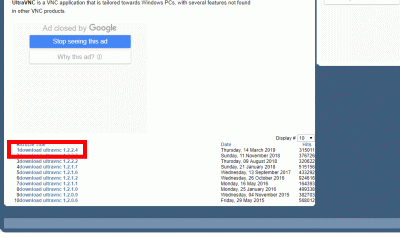
s61クライアントPCでUltraVNCをダウンロードします。(ページの下部にダウンロードリンクがあります。)

UltraVNC

UltraVNC_1_2_40_X64_Setup.exe

UltraVNCをダウンロード

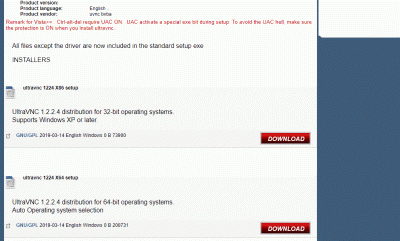
s6232bit、64bitを選択して「DOWNLOAD」をクリックします。

23bit、64bitを選択して「DOWNLOAD」

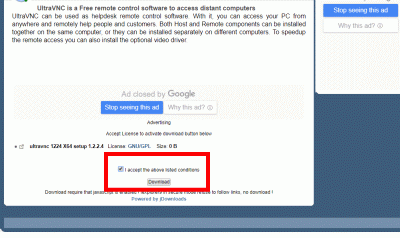
s63「I accept the above listed conditions」を選択して「Download」をクリックします。

「I accept the above listed conditions」を選択して「Download」

s64ダウンロードした「UltraVNC」のアイコンをWクリックしてインストールします。

UltraVNC_***_Setup.exe

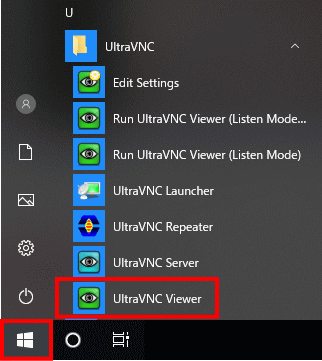
s65「Windowsスタートメニュー」をクリックし、「UltraVNC Viewer」を起動します。

Windowsスタートメニュー

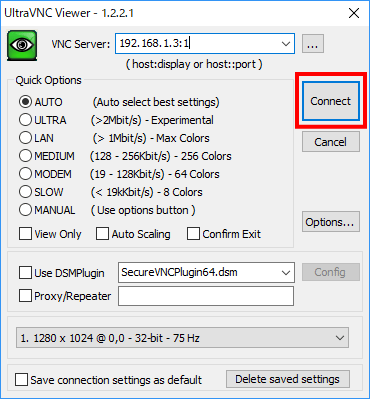
s66先に起動したVNCサーバーのIPアドレス:ディスプレイ番号を入力をして「Connect」をクリックします。

VNCサーバーのIPアドレス:ディスプレイ番号を入力

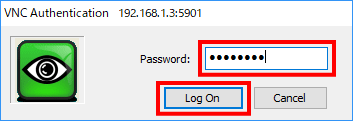
s67VNCパスワードを入力し「Log on」をクリックします。

VNCパスワードを入力

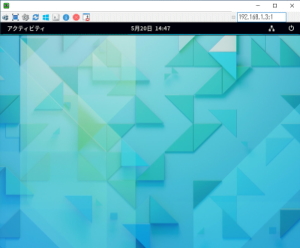
s68ディスクトップが表示されます。


s69

Xrdpサーバーの設定.

Windows のリモートデスクトップ機能で接続できるようにXrdpサーバーをインストールして設定します。

[root@www ~]# 68_1dnf -y install xrdp tigervnc-server

s70自動起動を設定します。

[root@www ~]# 69_1systemctl enable --now xrdp

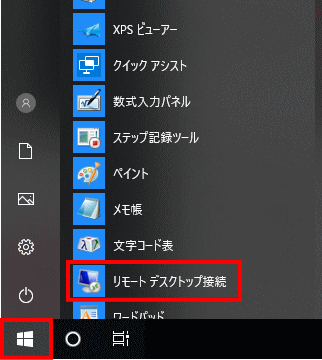
s71Windows スタートメニューから「アクセサリ」→「リモートデスクトップ接続」 を選択して接続画面を起動します。

スタートメニュー

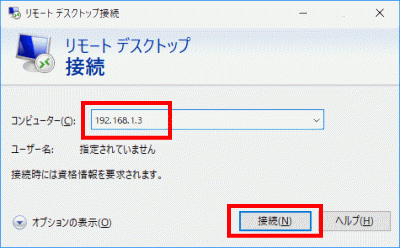
s72サーバーIPアドレスを入力し「接続」をクリックします。

サーバーIPアドレスを入力し「接続」をクリック

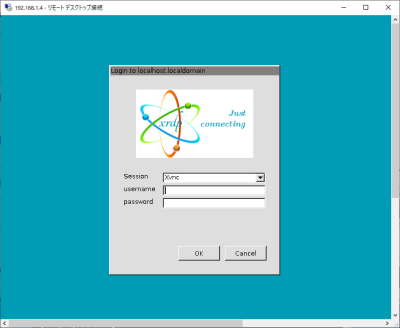
s73「usermame」(ユーザー名)、「password」(パスワード)を入力し「OK」をクリックします。

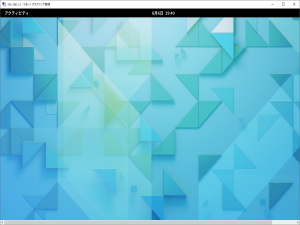
s74ディスクトップが表示されます。


s75

日本語環境の設定.

日本語環境のパッケージをインストールします。

[root@www ~]# 75_1dnf -y install ibus-kkc vlgothic-*

s76システムの文字セットを設定します。

[root@www ~]# 76_1localectl set-locale LANG=ja_JP.UTF-8
[root@www ~]# 76_2source /etc/locale.conf

s77設定を確認します。

[root@www ~]# 77_1echo $LANG
ja_JP.UTF-8

Fedora36:初期設定

s50

rootファイルシステムを拡張.

最上層部( / )rootファイルシステムを確認、記録します。

[root@www ~]# 50_1df -h
ファイルシス             サイズ    使用  残り 使用% マウント位置
devtmpfs                   3.9G      0  3.9G     0% /dev
tmpfs                      3.9G      0  3.9G     0% /dev/shm
tmpfs                      3.9G   1.1M  3.9G     1% /run
/dev/fedora/fedora-root     15G   1.9G   14G    13% / #拡張
tmpfs                      3.9G   4.0K  3.9G     1% /tmp
/dev/sda1                  1014M  194M  821M    20% /boot
tmpfs                      783M      0  783M     0% /run/user/1000

s51rootファイルシステムはディフォルトで15Gb ですので拡張します。
記録した最上層部( / )のroot理論ボリュームを拡張します。(上記フォームにてご自身のファイルパスに変更してください。)

[webmaster@www ~]$ 51_1sudo lvextend -l +100%FREE /dev/fedora/fedora-root

s52記録した最上層部( / )のrootファイルシステムを拡張します。

[webmaster@www ~]$ 52_1sudo xfs_growfs /dev/fedora/fedora-root

s53

一般ユーザーの作成.

rootユーザーにログインします。

[webmaster@www ~]$ 53_1su -
パスワード:
[root@www ~]#

s54一般ユーザーを作成します。(初期設定では一般ユーザーは必要ありません。)

[root@www ~]# 54_1useradd ユーザー名

s55パスワードを設定します。

[root@www ~]# 55_1passwd ユーザー名
新しいパスワード:
新しいパスワードを再入力してください:

s56

rootになれるユーザーを限定.

rootになれるユーザーを限定します。

[root@www ~]# 56_1usermod -G wheel webmaster
[root@www ~]# 56_2vi /etc/pam.d/su

s57#を削除してコメント解除

#%PAM-1.0
auth            sufficient      pam_rootok.so
# Uncomment the following line to implicitly trust users in the "wheel" group.
#auth           sufficient      pam_wheel.so trust use_uid
# Uncomment the following line to require a user to be in the "wheel" group.
auth            required        pam_wheel.so use_uid
auth            substack        system-auth
auth            include         postlogin
account         sufficient      pam_succeed_if.so uid = 0 use_uid quiet
account         include         system-auth
password        include         system-auth
session         include         system-auth
session         include         postlogin
session         optional        pam_xauth.so

s58

一般ユーザーの削除.

ユーザーのみ削除する場合

[root@www ~]# 58_1userdel ユーザー名

s59ホームディレクトリも削除する場合

[root@www ~]# 59_1userdel -r ユーザー名

s60

ファイアウォールとSELinuxを無効化.

ファイアウォールサービスを停止します。

[root@www ~]# 60_1systemctl stop firewalld

s61自動起動設定を無効にします。

[root@www ~]# 61_1systemctl disable firewalld
rm '/etc/systemd/system/dbus-org.fedoraproject.FirewallD1.service'
rm '/etc/systemd/system/basic.target.wants/firewalld.service'

s62SELinux を無効にします。

[root@www ~]# 62_1vi /etc/selinux/config

s63disabled に変更します。

# This file controls the state of SELinux on the system.
# SELINUX= can take one of these three values:
# enforcing - SELinux security policy is enforced.
# permissive - SELinux prints warnings instead of enforcing.
# disabled - No SELinux policy is loaded.
SELINUX=63_1disabled #変更
# SELINUXTYPE= can take one of these two values:
# targeted - Targeted processes are protected,
# minimum - Modification of targeted policy. Only selected processes are protected.
# mls - Multi Level Security protection.
SELINUXTYPE=targeted

s64再起動します。

[root@www ~]# 64_1reboot

s65

ネットワークの設定.

IPv6 を無効にします。

[root@www ~]# 65_1vi /etc/default/grub

s666行目:「ipv6.disable=1」を追加します。

GRUB_CMDLINE_LINUX="66_1ipv6.disable=1 rd.lvm.lv=linuxserver/root..

s67変更を反映します。

[root@www ~]# 67_1grub2-mkconfig -o /boot/grub2/grub.cfg
[root@www ~]# 67_2reboot

s68

ルーター設定.

ルーターでDHCP固定IPアドレス設定ができる場合は「MACアドレス」、「サーバーIPアドレス」を設定します。

DHCP固定IPアドレス設定

MACアドレス(例:0c:2e:48:2b:dg:f4)

サーバーIPアドレス:192.168.1.3
s69

システムの最新化.

システムを最新化します。

[root@www ~]# 69_1dnf -y update

s70

モジュールを追加.

Node.js 14をインストールします。

[root@www ~]# 70_1dnf module -y install nodejs:14

s71モジュールを確認します。

[root@www ~]# 71_1node -v
v14.14.0

s72Node.js をリセットします。

[root@www ~]# 72_1dnf module reset nodejs

s73Node.js 16をインストールします。

[root@www ~]# 73_1dnf module enable nodejs:16
[root@www ~]# 73_2dnf module -y install nodejs:16/common

s74モジュールを確認します。

[root@www ~]# 74_1node -v
v16.14.0

s75

パッケージ自動更新設定.

dnf-automaticをインストールします。

[root@www ~]# 75_1dnf install dnf-automatic dnf-utils -y

s76dnf-automaticを設定します。

[root@www ~]# 76_1vi /etc/dnf/automatic.conf

s77自動ダウンロード&自動アップデートを行うようにする

# Whether updates should be applied when they are available, by
# dnf-automatic.timer. notifyonly.timer, download.timer and
# install.timer override this setting.
apply_updates = 77_1yes #変更

s78パッケージ自動更新自動起動設定

[root@www ~]# 78_1systemctl enable --now dnf-automatic.timer

s79

Web 管理コンソールの設定.

Cockpit を有効にして Web 管理コンソールが利用可能にします。

[root@www ~]# 79_1systemctl enable --now cockpit.socket
[root@www ~]# 79_2ss -napt
State Recv-Q Send-Q Local Address:Port Peer Address:Port 
LISTEN 0 128 0.0.0.0:22 0.0.0.0:* users:(("sshd",pid=831,fd=6)) 
LISTEN 0 128 [::]:22 [::]:* users:(("sshd",pid=831,fd=8)) 
LISTEN 0 128 *:9090 *:* users:(("systemd",pid=1,fd=24)) 

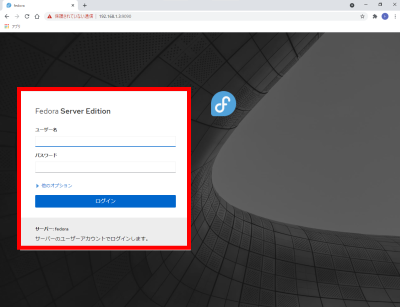
s80クライアントPCのWebブラウザで、 Web 管理コンソールへアクセスし「root」でログインします。

http://192.168.1.3:9090/

s81

Vim(テキストエディタ)の設定.

Vim(テキストエディタ)をインストールします。

[root@www ~]# 81_1dnf -y install vim-enhanced

s82コマンドエイリアスを適用します。

[root@www ~]# 82_1vi /etc/profile

s83最終行に追記します。

83_1alias vi='vim'

s84変更を反映します。

[root@www ~]# 84_1source /etc/profile

s85vim を設定します。

[root@www ~]# 85_1vi ~/.vimrc

s86行番号を表示する(サーバー設定を行番号で説明いたします。)

86_1set number

s87

Sudo(root権限)の設定.

root権限を特定のユーザーに設定します。

[root@www ~]# 87_1visudo

s88最終行に追記します。

88_1webmaster    ALL=(ALL)       ALL

AlmaLinux8:Usermin設定

s50

Userminインストール.

必要な パッケージをインストールします。

[root@www ~]# 50_1dnf -y install perl-Net-SSLeay perl-Encode-Detect wget

s51Userminをダウンロードします。

[root@www ~]# 51_1wget http://download.webmin.com/download/yum/usermin-1.841-1.noarch.rpm

s52Userminをインストールします。

[root@www ~]# 52_1dnf -y install usermin-1.841-1.noarch.rpm

s53ファイルを設定します。

[root@www ~]# 53_1vi /etc/usermin/miniserv.conf

s54最終行についきします。

54_1allow=127.0.0.1 192.168.1.1/24
denyusers=root
keyfile=/etc/letsencrypt/live/server.jp/privkey.pem
certfile=/etc/letsencrypt/live/server.jp/fullchain.pem

s55起動します。

[root@www ~]# 55_1systemctl restart usermin

s56

起動確認.

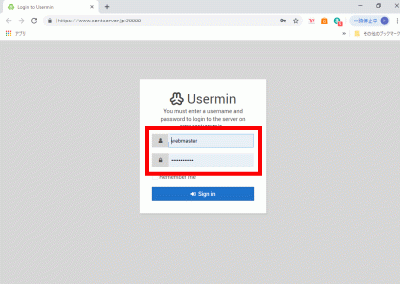
Webブラウザを起動し、「Usermin」へアクセスし、ユーザーでログインします。

Usermin:https://linuxserver.jp:20000/

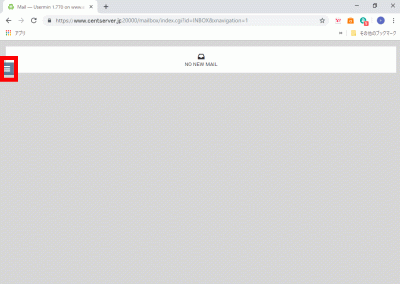
「Sign in」でログイン

s57クリックします。

「Sign in」でログイン

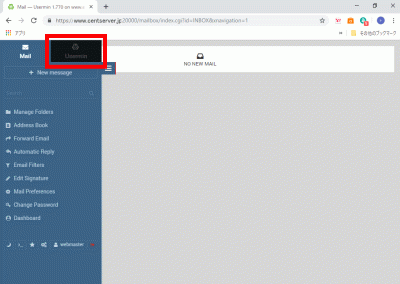
s58クリックします。

「Sign in」でログイン

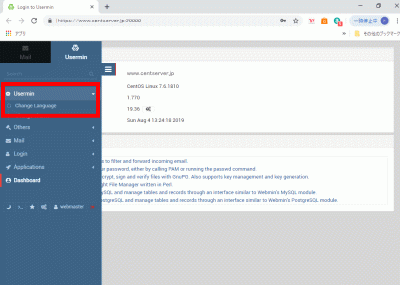
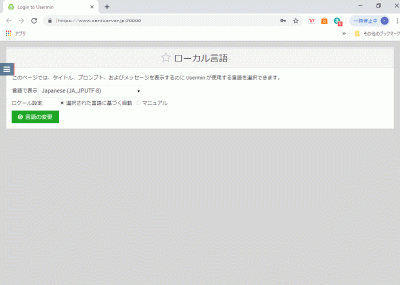
s59「Usermin」→「Change Language」を選択して、日本語化します。

Usermin

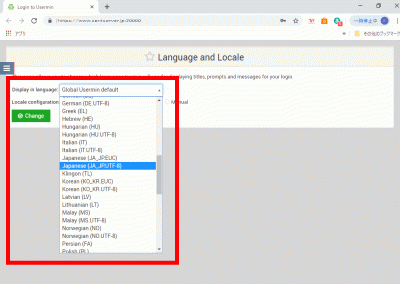
s60「Display in language:」→「Japanese(JA_JP,UTF-8)」を選択して、「Change」をクリックします。

「Change」をクリック

s61「F5」キー押下して、「日本語表示」を確認します。

日本語表示

Fedora36:SSHサーバー設定

s50

SSHサーバーのインストール.

サーバーにwebmasterでログインします。

localhost login: 50_1webmaster
password:

s51rootでログインします。

[webmaster@localhost ~]$ 51_1us -
password:

s52SSHサーバーをインストールします。

[root@localhost ~]# 52_1dnf install openssh-server openssh-clients

s53SSHサーバーを起動します。

[root@localhost ~]# 53_1systemctl start sshd

s54SSHサーバーの自動起動設定をします。

[root@localhost ~]# 54_1systemctl enable sshd

s55SSHサーバーの作動確認します。

[root@localhost ~]# 55_1systemctl status sshd
● sshd.service - OpenSSH server daemon
   Loaded: loaded (/usr/lib/systemd/system/sshd.service; enabled; vendor preset>
   Active: active (running) since Sun 2021-04-11 18:03:51 JST; 5h 16min ago
     Docs: man:sshd(8)
           man:sshd_config(5)
 Main PID: 870 (sshd)
    Tasks: 1 (limit: 23603)
   Memory: 4.6M
   CGroup: /system.slice/sshd.service
           mq870 /usr/sbin/sshd -D -oCiphers=aes256-gcm@openssh.com,chacha20-po>

 4月 11 18:03:51 localhost.localdomain systemd[1]: Starting OpenSSH server daem>
 4月 11 18:03:51 localhost.localdomain sshd[870]: Server listening on 0.0.0.0 p>
 4月 11 18:03:51 localhost.localdomain sshd[870]: Server listening on :: port 2>
 4月 11 18:03:51 localhost.localdomain systemd[1]: Started OpenSSH server daemo>
 4月 11 22:29:36 localhost.localdomain sshd[5425]: Accepted password for webmas>
 4月 11 22:29:36 localhost.localdomain sshd[5425]: pam_unix(sshd:session): sess>
 4月 11 23:19:30 localhost.localdomain sshd[5481]: Accepted password for webmas>
 4月 11 23:19:30 localhost.localdomain sshd[5481]: pam_unix(sshd:session): sess>
lines 1-19/19 (END)

s56「q」を押下して表示を終了します。s57

現在のネットワーク設定を確認.

ネットワーク設定でIPアドレスを記録します。

webmaster@www:~$ 56_1ip addr
span style="color: #ffffff;">1: lo: <LOOPBACK,UP,LOWER_UP> mtu 65536 qdisc noqueue state UNKNOWN group default qlen 1000
link/loopback 00:00:00:00:00:00 brd 00:00:00:00:00:00
inet 127.0.0.1/8 scope host lo
valid_lft forever preferred_lft forever
inet6 ::1/128 scope host
valid_lft forever preferred_lft forever
2: enp14s0: <BROADCAST,MULTICAST,UP,LOWER_UP> mtu 1500 qdisc mq state UP group default qlen 1000
link/ether 0c:2e:48:2b:dg:f4 brd ff:ff:ff:ff:ff:ff
inet 192.168.1.3/24 brd 192.168.1.255 scope global dynamic enp2s0 #IPアドレス、インターファイス名記録
valid_lft 11984sec preferred_lft 11984sec
inet6 20sd:ahq23:46dg:7rh9:2dg5:28uf:fls4:dehd/64 scope global dynamic mngtmpaddr noprefixroute
valid_lft 13592sec preferred_lft 11792sec
inet6 fft0::21fg3:2j8f:fo60:djed/64 scope link
valid_lft forever preferred_lft forever

s58記録したIPアドレスでクライアントPCよりTera Termで接続します。

記録したIPアドレス:192.168.1.3

Tera Term

AlmaLinux8:Webmin設定

s50

Webmin インストール.

必要なモジュールをインストールします。

[root@www ~]# 50_1dnf -y install perl-Net-SSLeay

s51Webmin をダウンロードします。

[root@www ~]# 51_1dnf -y install http://download.webmin.com/download/yum/webmin-1.974-1.noarch.rpm

s52Webmin をインストールします。

[root@www ~]# 52_1dnf -y install webmin-1.974-1.noarch.rpm

s53ファイルを設定します。

[root@www ~]# 53_1vi /etc/webmin/miniserv.conf

s54最終行にアクセス許可するIPを追記します。

54_1allow=127.0.0.1 192.168.1.1/24
keyfile=/etc/letsencrypt/live/server.jp/privkey.pem
certfile=/etc/letsencrypt/live/server.jp/fullchain.pem

s55再起動します。

[root@www ~]# 55_1/etc/init.d/webmin restart

s56

起動確認.

Webブラウザを起動し、「Webmin」へアクセスし, root ユーザーでログインします。

Webmin:https://server.jp:10000/

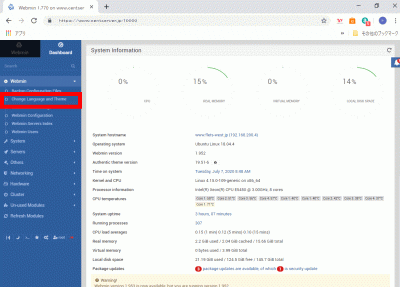
s57「Change Language and Theme」をクリックします。

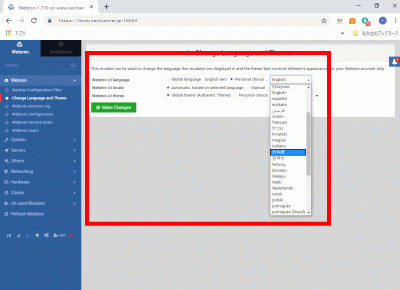
s58「Personal choice ..」、Japanese(JA_JP.UTF-8)を選択して、「Make Changes」をクリックします。

s59「F5」キー押下して、「日本語表示」を確認します。

Fedora36:インストール

s50

Fedora36ダウンロード.

ダウンロードページからインストールディスクイメージをダウンロードします。

ダウンロードページ
インストールディスクイメージ:Fedora-Server-dvd-x86_64-36-1.2.isos51

インストールDVD作成.

ImgBurnを使って、インストールディスクイメージでFedora35インストールディスクを作成します。ImgBurns52

Fedora36インストール.

インストール前にBIOSでDVDブートができるように設定します。

ご自身のサーバーの設定方法をメーカーサイトでお調べください。

作成したインストールDVDでインストールします。

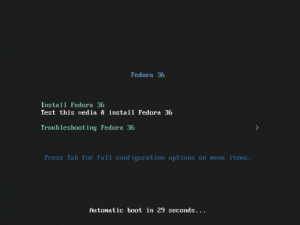
下の画面が表示されたらキーボードの「Enter」を押下します。

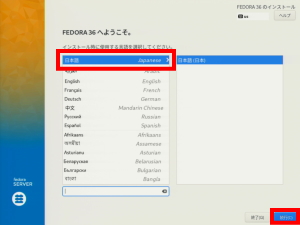
s53「日本語」を選択して「続行」をクリックします。

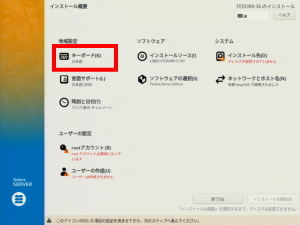
s54「キーボード」で日本語に設定します。

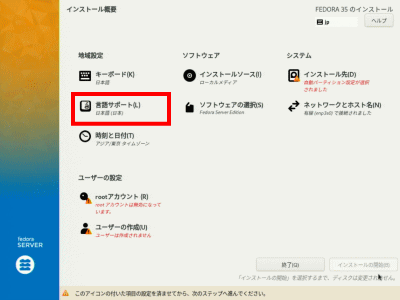
s55「言語サポート」で日本語(日本)に設定します。

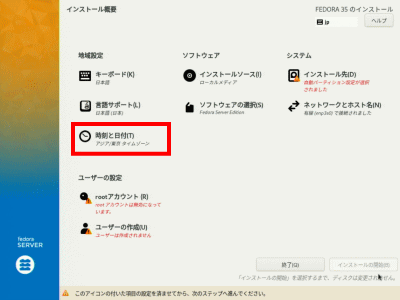
s56「日付と時刻」でアジア/東京 タイムゾーンに設定します。

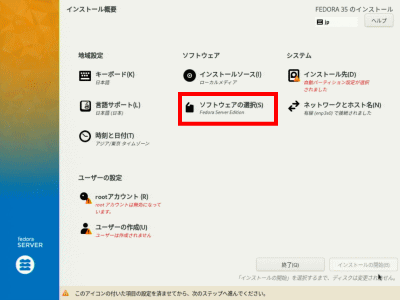
s57「ソフトウェアの選択」をクリックします。

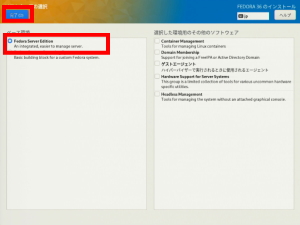
s58「Fedora Server Edition」を選択して「完了」をクリックします。

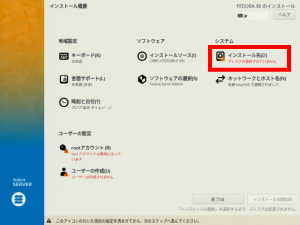
s59「インストール先」で自動パーティションを選択します。

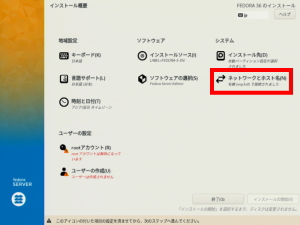
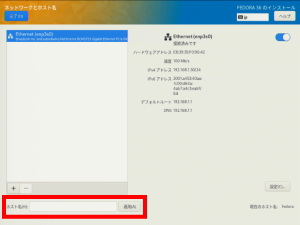
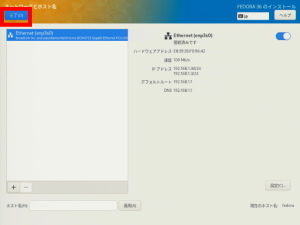
s60「ネットワークとホスト名」をクリックします。

s61「ホスト名」を変更して「適用」をクリックします。
ホスト名:fedoraserver.jp

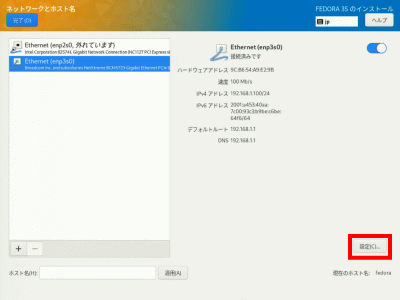
s62「設定」をクリックします。

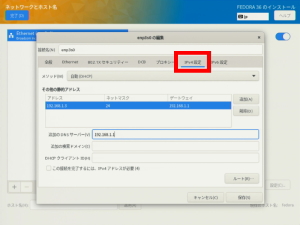
s63「IPv4のセッティング」をクリックします。

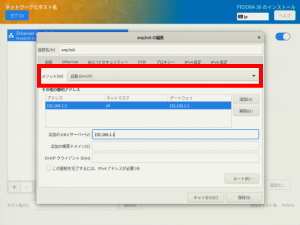
s64方式の「手動」を選択します。

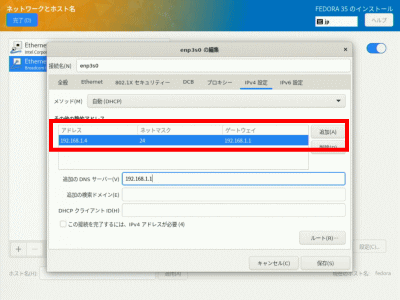
s65「追加」をクリックして、「アドレス」、「ネットマスク」、「ゲートウェイ」を入力します。
アドレス:50_1192.168.1.3
ネットマスク:50_124
ゲートウェイ:50_1192.168.1.1

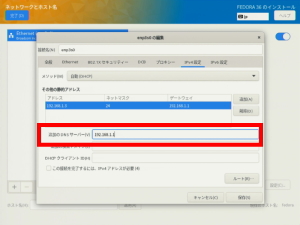
s66「DNSサーバー」を入力します。
DNSサーバー:50_1192.168.1.1

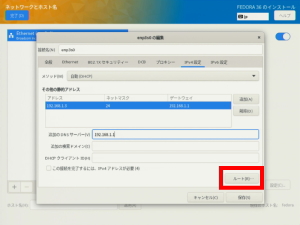
s67「保存」をクリックします。

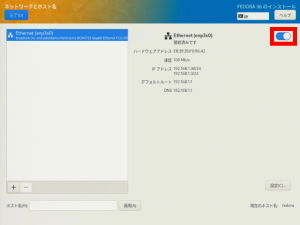
s68「オン」を選択します。

s69「完了」をクリックします。

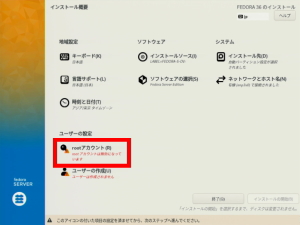
s70「rootパスワード」をクリックします。

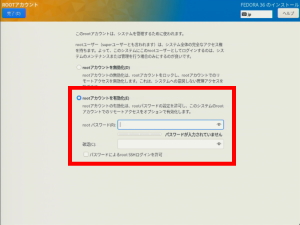
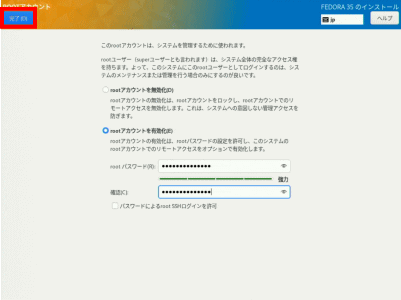
s71「rootアカウントを有効化」を選択し、「rootパスワード」を入力します。

s72「完了」をクリックします。

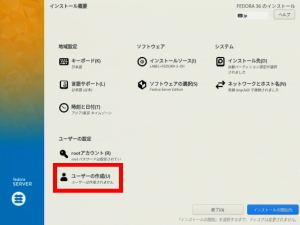
s73「ユーザーの作成」をクリックします。

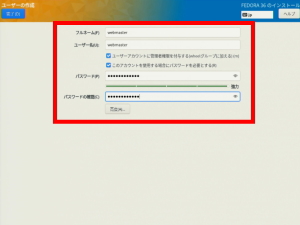
s74「フルネーム」「ユーザーネーム」を入力します。
フルネーム・ユーザーネーム:50_1webmaster

s75「このユーザーを管理者にする」を選択します。

「このアカウントを使用する場合にパスワードを必要とする」を選択します。

「パスワード」を入力します。

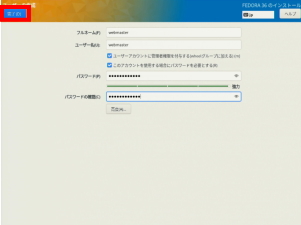
s76「完了」をクリックします。

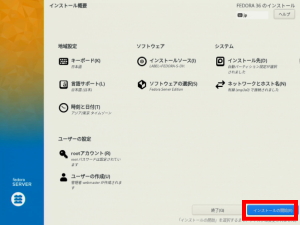
s77「インストール開始」をクリックします。

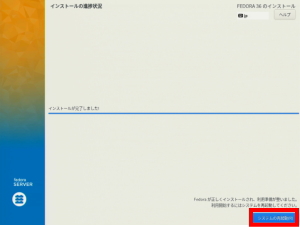
s78インストールが終了しましたら「システムの再起動」をクリックし、インストールDVDを取り出します。