Fedora34:NTPサーバー設定(Chrony)

NTPサーバー設定(Chrony)

Chrony をインストールして、時刻同期します。

[root@www ~]# dnf -y install chrony

Chronyを設定します。

[root@www ~]# vi /etc/chrony.conf

3行目: 行頭に「#」を追記してコメント解除し、時刻同期する NTP サーバーを追加します。

#pool 2.linuxserver.pool.ntp.org iburst
pool ntp.nict.jp iburst

24行目: ネットワークを追記します。

allow 192.168.1.1/24

自動起動を設定します。

[root@www ~]# systemctl enable --now chronyd

作動確認します。

[root@www ~]# chronyc sources
210 Number of sources = 4
MS Name/IP address Stratum Poll Reach LastRx Last sample
===============================================================================
^- ec2-13-230-38-136.ap-nor> 2 10 377 299 +3241us[+3241us] +/- 38ms
^* ntp-a2.nict.go.jp 1 10 377 478 +371us[ +563us] +/- 11ms
^- ntp-5.jonlight.com 2 10 377 236 +460us[ +460us] +/- 40ms
^- 122x215x240x51.ap122.ftt> 2 10 377 298 -957us[ -957us] +/- 40ms

Fedora34:バックアップ設定

バックアップ領域の作成

サーバーの電源を切ってHDD(メインHDDより容量の大きいもの)を追加しておきます。

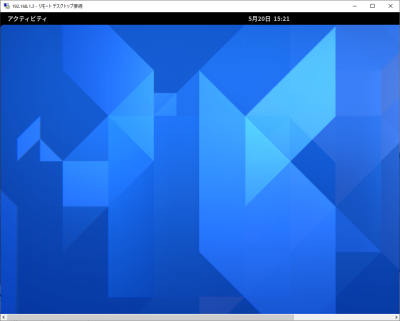
Windows のリモートデスクトップ機能でサーバーに接続します。

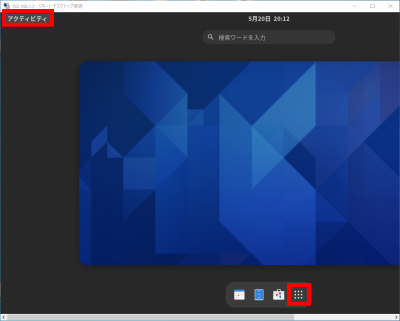
「アクティビティ」→「アプリケーションを表示する」を選択します。

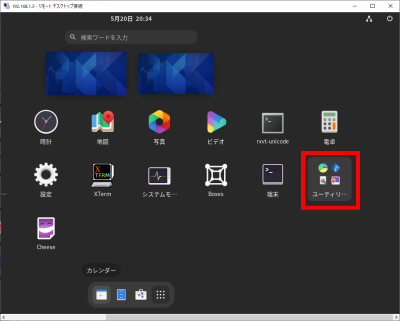
「ユーティリティ」を選択します。

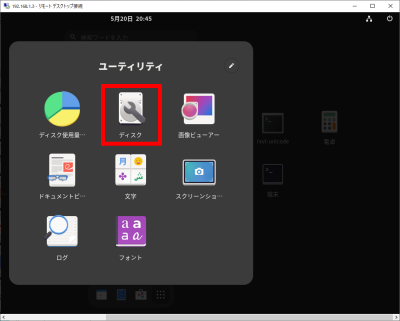
「ディスク」を選択します。

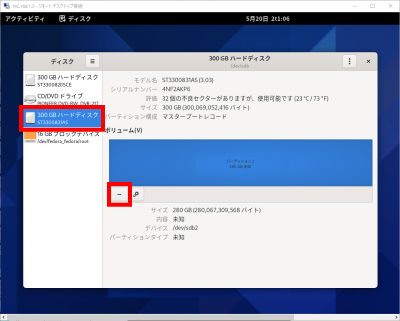
「バックアップ用HDD」→「+」を選択します。

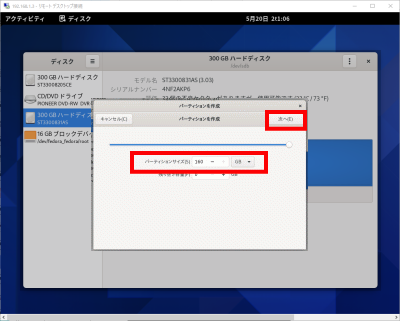
→「サイズを設定」→「名前を設定」→「作成」で初期バックアップ用(Defalt HDD Backup 20Gb)、システムバックアップ用(Sestem Backup)のパーティション作成します。

」をクリックしてマウントします。

自動バックアップの設定

アップデートします。

root@www:~# dnf update

timeshiftをインストールします。

root@www:~# dnf -y install timeshift

独自翻訳した日本語化ファイルを用意いたしました。

日本語化ファイル(timeshift.zip)をダウンロードし、解凍します。

解凍したファイル(timeshift.mo)をsambaのフォルダにコピーします。

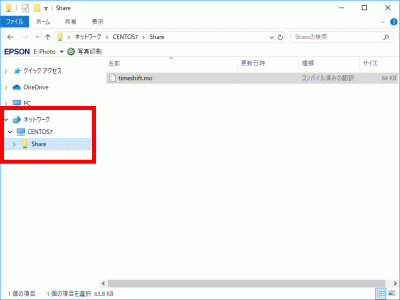
「fedora」→「Share」にtimeshift.moをペーストします。

timeshift.moをペースト

Windows のリモートデスクトップ機能でサーバーに接続します。

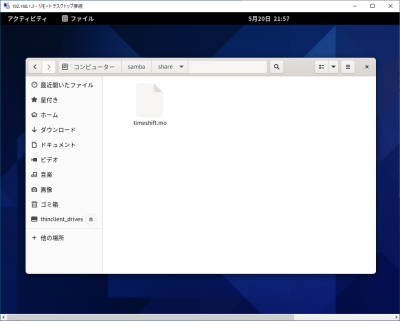
「アクティビティ」→「ファイル」→「samba/share/timeshift.mo」をコピーします。

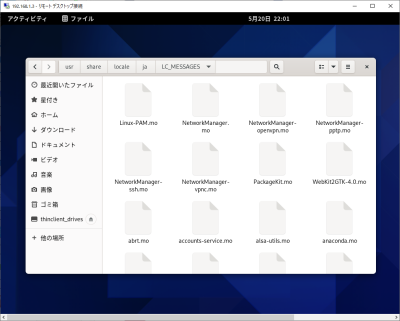
「アクティビティ」→「ファイル」→「usr/share/locale/ja/LC_MESSAGES」へ貼付けます。

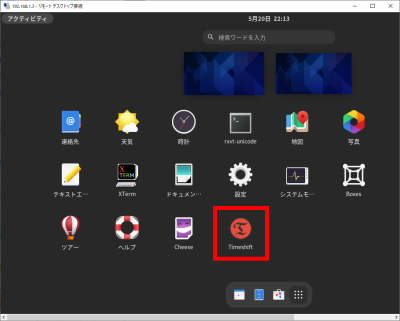
「アクティビティ」→「アプリケーションを表示する」を選択します。

「Timeshift」を選択します。

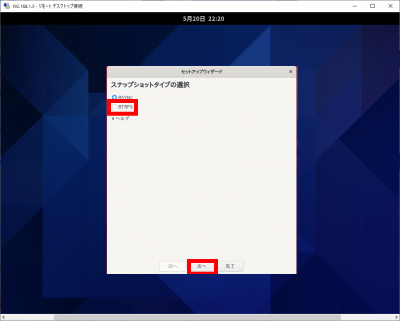
「RSYNC」を選択し、「次」をクリックします。

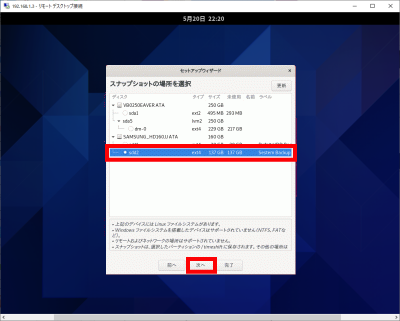
「Sestem Backup」を選択し、「次」をクリックします。

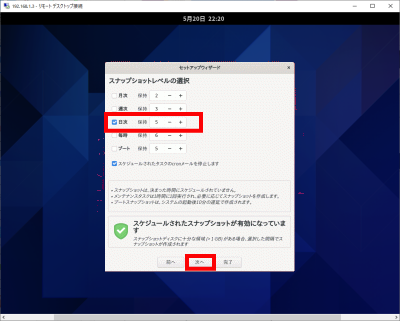
「毎日」を選択し、「次」をクリックします。

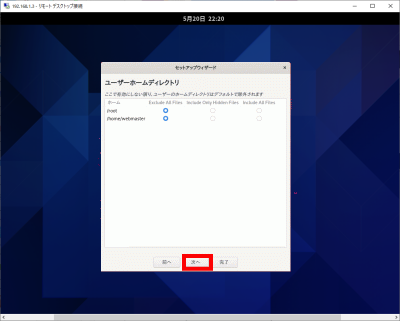
「次」をクリックします。

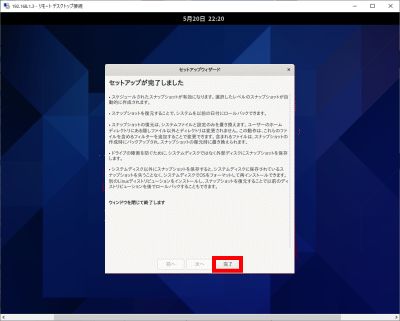
「終了」をクリックします。

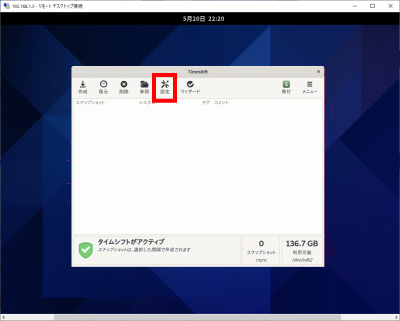
「設定」をクリックします。

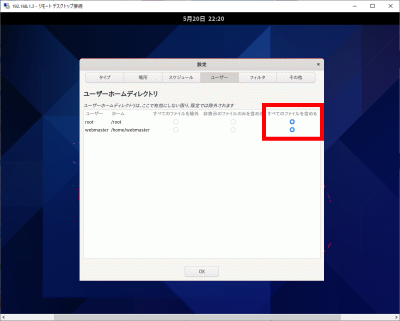
「ユーザー」をクリックし、「すべてのファイルを含める」を選択します。

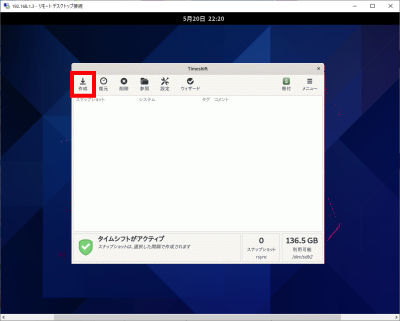
「作成」をクリックしスナップショットを作成します。

(リモートディスクトップで復元できない場合はサーバーにログインして復元します。)

Fedora34:デスクトップ環境設定

デスクトップ環境インストール

デスクトップ環境をインストールします。

[root@www ~]# dnf -y group install "Basic Desktop" GNOME

ログイン設定をします。

[root@www ~]# systemctl set-default graphical.target
[root@www ~]# systemctl set-default
[root@www ~]# ll /etc/systemd/system/default.target

デスクトップを起動します。

[root@www ~]# startx

再起動します。

[root@www ~]# reboot

注意:VNCサーバーかXrdpサーバーのどちらか一つをインストールしてください。両方インストールすると表示できない場合があります。おすすめはXrdpサーバーです。

VNCサーバーの設定

VNCサーバーをインストールします。

root@www:~# dnf -y install tigervnc-server

VNC 接続を設定したいユーザーでログインし、VNC サーバーでパスワード(英数字8桁以内)を設定します。

root@www:~# vncpasswd
Password:
Verify:
Would you like to enter a view-only password (y/n)? n

VNC サーバー設定ファイルを作成します。

root@www:~# vi ~/.vnc/config
session=gnome
securitytypes=vncauth,tlsvnc
geometry=800x600

root権限でVNC サーバーを利用できるようにします。

root@www:~# vi /etc/tigervnc/vncserver.users
# TigerVNC User assignment
#
# This file assigns users to specific VNC display numbers.
# The syntax is <display>=<username>. E.g.:
#
# :2=andrew
# :3=lisa
:1=root
:2=webmaster

VNC サーバーを起動します。

root@www:~# systemctl enable --now vncserver@:1 vncserver@:2

再起動します。

root@www:~# reboot

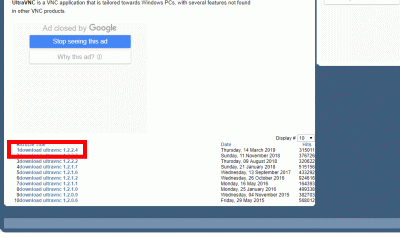
クライアントPCにUltraVNCUltraVNC_1_2_40_X64_Setup.exeをダウンロードします。(ページの下部にダウンロードリンクがあります。)

UltraVNCをダウンロード

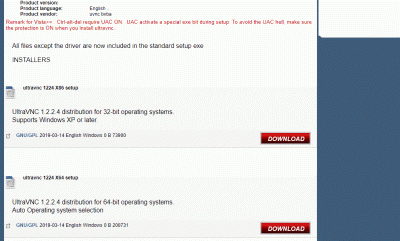
23bit、64bitを選択して「DOWNLOAD」をクリックします。

23bit、64bitを選択して「DOWNLOAD」

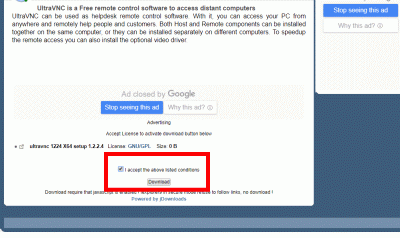
「I accept the above listed conditions」を選択して「Download」をクリックします。

「I accept the above listed conditions」を選択して「Download」

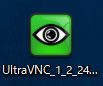
ダウンロードした「UltraVNC_***_Setup.exe」のアイコンをWクリックしてインストールします。

UltraVNC_***_Setup.exe

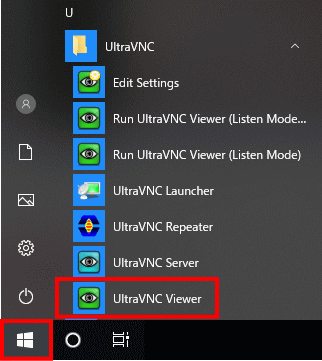
「Windowsスタートメニュー」をクリックし、「UltraVNC Viewer」を起動します。

Windowsスタートメニュー

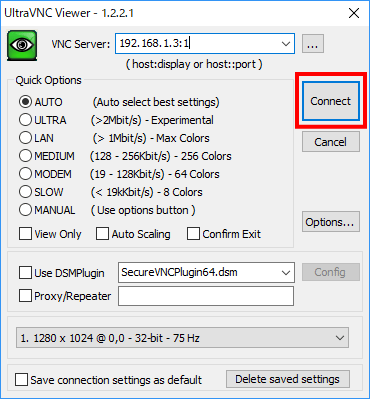
先に起動したVNCサーバーのIPアドレス:ディスプレイ番号を入力をして「Connect」をクリックします。

VNCサーバーのIPアドレス:ディスプレイ番号を入力

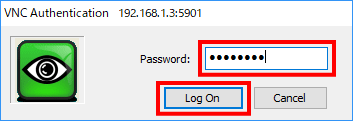
VNCパスワードを入力し「Log on」をクリックします。

VNCパスワードを入力

ディスクトップが表示されます。

Xrdpサーバーの設定

Windows のリモートデスクトップ機能で接続できるようにXrdpサーバーをインストールして設定します。

[root@www ~]# dnf -y install xrdp tigervnc-server

自動起動を設定します。

[root@www ~]# systemctl enable --now xrdp

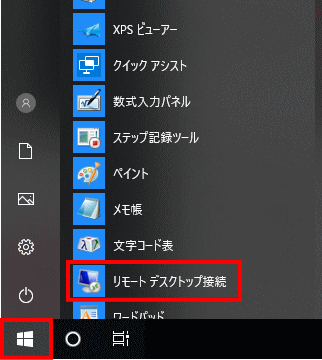
Windows スタートメニューから「アクセサリ」→「リモートデスクトップ接続」 を選択して接続画面を起動します。

スタートメニュー

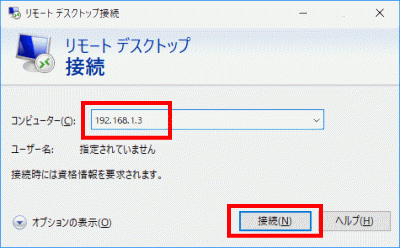
サーバーIPアドレスを入力し「接続」をクリックします。

サーバーIPアドレスを入力し「接続」をクリック

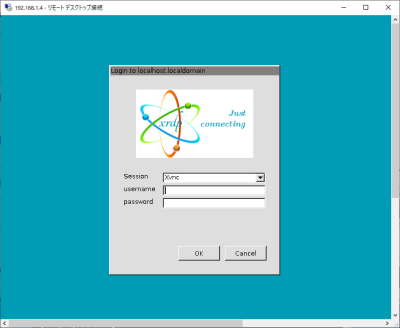
「usermame」(ユーザー名)、「password」(パスワード)を入力し「OK」をクリックします。

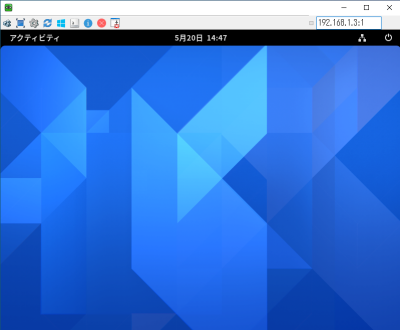
ディスクトップが表示されます。

日本語環境の設定

日本語環境のパッケージをインストールします。

[root@www ~]# dnf -y install ibus-kkc vlgothic-*

システムの文字セットを設定します。

[root@www ~]# localectl set-locale LANG=ja_JP.UTF-8
[root@www ~]# source /etc/locale.conf

設定を確認します。

[root@www ~]# echo $LANG
ja_JP.UTF-8

Fedora34:ファイルサーバー設定

sambaのインストール

sambaをインストールします。

[root@www ~]# dnf install samba samba-client samba-common -y

sambaの初期設定

sambaの設定ファイルをバックアップ。

[root@www ~]# mv /etc/samba/smb.conf /etc/samba/smb.conf.bk

sambaを設定します。

[root@www ~]# vi /etc/samba/smb.conf

ファイルを作成します。

[global]
workgroup = WORKGROUP
server string = Samba Server %v
netbios name = fedora
security = user
map to guest = bad user
dns proxy = no
ntlm auth = yes
#==========================================================
[Share]
#共有フォルダ
path = /samba/share/
#マイネットワークに表示の有無
browsable = yes
#書き込み許可
writable = yes
#ゲストユーザのログイン許可
guest ok = yes
#読込みの許可
read only = no
#ファイル属性
force create mode = 0777
#ディレクトリ属性
force directory mode = 0777

共有フォルダを作成します。

root@www:~# mkdir /samba
root@www:~# mkdir /samba/share
root@www:~# chown nobody:nobody /samba/share
root@www:~# chmod 0777 /samba/share

自動起動します。

[root@www ~]# systemctl enable --now smb.service
[root@www ~]# systemctl enable --now nmb.service

再起動します。

[root@www ~]# reboot

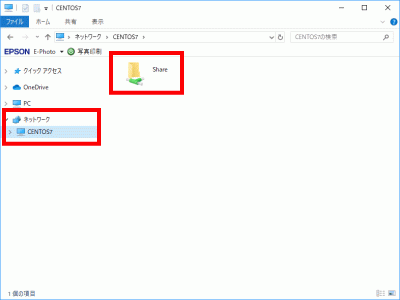
クライアントWindowsPCを再起動し、「ネットワーク」→「linux」→「Share」を開いて書き込みができることを確認します。(「ネットワーク」→「linux」が表示されない場合はディスクトップの任意の場所で右クリックで新規フォルダを作成して、その新規フォルダを右クリックしてショートカットを作成し、そのショートカットを右クリックしてプロパティを開いてリンク先を「\\linux」に変更し接続します。)

WindowsPC

Fedora34:初期設定

rootファイルシステムを拡張

最上層部( / )rootファイルシステムを確認します。

[root@www ~]# df -h
ファイルシス             サイズ    使用  残り 使用% マウント位置
devtmpfs                   3.9G      0  3.9G     0% /dev
tmpfs                      3.9G      0  3.9G     0% /dev/shm
tmpfs                      3.9G   1.1M  3.9G     1% /run
/dev/fedora/fedora-root     15G   1.9G   14G    13% / #拡張
tmpfs                      3.9G   4.0K  3.9G     1% /tmp
/dev/sda1                  1014M  194M  821M    20% /boot
tmpfs                      783M      0  783M     0% /run/user/1000

rootファイルシステムはディフォルトで15Gb ですので拡張します。
記録した最上層部( / )のroot理論ボリュームを拡張します。(上記フォームにてご自身のファイルパスに変更してください。)

[webmaster@www ~]$ sudo lvextend -l +100%FREE /dev/fedora/fedora-root

記録した最上層部( / )のrootファイルシステムを拡張します。

[webmaster@www ~]$ sudo xfs_growfs /dev/fedora/root

一般ユーザーの作成

rootユーザーにログインします。

[webmaster@www ~]$ su -
パスワード:
[root@www ~]#

一般ユーザーを作成します。(初期設定では一般ユーザーは必要ありません。)

[root@www ~]# useradd ユーザー名

パスワードを設定します。

[root@www ~]# passwd ユーザー名
新しいパスワード:
新しいパスワードを再入力してください:

rootになれるユーザーを限定

rootになれるユーザーを限定します。

[root@www ~]# usermod -G wheel webmaster
[root@www ~]# vi /etc/pam.d/su

#を削除してコメント解除

#%PAM-1.0
auth            sufficient      pam_rootok.so
# Uncomment the following line to implicitly trust users in the "wheel" group.
#auth           sufficient      pam_wheel.so trust use_uid
# Uncomment the following line to require a user to be in the "wheel" group.
auth            required        pam_wheel.so use_uid
auth            substack        system-auth
auth            include         postlogin
account         sufficient      pam_succeed_if.so uid = 0 use_uid quiet
account         include         system-auth
password        include         system-auth
session         include         system-auth
session         include         postlogin
session         optional        pam_xauth.so

一般ユーザーの削除

ユーザーのみ削除する場合

[root@www ~]# userdel ユーザー名

ホームディレクトリも削除する場合

[root@www ~]# userdel -r ユーザー名

ファイアウォールとSELinuxを無効化

ファイアウォールサービス停止します。

[root@www ~]# systemctl stop firewalld

自動起動設定を無効にします。

[root@www ~]# systemctl disable firewalld
rm '/etc/systemd/system/dbus-org.fedoraproject.FirewallD1.service'
rm '/etc/systemd/system/basic.target.wants/firewalld.service'

SELinux を無効にします。

[root@www ~]# vi /etc/selinux/config

disabled に変更します。

# This file controls the state of SELinux on the system.
# SELINUX= can take one of these three values:
# enforcing - SELinux security policy is enforced.
# permissive - SELinux prints warnings instead of enforcing.
# disabled - No SELinux policy is loaded.
SELINUX=disabled #変更
# SELINUXTYPE= can take one of these two values:
# targeted - Targeted processes are protected,
# minimum - Modification of targeted policy. Only selected processes are protected.
# mls - Multi Level Security protection.
SELINUXTYPE=targeted

再起動します。

[root@www ~]# reboot

ネットワークの設定

IPv6 を無効にします。

[root@www ~]# vi /etc/default/grub

6行目:「ipv6.disable=1」を追加します。

GRUB_CMDLINE_LINUX="ipv6.disable=1 rd.lvm.lv=linuxserver/root..

変更を反映します。

[root@www ~]# grub2-mkconfig -o /boot/grub2/grub.cfg
[root@www ~]# reboot

ルーター設定

ルーターでDHCP固定IPアドレス設定ができる場合は「MACアドレス」、「サーバーIPアドレス」を設定します。

DHCP固定IPアドレス設定

MACアドレス(例:0c:2e:48:2b:dg:f4)

サーバーIPアドレス:192.168.1.3

システムの最新化

システムを最新化します。

[root@www ~]# dnf -y update

リポジトリを追加

Node.js 12モジュールを追加します。

[root@www ~]# dnf module -y install nodejs:12
[root@www ~]# dnf module enable nodejs:12

モジュールを確認します。

[root@www ~]# node -v
v12.22.1

Node.js 15モジュールを追加します。

[root@www ~]# dnf module reset nodejs
[root@www ~]# dnf module -y install nodejs:15/default
[root@www ~]# dnf module enable nodejs:15

モジュールを確認します。

[root@www ~]# node -v
v15.11.0

パッケージ自動更新設定

dnf-automaticをインストールします。

[root@www ~]# dnf install dnf-automatic dnf-utils -y

dnf-automaticを設定します。

[root@www ~]# vi /etc/dnf/automatic.conf

自動ダウンロード&自動アップデートを行うようにする

# Whether updates should be applied when they are available, by
# dnf-automatic.timer. notifyonly.timer, download.timer and
# install.timer override this setting.
apply_updates = yes #変更

パッケージ自動更新自動起動設定

[root@www ~]# systemctl enable --now dnf-automatic.timer

Web 管理コンソールの設定

Cockpit を有効にして Web 管理コンソールが利用可能にします。

[root@www ~]# systemctl enable --now cockpit.socket
[root@www ~]# ss -napt
State Recv-Q Send-Q Local Address:Port Peer Address:Port 
LISTEN 0 128 0.0.0.0:22 0.0.0.0:* users:(("sshd",pid=831,fd=6)) 
LISTEN 0 128 [::]:22 [::]:* users:(("sshd",pid=831,fd=8)) 
LISTEN 0 128 *:9090 *:* users:(("systemd",pid=1,fd=24)) 

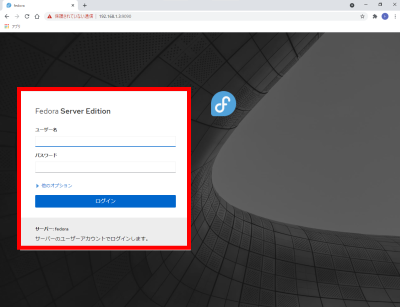
クライアントPCのWebブラウザで、[http://192.168.1.3:9090/] へアクセスし「root」でログインします。
Vim(テキストエディタ)の設定

Vim(テキストエディタ)をインストールします。

[root@www ~]# dnf -y install vim-enhanced

コマンドエイリアスを適用します。

[root@www ~]# vi /etc/profile

最終行に追記します。

alias vi='vim'

変更を反映します。

[root@www ~]# source /etc/profile

vim の設定します。

[root@www ~]# vi ~/.vimrc

行番号を表示する(サーバー設定を行番号で説明いたします。)

set number

Sudo(root権限)のを設定

root権限を特定のユーザーに設定します。

[root@www ~]# visudo

最終行に追記します。

webmaster    ALL=(ALL)       ALL

Fedora34:インストール

Fedora34ダウンロード

ダウンロードページからインストールディスクイメージ(Fedora-Server-dvd-x86_64-34-1.2.iso)をダウンロードします。
インストールDVD作成

ImgBurnを使いFedora-Server-dvd-x86_64-34-1.2.isoでFedora34インストールディスクを作成します。
Fedora34インストール

インストール前にBIOSでDVDブートができるように設定します。

ご自身のサーバーの設定方法をメーカーサイトでお調べください。
作成したインストールDVDでインストールします。

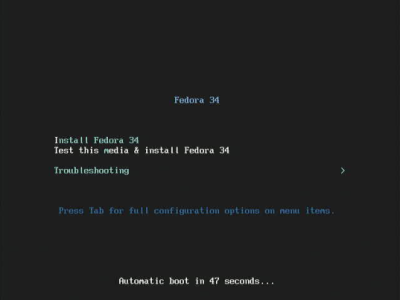
下の画面が表示されたらキーボードの「Enter」を押下します。

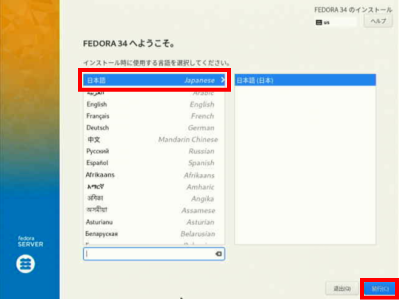
「日本語」を選択して「続行」をクリックします。

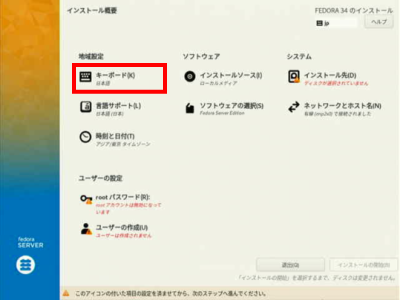
「キーボード」で日本語に設定します。

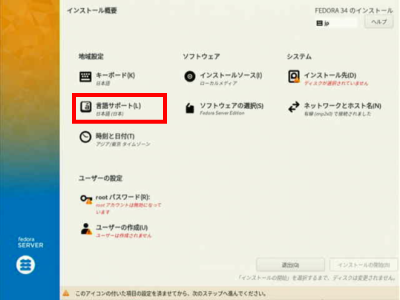
「言語サポート」で日本語(日本)に設定します。

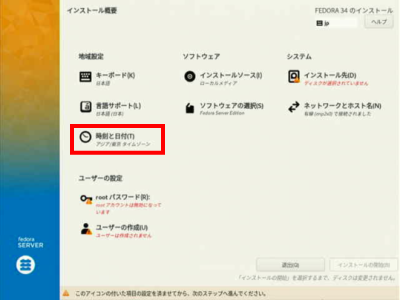
「日付と時刻」でアジア/東京 タイムゾーンに設定します。

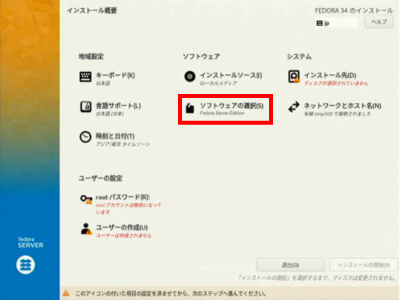
「ソフトウェアの選択」をクリックします。

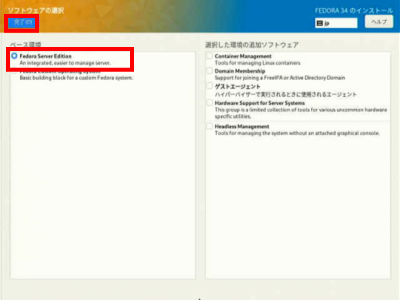
「Fedora Server Edition」を選択して「完了」をクリックします。

「インストール先」で自動パーティションを選択します。

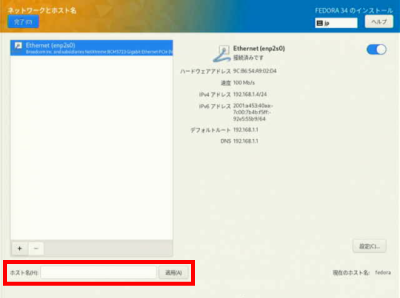
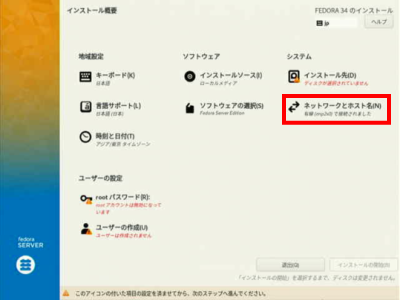
「ネットワークとホスト名」をクリックします。

「ホスト名」をfedoraserver.jpに変更して「適用」をクリックします。

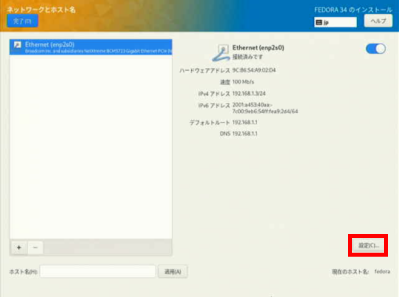
「設定」をクリックします。

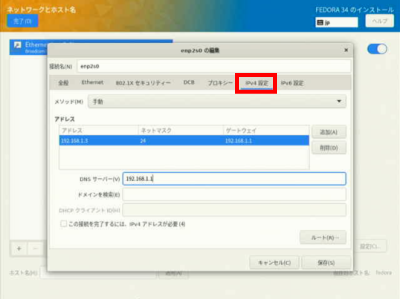
「IPv4のセッティング」をクリックします。

方式の「手動」を選択します。

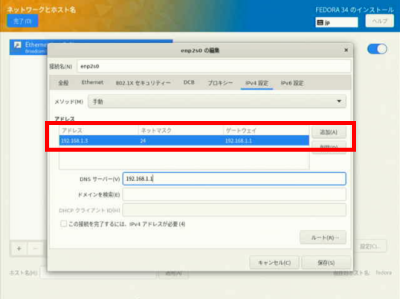
「追加」をクリックして、「アドレス」に192.168.1.3 、「ネットマスク」に24 、「ゲートウェイ」に192.168.1.1を入力します。

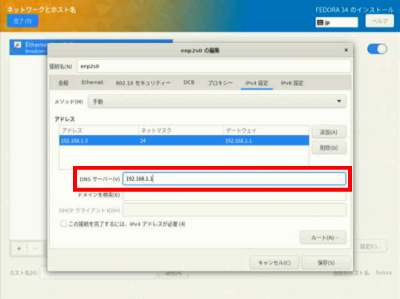
「DNSサーバー」に192.168.1.1を入力します。

「保存」をクリックします。

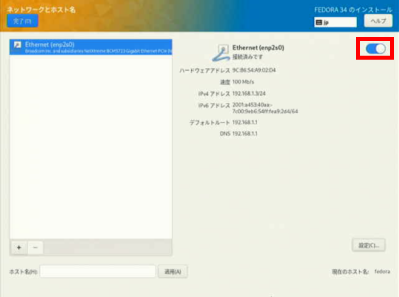
「オン」を選択します。

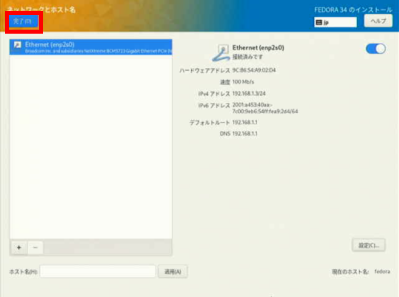
「完了」をクリックします。

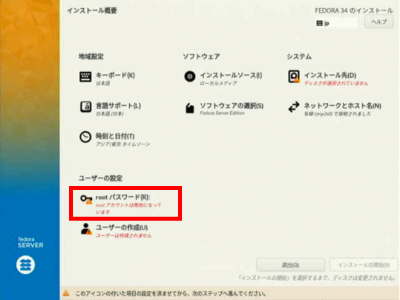
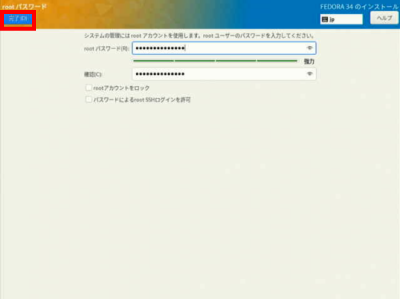
「rootパスワード」をクリックします。

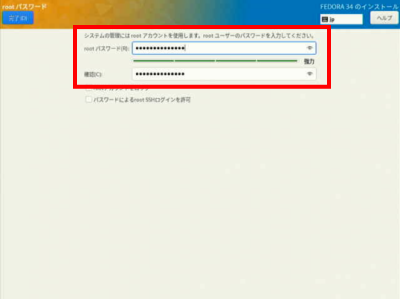
「rootパスワード」を入力します。

「完了」をクリックします。

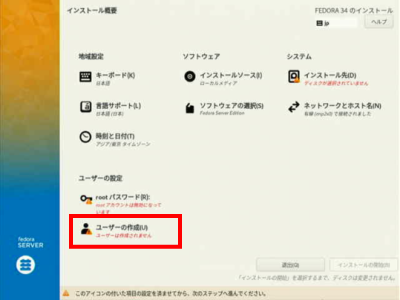
「ユーザーの作成」をクリックします。

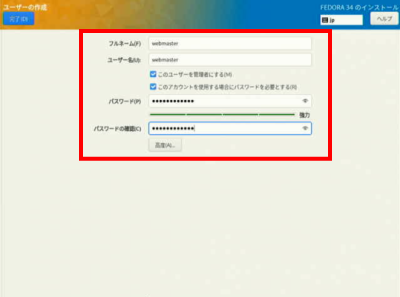
「フルネーム」「ユーザーネーム」にwebmasterを入力します。

「このユーザーを管理者にする」を選択します。

「このアカウントを使用する場合にパスワードを必要とする」を選択します。

「パスワード」を入力します。

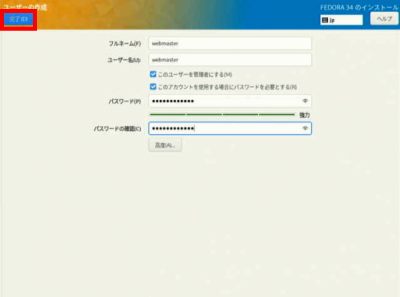
「完了」をクリックします。

「インストール開始」をクリックします。

Fedora34:SSHサーバー設定

SSHサーバーのインストール

サーバーにwebmasterでログインします。

localhost login: webmaster
password:

rootでログインします。

[webmaster@localhost ~]$ us -
password:

SSHサーバーをインストールします。

[root@localhost ~]# dnf install openssh-server openssh-clients

SSHサーバーを起動します。

[root@localhost ~]# systemctl start sshd

SSHサーバーを自動起動設定をします。

[root@localhost ~]# systemctl enable sshd

SSHサーバーの作動確認します。

[root@localhost ~]# systemctl status sshd
● sshd.service - OpenSSH server daemon
   Loaded: loaded (/usr/lib/systemd/system/sshd.service; enabled; vendor preset>
   Active: active (running) since Sun 2021-04-11 18:03:51 JST; 5h 16min ago
     Docs: man:sshd(8)
           man:sshd_config(5)
 Main PID: 870 (sshd)
    Tasks: 1 (limit: 23603)
   Memory: 4.6M
   CGroup: /system.slice/sshd.service
           mq870 /usr/sbin/sshd -D -oCiphers=aes256-gcm@openssh.com,chacha20-po>

 4月 11 18:03:51 localhost.localdomain systemd[1]: Starting OpenSSH server daem>
 4月 11 18:03:51 localhost.localdomain sshd[870]: Server listening on 0.0.0.0 p>
 4月 11 18:03:51 localhost.localdomain sshd[870]: Server listening on :: port 2>
 4月 11 18:03:51 localhost.localdomain systemd[1]: Started OpenSSH server daemo>
 4月 11 22:29:36 localhost.localdomain sshd[5425]: Accepted password for webmas>
 4月 11 22:29:36 localhost.localdomain sshd[5425]: pam_unix(sshd:session): sess>
 4月 11 23:19:30 localhost.localdomain sshd[5481]: Accepted password for webmas>
 4月 11 23:19:30 localhost.localdomain sshd[5481]: pam_unix(sshd:session): sess>
lines 1-19/19 (END)

「q」を押下して表示を終了します。

現在のネットワーク設定を確認

ネットワーク設定でIPアドレスを記録します。

webmaster@www:~$ ip addr
span style="color: #ffffff;">1: lo: <LOOPBACK,UP,LOWER_UP> mtu 65536 qdisc noqueue state UNKNOWN group default qlen 1000
link/loopback 00:00:00:00:00:00 brd 00:00:00:00:00:00
inet 127.0.0.1/8 scope host lo
valid_lft forever preferred_lft forever
inet6 ::1/128 scope host
valid_lft forever preferred_lft forever
2: enp14s0: <BROADCAST,MULTICAST,UP,LOWER_UP> mtu 1500 qdisc mq state UP group default qlen 1000
link/ether 0c:2e:48:2b:dg:f4 brd ff:ff:ff:ff:ff:ff
inet 192.168.1.3/24 brd 192.168.1.255 scope global dynamic enp2s0 #IPアドレス、インターファイス名記録
valid_lft 11984sec preferred_lft 11984sec
inet6 20sd:ahq23:46dg:7rh9:2dg5:28uf:fls4:dehd/64 scope global dynamic mngtmpaddr noprefixroute
valid_lft 13592sec preferred_lft 11792sec
inet6 fft0::21fg3:2j8f:fo60:djed/64 scope link
valid_lft forever preferred_lft forever

192.168.1.3」(記録したIPアドレス)でクライアントPCよりTera Termで接続します。