Fedora32:デスクトップ環境設定

デスクトップ環境インストール

デスクトップ環境をインストールします。

[root@www ~]# dnf -y group install "Basic Desktop" GNOME

ログイン設定ファイルを新規作成します。

[root@www ~]# vi ~/.xinitrc
export XDG_CURRENT_DESKTOP=GNOME-Classic:GNOME
export GNOME_SHELL_SESSION_MODE=classic
exec /usr/bin/gnome-session --session=gnome-classic

ログイン設定をします。

[root@www ~]# systemctl set-default graphical.target
[root@www ~]# systemctl set-default
[root@www ~]# ll /etc/systemd/system/default.target

デスクトップを起動します。

[root@www ~]# startx

再起動します。

[root@www ~]# reboot

注意:VNCサーバーかXrdpサーバーのどちらか一つをインストールしてください。両方インストールすると表示できない場合があります。おすすめはXrdpサーバーです。

VNCサーバーの設定

VNCサーバーをインストールします。

root@www:~# dnf -y install tigervnc-server

VNC 接続を設定したいユーザーでログインし、VNC サーバーでパスワード(英数字8桁以内)を設定します。

root@www:~# vncpasswd
Password:
Verify:
Would you like to enter a view-only password (y/n)? n

VNC サーバーを起動します。

root@www:~# vncserver
New 'fedoraserver.jp:1 (root)' desktop is fedoraserver.jp:1

Starting applications specified in /root/.vnc/xstartup
Log file is /root/.vnc/fedoraserver.jp:1.log

VNC サーバーを起動します。

root@www:~# systemctl enable --now vncserver@:1 vncserver@:2

再起動します。

root@www:~# reboot

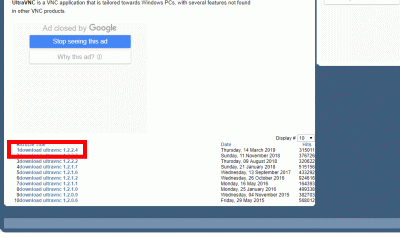
クライアントPCにUltraVNCUltraVNC_1_2_40_X64_Setup.exeをダウンロードします。(ページの下部にダウンロードリンクがあります。)

UltraVNCをダウンロード

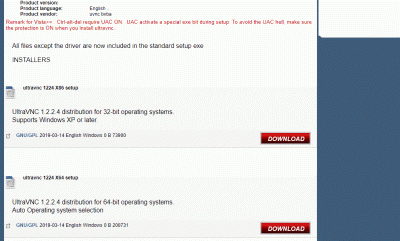
23bit、64bitを選択して「DOWNLOAD」をクリックします。

23bit、64bitを選択して「DOWNLOAD」

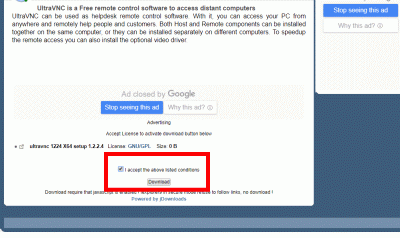
「I accept the above listed conditions」を選択して「Download」をクリックします。

「I accept the above listed conditions」を選択して「Download」

ダウンロードした「UltraVNC_***_Setup.exe」のアイコンをWクリックしてインストールします。

UltraVNC_***_Setup.exe

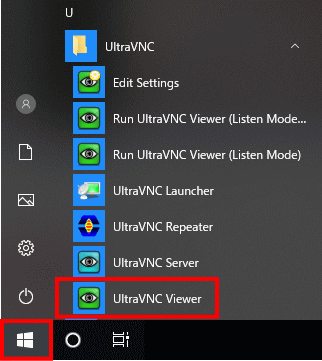
「Windowsスタートメニュー」をクリックし、「UltraVNC Viewer」を起動します。

Windowsスタートメニュー

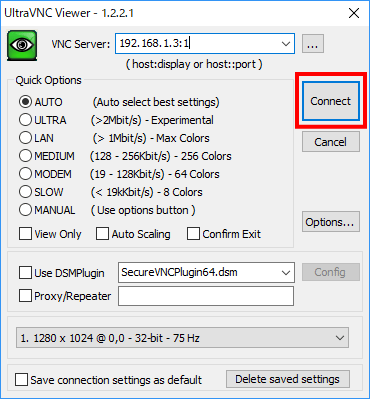
先に起動したVNCサーバーのIPアドレス:ディスプレイ番号を入力をして「Connect」をクリックします。

VNCサーバーのIPアドレス:ディスプレイ番号を入力

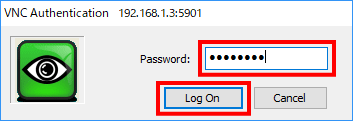
VNCパスワードを入力し「Log on」をクリックします。

VNCパスワードを入力

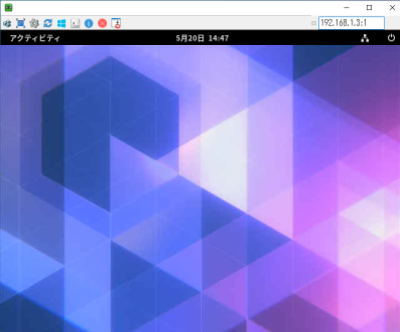
ディスクトップが表示されます。

Xrdpサーバーの設定

Windows のリモートデスクトップ機能で接続できるようにXrdpサーバーをインストールして設定します。

[root@www ~]# dnf -y install xrdp tigervnc-server

自動起動を設定します。

[root@www ~]# systemctl enable --now xrdp

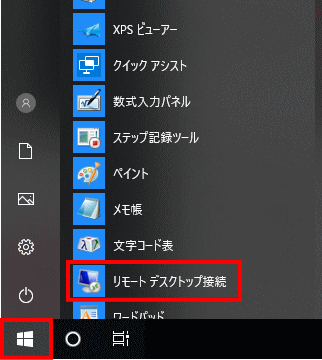
Windows スタートメニューから「アクセサリ」→「リモートデスクトップ接続」 を選択して接続画面を起動します。

スタートメニュー

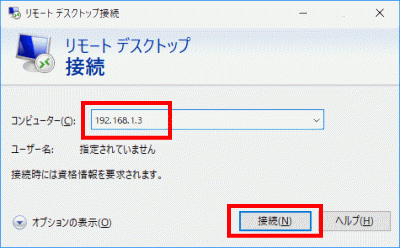
サーバーIPアドレスを入力し「接続」をクリックします。

サーバーIPアドレスを入力し「接続」をクリック

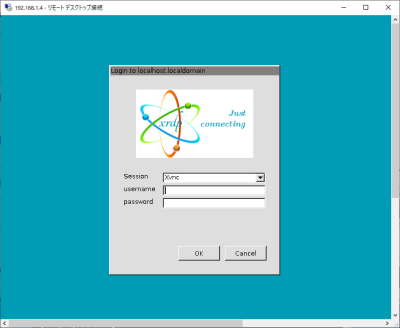
「usermame」(ユーザー名)、「password」(パスワード)を入力し「OK」をクリックします。

ディスクトップが表示されます。

日本語環境の設定

日本語環境のパッケージをインストールします。

[root@www ~]# dnf -y install ibus-kkc vlgothic-*

システムの文字セットを設定します。

[root@www ~]# localectl set-locale LANG=ja_JP.UTF-8
[root@www ~]# source /etc/locale.conf

設定を確認します。

[root@www ~]# echo $LANG
ja_JP.UTF-8

Fedora32:初期設定

rootファイルシステムを拡張

rootファイルシステムを確認します。

マウント位置「/」のパスを記録して上表のマウント位置の欄にコピペして「変更」をクリックします。

[root@www ~]# df -h
ファイルシス             サイズ    使用  残り 使用% マウント位置
devtmpfs                   3.9G      0  3.9G     0% /dev
tmpfs                      3.9G      0  3.9G     0% /dev/shm
tmpfs                      3.9G   1.1M  3.9G     1% /run
/dev/fedora/fedora-root     15G   1.9G   14G    13% / #拡張
tmpfs                      3.9G   4.0K  3.9G     1% /tmp
/dev/sda1                  1014M  194M  821M    20% /boot
tmpfs                      783M      0  783M     0% /run/user/1000

rootファイルシステムはディフォルトで15Gb ですので拡張します。
理論ボリュームを拡張します。(上記フォームにてご自身のファイルパスに変更してください。)

[webmaster@www ~]$ sudo lvextend -l +100%FREE dev/fedora/fedora-root

ファイルシステムを拡張します。

[webmaster@www ~]$ sudo xfs_growfs dev/fedora/fedora-root

一般ユーザーの作成

rootユーザーにログインします。

[webmaster@www ~]$ su -
パスワード:
[root@www ~]#

一般ユーザーを作成します。(初期設定では一般ユーザーは必要ありません。)

[root@www ~]# useradd ユーザー名

パスワードを設定します。

[root@www ~]# passwd ユーザー名
新しいパスワード:
新しいパスワードを再入力してください:

rootになれるユーザーを限定

rootになれるユーザーを限定します。

[root@www ~]# usermod -G wheel webmaster
[root@www ~]# vi /etc/pam.d/su

#を削除してコメント解除

#%PAM-1.0
auth            sufficient      pam_rootok.so
# Uncomment the following line to implicitly trust users in the "wheel" group.
#auth           sufficient      pam_wheel.so trust use_uid
# Uncomment the following line to require a user to be in the "wheel" group.
auth            required        pam_wheel.so use_uid
auth            substack        system-auth
auth            include         postlogin
account         sufficient      pam_succeed_if.so uid = 0 use_uid quiet
account         include         system-auth
password        include         system-auth
session         include         system-auth
session         include         postlogin
session         optional        pam_xauth.so

一般ユーザーの削除

ユーザーのみ削除する場合

[root@www ~]# userdel ユーザー名

ホームディレクトリも削除する場合

[root@www ~]# userdel -r ユーザー名

ファイアウォールとSELinuxを無効化

ファイアウォールサービス停止します。

[root@www ~]# systemctl stop firewalld

自動起動設定を無効にします。

[root@www ~]# systemctl disable firewalld
rm '/etc/systemd/system/dbus-org.fedoraproject.FirewallD1.service'
rm '/etc/systemd/system/basic.target.wants/firewalld.service'

SELinux を無効にします。

[root@www ~]# vi /etc/selinux/config

disabled に変更します。

# This file controls the state of SELinux on the system.
# SELINUX= can take one of these three values:
# enforcing - SELinux security policy is enforced.
# permissive - SELinux prints warnings instead of enforcing.
# disabled - No SELinux policy is loaded.
SELINUX=disabled #変更
# SELINUXTYPE= can take one of these two values:
# targeted - Targeted processes are protected,
# minimum - Modification of targeted policy. Only selected processes are protected.
# mls - Multi Level Security protection.
SELINUXTYPE=targeted

再起動します。

[root@www ~]# reboot

ネットワークの設定

IPv6 を無効にします。

[root@www ~]# vi /etc/default/grub

6行目:「ipv6.disable=1」を追加します。

GRUB_CMDLINE_LINUX="ipv6.disable=1 resume=/dev/mapper/fedora-swap rd.lvm.lv=linuxserver/root..

変更を反映します。

[root@www ~]# grub2-mkconfig -o /boot/grub2/grub.cfg
[root@www ~]# reboot

ルーター設定

ルーターでDHCP固定IPアドレス設定ができる場合は「MACアドレス」、「サーバーIPアドレス」を設定します。

DHCP固定IPアドレス設定

MACアドレス(例:0c:2e:48:2b:dg:f4)

サーバーIPアドレス:192.168.1.3

システムの最新化

システムを最新化します。

[root@www ~]# dnf -y update

モジュールを追加

Node.js 12モジュールを追加します。

[root@www ~]# dnf module -y install nodejs:12
[root@www ~]# dnf module enable nodejs:12

モジュールを確認します。

[root@www ~]# node -v
v12.22.1

Node.js 15モジュールを追加します。

[root@www ~]# dnf module reset nodejs
[root@www ~]# dnf module -y install nodejs:15/default
[root@www ~]# dnf module enable nodejs:15

モジュールを確認します。

[root@www ~]# node -v
v15.11.0

パッケージ自動更新設定

dnf-automaticをインストールします。

[root@www ~]# dnf install dnf-automatic dnf-utils -y

dnf-automaticを設定します。

[root@www ~]# vi /etc/dnf/automatic.conf

自動ダウンロード&自動アップデートを行うようにする

# Whether updates should be applied when they are available, by
# dnf-automatic.timer. notifyonly.timer, download.timer and
# install.timer override this setting.
apply_updates = yes #変更

パッケージ自動更新自動起動設定

[root@www ~]# systemctl enable --now dnf-automatic.timer

Web 管理コンソールの設定

Cockpit を有効にして Web 管理コンソールが利用可能にします。

[root@www ~]# systemctl enable --now cockpit.socket
[root@www ~]# ss -napt
State Recv-Q Send-Q Local Address:Port Peer Address:Port 
LISTEN 0 128 0.0.0.0:22 0.0.0.0:* users:(("sshd",pid=831,fd=6)) 
LISTEN 0 128 [::]:22 [::]:* users:(("sshd",pid=831,fd=8)) 
LISTEN 0 128 *:9090 *:* users:(("systemd",pid=1,fd=24)) 

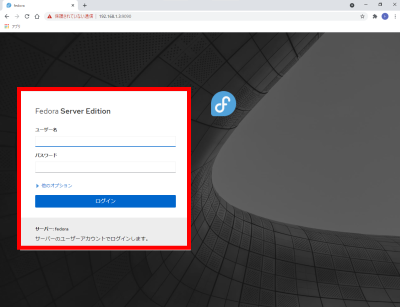
クライアントPCのWebブラウザで、[http://192.168.1.3:9090/] へアクセスし「root」でログインします。
Vim(テキストエディタ)の設定

Vim(テキストエディタ)をインストールします。

[root@www ~]# dnf -y install vim-enhanced

コマンドエイリアスを適用します。

[root@www ~]# vi /etc/profile

最終行に追記します。

alias vi='vim'

変更を反映します。

[root@www ~]# source /etc/profile

vim を設定します。

[root@www ~]# vi ~/.vimrc

行番号を表示する(サーバー設定を行番号で説明いたします。)

set number

Sudo(root権限)のを設定

root権限を特定のユーザーに設定します。

[root@www ~]# visudo

最終行に追記します。

webmaster    ALL=(ALL)       ALL

Fedora32:SSHサーバー設定

SSHサーバーのインストール

サーバーにwebmasterでログインします。

localhost login: webmaster
password:

rootでログインします。

[webmaster@localhost ~]$ us -
password:

SSHサーバーをインストールします。

[root@localhost ~]# dnf install openssh-server openssh-clients

SSHサーバーを起動します。

[root@localhost ~]# systemctl start sshd

SSHサーバーを自動起動設定をします。

[root@localhost ~]# systemctl enable sshd

SSHサーバーの作動確認します。

[root@localhost ~]# systemctl status sshd
● sshd.service - OpenSSH server daemon
   Loaded: loaded (/usr/lib/systemd/system/sshd.service; enabled; vendor preset>
   Active: active (running) since Sun 2021-04-11 18:03:51 JST; 5h 16min ago
     Docs: man:sshd(8)
           man:sshd_config(5)
 Main PID: 870 (sshd)
    Tasks: 1 (limit: 23603)
   Memory: 4.6M
   CGroup: /system.slice/sshd.service
           mq870 /usr/sbin/sshd -D -oCiphers=aes256-gcm@openssh.com,chacha20-po>

 4月 11 18:03:51 localhost.localdomain systemd[1]: Starting OpenSSH server daem>
 4月 11 18:03:51 localhost.localdomain sshd[870]: Server listening on 0.0.0.0 p>
 4月 11 18:03:51 localhost.localdomain sshd[870]: Server listening on :: port 2>
 4月 11 18:03:51 localhost.localdomain systemd[1]: Started OpenSSH server daemo>
 4月 11 22:29:36 localhost.localdomain sshd[5425]: Accepted password for webmas>
 4月 11 22:29:36 localhost.localdomain sshd[5425]: pam_unix(sshd:session): sess>
 4月 11 23:19:30 localhost.localdomain sshd[5481]: Accepted password for webmas>
 4月 11 23:19:30 localhost.localdomain sshd[5481]: pam_unix(sshd:session): sess>
lines 1-19/19 (END)

「q」を押下して表示を終了します。

現在のネットワーク設定を確認

ネットワーク設定でIPアドレスを記録します。

webmaster@www:~$ ip addr
span style="color: #ffffff;">1: lo: <LOOPBACK,UP,LOWER_UP> mtu 65536 qdisc noqueue state UNKNOWN group default qlen 1000
link/loopback 00:00:00:00:00:00 brd 00:00:00:00:00:00
inet 127.0.0.1/8 scope host lo
valid_lft forever preferred_lft forever
inet6 ::1/128 scope host
valid_lft forever preferred_lft forever
2: enp14s0: <BROADCAST,MULTICAST,UP,LOWER_UP> mtu 1500 qdisc mq state UP group default qlen 1000
link/ether 0c:2e:48:2b:dg:f4 brd ff:ff:ff:ff:ff:ff
inet 192.168.1.3/24 brd 192.168.1.255 scope global dynamic enp2s0 #IPアドレス、インターファイス名記録
valid_lft 11984sec preferred_lft 11984sec
inet6 20sd:ahq23:46dg:7rh9:2dg5:28uf:fls4:dehd/64 scope global dynamic mngtmpaddr noprefixroute
valid_lft 13592sec preferred_lft 11792sec
inet6 fft0::21fg3:2j8f:fo60:djed/64 scope link
valid_lft forever preferred_lft forever

192.168.1.3」(記録したIPアドレス)でクライアントPCよりTera Termで接続します。

Fedora32:インストール

Fedora32ダウンロード

ダウンロードページからインストールディスクイメージ(Fedora-Server-dvd-x86_64-32-1.6.iso)をダウンロードします。

インストールDVD作成

ImgBurnを使いFedora-Server-dvd-x86_64-32-1.2.isoでFedora32インストールディスクを作成します。

Fedora32インストール

インストール前にBIOSでDVDブートができるように設定します。

ご自身のサーバーの設定方法をメーカーサイトでお調べください。

作成したインストールDVDでインストールします。

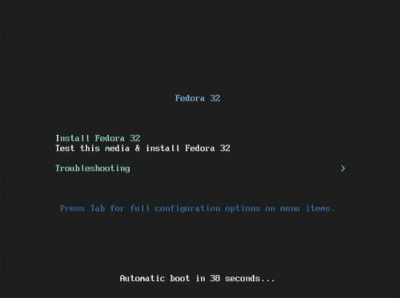
下の画面が表示されたらキーボードの「Enter」を押下します。

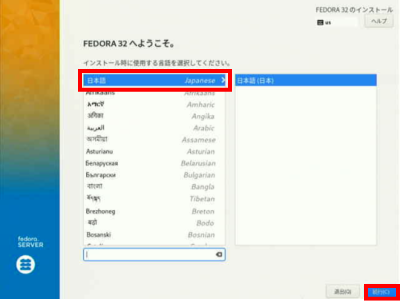
「日本語」を選択して「続行」をクリックします。

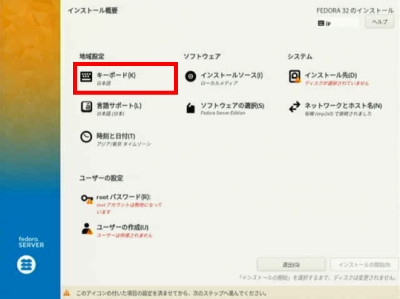
「キーボード」で日本語に設定します。

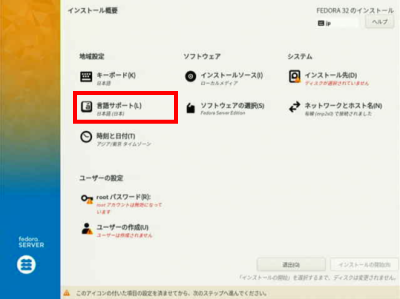
「言語サポート」で日本語(日本)に設定します。

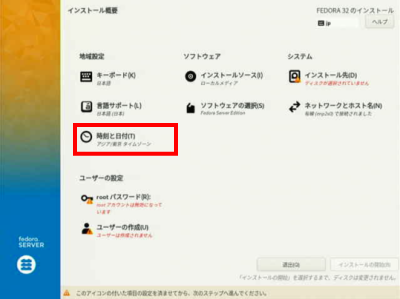
「日付と時刻」でアジア/東京 タイムゾーンに設定します。

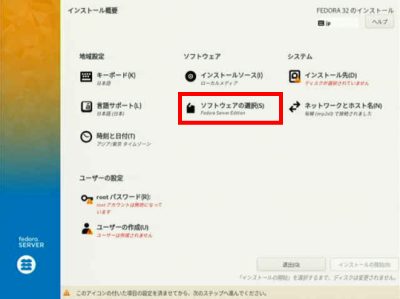
「ソフトウェアの選択」をクリックします。

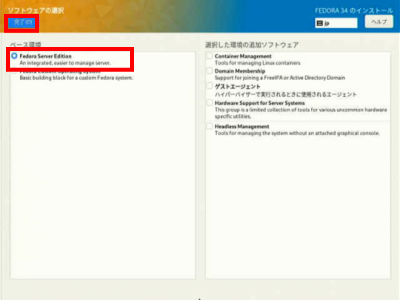
「Fedora Server Edition」を選択して「完了」をクリックします。

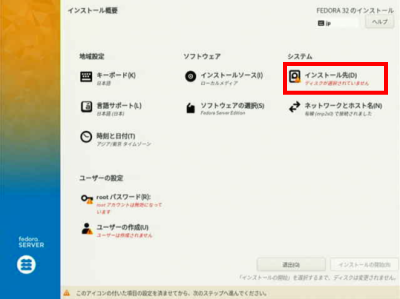
「インストール先」で自動パーティションを選択します。

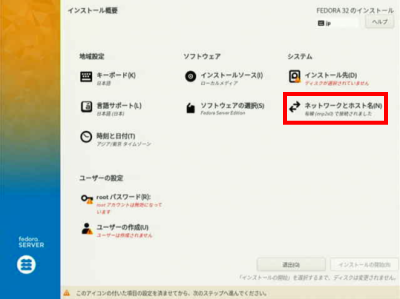
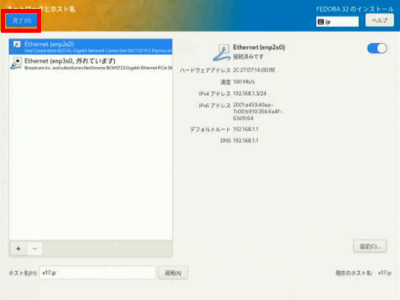
「ネットワークとホスト名」をクリックします。

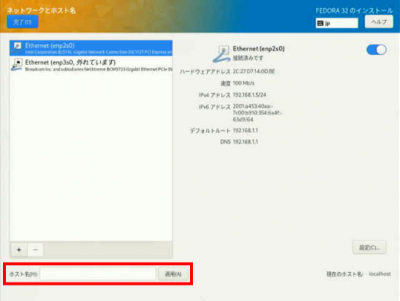
「ホスト名」をfedoraserver.jpに変更して「適用」をクリックします。

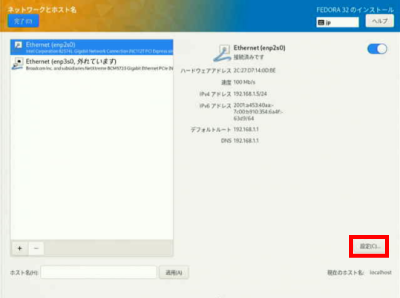
「設定」をクリックします。

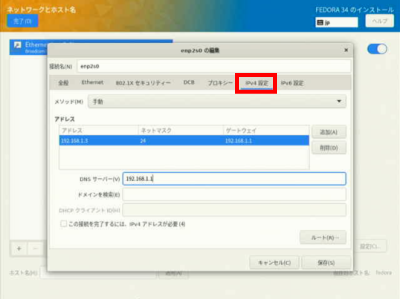
「IPv4のセッティング」をクリックします。

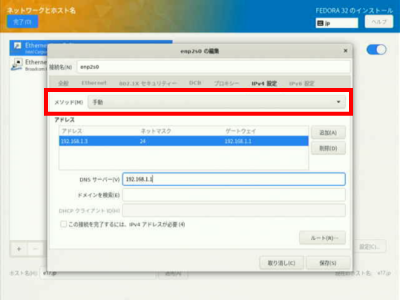
方式の「手動」を選択します。

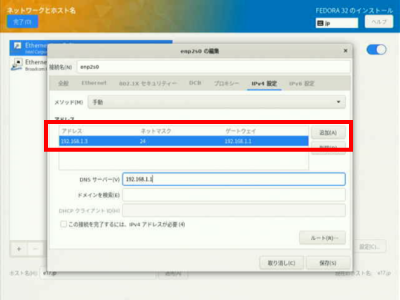
「追加」をクリックして、「アドレス」に192.168.1.3 、「ネットマスク」に24 、「ゲートウェイ」に192.168.1.1を入力します。

「DNSサーバー」に192.168.1.1を入力します。

「保存」をクリックします。

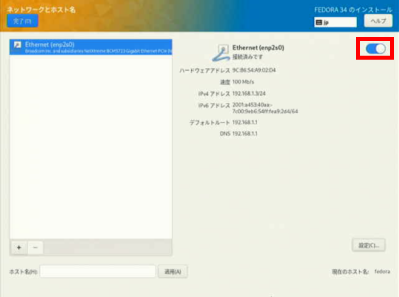
「オン」を選択します。

「完了」をクリックします。

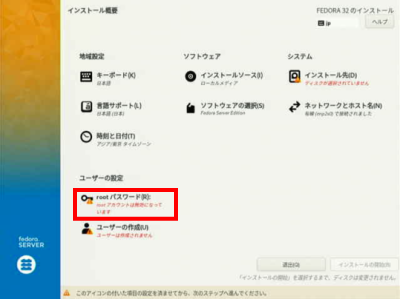
「rootパスワード」をクリックします。

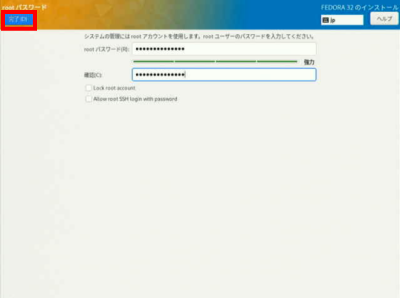
「rootパスワード」を入力します。

「完了」をクリックします。

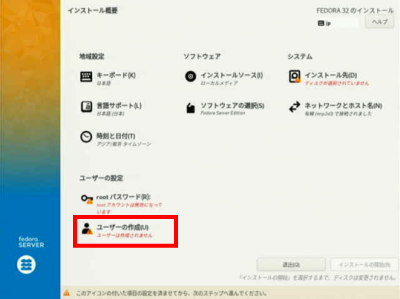
「ユーザーの作成」をクリックします。

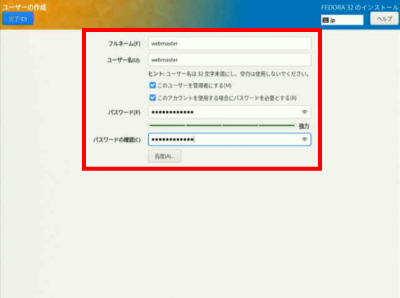
「フルネーム」「ユーザーネーム」にwebmasterを入力します。

「このユーザーを管理者にする」を選択します。

「このアカウントを使用する場合にパスワードを必要とする」を選択します。

「パスワード」を入力します。

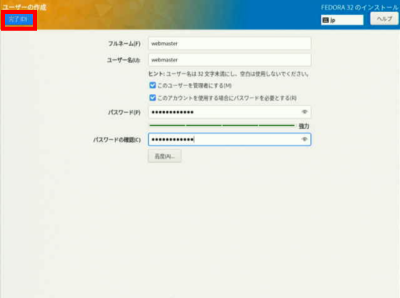
「完了」をクリックします。

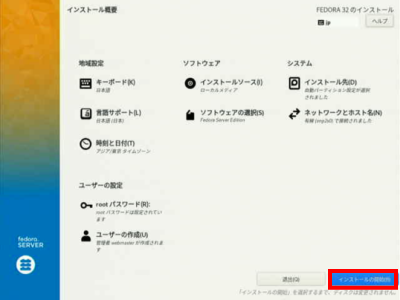
「インストール開始」をクリックします。

Fedora:ブログサイト(Word Press)設定

s50

Webサーバー、PHP設定.

Webサーバー、PHPを設定します。

Webサーバー、PHPの設定
s51

データベース設定.

データベースを設定します。

データベースの設定
s52

ブログ用データーベースを作成.

MariaDBへrootでログインします。

[root@www ~]# 52_1mysql -u root -p
Enter password:
Welcome to the MariaDB monitor.  Commands end with ; or \g.
Your MariaDB connection id is 3
Server version: 5.5.60-MariaDB MariaDB Server

Copyright (c) 2000, 2018, Oracle, MariaDB Corporation Ab and others.

Type 'help;' or '\h' for help. Type '\c' to clear the current input statement.

s53wordpressでデータベースを作成します。

MariaDB [(none)]> 53_1create database wordpress;

s54wordpress_userでユーザーを作成します。

MariaDB [(none)]> 54_1grant all privileges on wordpress.* to wordpress_user@localhost identified by 'パスワード';

s55ログアウトします。

MariaDB [(none)]> 55_1exit

s56

WordPressインストール.

PHP7.4をインストールします。

root@www:~# 56_1dnf -y update
root@www:~# 56_2dnf -y install php7.4 php7.4-mbstring php-pear
root@www:~# 56_3php -v

s57PHPモジュールをインストールします。

root@www:~# 57_1dnf -y install php-common php-gd php-mysql php-enchant hunspell

s58PHPを再起動します。

root@www:~# 58_1systemctl restart php7.4-fpm

s59Webディレクトリへ移動します。

[root@www ~]#59_1 cd /var/www/html

s60WordPressをダウンロードします。

[root@www ~]#60_1 wget https://ja.wordpress.org/latest-ja.tar.gz

s61WordPressを解凍します。

[root@www ~]# 61_1tar xvf latest-ja.tar.gz
[root@www ~]# 61_2rm latest-ja.tar.gz

s62ディレクトリを戻ります。

[root@www ~]# 62_1cd

s63WordPressディレクトリ所有者をApache実行ユーザーへ変更します。

[root@www ~]# 63_1chown -R apache:apache /var/www/html/wordpress/

s64

WordPress設定.

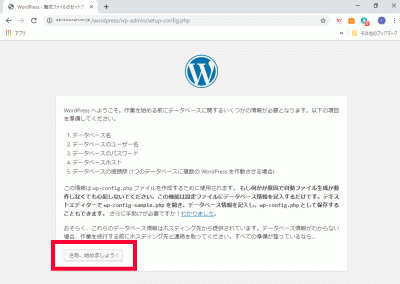
WordPressへアクセスし、「さあ、始めましょう!」をクリックします。

https://fedoraserver.jp/wordpress/

WordPress設定

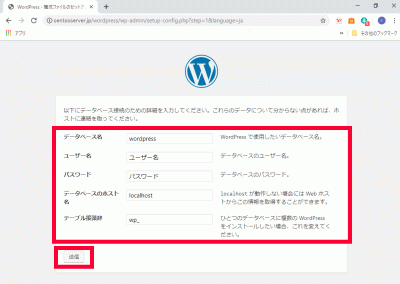
s65「データベース名」、「ユーザー名」、「パスワード」、「データベースの接頭辞」を入力し、「送信」をクリックします。

データベース名:65_1wordpress

ユーザー名:65_2wordpress_user

パスワード:65_3パスワード

データベースの接頭辞:65_4wp_wordpress_

WordPress設定

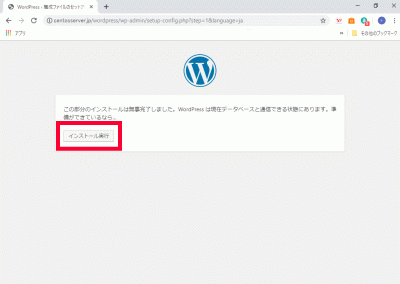
s66「インストール実行」をクリックします。

インストール実行
s67

Apache設定.

WordPress用Apache設定ファイルを作成します。

[root@www ~]# 67_1echo Alias /wordpress /var/www/html/wordpress > /etc/httpd/conf.d/wordpress.conf

s68再起動します。

[root@www ~]# 68_1systemctl reload httpd

s69

WordPress初期設定.

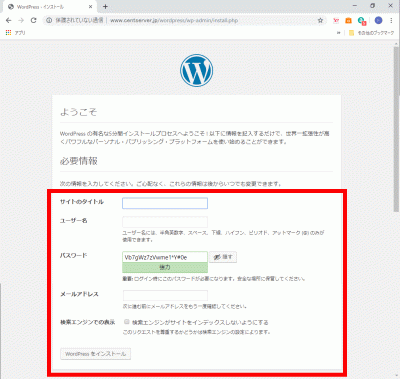
WordPressへアクセスし、任意で決めた、「サイトのタイトル」、「ユーザー名」、「パスワード」、「メールアドレス」を入力して「WordPressをインストール」をクリックします。

https://fedoraserver.jp/wordpress/

WordPress初期設定

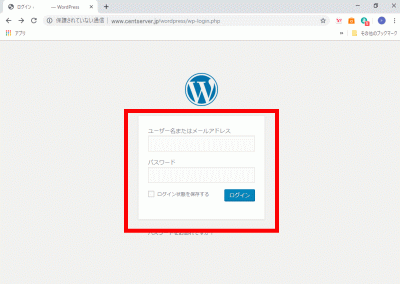
s70「ユーザー名」、「パスワード」を入力して「ログイン」をクリックし、サイト管理へログインします。

サイト管理へログイン
s71

WordPressをドメイン直下での表示設定.

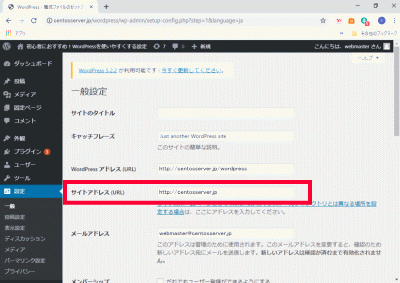
管理画面で「設定」→「一般」を開き、「サイトアドレス(URL)」に「ドメイン」を設定します。

ドメイン:https://linuxserver.jp

サイトアドレス(URL)

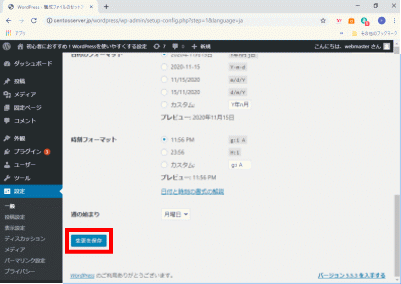
s72「変更を保存」をクリックします。

s73「index.php」をコピーして、ドメイン直下に貼り付けます。

[root@www ~]# 73_1cp /var/www/html/wordpress/index.php /var/www/html/index.php

s74「index.php」を設定します。

[root@www ~]# 74_1vi /var/www/html/index.php

s7517行目:「/wordpress」を追記します。

require( dirname( __FILE__ ) . '75_1/wordpress/wp-blog-header.php' );

s76「.htaccess」を設定します。

[root@www ~]# 76_1vi /var/www/html/.htaccess
76_2# BEGIN WordPress
<IfModule mod_rewrite.c>
    RewriteEngine On
    RewriteBase /
    RewriteRule ^index\.php$ - [L]
    RewriteCond %{REQUEST_FILENAME} !-f
    RewriteCond %{REQUEST_FILENAME} !-d
    RewriteRule . /index.php [L]
</IfModule>
# END WordPress