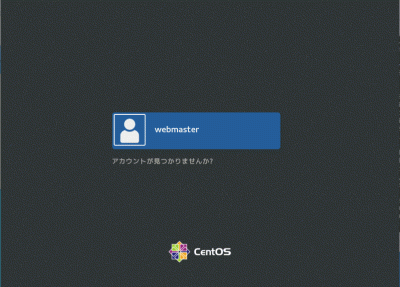
CentOS8:初期設定

一般ユーザーの作成

rootユーザーにログインします。

[webmaster@www ~]$ su -
パスワード:
[root@www ~]#

一般ユーザーを作成します。(初期設定では一般ユーザーは必要ありません。)

[root@www ~]# useradd ユーザー名

パスワードを設定します。

[root@www ~]# passwd ユーザー名
新しいパスワード:
新しいパスワードを再入力してください:

rootになれるユーザーを限定

rootになれるユーザーを限定します。

[root@www ~]# usermod -G wheel webmaster
[root@www ~]# vi /etc/pam.d/su

#を削除してコメント解除

#%PAM-1.0
auth            sufficient      pam_rootok.so
# Uncomment the following line to implicitly trust users in the "wheel" group.
#auth           sufficient      pam_wheel.so trust use_uid
# Uncomment the following line to require a user to be in the "wheel" group.
auth            required        pam_wheel.so use_uid
auth            substack        system-auth
auth            include         postlogin
account         sufficient      pam_succeed_if.so uid = 0 use_uid quiet
account         include         system-auth
password        include         system-auth
session         include         system-auth
session         include         postlogin
session         optional        pam_xauth.so

一般ユーザーの削除

ユーザーのみ削除する場合

[root@www ~]# userdel ユーザー名

ホームディレクトリも削除する場合

[root@www ~]# userdel -r ユーザー名

ファイアウォールとSELinuxを無効化

ファイアウォールサービス停止します。

[root@www ~]# systemctl stop firewalld

自動起動設定を無効にします。

[root@www ~]# systemctl disable firewalld
rm '/etc/systemd/system/dbus-org.fedoraproject.FirewallD1.service'
rm '/etc/systemd/system/basic.target.wants/firewalld.service'

SELinux を無効にします。

[root@www ~]# vi /etc/selinux/config

disabled に変更します。

# This file controls the state of SELinux on the system.
# SELINUX= can take one of these three values:
# enforcing - SELinux security policy is enforced.
# permissive - SELinux prints warnings instead of enforcing.
# disabled - No SELinux policy is loaded.
SELINUX=disabled #変更
# SELINUXTYPE= can take one of these two values:
# targeted - Targeted processes are protected,
# minimum - Modification of targeted policy. Only selected processes are protected.
# mls - Multi Level Security protection.
SELINUXTYPE=targeted

再起動します。

[root@www ~]# reboot

ネットワークの設定

IPv6 を無効にします。

[root@www ~]# vi /etc/default/grub

7行目:「crashkernel=auto」→「ipv6.disable=1」に変更します。

GRUB_CMDLINE_LINUX="ipv6.disable=1 rd.lvm.lv=centos/root..

変更を反映します。

[root@www ~]# grub2-mkconfig -o /boot/grub2/grub.cfg
[root@www ~]# reboot

ルーター設定

ルーターでDHCP固定IPアドレス設定ができる場合は「MACアドレス」、「サーバーIPアドレス」を設定します。

DHCP固定IPアドレス設定

MACアドレス(例:0c:2e:48:2b:dg:f4)

サーバーIPアドレス:192.168.1.3

システムの最新化

システムを最新化します。

[root@www ~]# dnf -y update

リポジトリを追加

標準リポジトリを追加します。

[root@www ~]# dnf -y install epel-release

標準リポジトリを最優先にします。

[root@www ~]# vi /etc/yum.repos.d/epel.repo

「priority=10」を追記します。

[epel]
name=Extra Packages for Enterprise Linux $releasever - $basearch
#baseurl=https://download.fedoraproject.org/pub/epel/$releasever/Everything/$basearch
metalink=https://mirrors.fedoraproject.org/metalink?repo=epel-$releasever&arch=$basearch&infra=$infra&content=$contentdir
failovermethod=priority
enabled=1
priority=10 #追記

EPELリポジトリを追加します。

[root@www ~]# dnf -y install elrepo-release

EPELリポジトリを最優先にします。

[root@www ~]# vi /etc/yum.repos.d/elrepo.repo

「priority=10」を追記します。

[elrepo]
name=ELRepo.org Community Enterprise Linux Repository - el8
baseurl=http://elrepo.org/linux/elrepo/el8/$basearch/
        http://mirrors.coreix.net/elrepo/elrepo/el8/$basearch/
        http://jur-linux.org/download/elrepo/elrepo/el8/$basearch/
        http://repos.lax-noc.com/elrepo/elrepo/el8/$basearch/
mirrorlist=http://mirrors.elrepo.org/mirrors-elrepo.el8
enabled=1
priority=10 #追記

Remi’s RPM repositoryリポジトリを追加します。

[root@www ~]# dnf -y install https://rpms.remirepo.net/enterprise/remi-release-8.rpm

Remi’s RPM repository リポジトリを最優先にします。

[root@www ~]# vi /etc/yum.repos.d/remi-safe.repo

「priority=10」を追記します。

[remi-safe]
name=Safe Remi's RPM repository for Enterprise Linux 8 - $basearch
#baseurl=http://rpms.remirepo.net/enterprise/8/safe/$basearch/
#mirrorlist=https://rpms.remirepo.net/enterprise/8/safe/$basearch/httpsmirror
mirrorlist=http://cdn.remirepo.net/enterprise/8/safe/$basearch/mirror
enabled=1
priority=10

モジュラーリポジトリを追加します。

[root@www ~]# dnf --enablerepo=remi-modular --disablerepo=AppStream module list

パッケージ自動更新設定

dnf-automaticをインストールします。

[root@www ~]# dnf install dnf-automatic dnf-utils -y

dnf-automaticを設定します。

[root@www ~]# vi /etc/dnf/automatic.conf

自動ダウンロード&自動アップデートを行うようにする

# Whether updates should be applied when they are available, by
# dnf-automatic.timer. notifyonly.timer, download.timer and
# install.timer override this setting.
apply_updates = yes #変更

パッケージ自動更新自動起動設定

[root@www ~]# systemctl enable --now dnf-automatic.timer

開発ツールパッケージのインストール

開発ツールパッケージをインストールします。

[root@www ~]# dnf -y groupinstall base "Development tools"

Web 管理コンソールの設定

Cockpit を有効にして Web 管理コンソールが利用可能にします。

[root@www ~]# systemctl enable --now cockpit.socket
[root@www ~]# ss -napt
State Recv-Q Send-Q Local Address:Port Peer Address:Port 
LISTEN 0 128 0.0.0.0:22 0.0.0.0:* users:(("sshd",pid=831,fd=6)) 
LISTEN 0 128 [::]:22 [::]:* users:(("sshd",pid=831,fd=8)) 
LISTEN 0 128 *:9090 *:* users:(("systemd",pid=1,fd=24)) 

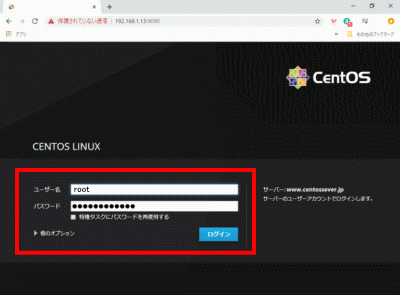
クライアントPCのWebブラウザで、[http://192.168.1.3:9090/] へアクセスし「root」でログインします。
Vim(テキストエディタ)の設定

Vim(テキストエディタ)をインストールします。

[root@www ~]# dnf -y install vim-enhanced

コマンドエイリアスを適用します。

[root@www ~]# vi /etc/profile

最終行に追記します。

alias vi='vim'

変更を反映します。

[root@www ~]# source /etc/profile

vim を設定します。

[root@www ~]# vi ~/.vimrc

行番号を表示する(サーバー設定を行番号で説明いたします。)

set number

Sudo(root権限)のを設定

root権限を特定のユーザーに設定します。

[root@www ~]# visudo

最終行に追記します。

webmaster    ALL=(ALL)       ALL

Cronの設定

従来通りの Cron の設定に戻したい場合は以下のように設定します。

[root@www ~]# dnf -y install cronie-noanacron

インストール後に、Anacron設定のパッケージは削除します。

[root@www ~]# dnf -y remove cronie-anacron

nkfコマンドツールインストール

文字コード変換コマンド nkfダウンロードします。

[root@www ~]# wget "http://sourceforge.jp/frs/redir.php?m=jaist&f=%2Fnkf%2F59912%2Fnkf-2.1.3.tar.gz" -O nkf-2.1.3.tar.gz

nkfを展開します。

[root@www ~]# tar zxvf nkf-2.1.3.tar.gz

nkfを展開先ディレクトリへ移動します。

[root@www ~]# cd nkf-2.1.3/

nkfをインストールします。

[root@www  nkf-2.1.3]# make && make install

展開先ディレクトリを抜けます。

[root@www  nkf-2.1.3]# cd

展開先ディレクトリを削除します。

[root@www ~]# rm -rf nkf-2.1.3

ダウンロードしたnkfを削除します。

[root@www ~]# rm -f nkf-2.1.3.tar.gz

/usr/local/bin/nkfから/usr/bin/nkfへリンクします。

[root@www ~]# ln -s /usr/local/bin/nkf /usr/bin/nkf

再起動します。

[root@www ~]# reboot

SentOS7:インストール

CenuOS 7ダウンロード

ダウンロードページからインストールディスクイメージ(CentOS-7-x86_64-DVD-****.iso)をダウンロードします。

インストールDVD作成

ImgBurnを使いCentOS-7-x86_64-Minimal-****.isoでCentOS7インストールディスクを作成します。

CentOS 7インストール

インストール前にBIOSでDVDブートができるように設定します。

ご自身のサーバーの設定方法をメーカーサイトでお調べください。

作成したインストールDVDでインストールします。

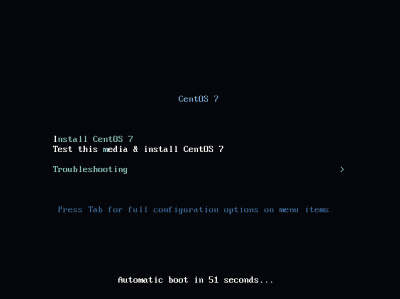
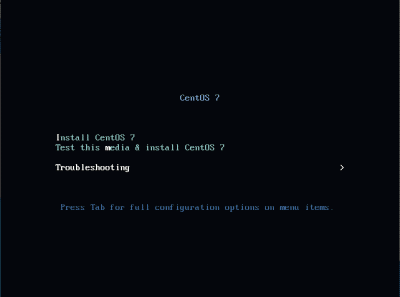
下の画面が表示されたらキーボードの「Enter」を押下します。

CenuOS7インストール

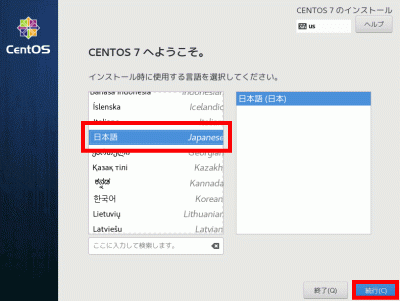
「日本語」を選択して「続行」をクリックします。

日本語

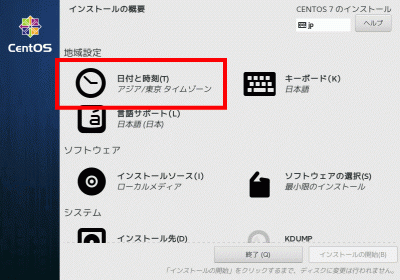
「日付と時刻」でアジア/東京 タイムゾーンに設定します。

日付と時刻

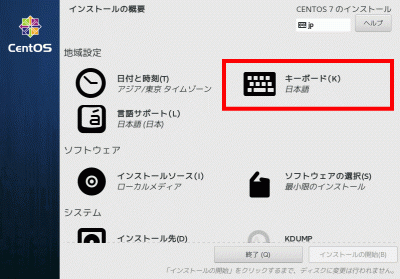
「キーボード」で日本語に設定します。

キーボード

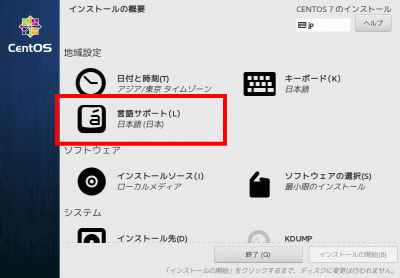
「言語サポート」で日本語(日本)に設定します。

言語サポート

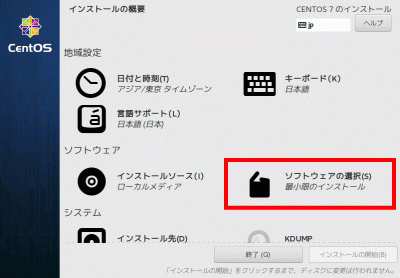
「ソフトウェアの選択」をクリックします。

ソフトウェアの選択

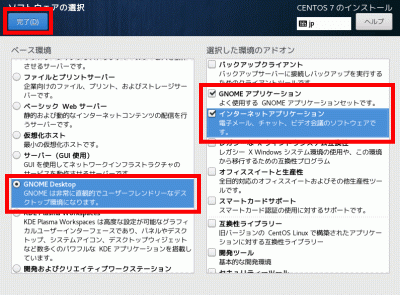
「ベース環境」でGNOME Desktopを選択して、「選択した環境のアドオン」でGNOME アプリケーション、インターネットアプリケーションを選択して「完了」をクリックします。

ベース環境

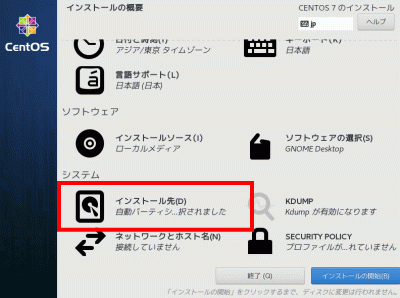
「インストール先」で自動パーティションを選択します。

インストール先

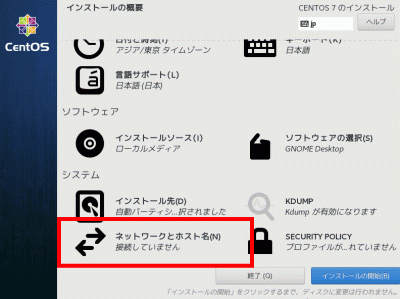
「ネットワークとホスト名」をクリックします。

ネットワークとホスト名

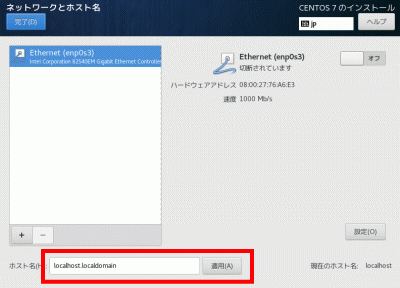
「ホスト名」をcentserver.jpに変更して「適用」をクリックします。

ホスト名

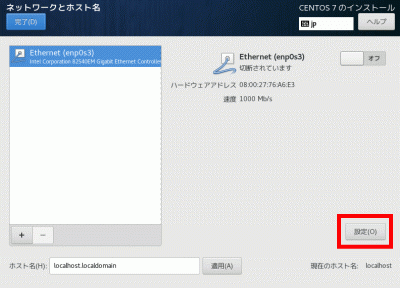
「設定」をクリックします。

設定

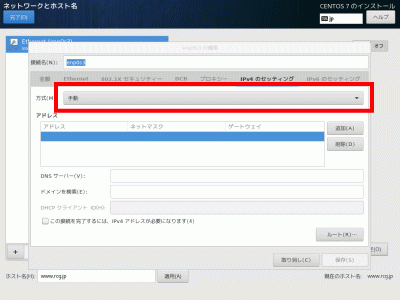
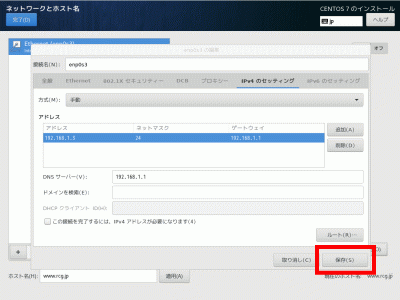
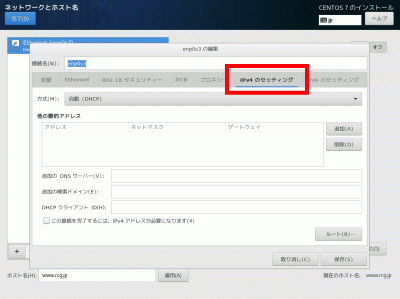
「IPv4のセッティング」をクリックします。

IPv4のセッティング

方式の「手動」を選択します。

手動

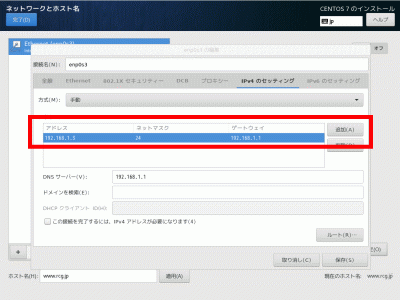
「追加」をクリックして、「アドレス」に192.168.1.3 、「ネットマスク」に24 、「ゲートウェイ」に192.168.1.1を入力します。

アドレス

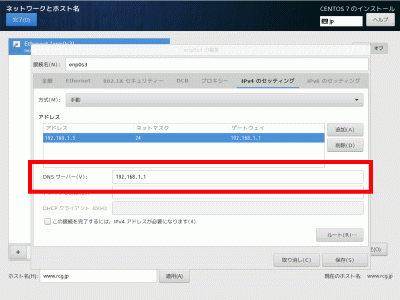
「DNSサーバー」に192.168.1.1を入力します。

DNSサーバー

「保存」をクリックします。

保存

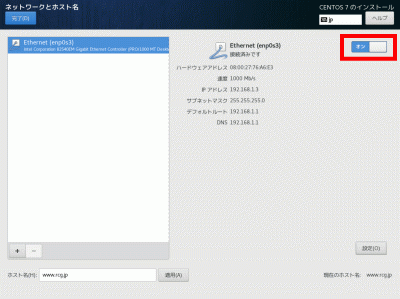
「オン」を選択します。

「オン」を選択

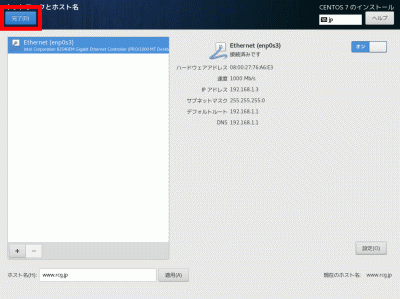
「完了」をクリックします。

「完了」をクリック

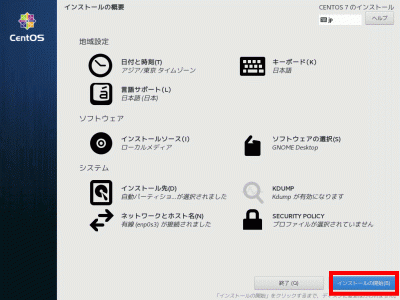
「インストール開始」をクリックします。

インストール開始

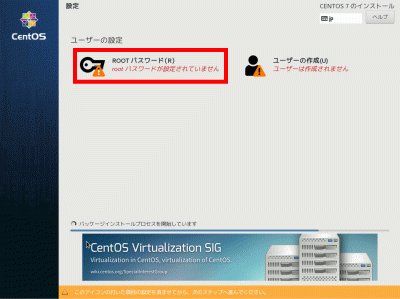
「rootパスワード」をクリックします。

rootパスワード

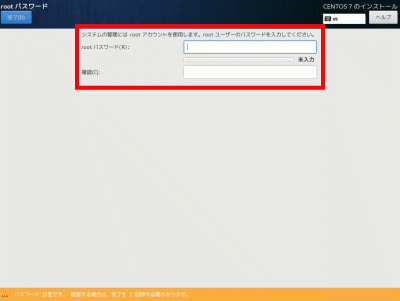
「rootパスワード」を入力します。

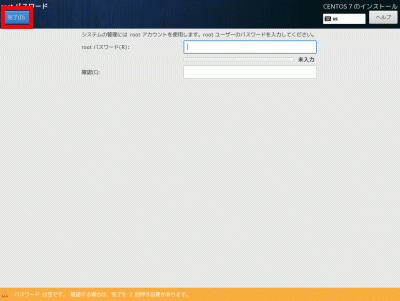
「完了」をクリックします。

rootパスワード

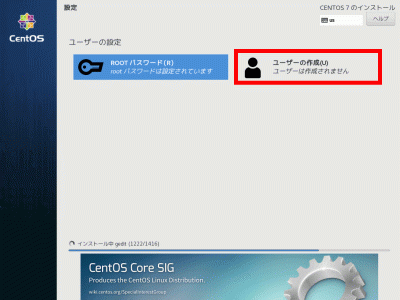
「ユーザーの作成」をクリックします。

ユーザーの作成

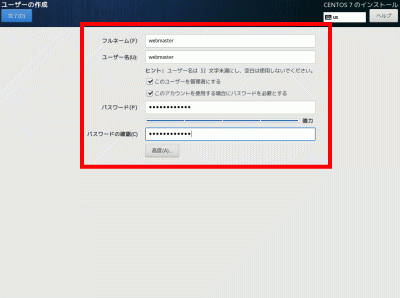
「フルネーム」「ユーザーネーム」にwebmasterを入力します。

「このユーザーを管理者にする」を選択します。

「このアカウントを使用する場合にパスワードを必要とする」を選択します。

「パスワード」を入力します。

パスワード

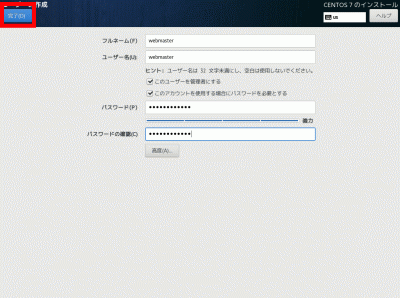
「完了」をクリックします。

完了

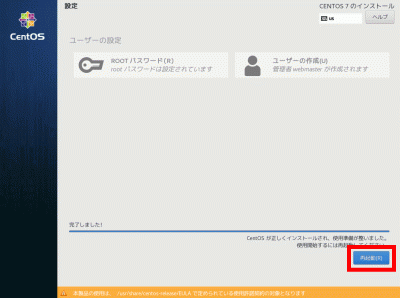
この画面が表示されたら「再起動」をクリックします。

再起動

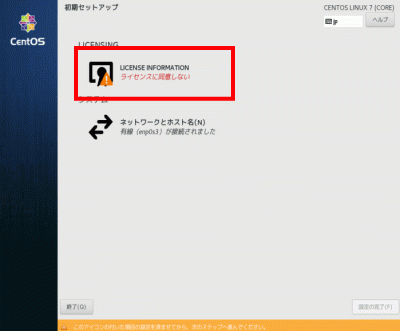
「ライセンスに同意しない」をクリックします。

ライセンスに同意しない

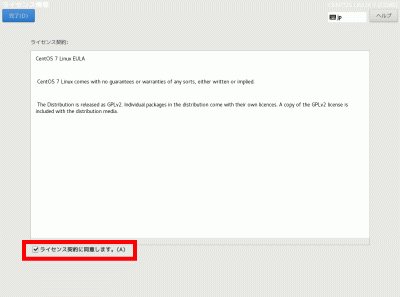
「ライセンス契約に同意します」を選択します。

ライセンス契約に同意します

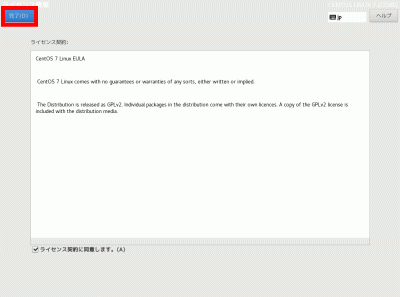
「完了」をクリックします。

「完了」をクリック

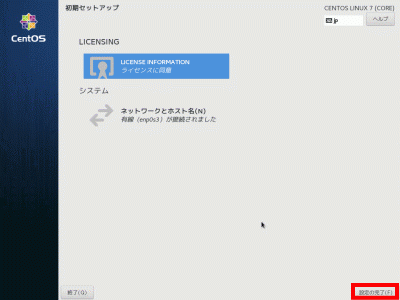
「設定の完了」をクリックします。

設定の完了

CentOS8:CentOS7.0からCentOS8にアップグレード

アップグレード

「http://mirror.centos.org/centos/8/BaseOS/x86_64/os/Packages/」より最新の「centos-repos-8.*****.el8.x86_64.rpm」のURLをコピーして上記の変更フォームにて文中のURLを変更します。(エラーがでるばあいはURLを「https://rcg.jp/wordpress/download/centos-release-8.0-0.1905.0.9.el8.x86_64.rpm」に変更します。

クライアントPC(Windows)でTera Termを起動します。

Tera Termの使い方

バックアップ設定を行います。

バックアップ設定

ツールをインストールします。

[root@www ~]# yum -y install epel-release rpmconf yum-utils

アップグレードします。

[root@www ~]# yum -y update

「Rpmconf」の初期設定を行います。

[root@www ~]# rpmconf -a;

CentOS8.0にアップグレード

[root@www ~]# package-cleanup --leaves
[root@www ~]# package-cleanup --orphans
[root@www ~]# yum install -y dnf
[root@www ~]# dnf remove -y yum yum-metadata-parser
[root@www ~]# rm -Rf /etc/yum
[root@www ~]# dnf upgrade -y
[root@www ~]# dnf upgrade -y https://rcg.jp/wordpress/download/centos-release-8.0-0.1905.0.9.el8.x86_64.rpm
[root@www ~]# dnf upgrade -y https://dl.fedoraproject.org/pub/epel/epel-release-latest-8.noarch.rpm
[root@www ~]# dnf clean all
[root@www ~]# rpm -e `rpm -q kernel`
[root@www ~]# rpm -e --nodeps sysvinit-tools
[root@www ~]# dnf -y --releasever=8 --allowerasing --setopt=deltarpm=false distro-sync
[root@www ~]# dnf install -y kernel-core
[root@www ~]# dnf groupupdate -y "Core" "Minimal Install"

再起動します。

[root@www ~]# reboot now
再起動後、クライアントPC(Windows)でTera Termを起動します。(Tera Termの使い方

アップグレードを確認します。

[root@www ~]# cat /etc/redhat-release;
CentOS Linux release 8.2.2004 (Core)

リポジトリを追加

標準リポジトリを追加します。

[root@www ~]# dnf -y install epel-release

標準リポジトリを最優先にします。

[root@www ~]# vi /etc/yum.repos.d/epel.repo

「priority=10」を追記します。

[epel]
name=Extra Packages for Enterprise Linux $releasever - $basearch
#baseurl=https://download.fedoraproject.org/pub/epel/$releasever/Everything/$basearch
metalink=https://mirrors.fedoraproject.org/metalink?repo=epel-$releasever&arch=$basearch&infra=$infra&content=$contentdir
failovermethod=priority
enabled=1
priority=10 #追記

EPELリポジトリを追加します。

[root@www ~]# dnf -y install elrepo-release

EPELリポジトリを最優先にします。

[root@www ~]# vi /etc/yum.repos.d/elrepo.repo

「priority=10」を追記します。

[elrepo]
name=ELRepo.org Community Enterprise Linux Repository - el8
baseurl=http://elrepo.org/linux/elrepo/el8/$basearch/
        http://mirrors.coreix.net/elrepo/elrepo/el8/$basearch/
        http://jur-linux.org/download/elrepo/elrepo/el8/$basearch/
        http://repos.lax-noc.com/elrepo/elrepo/el8/$basearch/
mirrorlist=http://mirrors.elrepo.org/mirrors-elrepo.el8
enabled=1
priority=10 #追記

Remi’s RPM repositoryリポジトリを追加します。

[root@www ~]# dnf -y install https://rpms.remirepo.net/enterprise/remi-release-8.rpm

モジュラーリポジトリを追加します。

[root@www ~]# dnf --enablerepo=remi-modular --disablerepo=AppStream module list

システムを最新化します。

[root@www ~]# dnf upgrade -y

再起動します。

[root@www ~]# reboot now
再起動後、クライアントPC(Windows)でTera Termを起動します。(Tera Termの使い方

アップグレードを確認します。

[root@www ~]# cat /etc/redhat-release;
CentOS Linux release 8.2.2004 (Core)

インストールDVD作成

CentOS8.0 復元用にインストールDVDを作成します。

CenuOS8.0ダウンロード

ダウンロードページからインストールディスクイメージ(CentOS-8-x86_64-DVD-****.iso)をダウンロードします。

インストールDVDを作成

ファイルサイズ 約 7Gb なので片面 2 層 式DVD-R(8.5Gb)を使用します。

ImgBurnを使いCentOS-8-x86_64-DVD-****.isoでCentOS7インストールディスクを作成し大切に保管します。

共通設定:ディスクのクローン作成

s50

Ubuntu Desktopダウンロード

Ubuntu Desktopをダウンロードします。

https://www.ubuntulinux.jp/home

s51

ライブDVD作成

ImgBurnを使って、インストールディスクイメージでライブディスクを作成し、サーバーにライブDVDを入れて起動します。

ImgBurn

s52

ディスクのクローン作成

サーバーにクローンHDDを投入して「Gparted」、「デスク管理」などで内容がすべて削除されていることを確認し、コピー元ディスクのHDDパス名(例:/dev/sda )、コピー先ディスクのHDDパス名(例:/dev/sdc )を記録し、端末を開きます。

「root」に移行します。

ubuntu@ubuntu:~$ 52_1sudo su -

s53ディスク(例:/dev/sda)をディスク(例:/dev/sdc)へコピーします。(100gb当たり約1時間かかります。)

root@ubuntu:~# 53_1dd if=/dev/sda of=/dev/sdc bs=4096 conv=sync,noerror

s54進捗状況を確認するには、新しく端末を開き下記のコマンドを入力します。

root@ubuntu:~# 54_1sudo pkill -USR1 dd

s55元の端末に下記の進捗状況が表示されます。

33132801+0 レコード出力
68163994112 バイト (68 GB) コピーされました、 18593.9 秒、 3.7 MB/秒

s56定期的(例:60秒間隔)に進捗状況を表示するには、下記のように入力します。

root@ubuntu:~# 56_1watch -n 60 "pkill -USR1 dd"

s57コピーが終了したらシャットダウンしてクローンHDDを取り外します。(注意:クローンHDDを付けたままサーバーを再起動しないでください。

CentOS:起動不能をインストールDVDで復旧

起動不能をインストールDVDで復旧

起動不能をインストールDVDで復旧します。

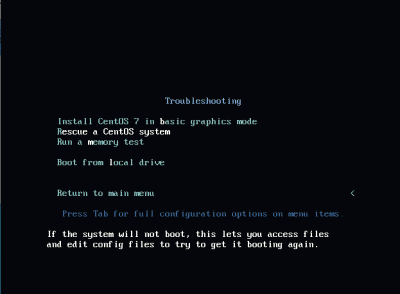
インストールDVDを投入して起動後、「Troubleshooting」を選択し「Enter」キーを押下します。

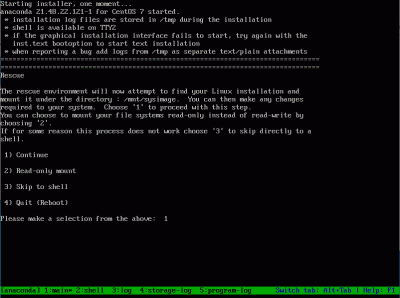
「Rescue a CentOS system」を選択し「Enter」キーを押下します。

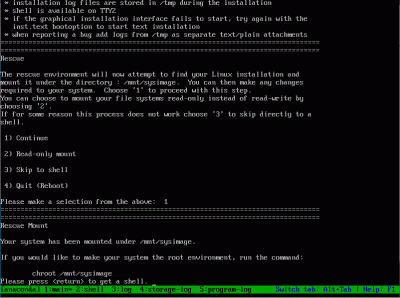
「1」(continue)を入力し「Enter」キーを押下します。

「Enter」キーを押下します。

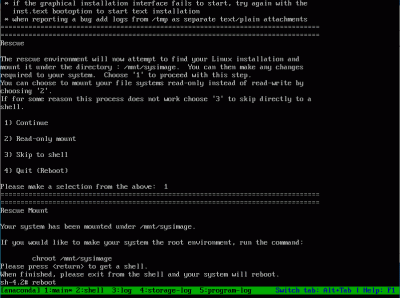
インストールDVDを取り出して、「reboot」と入力して、「Enter」キーを押下します。

起動を確認します。

CentOS7:パーティション操作

Gpartedをインストール

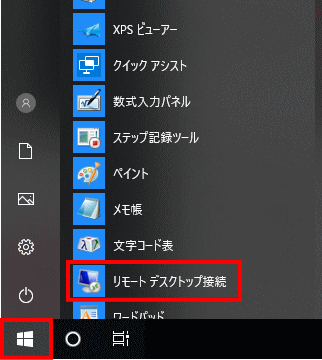
Windows スタートメニューから「アクセサリ」→「リモートデスクトップ接続」 を選択して接続画面を起動します。

スタートメニュー

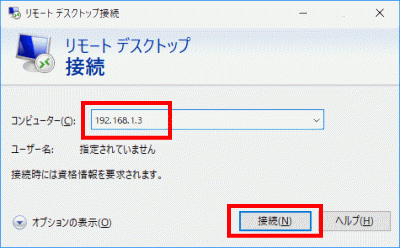
サーバーIPアドレスを入力し「接続」をクリックします。

サーバーIPアドレスを入力し「接続」をクリック

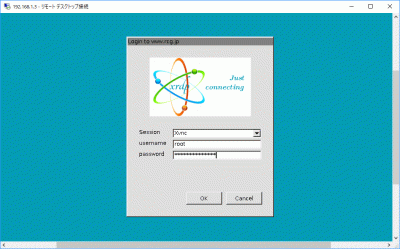
「root」(ユーザー名)、「password」(パスワード)を入力し「OK」をクリックします。

「usermame」(ユーザー名)、「password」(パスワード)を入力し「OK」をクリック

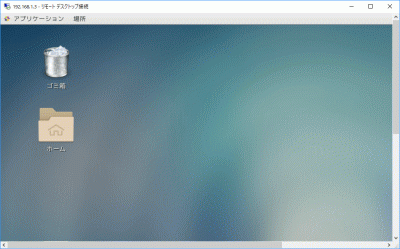
ディスクトップが表示されます。

ディスクトップ

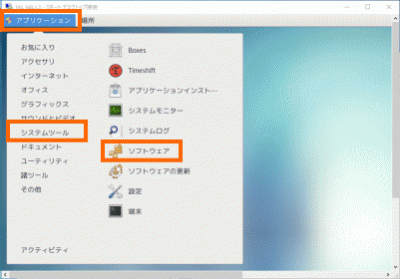
「アプリケーション」→「システムツール」→「ソフトウェア」をクリックします。

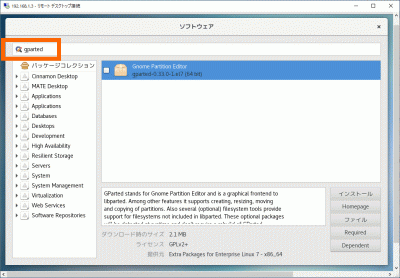
「gparted」を入力し「Enter」キーを押下します。

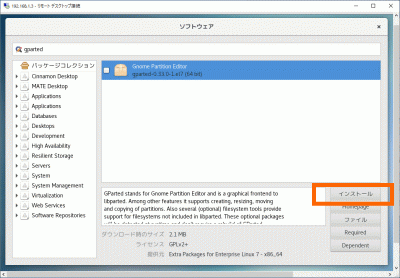
「gparted」をチェックして「インストール」をクリックします。

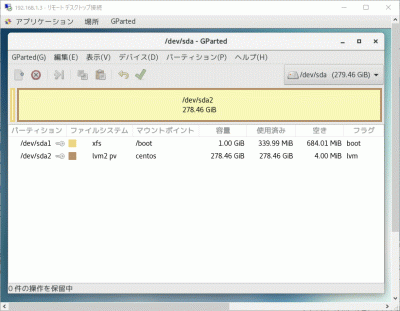
パーテーション操作は「アプリケーション」→「システムツール」→「Gparted」をクリックします。

CentOS:ブログサイト(Word Press)設定

Webサーバー、PHP設定

Webサーバー、PHPの設定をします。

データベース設定

データベースの設定をします。

ブログ用データーベースを作成

MariaDBへrootでログインします。

[root@www ~]# mysql -u root -p
Enter password:
Welcome to the MariaDB monitor.  Commands end with ; or \g.
Your MariaDB connection id is 3
Server version: 5.5.60-MariaDB MariaDB Server

Copyright (c) 2000, 2018, Oracle, MariaDB Corporation Ab and others.

Type 'help;' or '\h' for help. Type '\c' to clear the current input statement.

wordpressでデータベースを作成します。

MariaDB [(none)]> create database wordpress;

wordpress_userでユーザーを作成します。

MariaDB [(none)]> grant all privileges on wordpress.* to wordpress_user@localhost identified by 'パスワード';

ログアウトします。

MariaDB [(none)]> exit

WordPressインストール

php-mysqlをインストールします。

[root@www ~]# yum -y install php-mysql

/var/www/html」ディレクトリ下へ移動します。

[root@www ~]# cd /var/www/html

WordPressをダウンロードします。

[root@www ~]# wget https://ja.wordpress.org/wordpress-4.9.8-ja.tar.gz

WordPressを解凍します。

[root@www ~]# tar xvzf wordpress-4.9.8-ja.tar.gz

ディレクトリを戻ります。

[root@www ~]# cd

WordPressディレクトリ所有者をApache実行ユーザーへ変更します。

[root@www ~]# chown -R apache:apache /var/www/html/wordpress/

WordPress設定

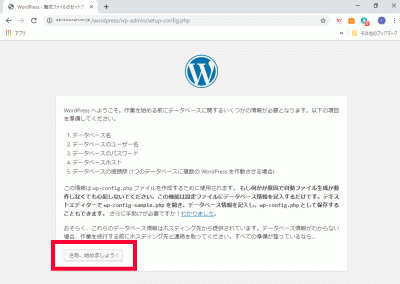
https://centserver.jp/wordpress/へアクセスし、「さあ、始めましょう!」をクリックします。

WordPress設定

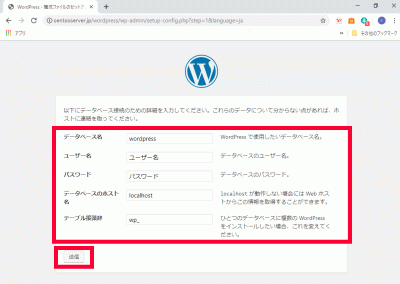
「データベース名(wordpress)」、「ユーザー名(wordpress_user)」、「パスワード(パスワード)」、「データベースの接頭辞(wp_wordpress_)」を入力し、「送信」をクリックします。

WordPress設定

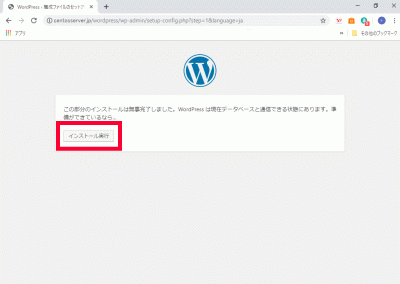
「インストール実行」をクリックします。

インストール実行

Apache設定

WordPress用Apache設定ファイルを作成します。

[root@www ~]# echo Alias /wordpress /var/www/html/wordpress > /etc/httpd/conf.d/wordpress.conf

再起動します。

[root@www ~]# systemctl reload httpd

WordPress初期設定

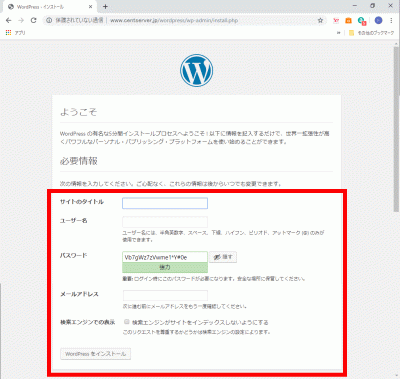
https://centserver.jp/wordpress/へアクセスし、「サイトのタイトル」、「ユーザー名」、「パスワード」、「メールアドレス」を入力して「WordPressをインストール」をクリックします。

WordPress初期設定

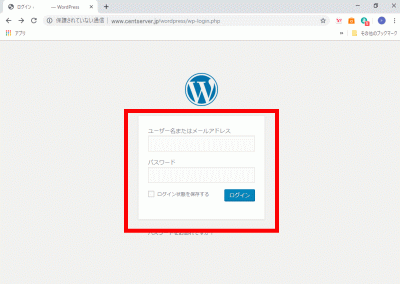
「ユーザー名」、「パスワード」を入力して「ログイン」をクリックし、サイト管理へログインします。

サイト管理へログイン

WordPressをドメイン直下での表示設定

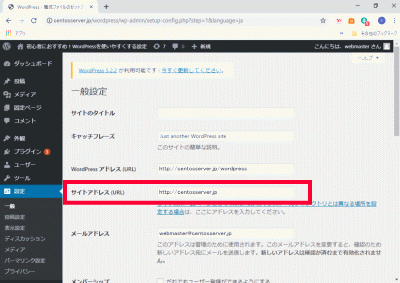
管理画面で「設定」→「一般」を開き、「サイトアドレス(URL)」に「https://centserver.jp」を設定します。

サイトアドレス(URL)

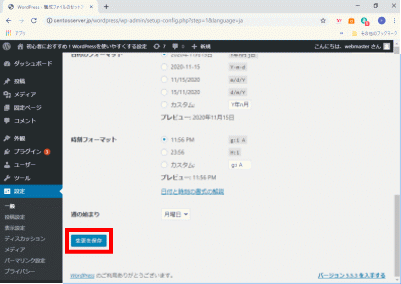
「変更を保存」をクリックします。

/var/www/html/wordpress/index.php」をコピーして、「/var/www/html/index.php」に貼り付けます。

[root@www ~]# cp /var/www/html/wordpress/index.php /var/www/html/index.php

/var/www/html/index.php」を設定します。

[root@www ~]# vi /var/www/html/index.php

17行目:「/wordpress」を追記します。

require( dirname( __FILE__ ) . '/wordpress/wp-blog-header.php' );

「.htaccess」を設定します。

[root@www ~]# vi /var/www/html/.htaccess
# BEGIN WordPress
<IfModule mod_rewrite.c>
    RewriteEngine On
    RewriteBase /
    RewriteRule ^index\.php$ - [L]
    RewriteCond %{REQUEST_FILENAME} !-f
    RewriteCond %{REQUEST_FILENAME} !-d
    RewriteRule . /index.php [L]
</IfModule>
# END WordPress

共通設定:ドメイン設定

s50

IPアドレス取得スクリプト作成.

IPアドレス取得スクリプトを作成します。

[root@www ~]# 50_1vi /var/www/html/ip_add.php
50_2<?php
$ip_address = $_SERVER['REMOTE_ADDR'];
echo $ip_address ;
?>

s51

ドメインIPアドレス取得スクリプト作成.

ドメインのIPアドレス取得スクリプトを作成します。

[root@www ~]# 51_1vi /var/www/html/ip_host.php
51_2<?php
$ip_host_address = empty($_GET['host'])?null:gethostbyname($_GET['host']);
echo $ip_host_address;
?>s52

s51

ドメインIPアドレス更新スクリプト作成.

ドメインのIPアドレス更新スクリプトを作成します。

[root@www ~]# 52_1vi /usr/local/bin/dns-update.sh
52_2#!/bin/bash

UPIPURLMODE=${0}
SCRIPT=${1}
DNSUPURL=${2}

DOMAIN_LOG=${3}
DOMAIN=${4}
if [ "${DOMAIN_LOG}" = "" ]; then
    DOMAIN_JOB=""
else
    DOMAIN_JOB="?${DOMAIN_LOG}=${DOMAIN}"
fi

PASS_LOG=${5}
PASS=${6}
if [ "${PASS_LOG}" = "" ]; then
    PASS_JOB=""
else
    PASS_JOB="&${PASS_LOG}=${PASS}"
fi

IPGET_LOG=${7}

if [ "${UPIPURLMODE}" = "0" ]; then
    HOST_LOG=${8}
    HOST=${9}
elif [ "${UPIPURLMODE}" = "1" ]; then
    OTHERS1_LOG=${8}
    OTHERS1=${9}
    HOST_LOG=${10}
    HOST=${11}
elif [ "${UPIPURLMODE}" = "2" ]; then
    OTHERS1_LOG=${8}
    OTHERS1=${9}
    OTHERS2_LOG=${10}
    OTHERS2=${11}
    HOST_LOG=${12}
    HOST=${13}
else
    HOST_LOG=${8}
    HOST=${9}
fi

if [ "${OTHERS1_LOG}" = "" ]; then
    OTHERS1_JOB=""
else
    OTHERS1_JOB="&${OTHERS1_LOG}=${OTHERS1}"
fi

if [ "${OTHERS2_LOG}" = "" ]; then
    OTHERS1_JOB=""
else
    OTHERS1_JOB="&${OTHERS1_LOG}=${OTHERS1}"
fi

if [ "${HOST_LOG}" = "" ]; then
    HOST_JOB=""
else
    HOST_JOB="&${HOST_LOG}=${HOST}"
fi

#################################################################################

if [ "${HOST}" = "" ]; then
    FQDN=${DOMAIN}
else
    FQDN="${HOST}.${DOMAIN}"
fi

# Get domain ip address
IPGET=`curl /var/www/html/ip_host.php?host=${FQDN} 2>&1`
DOMAINIP=`echo "${IPGET}"|grep "has address"|awk '{ print $NF }'|egrep ^[0-9]\+\.[0-9]\+\.[0-9]\+\.[0-9]\+$`
if [ $? -ne 0 ]; then
    echo "${FQDN} Domain ip address detection error" | logger -t $(basename $0)
    echo ${IPGET} | logger -t $(basename $0)
    exit
fi
IPGET_JOB="&${IPGET_LOG}=${IPGET}"

# Server ip address acquisition
IPGET=`curl /var/www/html/ip_add.php 2>&1`
echo "${IPGET}" | egrep ^[0-9]\+\.[0-9]\+\.[0-9]\+\.[0-9]\+$ > /dev/null 2>&1
if [ $? -eq 0 ]; then
    SERVERIP=`echo "${IPGET}" | tail -n 1 | awk '{ print $NF }'`
else
    echo "${DOMAIN} Server ip address detection error" | logger -t $(basename $0)
    echo "${IPGET}" | logger -t $(basename $0)
    exit
fi

# Domain ip address update
if [ "${DOMAINIP}" != "${SERVERIP}" ]; then
    IPUPDATE=`wget -q -O - "${DNSUPURL}${DOMAIN_JOB}${PASS_JOB}${HOST_JOB}${SERVERIP_JOB}${OTHERS1_JOB}${OTHERS2_JOB}${IPGET_JOB}"`
    echo ${IPUPDATE}|grep -q OK
    if [ $? -eq 0 ]; then
        echo "${FQDN} Ip address update success ${DOMAINIP} to ${SERVERIP}" | logger -t $(basename $0)
    else
        echo "${FQDN} Ip address update error" | logger -t $(basename $0)
        echo ${IPUPDATE} | logger -t $(basename $0)
        (
        echo IP ADDRESS UPDATE ERROR
        echo ${IPUPDATE}
        )|mail -s "${SCRIPT##*/} ERROR on ${FQDN}" root
        exit 1
    fi
fi
exit

[root@www ~]# 52_2chmod +x /usr/local/bin/dns-update.sh

s53

IPアドレス更新スクリプト実行.

IPアドレス更新スクリプトを実行します。

[root@www ~]# 53_1/usr/local/bin/dns-update.sh           

IPアドレス更新スクリプト定期自動実行設定.

IPアドレス更新スクリプト定期自動設定を実行します。

[root@www ~]# 54_1 vi /etc/cron.d/dns-update
54_2/usr/local/bin/dns-update.sh           

共通設定:サーバーの自動起動

s50

BIOS設定.

BIOS起動.

BIOSの起動方法はご自身の環境に合わせてお調べください。

例:起動直後に画面に表示される場合があります。

メーカー 操作キー
富士通 「F2」
NEC 「F2」
Lenovo 「F1」または「F2」
HP 「F10」または「Esc」
Dell 「F2」 または「F12」

s51停電があったとき、電源が復旧したらサーバが起動するようにBIOSを設定します。

BIOSの設定方法はご自身の環境に合わせてお調べください。

メーカー 操作手順
富士通 「Power」→「Power Failure Recovery」 →「Always On」
NEC 「Boot」→「After Power Failure」→「Power On」
Lenovo 「Config」→「Power」→「 Power on with AC attached」
HP 「Power」→「After Power Failure」→「Power On」
Dell 「SystemSecurity」→「AC Power Recovary」

CentOS:複数ドメイン設定

複数ドメイン用ディレクトリ作成

複数ドメイン用ディレクトリを作成します。

[root@www ~]# mkdir /var/www/html/virtual.jp

パーミッションを設定します。

[root@www ~]# chmod 777 /var/www/html/virtual.jp

複数ドメイン用設定ファイルを作成します。

[root@www ~]# vi /etc/httpd/conf.d/virtualhost-virtual.jp.conf
<VirtualHost *:80>
    ServerName virtual.jp
    DocumentRoot /var/www/html/virtual.jp
    RewriteEngine On
    RewriteCond %{HTTP_HOST} ^www\.virtual\.jp
    RewriteRule ^(.*)$ http://virtual.jp/$1 [R=301,L]
    ErrorLog logs/virtual.jp-error_log
    CustomLog logs/virtual.jp-access_log combined env=!no_log
</VirtualHost>

再起動します。

[root@www ~]# systemctl restart httpd

テストページ作成

テストページを作成します。

[root@www ~]# echo test >> /var/www/html/virtual.jp/index.html

Free Monitoring Test Toolsで「http://virtual.jp」の作動確認をします。

サーバー証明書取得

サーバー証明書を取得します。

[root@www ~]# certbot certonly --webroot -w /var/www/html/virtual.jp -m webmastercentserver.jp -d virtual.jp --agree-tos

複数ドメインSSL設定

メインドメイン設定を表示します。

[root@www ~]# vi /etc/httpd/conf.d/virtualhost-00-centserver.jp.conf

行番号を非表示にします。

:set nonumber

<VirtualHost *:443>~</VirtualHost>をコピーしてメモ帳などに貼り付け、複数ドメインを設定します。

<VirtualHost *:443>

# General setup for the virtual host, inherited from global configuration
DocumentRoot "/var/www/html/virtual.jp"
ServerName virtual.jp:443

# Use separate log files for the SSL virtual host; note that LogLevel
# is not inherited from httpd.conf.
ErrorLog logs/ssl_error_log
TransferLog logs/ssl_access_log
LogLevel warn

#   SSL Engine Switch:
#   Enable/Disable SSL for this virtual host.
SSLEngine on

#   SSL Protocol support:
# List the enable protocol levels with which clients will be able to
# connect.  Disable SSLv2 access by default:
SSLProtocol -All +TLSv1 +TLSv1.1 +TLSv1.2

#   SSL Cipher Suite:
#   List the ciphers that the client is permitted to negotiate.
#   See the mod_ssl documentation for a complete list.
SSLCipherSuite HIGH:3DES:!aNULL:!MD5:!SEED:!IDEA

#   Speed-optimized SSL Cipher configuration:
#   If speed is your main concern (on busy HTTPS servers e.g.),
#   you might want to force clients to specific, performance
#   optimized ciphers. In this case, prepend those ciphers
#   to the SSLCipherSuite list, and enable SSLHonorCipherOrder.
#   Caveat: by giving precedence to RC4-SHA and AES128-SHA
#   (as in the example below), most connections will no longer
#   have perfect forward secrecy - if the server's key is
#   compromised, captures of past or future traffic must be
#   considered compromised, too.
#SSLCipherSuite RC4-SHA:AES128-SHA:HIGH:MEDIUM:!aNULL:!MD5
#SSLHonorCipherOrder on

#   Server Certificate:
# Point SSLCertificateFile at a PEM encoded certificate.  If
# the certificate is encrypted, then you will be prompted for a
# pass phrase.  Note that a kill -HUP will prompt again.  A new
# certificate can be generated using the genkey(1) command.
SSLCertificateFile /etc/letsencrypt/live/virtual.jp/cert.pem

#   Server Private Key:
#   If the key is not combined with the certificate, use this
#   directive to point at the key file.  Keep in mind that if
#   you've both a RSA and a DSA private key you can configure
#   both in parallel (to also allow the use of DSA ciphers, etc.)
SSLCertificateKeyFile /etc/letsencrypt/live/virtual.jp/privkey.pem

#   Server Certificate Chain:
#   Point SSLCertificateChainFile at a file containing the
#   concatenation of PEM encoded CA certificates which form the
#   certificate chain for the server certificate. Alternatively
#   the referenced file can be the same as SSLCertificateFile
#   when the CA certificates are directly appended to the server
#   certificate for convinience.
SSLCertificateChainFile /etc/letsencrypt/live/virtual.jp/chain.pem

#   Certificate Authority (CA):
#   Set the CA certificate verification path where to find CA
#   certificates for client authentication or alternatively one
#   huge file containing all of them (file must be PEM encoded)
#SSLCACertificateFile /etc/pki/tls/certs/ca-bundle.crt

#   Client Authentication (Type):
#   Client certificate verification type and depth.  Types are
#   none, optional, require and optional_no_ca.  Depth is a
#   number which specifies how deeply to verify the certificate
#   issuer chain before deciding the certificate is not valid.
#SSLVerifyClient require
#SSLVerifyDepth  10

#   Access Control:
#   With SSLRequire you can do per-directory access control based
#   on arbitrary complex boolean expressions containing server
#   variable checks and other lookup directives.  The syntax is a
#   mixture between C and Perl.  See the mod_ssl documentation
#   for more details.
#<Location />
#SSLRequire (    %{SSL_CIPHER} !~ m/^(EXP|NULL)/ \
#            and %{SSL_CLIENT_S_DN_O} eq "Snake Oil, Ltd." \
#            and %{SSL_CLIENT_S_DN_OU} in {"Staff", "CA", "Dev"} \
#            and %{TIME_WDAY} >= 1 and %{TIME_WDAY} <= 5 \
#            and %{TIME_HOUR} >= 8 and %{TIME_HOUR} <= 20       ) \
#           or %{REMOTE_ADDR} =~ m/^192\.76\.162\.[0-9]+$/
#</Location>

#   SSL Engine Options:
#   Set various options for the SSL engine.
#   o FakeBasicAuth:
#     Translate the client X.509 into a Basic Authorisation.  This means that
#     the standard Auth/DBMAuth methods can be used for access control.  The
#     user name is the `one line' version of the client's X.509 certificate.
#     Note that no password is obtained from the user. Every entry in the user
#     file needs this password: `xxj31ZMTZzkVA'.
#   o ExportCertData:
#     This exports two additional environment variables: SSL_CLIENT_CERT and
#     SSL_SERVER_CERT. These contain the PEM-encoded certificates of the
#     server (always existing) and the client (only existing when client
#     authentication is used). This can be used to import the certificates
#     into CGI scripts.
#   o StdEnvVars:
#     This exports the standard SSL/TLS related `SSL_*' environment variables.
#     Per default this exportation is switched off for performance reasons,
#     because the extraction step is an expensive operation and is usually
#     useless for serving static content. So one usually enables the
#     exportation for CGI and SSI requests only.
#   o StrictRequire:
#     This denies access when "SSLRequireSSL" or "SSLRequire" applied even
#     under a "Satisfy any" situation, i.e. when it applies access is denied
#     and no other module can change it.
#   o OptRenegotiate:
#     This enables optimized SSL connection renegotiation handling when SSL
#     directives are used in per-directory context.
#SSLOptions +FakeBasicAuth +ExportCertData +StrictRequire
<Files ~ "\.(cgi|shtml|phtml|php3?)$">
    SSLOptions +StdEnvVars
</Files>
<Directory "/var/www/cgi-bin">
    SSLOptions +StdEnvVars
</Directory>

#   SSL Protocol Adjustments:
#   The safe and default but still SSL/TLS standard compliant shutdown
#   approach is that mod_ssl sends the close notify alert but doesn't wait for
#   the close notify alert from client. When you need a different shutdown
#   approach you can use one of the following variables:
#   o ssl-unclean-shutdown:
#     This forces an unclean shutdown when the connection is closed, i.e. no
#     SSL close notify alert is send or allowed to received.  This violates
#     the SSL/TLS standard but is needed for some brain-dead browsers. Use
#     this when you receive I/O errors because of the standard approach where
#     mod_ssl sends the close notify alert.
#   o ssl-accurate-shutdown:
#     This forces an accurate shutdown when the connection is closed, i.e. a
#     SSL close notify alert is send and mod_ssl waits for the close notify
#     alert of the client. This is 100% SSL/TLS standard compliant, but in
#     practice often causes hanging connections with brain-dead browsers. Use
#     this only for browsers where you know that their SSL implementation
#     works correctly.
#   Notice: Most problems of broken clients are also related to the HTTP
#   keep-alive facility, so you usually additionally want to disable
#   keep-alive for those clients, too. Use variable "nokeepalive" for this.
#   Similarly, one has to force some clients to use HTTP/1.0 to workaround
#   their broken HTTP/1.1 implementation. Use variables "downgrade-1.0" and
#   "force-response-1.0" for this.
BrowserMatch "MSIE [2-5]" \
         nokeepalive ssl-unclean-shutdown \
         downgrade-1.0 force-response-1.0

#   Per-Server Logging:
#   The home of a custom SSL log file. Use this when you want a
#   compact non-error SSL logfile on a virtual host basis.
CustomLog logs/ssl_request_log \
          "%t %h %{SSL_PROTOCOL}x %{SSL_CIPHER}x \"%r\" %b"

</VirtualHost>

virtualhost-virtual.jp.confを設定します。

[root@www ~]# vi /etc/httpd/conf.d/virtualhost-virtual.jp.conf

先に保存したものを最終行に貼り付けます。

<VirtualHost *:443>

# General setup for the virtual host, inherited from global configuration
DocumentRoot "/var/www/html/virtual.jp"
ServerName virtual.jp:443

# Use separate log files for the SSL virtual host; note that LogLevel
# is not inherited from httpd.conf.
ErrorLog logs/ssl_error_log
TransferLog logs/ssl_access_log
LogLevel warn

#   SSL Engine Switch:
#   Enable/Disable SSL for this virtual host.
SSLEngine on

#   SSL Protocol support:
# List the enable protocol levels with which clients will be able to
# connect.  Disable SSLv2 access by default:
SSLProtocol -All +TLSv1 +TLSv1.1 +TLSv1.2

#   SSL Cipher Suite:
#   List the ciphers that the client is permitted to negotiate.
#   See the mod_ssl documentation for a complete list.
SSLCipherSuite HIGH:3DES:!aNULL:!MD5:!SEED:!IDEA

#   Speed-optimized SSL Cipher configuration:
#   If speed is your main concern (on busy HTTPS servers e.g.),
#   you might want to force clients to specific, performance
#   optimized ciphers. In this case, prepend those ciphers
#   to the SSLCipherSuite list, and enable SSLHonorCipherOrder.
#   Caveat: by giving precedence to RC4-SHA and AES128-SHA
#   (as in the example below), most connections will no longer
#   have perfect forward secrecy - if the server's key is
#   compromised, captures of past or future traffic must be
#   considered compromised, too.
#SSLCipherSuite RC4-SHA:AES128-SHA:HIGH:MEDIUM:!aNULL:!MD5
#SSLHonorCipherOrder on

#   Server Certificate:
# Point SSLCertificateFile at a PEM encoded certificate.  If
# the certificate is encrypted, then you will be prompted for a
# pass phrase.  Note that a kill -HUP will prompt again.  A new
# certificate can be generated using the genkey(1) command.
SSLCertificateFile /etc/letsencrypt/live/virtual.jp/cert.pem

#   Server Private Key:
#   If the key is not combined with the certificate, use this
#   directive to point at the key file.  Keep in mind that if
#   you've both a RSA and a DSA private key you can configure
#   both in parallel (to also allow the use of DSA ciphers, etc.)
SSLCertificateKeyFile /etc/letsencrypt/live/virtual.jp/privkey.pem

#   Server Certificate Chain:
#   Point SSLCertificateChainFile at a file containing the
#   concatenation of PEM encoded CA certificates which form the
#   certificate chain for the server certificate. Alternatively
#   the referenced file can be the same as SSLCertificateFile
#   when the CA certificates are directly appended to the server
#   certificate for convinience.
SSLCertificateChainFile /etc/letsencrypt/live/virtual.jp/chain.pem

#   Certificate Authority (CA):
#   Set the CA certificate verification path where to find CA
#   certificates for client authentication or alternatively one
#   huge file containing all of them (file must be PEM encoded)
#SSLCACertificateFile /etc/pki/tls/certs/ca-bundle.crt

#   Client Authentication (Type):
#   Client certificate verification type and depth.  Types are
#   none, optional, require and optional_no_ca.  Depth is a
#   number which specifies how deeply to verify the certificate
#   issuer chain before deciding the certificate is not valid.
#SSLVerifyClient require
#SSLVerifyDepth  10

#   Access Control:
#   With SSLRequire you can do per-directory access control based
#   on arbitrary complex boolean expressions containing server
#   variable checks and other lookup directives.  The syntax is a
#   mixture between C and Perl.  See the mod_ssl documentation
#   for more details.
#<Location />
#SSLRequire (    %{SSL_CIPHER} !~ m/^(EXP|NULL)/ \
#            and %{SSL_CLIENT_S_DN_O} eq "Snake Oil, Ltd." \
#            and %{SSL_CLIENT_S_DN_OU} in {"Staff", "CA", "Dev"} \
#            and %{TIME_WDAY} >= 1 and %{TIME_WDAY} <= 5 \
#            and %{TIME_HOUR} >= 8 and %{TIME_HOUR} <= 20       ) \
#           or %{REMOTE_ADDR} =~ m/^192\.76\.162\.[0-9]+$/
#</Location>

#   SSL Engine Options:
#   Set various options for the SSL engine.
#   o FakeBasicAuth:
#     Translate the client X.509 into a Basic Authorisation.  This means that
#     the standard Auth/DBMAuth methods can be used for access control.  The
#     user name is the `one line' version of the client's X.509 certificate.
#     Note that no password is obtained from the user. Every entry in the user
#     file needs this password: `xxj31ZMTZzkVA'.
#   o ExportCertData:
#     This exports two additional environment variables: SSL_CLIENT_CERT and
#     SSL_SERVER_CERT. These contain the PEM-encoded certificates of the
#     server (always existing) and the client (only existing when client
#     authentication is used). This can be used to import the certificates
#     into CGI scripts.
#   o StdEnvVars:
#     This exports the standard SSL/TLS related `SSL_*' environment variables.
#     Per default this exportation is switched off for performance reasons,
#     because the extraction step is an expensive operation and is usually
#     useless for serving static content. So one usually enables the
#     exportation for CGI and SSI requests only.
#   o StrictRequire:
#     This denies access when "SSLRequireSSL" or "SSLRequire" applied even
#     under a "Satisfy any" situation, i.e. when it applies access is denied
#     and no other module can change it.
#   o OptRenegotiate:
#     This enables optimized SSL connection renegotiation handling when SSL
#     directives are used in per-directory context.
#SSLOptions +FakeBasicAuth +ExportCertData +StrictRequire
<Files ~ "\.(cgi|shtml|phtml|php3?)$">
    SSLOptions +StdEnvVars
</Files>
<Directory "/var/www/cgi-bin">
    SSLOptions +StdEnvVars
</Directory>

#   SSL Protocol Adjustments:
#   The safe and default but still SSL/TLS standard compliant shutdown
#   approach is that mod_ssl sends the close notify alert but doesn't wait for
#   the close notify alert from client. When you need a different shutdown
#   approach you can use one of the following variables:
#   o ssl-unclean-shutdown:
#     This forces an unclean shutdown when the connection is closed, i.e. no
#     SSL close notify alert is send or allowed to received.  This violates
#     the SSL/TLS standard but is needed for some brain-dead browsers. Use
#     this when you receive I/O errors because of the standard approach where
#     mod_ssl sends the close notify alert.
#   o ssl-accurate-shutdown:
#     This forces an accurate shutdown when the connection is closed, i.e. a
#     SSL close notify alert is send and mod_ssl waits for the close notify
#     alert of the client. This is 100% SSL/TLS standard compliant, but in
#     practice often causes hanging connections with brain-dead browsers. Use
#     this only for browsers where you know that their SSL implementation
#     works correctly.
#   Notice: Most problems of broken clients are also related to the HTTP
#   keep-alive facility, so you usually additionally want to disable
#   keep-alive for those clients, too. Use variable "nokeepalive" for this.
#   Similarly, one has to force some clients to use HTTP/1.0 to workaround
#   their broken HTTP/1.1 implementation. Use variables "downgrade-1.0" and
#   "force-response-1.0" for this.
BrowserMatch "MSIE [2-5]" \
         nokeepalive ssl-unclean-shutdown \
         downgrade-1.0 force-response-1.0

#   Per-Server Logging:
#   The home of a custom SSL log file. Use this when you want a
#   compact non-error SSL logfile on a virtual host basis.
CustomLog logs/ssl_request_log \
          "%t %h %{SSL_PROTOCOL}x %{SSL_CIPHER}x \"%r\" %b"

</VirtualHost>

BIND設定

ホームネットワーク内でドメイン名で表示する様にBIND を設定します。

[root@www ~]# vi /etc/named.conf

//
// named.conf
//
// Provided by Red Hat bind package to configure the ISC BIND named(8) DNS
// server as a caching only nameserver (as a localhost DNS resolver only).
//
// See /usr/share/doc/bind*/sample/ for example named configuration files.
//
// See the BIND Administrator's Reference Manual (ARM) for details about the
// configuration located in /usr/share/doc/bind-{version}/Bv9ARM.html


options {
        listen-on port 53 { any; };
        listen-on-v6 port 53 { none; };
        directory       "/var/named";
        dump-file       "/var/named/data/cache_dump.db";
        statistics-file "/var/named/data/named_stats.txt";
        memstatistics-file "/var/named/data/named_mem_stats.txt";
        recursing-file  "/var/named/data/named.recursing";
        secroots-file   "/var/named/data/named.secroots";
        allow-query     { localhost; 192.168.1.1/24; };
        allow-transfer      { localhost; 192.168.1.1/24; };

        /*
         - If you are building an AUTHORITATIVE DNS server, do NOT enable recursion.
         - If you are building a RECURSIVE (caching) DNS server, you need to enable
           recursion.
         - If your recursive DNS server has a public IP address, you MUST enable access
           control to limit queries to your legitimate users. Failing to do so will
           cause your server to become part of large scale DNS amplification
           attacks. Implementing BCP38 within your network would greatly
           reduce such attack surface
        */
        recursion yes;

        dnssec-enable yes;
        dnssec-validation yes;

        /* Path to ISC DLV key */
        bindkeys-file "/etc/named.iscdlv.key";

        managed-keys-directory "/var/named/dynamic";

        pid-file "/run/named/named.pid";
        session-keyfile "/run/named/session.key";
};

logging {
        channel default_debug {
                file "data/named.run";
                severity dynamic;
        };
};

view "internal" {
        match-clients {
                localhost;
                192.168.1.1/24;
        };
        zone "." IN {
                type hint;
                file "named.ca";
        };
        zone "centserver.jp" IN {
                type master;
                file "centserver.jp.lan";
                allow-update { none; };
        };
        zone "virtual.jp" IN {
                type master;
                file "virtual.jp.lan";
                allow-update { none; };
        };
        zone "1.168.192.in-addr.arpa" IN {
                type master;
                file "1.168.192.db";
                allow-update { none; };
        };
include "/etc/named.rfc1912.zones";
include "/etc/named.root.key";
};

ゾーン情報の設定

内部向け正引き情報ファイルを作成します。

[root@www ~]# vi /var/named/virtual.jp.lan

$TTL 86400
@   IN  SOA     virtual.jp. root.virtual.jp. (
        2014071001  ;Serial
        3600        ;Refresh
        1800        ;Retry
        604800      ;Expire
        86400       ;Minimum TTL
)
        IN  NS      virtual.jp.
        IN  MX 10   virtual.jp.
@       IN  A       192.168.1.3
*       IN  A       192.168.1.3

再起動します。

[root@www ~]# reboot
Free Monitoring Test Toolsで「https://virtual.jp」の作動確認をします。