Ubuntu18:初期設定準備

rootユーザーの作成

webmasterユーザーでログインします。

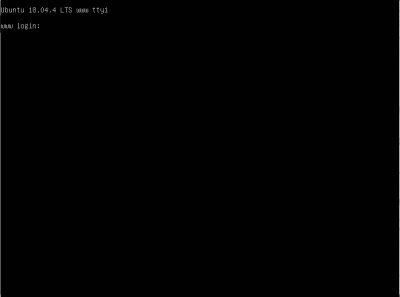
Ubuntu 18.04 www tty1
www login: webmaster
password: webmasterのパスワード

rootユーザーにログインします。

webmaster@www:~$ sudo -s

webmasterユーザーのパスワードを入力します。

[sudo] password for webmaster: パスワード

rootユーザーのパスワードを設定します。

root@www:~# sudo passwd root
Enter new UNIX password: rootパスワード
Retype new UNIX password: rootパスワード

現在のネットワーク設定を確認

ネットワーク設定でIPアドレス、インタフェース名を記録します。

root@www:~# ip addr
1: lo: <LOOPBACK,UP,LOWER_UP> mtu 65536 qdisc noqueue state UNKNOWN group default qlen 1000
link/loopback 00:00:00:00:00:00 brd 00:00:00:00:00:00
inet 127.0.0.1/8 scope host lo
valid_lft forever preferred_lft forever
inet6 ::1/128 scope host
valid_lft forever preferred_lft forever
2: enp14s0: <BROADCAST,MULTICAST,UP,LOWER_UP> mtu 1500 qdisc mq state UP group default qlen 1000
link/ether 00:2e:47:21:dg:f4 brd ff:ff:ff:ff:ff:ff
inet 192.168.1.35/24 brd 192.168.1.255 scope global dynamic enp2s0 #IPアドレス、インターファイス名記録
valid_lft 11984sec preferred_lft 11984sec
inet6 20sd:ahq23:46dg:7rh9:2dg5:28uf:fls4:dehd/64 scope global dynamic mngtmpaddr noprefixroute
valid_lft 13592sec preferred_lft 11792sec
inet6 fft0::21fg3:2j8f:fo60:djed/64 scope link
valid_lft forever preferred_lft forever

クライアントPC接続

記録したIPアドレスでクライアントPCよりTera Termで接続します。

ネットワークの設定

ネットワークの設定します。

Ubuntu16からアップグレードした場合
root@www:~# mv /etc/network/interfaces /etc/network/interfaces.bak
root@www:~# vi /etc/netplan/50-cloud-init.yaml
#Ubuntu16からアップグレードした場合は新規作成します。
# This file is generated from information provided by the datasource. Changes
# to it will not persist across an instance reboot. To disable cloud-init's
# network configuration capabilities, write a file
# /etc/cloud/cloud.cfg.d/99-disable-network-config.cfg with the following:
# network: {config: disabled}
network:
    ethernets:
        enp2s0:
            dhcp4: no #変更
            #以下を追記します。
            addresses:
            - 192.168.1.3/24 
            gateway4: 192.168.1.1 
            nameservers:
                addresses:
                - 192.168.1.1 
            dhcp6: true
    version: 2

変更を有効化します。

root@www:~# netplan --debug generate
root@www:~# netplan apply

ホスト名を変更します。

root@www:~# hostnamectl set-hostname ubuntuserver.jp

再起動します。

root@www:~# reboot

設定確認

192.168.1.3」(変更したIPアドレス)でクライアントPCよりTera Termで接続します。

IPアドレス設定を確認します。

root@www:~# ip addr
1: lo: <LOOPBACK,UP,LOWER_UP> mtu 65536 qdisc noqueue state UNKNOWN group default qlen 1000
link/loopback 00:00:00:00:00:00 brd 00:00:00:00:00:00
inet 127.0.0.1/8 scope host lo
valid_lft forever preferred_lft forever
inet6 ::1/128 scope host
valid_lft forever preferred_lft forever
2: enp14s0: <BROADCAST,MULTICAST,UP,LOWER_UP> mtu 1500 qdisc mq state UP group default qlen 1000
link/ether 00:2e:47:21:dg:f4 brd ff:ff:ff:ff:ff:ff
inet 192.168.1.3/24 brd 192.168.1.255 scope global dynamic enp2s0 #IPアドレス確認
valid_lft 11984sec preferred_lft 11984sec
inet6 20sd:ahq23:46dg:7rh9:2dg5:28uf:fls4:dehd/64 scope global dynamic mngtmpaddr noprefixroute
valid_lft 13592sec preferred_lft 11792sec
inet6 fft0::21fg3:2j8f:fo60:djed/64 scope link
valid_lft forever preferred_lft forever

ゲートウェイの設定を確認します。

root@www:~# route -n
Destination     Gateway         Genmask         Flags Metric Ref    Use Iface
0.0.0.0         192.168.1.1     0.0.0.0         UG    0      0        0 enp14s0 #ゲートウェイ確認
192.168.1.0     0.0.0.0         255.255.255.0   U     0      0        0 enp14s0

Ubuntu18:初期設定

ネットワーク設定.

ネットワークを設定します。

root@www:~# vi /etc/netplan/01-netcfg.yaml

6行目以降を削除して下記を追加します。

# This file describes the network interfaces available on your 
# For more information, see netplan(5).
system
network:
  ethernets:
    enp2s0:
      dhcp4: no
      addresses: [192.168.1.3/24]
      gateway4: 192.168.1.1
      nameservers:
        addresses: [192.168.1.3,192.168.1.1]
      dhcp6: no
  version: 2

設定を有効にします。

root@www:~# netplan apply

ルーター設定

ルーターでDHCP固定IPアドレス設定ができる場合は「MACアドレス」、「サーバーIPアドレス」を設定します。

DHCP固定IPアドレス設定

MACアドレス(例:0c:2e:48:2b:dg:f4)

サーバーIPアドレス:192.168.1.3

一般ユーザーの作成

一般ユーザーを作成します。(初期設定では一般ユーザーは必要ありません。)

root@www:~# adduser 新しいユーザー名
...
新しい UNIX パスワードを入力してください: 新しいユーザーのパスワードを設定
新しい UNIX パスワードを再入力してください: 新しいユーザーのパスワードを確認入力
passwd: password updated successfully
Changing the user information for ubuntu
Enter the new value, or press ENTER for the default
Full Name []: #「Enter」キーを押下します。
Room Number []: #「Enter」キーを押下します。
Work Phone []: #「Enter」キーを押下します。
Home Phone []: #「Enter」キーを押下します。
Other []: #「Enter」キーを押下します。
以上で正しいですか? [Y/n] y

一般ユーザーの削除

ユーザーのみ削除する場合

root@www:~# sudo userdel ユーザー名

ホームディレクトリも削除する場合

root@www:~# sudo userdel -r ユーザー名

サービスの管理

サービスの一覧を表示します。

root@www:~# systemctl -t service

UNIT                         LOAD   ACTIVE SUB     DESCRIPTION
accounts-daemon.service      loaded active running Accounts Service
acpid.service                loaded active running ACPI event daemon
alsa-restore.service         loaded active exited  Save/Restore Sound Card State
apparmor.service             loaded active exited  LSB: AppArmor initialization
apport.service               loaded active exited  LSB: automatic crash report g
atd.service                  loaded active running Deferred execution scheduler
avahi-daemon.service         loaded active running Avahi mDNS/DNS-SD Stack
colord.service               loaded active running Manage, Install and Generate
console-setup.service        loaded active exited  Set console font and keymap
cron.service                 loaded active running Regular background program pr
cups.service                 loaded active running CUPS Scheduler
dbus.service                 loaded active running D-Bus System Message Bus
getty@tty1.service           loaded active running Getty on tty1
grub-common.service          loaded active exited  LSB: Record successful boot f
ifup@enp5s2.service          loaded active exited  ifup for enp5s2
irqbalance.service           loaded active running LSB: daemon to balance interr
iscsid.service               loaded active running iSCSI initiator daemon (iscsi
irqbalance.service           loaded active running LSB: daemon to balance interr
iscsid.service               loaded active running iSCSI initiator daemon (iscsi
keyboard-setup.service       loaded active exited  Set console keymap
kmod-static-nodes.service    loaded active exited  Create list of required stati
lightdm.service              loaded active running Light Display Manager
lvm2-lvmetad.service         loaded active running LVM2 metadata daemon
lvm2-monitor.service         loaded active exited  Monitoring of LVM2 mirrors, s
lxcfs.service                loaded active running FUSE filesystem for LXC
lxd-containers.service       loaded active exited  LXD - container startup/shutd
mdadm.service                loaded active running LSB: MD monitoring daemon
networking.service           loaded active exited  Raise network interfaces
NetworkManager-wait-online.service loaded active exited  Network Manager Wait On
NetworkManager.service       loaded active running Network Manager
ondemand.service             loaded active exited  LSB: Set the CPU Frequency Sc
open-iscsi.service           loaded active exited  Login to default iSCSI target
polkitd.service              loaded active running Authenticate and Authorize Us
rc-local.service             loaded active exited  /etc/rc.local Compatibility
resolvconf.service           loaded active exited  Nameserver information manage
rsyslog.service              loaded active running System Logging Service
rtkit-daemon.service         loaded active running RealtimeKit Scheduling Policy
setvtrgb.service             loaded active exited  Set console scheme
snapd.seeded.service         loaded active exited  Wait until snapd is fully see
speech-dispatcher.service    loaded active exited  LSB: Speech Dispatcher
ssh.service                  loaded active running OpenBSD Secure Shell server
systemd-fsck@dev-disk-by\x2duuid-cc5f2637\x2d7b84\x2d4b87\x2d9ab3\x2dc79ec67d568
systemd-journal-flush.service loaded active exited  Flush Journal to Persistent
systemd-journald.service     loaded active running Journal Service
systemd-logind.service       loaded active running Login Service
systemd-modules-load.service loaded active exited  Load Kernel Modules
systemd-random-seed.service  loaded active exited  Load/Save Random Seed
systemd-remount-fs.service   loaded active exited  Remount Root and Kernel File
systemd-sysctl.service       loaded active exited  Apply Kernel Variables
systemd-timesyncd.service    loaded active running Network Time Synchronization
systemd-tmpfiles-setup-dev.service loaded active exited  Create Static Device No
systemd-tmpfiles-setup.service loaded active exited  Create Volatile Files and D
systemd-udev-trigger.service loaded active exited  udev Coldplug all Devices
systemd-udevd.service        loaded active running udev Kernel Device Manager
systemd-update-utmp.service  loaded active exited  Update UTMP about System Boot
systemd-user-sessions.service loaded active exited  Permit User Sessions
ufw.service                  loaded active exited  Uncomplicated firewall
unattended-upgrades.service  loaded active running Unattended Upgrades Shutdown
upower.service               loaded active running Daemon for power management
user@1000.service            loaded active running User Manager for UID 1000
user@111.service             loaded active running User Manager for UID 111
whoopsie.service             loaded active running crash report submission daemo

LOAD   = Reflects whether the unit definition was properly loaded.
ACTIVE = The high-level unit activation state, i.e. generalization of SUB.
SUB    = The low-level unit activation state, values depend on unit type.

60 loaded units listed. Pass --all to see loaded but inactive units, too.
To show all installed unit files use 'systemctl list-unit-files'.

表示を解除します。

q

サービスの起動設定の一覧を表示します。

root@www:~# systemctl list-unit-files -t service
UNIT FILE                                  STATE
accounts-daemon.service                    enabled
acpid.service                              disabled
alsa-restore.service                       static
alsa-state.service                         static
alsa-utils.service                         masked
anacron-resume.service                     enabled
anacron.service                            enabled
apport-forward@.service                    static
apt-daily-upgrade.service                  static
apt-daily.service                          static
atd.service                                enabled
autovt@.service                            enabled
avahi-daemon.service                       enabled
bluetooth.service                          enabled
bootlogd.service                           masked
bootlogs.service                           masked
bootmisc.service                           masked
brltty-udev.service                        static
brltty.service                             enabled
checkfs.service                            masked
checkroot-bootclean.service                masked
checkroot.service                          masked

表示を解除します。

q

システムを最新化

システムを最新化します。

root@www:~# apt -y update
root@www:~# apt -y upgrade

Vim(テキストエディタ)の設定

Vim(テキストエディタ)をインストールします。

root@www:~# apt -y install vim

vim の設定します。

root@www:~# vi ~/.vimrc

行番号を表示する(サーバー設定を行番号で説明いたします。)

set number

Sudo(root権限)のを設定

Sudo をインストールします。

root@www:~# apt -y install sudo

root権限を特定のユーザーに設定します。

root@www:~# visudo

最終行に追記します。

webmaster    ALL=(ALL)       ALL

Ubuntu18:インストール

Ubuntu 18.04 LTSダウンロード

ダウンロードページからインストールディスクイメージ(Ubuntu-18.04.6-Server)をダウンロードします。

インストールDVD作成

ImgBurnを使いUbuntu-18.04.6-ServerでUbuntu 18.04 LTSインストールディスクを作成します。

Ubuntu 18.04 LTSインストール

インストール前にBIOSでDVDVDブートができるように設定します。

ご自身のサーバーの設定方法をメーカーサイトでお調べください。

作成したインストールDVDでインストールします。

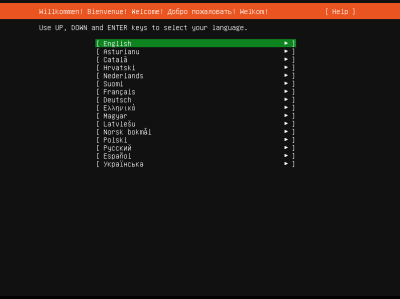
下の画面が表示されたら↑ ↓キーで「English」を選択して「Enter」を押下します。

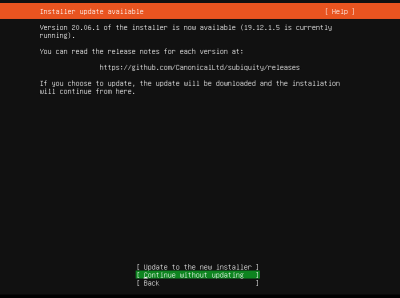
Tabキーで「Continue without updating」を選択して「Enter」を押下します。

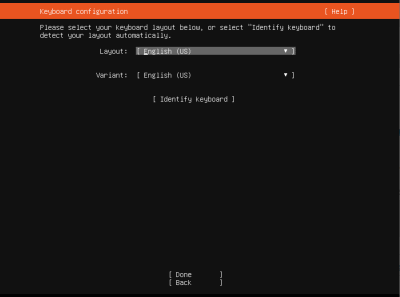
Tabキーで「English (US) 」を選択して「Enter」を押下します。

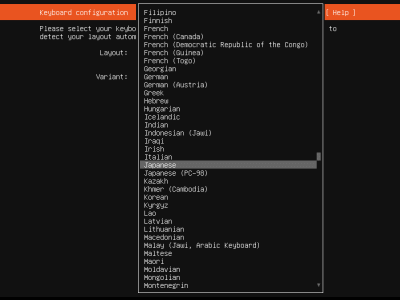
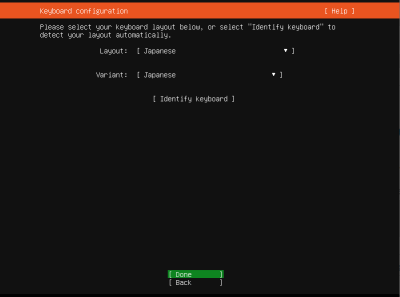
↑ ↓キーで「Japanese」を選択して「Enter」を押下します。

Tabキーで「Done」を選択して「Enter」を押下します。

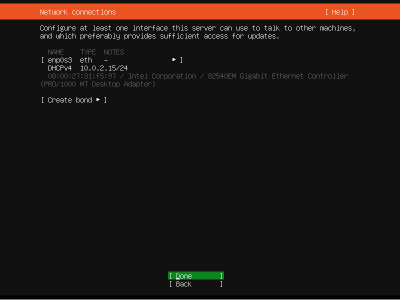
Tabキーで「Done」を選択して「Enter」を押下します。

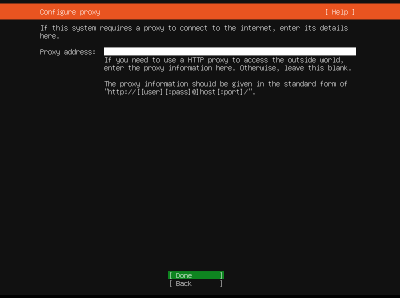
Tabキーで「Done」を選択して「Enter」を押下します。

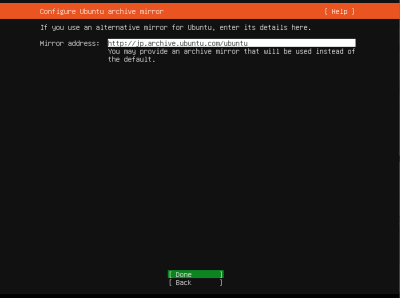
Tabキーで「Done」を選択して「Enter」を押下します。

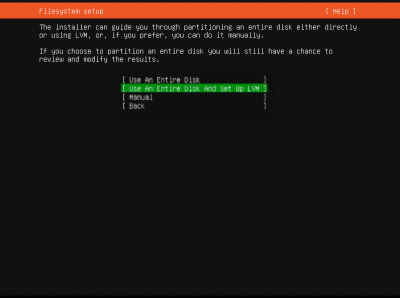
↑ ↓キーで「Use An Entire Disk And Set Up LVM」を選択して「Enter」を押下します。

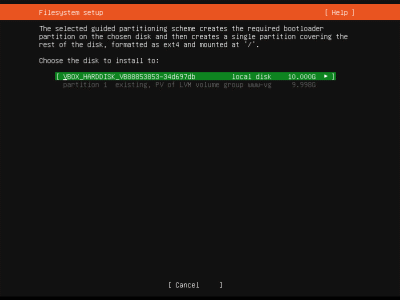
TabキーでインストールするHDDを選択して「Enter」を押下します。

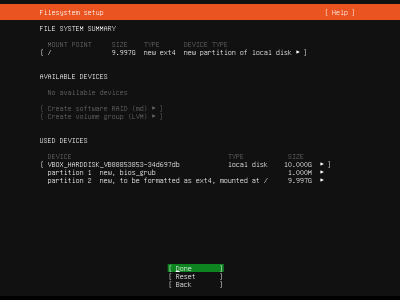
Tabキーで「Done」を選択して「Enter」を押下します。

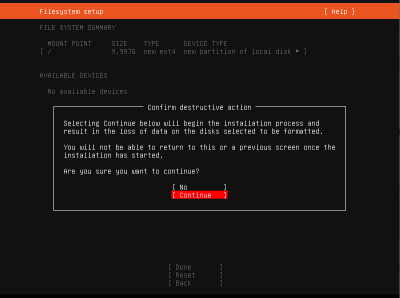
↑ ↓キーで「Continue」を選択して「Enter」を押下します。

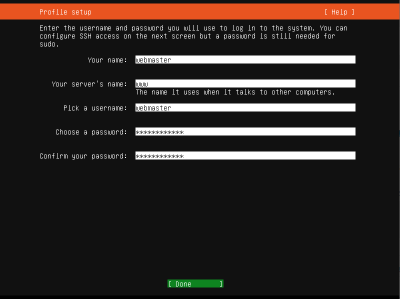
「your name:」にwebmasterを入力します。

「your server’s name:」にubuntuserverを入力します。

「Pick a username:」にwebmasterを入力します。

「Choose a password:」にパスワードを入力します。

「Confirm your password:」にパスワードを再入力します。

Tabキーで「Done」を選択して「Enter」を押下します。

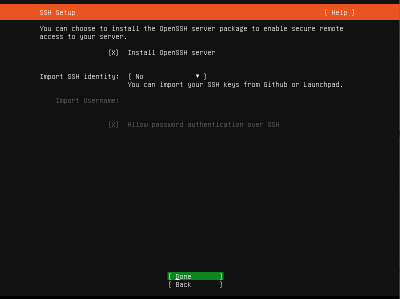
「Install OpenSSH server」をスペースキーで選択し、Tabキーで「Done」を選択して「Enter」を押下します。

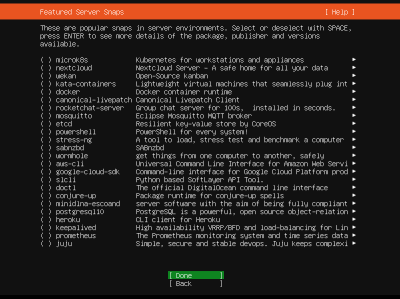
Tabキーで「Done」を選択して「Enter」を押下します。

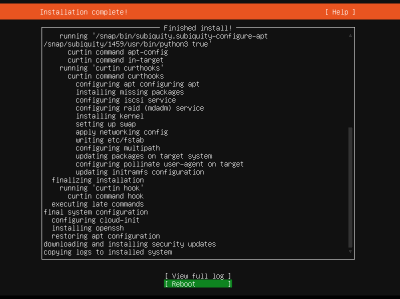
Tabキーで「Reboot」を選択して「Enter」を押下します。

「Enter」を押下します。

「Enter」を押下します。

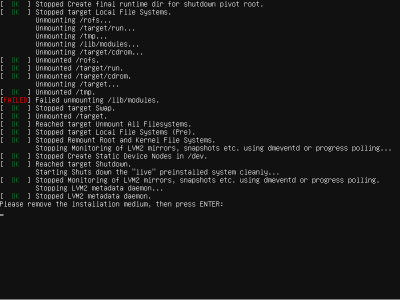
インストールが完了すると以下が表示されます。

初心者におすすめ!コピペ(コピー&ペースト)でできる自宅サーバーUbuntu16(Linux)の構築方法。

自宅サーバーUbuntu(Linux)の作り方

初心者の方でもコピー、貼付けでLinux自宅サーバーを簡単に作れるように説明しています。
Webサーバー、メールサーバー、VPNサーバー、WordPressなどを設定します。

ご自身の設定情報を入力して、文章中の値を変更できますので簡単に設定できます。

DHCPのIPアドレス/マスク長:192.168.1.1/24
WebサーバのIPアドレス:192.168.1.3

サーバー構築準備:自宅サーバー準備作業

  • モデム設定(ご自身の環境に合わせてお調べください。)
  • サーバー本体
  • ルーターの設定
  • 有料ドメイン取得
  • isoファイルの容量確認
  • ImgBurn(インストールDVD作成ソフト)
  • Rufus(インストールUSBメモリ作成ソフト)
  • Tera Term(端末)
  • Gmailの登録
  • Thunderbirdのダウンロード・インストール

ubuntu16:インストール

  • Ubuntu 18.04 LTSダウンロード
  • インストールDVD作成
  • Ubuntu 18.04 LTSインストール

サーバー構築準備:SSHサーバーリモート接続(Tera Term)

  • SSHサーバーリモート接続の準備
  • Tera Termの使い方

ubuntu16:初期設定準備

  • rootユーザーの作成
  • 現在のネットワーク設定を確認
  • クライアントPC接続
  • ネットワークの設定
  • 設定確認

ubuntu16:初期設定

  • ネットワークの設定
  • 一般ユーザーの作成
  • 一般ユーザーの削除
  • サービスの管理
  • システムを最新化
  • Vim(テキストエディタ)の設定
  • Sudo(root権限)のを設定

ubuntu16:デスクトップ環境設定

  • デスクトップ環境の設定
  • VNCサーバーの設定
  • Xrdpサーバーの設定
  • 日本語環境の設定

ubuntu16:ファイルサーバー設定

  • sambaのインストール
  • sambaの初期設定

ubuntu16:バックアップ設定

  • バックアップ領域の作成
  • 自動バックアップの設定

ubuntu16:NTPサーバー設定(NTPd)

ubuntu16:セキュリティ対策

  • アンチウィルスソフトの導入(Clam AntiVirus)
  • ファイル改竄検知システムの導入(Tripwire)
  • rootkit検知システムの導入(RkHunter)
  • SSHサーバー公開鍵認証方式接続の設定

ubuntu16:ドメイン設定

  • DiCEのインストール
  • DiCE の設定
  • DiCEのイベントの追加

ubuntu16:DNSサーバー設定

  • BINDのインストール
  • ゾーン情報の設定
  • TCP/UDP53番ポート開放
  • ポート開放テスト
  • BINDの起動と作動確認
  • ホームネットワーク内PCのDNSを設定変更

ubuntu16:Webサーバー設定

  • Apache2のインストール
  • TCP80番ポート開放
  • ポート開放テスト
  • Perlのインストール
  • PHPのインストール
  • Rubyのインストール
  • Pythonのインストール
  • Perlモジュールのインストール
  • ImageMagikのインストール
  • サーバー証明書の取得
  • SSLの設定

ubuntu16:データベース設定

  • MySQLの インストール
  • phpMyAdmin のインストール

ubuntu16:FTPサーバー設定

  • Vsftpd のインストール
  • FTPクライアントの設定

ubuntu16:MAILサーバー設定

  • Postfixの設定
  • Dovecotのインストール
  • SMTP認証設定
  • Maildir形式メールボックスの作成
  • TCP25番、TCP587番ポート開放
  • ポート開放テスト
  • メールサーバーのOP25B対策
  • Gmailのメール転送設定
  • TCP110番またはTCP143番ポート開放
  • ポート開放テスト
  • メールユーザーの追加
  • メールソフトの登録
  • サーバー証明書の取得
  • SSLの設定
  • TCP465番ポート開放
  • ポート開放テスト
  • TCP587番ポート閉鎖
  • ポート開放テスト
  • Dovecot設定
  • TCP995番またはTCP993番ポート開放
  • ポート開放テスト
  • メールソフトの設定変更
  • アンチウィルスソフトの連携(Clamav)

ubuntu16:ログ解析設定

  • Webアクセスログ解析(AWStats)のインストール
  • メールログ解析(Pfiogsumm)のインストール

ubuntu16:システム監視設定

  • Nagiosのインストール
  • Nagiosプラグインインストール
  • Nagios設定
  • Apache2設定
  • Nagios起動

共通設定:VPNサーバー設定(Soft Ether VPN Saver)

  • Soft Ether VPN Serverインストール
  • Soft Ether VPN Server起動
  • UDP500番ポート、UDP4500番ポート開放
  • ポート開放テスト
  • Soft Ether VPN Server設定
  • Soft Ether VPN Serverダウンロード、インストール
  • Soft Ether VPN Server初期設定
  • 外部から固定ひかり電話子機接続

ubuntu16:Webmin設定

  • Webminインストール
  • 起動確認

ubuntu16:Usermin設定

  • Userminインストール
  • 起動確認

Ubuntu:サブドメイン設定

  • サブドメイン用ディレクトリ作成
  • テストページ作成
  • サーバー証明書取得
  • メインドメインSSL設定
  • サブドメインSSL設定

Ubuntu:複数ドメイン設定

  • 複数ドメイン用ディレクトリ作成
  • テストページ作成
  • サーバー証明書取得
  • 複数ドメインSSL設定
  • BIND設定
  • ゾーン情報の設定

ubuntu:ブログサイト構築(Word Press)設定

  • Webサーバー、PHP設定
  • データベース設定
  • ブログ用データーベースを作成
  • WordPressインストール
  • WordPress設定
  • WordPress初期設定
  • WordPressをドメイン直下での表示設定

WordPress:使いやすいWordPressの作り方

  • 初期設定
  • 記事エディターの拡張
  • SEO対策
  • Site Kit by Google
  • 投稿記事ごとのSEO対策
  • ウィジェット追加
  • カスタムCSS
  • クイックタグの追加
  • スライドショー設置
  • コメント欄非表示
  • 関連記事表示
  • もくじ表示
  • リダイレクト検知
  • Google にインデックスさせる
  • マルチバイト機能の拡張
  • サイトマップを出力
  • お問い合わせフォーム
  • 予約自動投稿
  • 投稿記事の表示順
  • 代替え入力

共通設定:サーバー自動起動設定

  • BIOS設定

Ubuntu16:起動不能を復旧

ubuntu16:パーティション操作

  • Gpartedをインストール

共通設定:ディスクのクローン作成

  • Ubuntu Desktopダウンロード
  • ライブDVD作成
  • ディスクのクローン作成

Ubuntu18:アップグレード

アップグレード

クライアントPC(Windows)でTera Termを起動します。(Tera Termの使い方

apt updateを実行します。

root@www:~~# apt-get -y update

apt-get upgradeを実行します。

root@www:~~# apt-get -y upgrade

apt dist-upgradeを実行します。

root@www:~~# apt-get -y dist-upgrade

update-manager-coreをインストールします。

root@www:~~# apt-get -y install update-manager-core

アップグレードします。

root@www:~~# do-release-upgrade

「y」で応答します。

続行する[yN] y

「Enter」キーを押下します。

続けるには [ENTER] キーを押してください

「Enter」キーを押下します。

続けるには [ENTER] キーを押してください

「y」の応答します。

続行する[yN] 詳細 [d] y

数回下記のような質問がありますが全て「y」の応答します。

*** sysctl.conf (Y/I/N/O/D/Z) [デフォルト=N] ? y

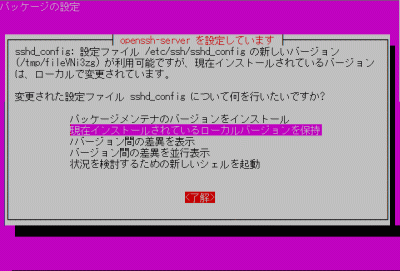
数回下記のような質問がありますが全て「現在インストールされているローカルバージョンを保持」を選択し「了解」をクリックします。(アップグレードではパスワードなどの再設定が必要な場合があります。)

バージョンを確認します。

root@www:~~# cat /etc/issue
Ubuntu 18.04.4 LTS

共通設定:起動不能を復旧

s50

起動不能を復旧.

下記のサイトで「Boot-Repair-Disk」をダウンロードします。

ダウンロードサイト

boot-repair-disk-64bit.iso
s51

インストールDVD作成.

ImgBurnを使いboot-repair-disk-64bit.isoでインストールディスクを作成します。

ライブ起動.

起動しないサーバーにインストールDVDを入れてライブ起動します。(日本語は文字化けしますので英語(English)を選択します。

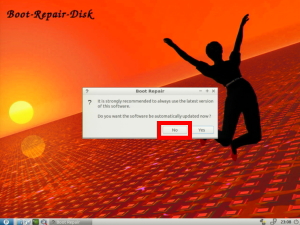
s52「No」をクリックします。

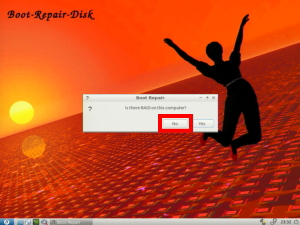
s53「No」をクリックします。

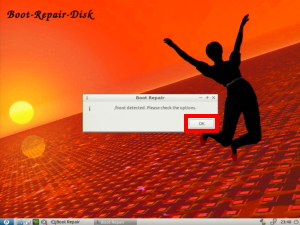
s54「OK」をクリックします。

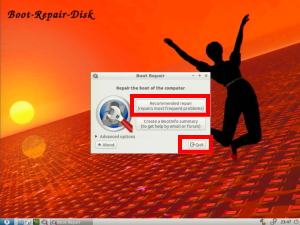
s55「Recommended repair」を選択して「Quit」をクリックします。

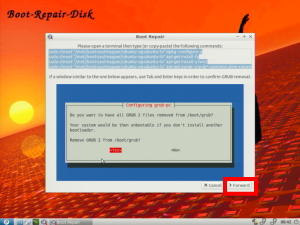
s56「Forward」をクリックします。

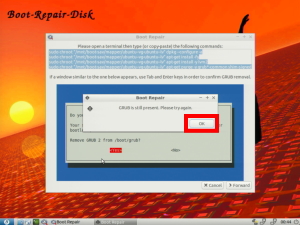
s57「OK」をクリックします。

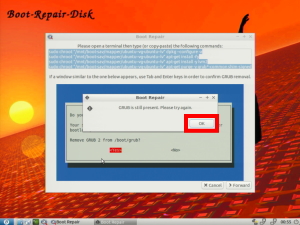
s58「OK」をクリックします。

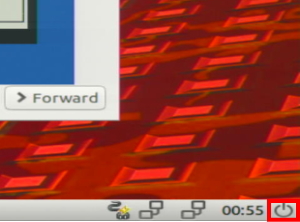
s59「シャットダウン」をクリックして再起動します。

s60「ENTER」を押下して再起動すれば成功です。

Ubuntu:ブログサイト(Word Press)設定

s50

Webサーバー、PHP設定.

Webサーバー、PHPを設定します。

Webサーバー、PHPの設定
s51

データベース設定.

データベースを設定します。

データベースの設定
s52

ブログ用データーベースを作成.

MariaDBへrootでログインします。

[root@www ~]# 52_1mysql -u root -p
Enter password:
Welcome to the MariaDB monitor.  Commands end with ; or \g.
Your MariaDB connection id is 3
Server version: 5.5.60-MariaDB MariaDB Server

Copyright (c) 2000, 2018, Oracle, MariaDB Corporation Ab and others.

Type 'help;' or '\h' for help. Type '\c' to clear the current input statement.

s53wordpressでデータベースを作成します。

MariaDB [(none)]> 53_1create database wordpress;

s54wordpress_userでユーザーを作成します。

MariaDB [(none)]> 54_1grant all privileges on wordpress.* to wordpress_user@localhost identified by 'パスワード';

s55ログアウトします。

MariaDB [(none)]> 55_1exit

s56

WordPressインストール.

PHP7.4をインストールします。

root@www:~# 56_1apt -y update
root@www:~# 56_2apt -y install php7.4 php7.4-mbstring php-pear
root@www:~# 56_3php -v

s57PHPモジュールをインストールします。

root@www:~# 57_1apt -y install php-common php-gd php-mysql php-enchant hunspell

s58PHPを再起動します。

root@www:~# 58_1systemctl restart php7.4-fpm

s59Webディレクトリへ移動します。

[root@www ~]#59_1 cd /var/www/html

s60WordPressをダウンロードします。

[root@www ~]#60_1 wget https://ja.wordpress.org/latest-ja.tar.gz

s61WordPressを解凍します。

[root@www ~]# 61_1tar xvf latest-ja.tar.gz
[root@www ~]# 61_2rm latest-ja.tar.gz

s62ディレクトリを戻ります。

[root@www ~]# 62_1cd

s63WordPressディレクトリ所有者をApache実行ユーザーへ変更します。

[root@www ~]# 63_1chown -R apache:apache /var/www/html/wordpress/

s64

WordPress設定.

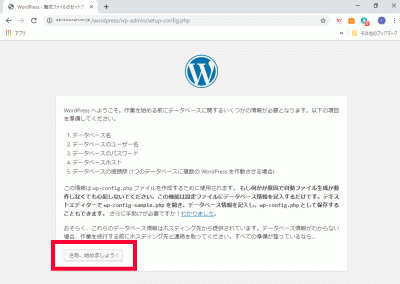
WordPressへアクセスし、「さあ、始めましょう!」をクリックします。

https://fedoraserver.jp/wordpress/

WordPress設定

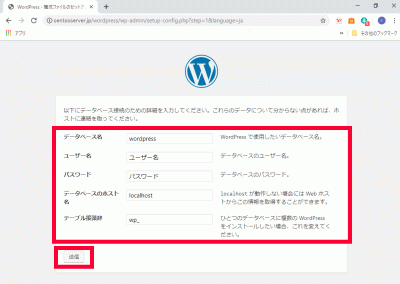
s65「データベース名」、「ユーザー名」、「パスワード」、「データベースの接頭辞」を入力し、「送信」をクリックします。

データベース名:wordpress

ユーザー名:wordpress_user

パスワード:パスワード

データベースの接頭辞:wp_wordpress_

WordPress設定

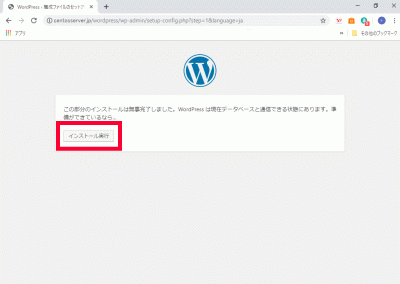
s66「インストール実行」をクリックします。

インストール実行
s67

Apache設定.

WordPress用Apache設定ファイルを作成します。

[root@www ~]# 67_1echo Alias /wordpress /var/www/html/wordpress > /etc/httpd/conf.d/wordpress.conf

s68再起動します。

[root@www ~]# 68_1systemctl reload httpd

s69

WordPress初期設定.

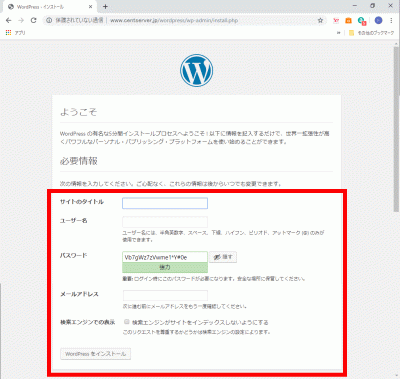
WordPressへアクセスし、任意で決めた、「サイトのタイトル」、「ユーザー名」、「パスワード」、「メールアドレス」を入力して「WordPressをインストール」をクリックします。

https://fedoraserver.jp/wordpress/

WordPress初期設定

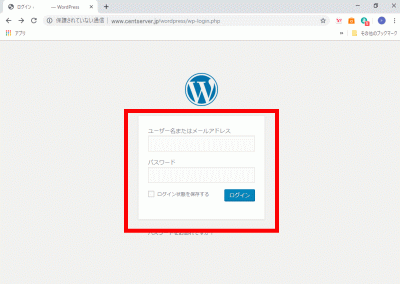
s70「ユーザー名」、「パスワード」を入力して「ログイン」をクリックし、サイト管理へログインします。

サイト管理へログイン
s71

WordPressをドメイン直下での表示設定.

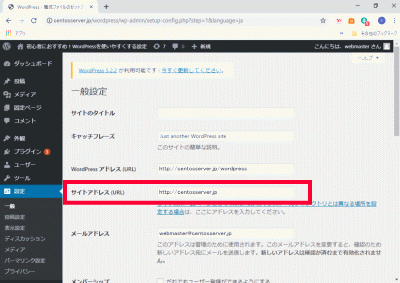
管理画面で「設定」→「一般」を開き、「サイトアドレス(URL)」に「ドメイン」を設定します。

ドメイン:https://linuxserver.jp

サイトアドレス(URL)

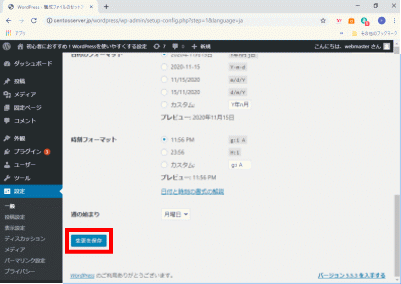
s72「変更を保存」をクリックします。

s73「index.php」をコピーして、ドメイン直下に貼り付けます。

[root@www ~]# 73_1cp /var/www/html/wordpress/index.php /var/www/html/index.php

s74「index.php」を設定します。

[root@www ~]# 74_1vi /var/www/html/index.php

s7517行目:「/wordpress」を追記します。

require( dirname( __FILE__ ) . '75_1/wordpress/wp-blog-header.php' );

s76「.htaccess」を設定します。

[root@www ~]# 76_1vi /var/www/html/.htaccess
76_2# BEGIN WordPress
<IfModule mod_rewrite.c>
    RewriteEngine On
    RewriteBase /
    RewriteRule ^index\.php$ - [L]
    RewriteCond %{REQUEST_FILENAME} !-f
    RewriteCond %{REQUEST_FILENAME} !-d
    RewriteRule . /index.php [L]
</IfModule>
# END WordPress

Ubuntu:複数ドメイン設定

s50

複数ドメイン用ディレクトリ作成.

複数ドメイン用ディレクトリを作成します。

[root@www ~]# 50_1mkdir /var/www/html/virtual.jp

s51パーミッションを設定します。

[root@www ~]# 51_1chmod 777 /var/www/html/virtual.jp

s52複数ドメイン用設定ファイルを作成します。

[root@www ~]# 52_1vi /etc/httpd/conf.d/virtualhost-virtual.jp.conf
53_1<VirtualHost *:80>
    ServerName virtual.jp
    DocumentRoot /var/www/html/virtual.jp
    RewriteEngine On
    RewriteCond %{HTTP_HOST} ^www\.virtual\.jp
    RewriteRule ^(.*)$ http://virtual.jp/$1 [R=301,L]
    ErrorLog logs/virtual.jp-error_log
    CustomLog logs/virtual.jp-access_log combined env=!no_log
</VirtualHost>

s54再起動します。

[root@www ~]# 54_1systemctl restart httpd

s55

テストページ作成.

テストページを作成します。

[root@www ~]# 55_1echo test >> /var/www/html/virtual.jp/index.html

s56Web作動確認サイトで複数ドメインの作動確認をします。

Free Monitoring Test Tools

複数ドメイン:http://virtual.jp
s57

サーバー証明書取得.

サーバー証明書を取得します。

[root@www ~]# 57_1certbot certonly --webroot -w /var/www/html/virtual.jp -m webmasterfedoraserver.jp -d virtual.jp --agree-tos

s58

複数ドメインSSL設定.

メインドメイン設定を表示します。

[root@www ~]# 58_1vi /etc/httpd/conf.d/virtualhost-00-fedoraserver.jp.conf

s59行番号を非表示にします。

59_1:set nonumber

s60SSLの設定項目をコピーしてメモ帳などに貼り付け、設定変更して保存します。

コピー範囲:<VirtualHost _default_:443>~</VirtualHost>

変更内容:<VirtualHost _default_:443> → <VirtualHost *:443>

<VirtualHost 60_1*:443>

# General setup for the virtual host, inherited from global configuration
DocumentRoot "60_2/var/www/html/virtual.jp"
ServerName 60_3virtual.jp:443

# Use separate log files for the SSL virtual host; note that LogLevel
# is not inherited from httpd.conf.
ErrorLog logs/ssl_error_log
TransferLog logs/ssl_access_log
LogLevel warn

#   SSL Engine Switch:
#   Enable/Disable SSL for this virtual host.
SSLEngine on

#   SSL Protocol support:
# List the enable protocol levels with which clients will be able to
# connect.  Disable SSLv2 access by default:
SSLProtocol -All +TLSv1 +TLSv1.1 +TLSv1.2

#   SSL Cipher Suite:
#   List the ciphers that the client is permitted to negotiate.
#   See the mod_ssl documentation for a complete list.
SSLCipherSuite HIGH:3DES:!aNULL:!MD5:!SEED:!IDEA

#   Speed-optimized SSL Cipher configuration:
#   If speed is your main concern (on busy HTTPS servers e.g.),
#   you might want to force clients to specific, performance
#   optimized ciphers. In this case, prepend those ciphers
#   to the SSLCipherSuite list, and enable SSLHonorCipherOrder.
#   Caveat: by giving precedence to RC4-SHA and AES128-SHA
#   (as in the example below), most connections will no longer
#   have perfect forward secrecy - if the server's key is
#   compromised, captures of past or future traffic must be
#   considered compromised, too.
#SSLCipherSuite RC4-SHA:AES128-SHA:HIGH:MEDIUM:!aNULL:!MD5
#SSLHonorCipherOrder on

#   Server Certificate:
# Point SSLCertificateFile at a PEM encoded certificate.  If
# the certificate is encrypted, then you will be prompted for a
# pass phrase.  Note that a kill -HUP will prompt again.  A new
# certificate can be generated using the genkey(1) command.
SSLCertificateFile 61_1/etc/letsencrypt/live/virtual.jp/cert.pem

#   Server Private Key:
#   If the key is not combined with the certificate, use this
#   directive to point at the key file.  Keep in mind that if
#   you've both a RSA and a DSA private key you can configure
#   both in parallel (to also allow the use of DSA ciphers, etc.)
SSLCertificateKeyFile 62_1/etc/letsencrypt/live/virtual.jp/privkey.pem

#   Server Certificate Chain:
#   Point SSLCertificateChainFile at a file containing the
#   concatenation of PEM encoded CA certificates which form the
#   certificate chain for the server certificate. Alternatively
#   the referenced file can be the same as SSLCertificateFile
#   when the CA certificates are directly appended to the server
#   certificate for convinience.
SSLCertificateChainFile 63_1/etc/letsencrypt/live/virtual.jp/chain.pem

#   Certificate Authority (CA):
#   Set the CA certificate verification path where to find CA
#   certificates for client authentication or alternatively one
#   huge file containing all of them (file must be PEM encoded)
#SSLCACertificateFile /etc/pki/tls/certs/ca-bundle.crt

#   Client Authentication (Type):
#   Client certificate verification type and depth.  Types are
#   none, optional, require and optional_no_ca.  Depth is a
#   number which specifies how deeply to verify the certificate
#   issuer chain before deciding the certificate is not valid.
#SSLVerifyClient require
#SSLVerifyDepth  10

#   Access Control:
#   With SSLRequire you can do per-directory access control based
#   on arbitrary complex boolean expressions containing server
#   variable checks and other lookup directives.  The syntax is a
#   mixture between C and Perl.  See the mod_ssl documentation
#   for more details.
#<Location />
#SSLRequire (    %{SSL_CIPHER} !~ m/^(EXP|NULL)/ \
#            and %{SSL_CLIENT_S_DN_O} eq "Snake Oil, Ltd." \
#            and %{SSL_CLIENT_S_DN_OU} in {"Staff", "CA", "Dev"} \
#            and %{TIME_WDAY} >= 1 and %{TIME_WDAY} <= 5 \
#            and %{TIME_HOUR} >= 8 and %{TIME_HOUR} <= 20       ) \
#           or %{REMOTE_ADDR} =~ m/^192\.76\.162\.[0-9]+$/
#</Location>

#   SSL Engine Options:
#   Set various options for the SSL engine.
#   o FakeBasicAuth:
#     Translate the client X.509 into a Basic Authorisation.  This means that
#     the standard Auth/DBMAuth methods can be used for access control.  The
#     user name is the `one line' version of the client's X.509 certificate.
#     Note that no password is obtained from the user. Every entry in the user
#     file needs this password: `xxj31ZMTZzkVA'.
#   o ExportCertData:
#     This exports two additional environment variables: SSL_CLIENT_CERT and
#     SSL_SERVER_CERT. These contain the PEM-encoded certificates of the
#     server (always existing) and the client (only existing when client
#     authentication is used). This can be used to import the certificates
#     into CGI scripts.
#   o StdEnvVars:
#     This exports the standard SSL/TLS related `SSL_*' environment variables.
#     Per default this exportation is switched off for performance reasons,
#     because the extraction step is an expensive operation and is usually
#     useless for serving static content. So one usually enables the
#     exportation for CGI and SSI requests only.
#   o StrictRequire:
#     This denies access when "SSLRequireSSL" or "SSLRequire" applied even
#     under a "Satisfy any" situation, i.e. when it applies access is denied
#     and no other module can change it.
#   o OptRenegotiate:
#     This enables optimized SSL connection renegotiation handling when SSL
#     directives are used in per-directory context.
#SSLOptions +FakeBasicAuth +ExportCertData +StrictRequire
<Files ~ "\.(cgi|shtml|phtml|php3?)$">
    SSLOptions +StdEnvVars
</Files>
<Directory "/var/www/cgi-bin">
    SSLOptions +StdEnvVars
</Directory>

#   SSL Protocol Adjustments:
#   The safe and default but still SSL/TLS standard compliant shutdown
#   approach is that mod_ssl sends the close notify alert but doesn't wait for
#   the close notify alert from client. When you need a different shutdown
#   approach you can use one of the following variables:
#   o ssl-unclean-shutdown:
#     This forces an unclean shutdown when the connection is closed, i.e. no
#     SSL close notify alert is send or allowed to received.  This violates
#     the SSL/TLS standard but is needed for some brain-dead browsers. Use
#     this when you receive I/O errors because of the standard approach where
#     mod_ssl sends the close notify alert.
#   o ssl-accurate-shutdown:
#     This forces an accurate shutdown when the connection is closed, i.e. a
#     SSL close notify alert is send and mod_ssl waits for the close notify
#     alert of the client. This is 100% SSL/TLS standard compliant, but in
#     practice often causes hanging connections with brain-dead browsers. Use
#     this only for browsers where you know that their SSL implementation
#     works correctly.
#   Notice: Most problems of broken clients are also related to the HTTP
#   keep-alive facility, so you usually additionally want to disable
#   keep-alive for those clients, too. Use variable "nokeepalive" for this.
#   Similarly, one has to force some clients to use HTTP/1.0 to workaround
#   their broken HTTP/1.1 implementation. Use variables "downgrade-1.0" and
#   "force-response-1.0" for this.
BrowserMatch "MSIE [2-5]" \
         nokeepalive ssl-unclean-shutdown \
         downgrade-1.0 force-response-1.0

#   Per-Server Logging:
#   The home of a custom SSL log file. Use this when you want a
#   compact non-error SSL logfile on a virtual host basis.
CustomLog logs/ssl_request_log \
          "%t %h %{SSL_PROTOCOL}x %{SSL_CIPHER}x \"%r\" %b"

</VirtualHost>

s64ファイルを設定します。

[root@www ~]# 64_1vi /etc/httpd/conf.d/virtualhost-virtual.jp.conf

s65先に保存したものを最終行に貼り付けます。

<VirtualHost *:80>
    ServerName virtual.jp
    DocumentRoot /var/www/html/virtual.jp
    RewriteEngine On
    RewriteCond %{HTTP_HOST} ^www\.virtual\.jp
    RewriteRule ^(.*)$ http://virtual.jp/$1 [R=301,L]
    ErrorLog logs/virtual.jp-error_log
    CustomLog logs/virtual.jp-access_log combined env=!no_log
</VirtualHost>

<VirtualHost *:443>

# General setup for the virtual host, inherited from global configuration
DocumentRoot "/var/www/html/virtual.jp"
ServerName virtual.jp:443

# Use separate log files for the SSL virtual host; note that LogLevel
# is not inherited from httpd.conf.
ErrorLog logs/ssl_error_log
TransferLog logs/ssl_access_log
LogLevel warn

#   SSL Engine Switch:
#   Enable/Disable SSL for this virtual host.
SSLEngine on

#   SSL Protocol support:
# List the enable protocol levels with which clients will be able to
# connect.  Disable SSLv2 access by default:
SSLProtocol -All +TLSv1 +TLSv1.1 +TLSv1.2

#   SSL Cipher Suite:
#   List the ciphers that the client is permitted to negotiate.
#   See the mod_ssl documentation for a complete list.
SSLCipherSuite HIGH:3DES:!aNULL:!MD5:!SEED:!IDEA

#   Speed-optimized SSL Cipher configuration:
#   If speed is your main concern (on busy HTTPS servers e.g.),
#   you might want to force clients to specific, performance
#   optimized ciphers. In this case, prepend those ciphers
#   to the SSLCipherSuite list, and enable SSLHonorCipherOrder.
#   Caveat: by giving precedence to RC4-SHA and AES128-SHA
#   (as in the example below), most connections will no longer
#   have perfect forward secrecy - if the server's key is
#   compromised, captures of past or future traffic must be
#   considered compromised, too.
#SSLCipherSuite RC4-SHA:AES128-SHA:HIGH:MEDIUM:!aNULL:!MD5
#SSLHonorCipherOrder on

#   Server Certificate:
# Point SSLCertificateFile at a PEM encoded certificate.  If
# the certificate is encrypted, then you will be prompted for a
# pass phrase.  Note that a kill -HUP will prompt again.  A new
# certificate can be generated using the genkey(1) command.
SSLCertificateFile /etc/letsencrypt/live/virtual.jp/cert.pem

#   Server Private Key:
#   If the key is not combined with the certificate, use this
#   directive to point at the key file.  Keep in mind that if
#   you've both a RSA and a DSA private key you can configure
#   both in parallel (to also allow the use of DSA ciphers, etc.)
SSLCertificateKeyFile /etc/letsencrypt/live/virtual.jp/privkey.pem

#   Server Certificate Chain:
#   Point SSLCertificateChainFile at a file containing the
#   concatenation of PEM encoded CA certificates which form the
#   certificate chain for the server certificate. Alternatively
#   the referenced file can be the same as SSLCertificateFile
#   when the CA certificates are directly appended to the server
#   certificate for convinience.
SSLCertificateChainFile /etc/letsencrypt/live/virtual.jp/chain.pem

#   Certificate Authority (CA):
#   Set the CA certificate verification path where to find CA
#   certificates for client authentication or alternatively one
#   huge file containing all of them (file must be PEM encoded)
#SSLCACertificateFile /etc/pki/tls/certs/ca-bundle.crt

#   Client Authentication (Type):
#   Client certificate verification type and depth.  Types are
#   none, optional, require and optional_no_ca.  Depth is a
#   number which specifies how deeply to verify the certificate
#   issuer chain before deciding the certificate is not valid.
#SSLVerifyClient require
#SSLVerifyDepth  10

#   Access Control:
#   With SSLRequire you can do per-directory access control based
#   on arbitrary complex boolean expressions containing server
#   variable checks and other lookup directives.  The syntax is a
#   mixture between C and Perl.  See the mod_ssl documentation
#   for more details.
#<Location />
#SSLRequire (    %{SSL_CIPHER} !~ m/^(EXP|NULL)/ \
#            and %{SSL_CLIENT_S_DN_O} eq "Snake Oil, Ltd." \
#            and %{SSL_CLIENT_S_DN_OU} in {"Staff", "CA", "Dev"} \
#            and %{TIME_WDAY} >= 1 and %{TIME_WDAY} <= 5 \
#            and %{TIME_HOUR} >= 8 and %{TIME_HOUR} <= 20       ) \
#           or %{REMOTE_ADDR} =~ m/^192\.76\.162\.[0-9]+$/
#</Location>

#   SSL Engine Options:
#   Set various options for the SSL engine.
#   o FakeBasicAuth:
#     Translate the client X.509 into a Basic Authorisation.  This means that
#     the standard Auth/DBMAuth methods can be used for access control.  The
#     user name is the `one line' version of the client's X.509 certificate.
#     Note that no password is obtained from the user. Every entry in the user
#     file needs this password: `xxj31ZMTZzkVA'.
#   o ExportCertData:
#     This exports two additional environment variables: SSL_CLIENT_CERT and
#     SSL_SERVER_CERT. These contain the PEM-encoded certificates of the
#     server (always existing) and the client (only existing when client
#     authentication is used). This can be used to import the certificates
#     into CGI scripts.
#   o StdEnvVars:
#     This exports the standard SSL/TLS related `SSL_*' environment variables.
#     Per default this exportation is switched off for performance reasons,
#     because the extraction step is an expensive operation and is usually
#     useless for serving static content. So one usually enables the
#     exportation for CGI and SSI requests only.
#   o StrictRequire:
#     This denies access when "SSLRequireSSL" or "SSLRequire" applied even
#     under a "Satisfy any" situation, i.e. when it applies access is denied
#     and no other module can change it.
#   o OptRenegotiate:
#     This enables optimized SSL connection renegotiation handling when SSL
#     directives are used in per-directory context.
#SSLOptions +FakeBasicAuth +ExportCertData +StrictRequire
<Files ~ "\.(cgi|shtml|phtml|php3?)$">
    SSLOptions +StdEnvVars
</Files>
<Directory "/var/www/cgi-bin">
    SSLOptions +StdEnvVars
</Directory>

#   SSL Protocol Adjustments:
#   The safe and default but still SSL/TLS standard compliant shutdown
#   approach is that mod_ssl sends the close notify alert but doesn't wait for
#   the close notify alert from client. When you need a different shutdown
#   approach you can use one of the following variables:
#   o ssl-unclean-shutdown:
#     This forces an unclean shutdown when the connection is closed, i.e. no
#     SSL close notify alert is send or allowed to received.  This violates
#     the SSL/TLS standard but is needed for some brain-dead browsers. Use
#     this when you receive I/O errors because of the standard approach where
#     mod_ssl sends the close notify alert.
#   o ssl-accurate-shutdown:
#     This forces an accurate shutdown when the connection is closed, i.e. a
#     SSL close notify alert is send and mod_ssl waits for the close notify
#     alert of the client. This is 100% SSL/TLS standard compliant, but in
#     practice often causes hanging connections with brain-dead browsers. Use
#     this only for browsers where you know that their SSL implementation
#     works correctly.
#   Notice: Most problems of broken clients are also related to the HTTP
#   keep-alive facility, so you usually additionally want to disable
#   keep-alive for those clients, too. Use variable "nokeepalive" for this.
#   Similarly, one has to force some clients to use HTTP/1.0 to workaround
#   their broken HTTP/1.1 implementation. Use variables "downgrade-1.0" and
#   "force-response-1.0" for this.
BrowserMatch "MSIE [2-5]" \
         nokeepalive ssl-unclean-shutdown \
         downgrade-1.0 force-response-1.0

#   Per-Server Logging:
#   The home of a custom SSL log file. Use this when you want a
#   compact non-error SSL logfile on a virtual host basis.
CustomLog logs/ssl_request_log \
          "%t %h %{SSL_PROTOCOL}x %{SSL_CIPHER}x \"%r\" %b"

</VirtualHost>

s66

BIND設定.

ホームネットワーク内でドメイン名で表示する様にBIND を設定します。

[root@www ~]# 66_1vi /etc/named.conf

//
// named.conf
//
// Provided by Red Hat bind package to configure the ISC BIND named(8) DNS
// server as a caching only nameserver (as a localhost DNS resolver only).
//
// See /usr/share/doc/bind*/sample/ for example named configuration files.
//
// See the BIND Administrator's Reference Manual (ARM) for details about the
// configuration located in /usr/share/doc/bind-{version}/Bv9ARM.html


options {
        listen-on port 53 { any; };
        listen-on-v6 port 53 { none; };
        directory       "/var/named";
        dump-file       "/var/named/data/cache_dump.db";
        statistics-file "/var/named/data/named_stats.txt";
        memstatistics-file "/var/named/data/named_mem_stats.txt";
        recursing-file  "/var/named/data/named.recursing";
        secroots-file   "/var/named/data/named.secroots";
        allow-query     { localhost; 192.168.1.1/24; };
        allow-transfer      { localhost; 192.168.1.1/24; };

        /*
         - If you are building an AUTHORITATIVE DNS server, do NOT enable recursion.
         - If you are building a RECURSIVE (caching) DNS server, you need to enable
           recursion.
         - If your recursive DNS server has a public IP address, you MUST enable access
           control to limit queries to your legitimate users. Failing to do so will
           cause your server to become part of large scale DNS amplification
           attacks. Implementing BCP38 within your network would greatly
           reduce such attack surface
        */
        recursion yes;

        dnssec-enable yes;
        dnssec-validation yes;

        /* Path to ISC DLV key */
        bindkeys-file "/etc/named.iscdlv.key";

        managed-keys-directory "/var/named/dynamic";

        pid-file "/run/named/named.pid";
        session-keyfile "/run/named/session.key";
};

logging {
        channel default_debug {
                file "data/named.run";
                severity dynamic;
        };
};

view "internal" {
        match-clients {
                localhost;
                192.168.1.1/24;
        };
        zone "." IN {
                type hint;
                file "named.ca";
        };
        zone "fedoraserver.jp" IN {
                type master;
                file "fedoraserver.jp.lan";
                allow-update { none; };
        };
67_1        zone "virtual.jp" IN {
                type master;
                file "virtual.jp.lan";
                allow-update { none; };
        };
        zone "1.168.192.in-addr.arpa" IN {
                type master;
                file "1.168.192.db";
                allow-update { none; };
        };
include "/etc/named.rfc1912.zones";
include "/etc/named.root.key";
};

s68

ゾーン情報の設定.

内部向け正引き情報ファイルを作成します。

[root@www ~]# 68_1vi /var/named/virtual.jp.lan

69_1$TTL 86400
@   IN  SOA     virtual.jp. root.virtual.jp. (
        2014071001  ;Serial
        3600        ;Refresh
        1800        ;Retry
        604800      ;Expire
        86400       ;Minimum TTL
)
        IN  NS      virtual.jp.
        IN  MX 10   virtual.jp.
@       IN  A       192.168.1.3
*       IN  A       192.168.1.3

s70再起動します。

[root@www ~]# 70_1reboot

s71Web作動確認サイトで複数ドメインの作動確認をします。

Free Monitoring Test Tools

複数ドメイン:https://virtual.jp

Ubuntu:サブドメイン設定

s50

サブドメイン用ディレクトリ作成.

サブドメイン用ディレクトリを作成します。

[root@www ~]# 50_1mkdir /var/www/html/sub.ubuntuserver.jp

s51パーミッションを設定します。

[root@www ~]# 51_1chmod 777 /var/www/html/sub.ubuntuserver.jp

s52サブドメイン用設定ファイルを作成します。

[root@www ~]# 52_1vi /etc/httpd/conf.d/virtualhost-sub.ubuntuserver.jp.conf
52_2<VirtualHost *:80>
    ServerName sub.ubuntuserver.jp
    DocumentRoot /var/www/html/sub.ubuntuserver.jp
    RewriteEngine On
    RewriteCond %{HTTP_HOST} ^www\.sub\.ubuntuserver\.jp
    RewriteRule ^(.*)$ http://sub.ubuntuserver.jp/$1 [R=301,L]
    ErrorLog logs/sub.ubuntuserver.jp-error_log
    CustomLog logs/sub.ubuntuserver.jp-access_log combined env=!no_log
</VirtualHost>

s53再起動します。

[root@www ~]# 53_1systemctl restart httpd

s54

テストページ作成.

テストページを作成します。

[root@www ~]# 54_1echo test >> /var/www/html/sub.ubuntuserver.jp/index.html

s55Web作動確認サイトでサブドメインの作動確認をします。

Free Monitoring Test Tools

サブドメイン:http://sub.ubuntuserver.jp
s56

サーバー証明書取得.

サーバー証明書を取得します。

[root@www ~]# 56_1certbot certonly --webroot -w /var/www/html/sub.ubuntuserver.jp -m webmasterubuntuserver.jp -d sub.ubuntuserver.jp --agree-tos

s57

メインドメインSSL設定.

ファイルのバックアップを作成します。

[root@www ~]# 57_1cp /etc/httpd/conf.d/ssl.conf /etc/httpd/conf.d/ssl.conf.bk

s58ファイルを設定します。

[root@www ~]# 58_1vi /etc/httpd/conf.d/ssl.conf

s59行番号を非表示にします。

59_1:set nonumber

s60SSLの設定項目をコピーしてメモ帳などに貼り付け、設定変更して保存します。

コピー範囲:<VirtualHost _default_:443>~</VirtualHost>

変更内容:<VirtualHost _default_:443> → <VirtualHost *:443>

<VirtualHost 60_1*:443>

# General setup for the virtual host, inherited from global configuration
DocumentRoot "/var/www/html"
ServerName ubuntuserver.jp:443

# Use separate log files for the SSL virtual host; note that LogLevel
# is not inherited from httpd.conf.
ErrorLog logs/ssl_error_log
TransferLog logs/ssl_access_log
LogLevel warn

#   SSL Engine Switch:
#   Enable/Disable SSL for this virtual host.
SSLEngine on

#   SSL Protocol support:
# List the enable protocol levels with which clients will be able to
# connect.  Disable SSLv2 access by default:
SSLProtocol -All +TLSv1 +TLSv1.1 +TLSv1.2

#   SSL Cipher Suite:
#   List the ciphers that the client is permitted to negotiate.
#   See the mod_ssl documentation for a complete list.
SSLCipherSuite HIGH:3DES:!aNULL:!MD5:!SEED:!IDEA

#   Speed-optimized SSL Cipher configuration:
#   If speed is your main concern (on busy HTTPS servers e.g.),
#   you might want to force clients to specific, performance
#   optimized ciphers. In this case, prepend those ciphers
#   to the SSLCipherSuite list, and enable SSLHonorCipherOrder.
#   Caveat: by giving precedence to RC4-SHA and AES128-SHA
#   (as in the example below), most connections will no longer
#   have perfect forward secrecy - if the server's key is
#   compromised, captures of past or future traffic must be
#   considered compromised, too.
#SSLCipherSuite RC4-SHA:AES128-SHA:HIGH:MEDIUM:!aNULL:!MD5
#SSLHonorCipherOrder on

#   Server Certificate:
# Point SSLCertificateFile at a PEM encoded certificate.  If
# the certificate is encrypted, then you will be prompted for a
# pass phrase.  Note that a kill -HUP will prompt again.  A new
# certificate can be generated using the genkey(1) command.
SSLCertificateFile /etc/letsencrypt/live/ubuntuserver.jp/cert.pem

#   Server Private Key:
#   If the key is not combined with the certificate, use this
#   directive to point at the key file.  Keep in mind that if
#   you've both a RSA and a DSA private key you can configure
#   both in parallel (to also allow the use of DSA ciphers, etc.)
SSLCertificateKeyFile /etc/letsencrypt/live/ubuntuserver.jp/privkey.pem

#   Server Certificate Chain:
#   Point SSLCertificateChainFile at a file containing the
#   concatenation of PEM encoded CA certificates which form the
#   certificate chain for the server certificate. Alternatively
#   the referenced file can be the same as SSLCertificateFile
#   when the CA certificates are directly appended to the server
#   certificate for convinience.
SSLCertificateChainFile /etc/letsencrypt/live/ubuntuserver.jp/chain.pem

#   Certificate Authority (CA):
#   Set the CA certificate verification path where to find CA
#   certificates for client authentication or alternatively one
#   huge file containing all of them (file must be PEM encoded)
#SSLCACertificateFile /etc/pki/tls/certs/ca-bundle.crt

#   Client Authentication (Type):
#   Client certificate verification type and depth.  Types are
#   none, optional, require and optional_no_ca.  Depth is a
#   number which specifies how deeply to verify the certificate
#   issuer chain before deciding the certificate is not valid.
#SSLVerifyClient require
#SSLVerifyDepth  10

#   Access Control:
#   With SSLRequire you can do per-directory access control based
#   on arbitrary complex boolean expressions containing server
#   variable checks and other lookup directives.  The syntax is a
#   mixture between C and Perl.  See the mod_ssl documentation
#   for more details.
#<Location />
#SSLRequire (    %{SSL_CIPHER} !~ m/^(EXP|NULL)/ \
#            and %{SSL_CLIENT_S_DN_O} eq "Snake Oil, Ltd." \
#            and %{SSL_CLIENT_S_DN_OU} in {"Staff", "CA", "Dev"} \
#            and %{TIME_WDAY} >= 1 and %{TIME_WDAY} <= 5 \
#            and %{TIME_HOUR} >= 8 and %{TIME_HOUR} <= 20       ) \
#           or %{REMOTE_ADDR} =~ m/^192\.76\.162\.[0-9]+$/
#</Location>

#   SSL Engine Options:
#   Set various options for the SSL engine.
#   o FakeBasicAuth:
#     Translate the client X.509 into a Basic Authorisation.  This means that
#     the standard Auth/DBMAuth methods can be used for access control.  The
#     user name is the `one line' version of the client's X.509 certificate.
#     Note that no password is obtained from the user. Every entry in the user
#     file needs this password: `xxj31ZMTZzkVA'.
#   o ExportCertData:
#     This exports two additional environment variables: SSL_CLIENT_CERT and
#     SSL_SERVER_CERT. These contain the PEM-encoded certificates of the
#     server (always existing) and the client (only existing when client
#     authentication is used). This can be used to import the certificates
#     into CGI scripts.
#   o StdEnvVars:
#     This exports the standard SSL/TLS related `SSL_*' environment variables.
#     Per default this exportation is switched off for performance reasons,
#     because the extraction step is an expensive operation and is usually
#     exportation for CGI and SSI requests only.
#   o StrictRequire:
#     This denies access when "SSLRequireSSL" or "SSLRequire" applied even
#     under a "Satisfy any" situation, i.e. when it applies access is denied
#     and no other module can change it.
#   o OptRenegotiate:
#     This enables optimized SSL connection renegotiation handling when SSL
#     directives are used in per-directory context.
#SSLOptions +FakeBasicAuth +ExportCertData +StrictRequire
<Files ~ "\.(cgi|shtml|phtml|php3?)$">
    SSLOptions +StdEnvVars
</Files>
<Directory "/var/www/cgi-bin">
    SSLOptions +StdEnvVars
</Directory>

#   SSL Protocol Adjustments:
#   The safe and default but still SSL/TLS standard compliant shutdown
#   approach is that mod_ssl sends the close notify alert but doesn't wait for
#   the close notify alert from client. When you need a different shutdown
#   approach you can use one of the following variables:
#   o ssl-unclean-shutdown:
#     This forces an unclean shutdown when the connection is closed, i.e. no
#     SSL close notify alert is send or allowed to received.  This violates
#     the SSL/TLS standard but is needed for some brain-dead browsers. Use
#     this when you receive I/O errors because of the standard approach where
#     mod_ssl sends the close notify alert.
#   o ssl-accurate-shutdown:
#     This forces an accurate shutdown when the connection is closed, i.e. a
#     SSL close notify alert is send and mod_ssl waits for the close notify
#     alert of the client. This is 100% SSL/TLS standard compliant, but in
#     practice often causes hanging connections with brain-dead browsers. Use
#     this only for browsers where you know that their SSL implementation
#     works correctly.
#   Notice: Most problems of broken clients are also related to the HTTP
#   keep-alive facility, so you usually additionally want to disable
#   keep-alive for those clients, too. Use variable "nokeepalive" for this.
#   Similarly, one has to force some clients to use HTTP/1.0 to workaround
#   their broken HTTP/1.1 implementation. Use variables "downgrade-1.0" and
#   "force-response-1.0" for this.
BrowserMatch "MSIE [2-5]" \
         nokeepalive ssl-unclean-shutdown \
         downgrade-1.0 force-response-1.0

#   Per-Server Logging:
#   The home of a custom SSL log file. Use this when you want a
#   compact non-error SSL logfile on a virtual host basis.
CustomLog logs/ssl_request_log \
          "%t %h %{SSL_PROTOCOL}x %{SSL_CIPHER}x \"%r\" %b"

</VirtualHost>

s62ファイルを設定します。

[root@www ~]# 62_1vi /etc/httpd/conf.d/virtualhost-00-ubuntuserver.jp.conf

s63先に保存したものを最終行に貼り付けます。

<VirtualHost *:80>
    ServerName ubuntuserver.jp
    DocumentRoot /var/www/html/ubuntuserver.jp
    RewriteEngine On
    RewriteCond %{HTTP_HOST} ^www\.ubuntuserver\.jp
    RewriteRule ^(.*)$ http://ubuntuserver.jp/$1 [R=301,L]
</VirtualHost>

<VirtualHost *:443>

# General setup for the virtual host, inherited from global configuration
DocumentRoot "/var/www/html"
ServerName ubuntuserver.jp:443

# Use separate log files for the SSL virtual host; note that LogLevel
# is not inherited from httpd.conf.
ErrorLog logs/ssl_error_log
TransferLog logs/ssl_access_log
LogLevel warn

#   SSL Engine Switch:
#   Enable/Disable SSL for this virtual host.
SSLEngine on

#   SSL Protocol support:
# List the enable protocol levels with which clients will be able to
# connect.  Disable SSLv2 access by default:
SSLProtocol -All +TLSv1 +TLSv1.1 +TLSv1.2

#   SSL Cipher Suite:
#   List the ciphers that the client is permitted to negotiate.
#   See the mod_ssl documentation for a complete list.
SSLCipherSuite HIGH:3DES:!aNULL:!MD5:!SEED:!IDEA

#   Speed-optimized SSL Cipher configuration:
#   If speed is your main concern (on busy HTTPS servers e.g.),
#   you might want to force clients to specific, performance
#   optimized ciphers. In this case, prepend those ciphers
#   to the SSLCipherSuite list, and enable SSLHonorCipherOrder.
#   Caveat: by giving precedence to RC4-SHA and AES128-SHA
#   (as in the example below), most connections will no longer
#   have perfect forward secrecy - if the server's key is
#   compromised, captures of past or future traffic must be
#   considered compromised, too.
#SSLCipherSuite RC4-SHA:AES128-SHA:HIGH:MEDIUM:!aNULL:!MD5
#SSLHonorCipherOrder on

#   Server Certificate:
# Point SSLCertificateFile at a PEM encoded certificate.  If
# the certificate is encrypted, then you will be prompted for a
# pass phrase.  Note that a kill -HUP will prompt again.  A new
# certificate can be generated using the genkey(1) command.
SSLCertificateFile /etc/letsencrypt/live/ubuntuserver.jp/cert.pem

#   Server Private Key:
#   If the key is not combined with the certificate, use this
#   directive to point at the key file.  Keep in mind that if
#   you've both a RSA and a DSA private key you can configure
#   both in parallel (to also allow the use of DSA ciphers, etc.)
SSLCertificateKeyFile /etc/letsencrypt/live/ubuntuserver.jp/privkey.pem

#   Server Certificate Chain:
#   Point SSLCertificateChainFile at a file containing the
#   concatenation of PEM encoded CA certificates which form the
#   certificate chain for the server certificate. Alternatively
#   the referenced file can be the same as SSLCertificateFile
#   when the CA certificates are directly appended to the server
#   certificate for convinience.
SSLCertificateChainFile /etc/letsencrypt/live/ubuntuserver.jp/chain.pem

#   Certificate Authority (CA):
#   Set the CA certificate verification path where to find CA
#   certificates for client authentication or alternatively one
#   huge file containing all of them (file must be PEM encoded)
#SSLCACertificateFile /etc/pki/tls/certs/ca-bundle.crt

#   Client Authentication (Type):
#   Client certificate verification type and depth.  Types are
#   none, optional, require and optional_no_ca.  Depth is a
#   number which specifies how deeply to verify the certificate
#   issuer chain before deciding the certificate is not valid.
#SSLVerifyClient require
#SSLVerifyDepth  10

#   Access Control:
#   With SSLRequire you can do per-directory access control based
#   on arbitrary complex boolean expressions containing server
#   variable checks and other lookup directives.  The syntax is a
#   mixture between C and Perl.  See the mod_ssl documentation
#   for more details.
#<Location />
#SSLRequire (    %{SSL_CIPHER} !~ m/^(EXP|NULL)/ \
#            and %{SSL_CLIENT_S_DN_O} eq "Snake Oil, Ltd." \
#            and %{SSL_CLIENT_S_DN_OU} in {"Staff", "CA", "Dev"} \
#            and %{TIME_WDAY} >= 1 and %{TIME_WDAY} <= 5 \
#            and %{TIME_HOUR} >= 8 and %{TIME_HOUR} <= 20       ) \
#           or %{REMOTE_ADDR} =~ m/^192\.76\.162\.[0-9]+$/
#</Location>

#   SSL Engine Options:
#   Set various options for the SSL engine.
#   o FakeBasicAuth:
#     Translate the client X.509 into a Basic Authorisation.  This means that
#     the standard Auth/DBMAuth methods can be used for access control.  The
#     user name is the `one line' version of the client's X.509 certificate.
#     Note that no password is obtained from the user. Every entry in the user
#     file needs this password: `xxj31ZMTZzkVA'.
#   o ExportCertData:
#     This exports two additional environment variables: SSL_CLIENT_CERT and
#     SSL_SERVER_CERT. These contain the PEM-encoded certificates of the
#     server (always existing) and the client (only existing when client
#     authentication is used). This can be used to import the certificates
#     into CGI scripts.
#   o StdEnvVars:
#     This exports the standard SSL/TLS related `SSL_*' environment variables.
#     Per default this exportation is switched off for performance reasons,
#     because the extraction step is an expensive operation and is usually
#     useless for serving static content. So one usually enables the
#     exportation for CGI and SSI requests only.
#   o StrictRequire:
#     This denies access when "SSLRequireSSL" or "SSLRequire" applied even
#     under a "Satisfy any" situation, i.e. when it applies access is denied
#     and no other module can change it.
#   o OptRenegotiate:
#     This enables optimized SSL connection renegotiation handling when SSL
#     directives are used in per-directory context.
#SSLOptions +FakeBasicAuth +ExportCertData +StrictRequire
<Files ~ "\.(cgi|shtml|phtml|php3?)$">
    SSLOptions +StdEnvVars
</Files>
<Directory "/var/www/cgi-bin">
    SSLOptions +StdEnvVars
</Directory>

#   SSL Protocol Adjustments:
#   The safe and default but still SSL/TLS standard compliant shutdown
#   approach is that mod_ssl sends the close notify alert but doesn't wait for
#   the close notify alert from client. When you need a different shutdown
#   approach you can use one of the following variables:
#   o ssl-unclean-shutdown:
#     This forces an unclean shutdown when the connection is closed, i.e. no
#     SSL close notify alert is send or allowed to received.  This violates
#     the SSL/TLS standard but is needed for some brain-dead browsers. Use
#     this when you receive I/O errors because of the standard approach where
#     mod_ssl sends the close notify alert.
#   o ssl-accurate-shutdown:
#     This forces an accurate shutdown when the connection is closed, i.e. a
#     SSL close notify alert is send and mod_ssl waits for the close notify
#     alert of the client. This is 100% SSL/TLS standard compliant, but in
#     practice often causes hanging connections with brain-dead browsers. Use
#     this only for browsers where you know that their SSL implementation
#     works correctly.
#   Notice: Most problems of broken clients are also related to the HTTP
#   keep-alive facility, so you usually additionally want to disable
#   keep-alive for those clients, too. Use variable "nokeepalive" for this.
#   Similarly, one has to force some clients to use HTTP/1.0 to workaround
#   their broken HTTP/1.1 implementation. Use variables "downgrade-1.0" and
#   "force-response-1.0" for this.
BrowserMatch "MSIE [2-5]" \
         nokeepalive ssl-unclean-shutdown \
         downgrade-1.0 force-response-1.0

#   Per-Server Logging:
#   The home of a custom SSL log file. Use this when you want a
#   compact non-error SSL logfile on a virtual host basis.
CustomLog logs/ssl_request_log \
          "%t %h %{SSL_PROTOCOL}x %{SSL_CIPHER}x \"%r\" %b"

</VirtualHost>

s64ファイルを設定します。

[root@www ~]# 64_1vi /etc/httpd/conf.d/ssl.conf

s65<VirtualHost _default_:443>~</VirtualHost>を削除します。

#
# When we also provide SSL we have to listen to the
# the HTTPS port in addition.
#
Listen 443 https

##
##  SSL Global Context
##
##  All SSL configuration in this context applies both to
##  the main server and all SSL-enabled virtual hosts.
##

#   Pass Phrase Dialog:
#   Configure the pass phrase gathering process.
#   The filtering dialog program (`builtin' is a internal
#   terminal dialog) has to provide the pass phrase on stdout.
SSLPassPhraseDialog exec:/usr/libexec/httpd-ssl-pass-dialog

#   Inter-Process Session Cache:
#   Configure the SSL Session Cache: First the mechanism
#   to use and second the expiring timeout (in seconds).
SSLSessionCache         shmcb:/run/httpd/sslcache(512000)
SSLSessionCacheTimeout  300

#   Pseudo Random Number Generator (PRNG):
#   Configure one or more sources to seed the PRNG of the
#   SSL library. The seed data should be of good random quality.
#   WARNING! On some platforms /dev/random blocks if not enough entropy
#   is available. This means you then cannot use the /dev/random device
#   because it would lead to very long connection times (as long as
#   it requires to make more entropy available). But usually those
#   platforms additionally provide a /dev/urandom device which doesn't
#   block. So, if available, use this one instead. Read the mod_ssl User
#   Manual for more details.
SSLRandomSeed startup file:/dev/urandom  256
SSLRandomSeed connect builtin
#SSLRandomSeed startup file:/dev/random  512
#SSLRandomSeed connect file:/dev/random  512
#SSLRandomSeed connect file:/dev/urandom 512

#
# Use "SSLCryptoDevice" to enable any supported hardware
# accelerators. Use "openssl engine -v" to list supported
# engine names.  NOTE: If you enable an accelerator and the
# server does not start, consult the error logs and ensure
# your accelerator is functioning properly.
#
SSLCryptoDevice builtin
#SSLCryptoDevice ubsec
#以下を削除

s66

サブドメインSSL設定.

先に保存したものをサブドメイン設定に修正します。

1行目:「_default_」を「*」に変更し、全てのドメインをサブドメインに変更します。

ドメイン:debianserver.jp

サブドメイン:sub.debianserver.jp

<VirtualHost 66_1*:443>

# General setup for the virtual host, inherited from global configuration
DocumentRoot "/var/www/html66_2/sub.ubuntuserver.jp"
ServerName 66_3 sub.ubuntuserver.jp:443

# Use separate log files for the SSL virtual host; note that LogLevel
# is not inherited from httpd.conf.
ErrorLog logs/ssl_error_log
TransferLog logs/ssl_access_log
LogLevel warn

#   SSL Engine Switch:
#   Enable/Disable SSL for this virtual host.
SSLEngine on

#   SSL Protocol support:
# List the enable protocol levels with which clients will be able to
# connect.  Disable SSLv2 access by default:
SSLProtocol -All +TLSv1 +TLSv1.1 +TLSv1.2

#   SSL Cipher Suite:
#   List the ciphers that the client is permitted to negotiate.
#   See the mod_ssl documentation for a complete list.
SSLCipherSuite HIGH:3DES:!aNULL:!MD5:!SEED:!IDEA

#   Speed-optimized SSL Cipher configuration:
#   If speed is your main concern (on busy HTTPS servers e.g.),
#   you might want to force clients to specific, performance
#   optimized ciphers. In this case, prepend those ciphers
#   to the SSLCipherSuite list, and enable SSLHonorCipherOrder.
#   Caveat: by giving precedence to RC4-SHA and AES128-SHA
#   (as in the example below), most connections will no longer
#   have perfect forward secrecy - if the server's key is
#   compromised, captures of past or future traffic must be
#   considered compromised, too.
#SSLCipherSuite RC4-SHA:AES128-SHA:HIGH:MEDIUM:!aNULL:!MD5
#SSLHonorCipherOrder on

#   Server Certificate:
# Point SSLCertificateFile at a PEM encoded certificate.  If
# the certificate is encrypted, then you will be prompted for a
# pass phrase.  Note that a kill -HUP will prompt again.  A new
# certificate can be generated using the genkey(1) command.
SSLCertificateFile /etc/letsencrypt/live/66_4sub.ubuntuserver.jp/cert.pem

#   Server Private Key:
#   If the key is not combined with the certificate, use this
#   directive to point at the key file.  Keep in mind that if
#   you've both a RSA and a DSA private key you can configure
#   both in parallel (to also allow the use of DSA ciphers, etc.)
SSLCertificateKeyFile /etc/letsencrypt/live/66_5sub.ubuntuserver.jp/privkey.pem

#   Server Certificate Chain:
#   Point SSLCertificateChainFile at a file containing the
#   concatenation of PEM encoded CA certificates which form the
#   certificate chain for the server certificate. Alternatively
#   the referenced file can be the same as SSLCertificateFile
#   when the CA certificates are directly appended to the server
#   certificate for convinience.
SSLCertificateChainFile /etc/letsencrypt/live/66_6sub.ubuntuserver.jp/chain.pem

#   Certificate Authority (CA):
#   Set the CA certificate verification path where to find CA
#   certificates for client authentication or alternatively one
#   huge file containing all of them (file must be PEM encoded)
#SSLCACertificateFile /etc/pki/tls/certs/ca-bundle.crt

#   Client Authentication (Type):
#   Client certificate verification type and depth.  Types are
#   none, optional, require and optional_no_ca.  Depth is a
#   number which specifies how deeply to verify the certificate
#   issuer chain before deciding the certificate is not valid.
#SSLVerifyClient require
#SSLVerifyDepth  10

#   Access Control:
#   With SSLRequire you can do per-directory access control based
#   on arbitrary complex boolean expressions containing server
#   variable checks and other lookup directives.  The syntax is a
#   mixture between C and Perl.  See the mod_ssl documentation
#   for more details.
#<Location />
#SSLRequire (    %{SSL_CIPHER} !~ m/^(EXP|NULL)/ \
#            and %{SSL_CLIENT_S_DN_O} eq "Snake Oil, Ltd." \
#            and %{SSL_CLIENT_S_DN_OU} in {"Staff", "CA", "Dev"} \
#            and %{TIME_WDAY} >= 1 and %{TIME_WDAY} <= 5 \
#            and %{TIME_HOUR} >= 8 and %{TIME_HOUR} <= 20       ) \
#           or %{REMOTE_ADDR} =~ m/^192\.76\.162\.[0-9]+$/
#</Location>

#   SSL Engine Options:
#   Set various options for the SSL engine.
#   o FakeBasicAuth:
#     Translate the client X.509 into a Basic Authorisation.  This means that
#     the standard Auth/DBMAuth methods can be used for access control.  The
#     user name is the `one line' version of the client's X.509 certificate.
#     Note that no password is obtained from the user. Every entry in the user
#     file needs this password: `xxj31ZMTZzkVA'.
#   o ExportCertData:
#     This exports two additional environment variables: SSL_CLIENT_CERT and
#     SSL_SERVER_CERT. These contain the PEM-encoded certificates of the
#     server (always existing) and the client (only existing when client
#     authentication is used). This can be used to import the certificates
#     into CGI scripts.
#   o StdEnvVars:
#     This exports the standard SSL/TLS related `SSL_*' environment variables.
#     Per default this exportation is switched off for performance reasons,
#     because the extraction step is an expensive operation and is usually
#     useless for serving static content. So one usually enables the
#     exportation for CGI and SSI requests only.
#   o StrictRequire:
#     This denies access when "SSLRequireSSL" or "SSLRequire" applied even
#     under a "Satisfy any" situation, i.e. when it applies access is denied
#     and no other module can change it.
#   o OptRenegotiate:
#     This enables optimized SSL connection renegotiation handling when SSL
#     directives are used in per-directory context.
#SSLOptions +FakeBasicAuth +ExportCertData +StrictRequire
<Files ~ "\.(cgi|shtml|phtml|php3?)$">
    SSLOptions +StdEnvVars
</Files>
<Directory "/var/www/cgi-bin">
    SSLOptions +StdEnvVars
</Directory>

#   SSL Protocol Adjustments:
#   The safe and default but still SSL/TLS standard compliant shutdown
#   approach is that mod_ssl sends the close notify alert but doesn't wait for
#   the close notify alert from client. When you need a different shutdown
#   approach you can use one of the following variables:
#   o ssl-unclean-shutdown:
#     This forces an unclean shutdown when the connection is closed, i.e. no
#     SSL close notify alert is send or allowed to received.  This violates
#     the SSL/TLS standard but is needed for some brain-dead browsers. Use
#     this when you receive I/O errors because of the standard approach where
#     mod_ssl sends the close notify alert.
#   o ssl-accurate-shutdown:
#     This forces an accurate shutdown when the connection is closed, i.e. a
#     SSL close notify alert is send and mod_ssl waits for the close notify
#     alert of the client. This is 100% SSL/TLS standard compliant, but in
#     practice often causes hanging connections with brain-dead browsers. Use
#     this only for browsers where you know that their SSL implementation
#     works correctly.
#   Notice: Most problems of broken clients are also related to the HTTP
#   keep-alive facility, so you usually additionally want to disable
#   keep-alive for those clients, too. Use variable "nokeepalive" for this.
#   Similarly, one has to force some clients to use HTTP/1.0 to workaround
#   their broken HTTP/1.1 implementation. Use variables "downgrade-1.0" and
#   "force-response-1.0" for this.
BrowserMatch "MSIE [2-5]" \
         nokeepalive ssl-unclean-shutdown \
         downgrade-1.0 force-response-1.0

#   Per-Server Logging:
#   The home of a custom SSL log file. Use this when you want a
#   compact non-error SSL logfile on a virtual host basis.
CustomLog logs/ssl_request_log \
          "%t %h %{SSL_PROTOCOL}x %{SSL_CIPHER}x \"%r\" %b"

</VirtualHost>

s67ファイルを設定します。

[root@www ~]# 67_1vi /etc/httpd/conf.d/virtualhost-sub.ubuntuserver.jp.conf

s68先に修正したものを最終行に貼り付けます。

<VirtualHost *:80>
    ServerName sub.ubuntuserver.jp
    DocumentRoot /var/www/html/sub.ubuntuserver.jp
    RewriteEngine On
    RewriteCond %{HTTP_HOST} ^www\.sub\.ubuntuserver\.jp
    RewriteRule ^(.*)$ http://sub.ubuntuserver.jp/$1 [R=301,L]
    ErrorLog logs/sub.ubuntuserver.jp-error_log
    CustomLog logs/sub.ubuntuserver.jp-access_log combined env=!no_log
</VirtualHost>

<VirtualHost *:443>

# General setup for the virtual host, inherited from global configuration
DocumentRoot "/var/www/html/sub.ubuntuserver.jp"
ServerName sub.ubuntuserver.jp:443

# Use separate log files for the SSL virtual host; note that LogLevel
# is not inherited from httpd.conf.
ErrorLog logs/ssl_error_log
TransferLog logs/ssl_access_log
LogLevel warn

#   SSL Engine Switch:
#   Enable/Disable SSL for this virtual host.
SSLEngine on

#   SSL Protocol support:
# List the enable protocol levels with which clients will be able to
# connect.  Disable SSLv2 access by default:
SSLProtocol -All +TLSv1 +TLSv1.1 +TLSv1.2

#   SSL Cipher Suite:
#   List the ciphers that the client is permitted to negotiate.
#   See the mod_ssl documentation for a complete list.
SSLCipherSuite HIGH:3DES:!aNULL:!MD5:!SEED:!IDEA

#   Speed-optimized SSL Cipher configuration:
#   If speed is your main concern (on busy HTTPS servers e.g.),
#   you might want to force clients to specific, performance
#   optimized ciphers. In this case, prepend those ciphers
#   to the SSLCipherSuite list, and enable SSLHonorCipherOrder.
#   Caveat: by giving precedence to RC4-SHA and AES128-SHA
#   (as in the example below), most connections will no longer
#   have perfect forward secrecy - if the server's key is
#   compromised, captures of past or future traffic must be
#   considered compromised, too.
#SSLCipherSuite RC4-SHA:AES128-SHA:HIGH:MEDIUM:!aNULL:!MD5
#SSLHonorCipherOrder on

#   Server Certificate:
# Point SSLCertificateFile at a PEM encoded certificate.  If
# the certificate is encrypted, then you will be prompted for a
# pass phrase.  Note that a kill -HUP will prompt again.  A new
# certificate can be generated using the genkey(1) command.
SSLCertificateFile /etc/letsencrypt/live/sub.ubuntuserver.jp/cert.pem

#   Server Private Key:
#   If the key is not combined with the certificate, use this
#   directive to point at the key file.  Keep in mind that if
#   you've both a RSA and a DSA private key you can configure
#   both in parallel (to also allow the use of DSA ciphers, etc.)
SSLCertificateKeyFile /etc/letsencrypt/live/sub.ubuntuserver.jp/privkey.pem

#   Server Certificate Chain:
#   Point SSLCertificateChainFile at a file containing the
#   concatenation of PEM encoded CA certificates which form the
#   certificate chain for the server certificate. Alternatively
#   the referenced file can be the same as SSLCertificateFile
#   when the CA certificates are directly appended to the server
#   certificate for convinience.
SSLCertificateChainFile /etc/letsencrypt/live/sub.ubuntuserver.jp/chain.pem

#   Certificate Authority (CA):
#   Set the CA certificate verification path where to find CA
#   certificates for client authentication or alternatively one
#   huge file containing all of them (file must be PEM encoded)
#SSLCACertificateFile /etc/pki/tls/certs/ca-bundle.crt

#   Client Authentication (Type):
#   Client certificate verification type and depth.  Types are
#   none, optional, require and optional_no_ca.  Depth is a
#   number which specifies how deeply to verify the certificate
#   issuer chain before deciding the certificate is not valid.
#SSLVerifyClient require
#SSLVerifyDepth  10

#   Access Control:
#   With SSLRequire you can do per-directory access control based
#   on arbitrary complex boolean expressions containing server
#   variable checks and other lookup directives.  The syntax is a
#   mixture between C and Perl.  See the mod_ssl documentation
#   for more details.
#<Location />
#SSLRequire (    %{SSL_CIPHER} !~ m/^(EXP|NULL)/ \
#            and %{SSL_CLIENT_S_DN_O} eq "Snake Oil, Ltd." \
#            and %{SSL_CLIENT_S_DN_OU} in {"Staff", "CA", "Dev"} \
#            and %{TIME_WDAY} >= 1 and %{TIME_WDAY} <= 5 \
#            and %{TIME_HOUR} >= 8 and %{TIME_HOUR} <= 20       ) \
#           or %{REMOTE_ADDR} =~ m/^192\.76\.162\.[0-9]+$/
#</Location>

#   SSL Engine Options:
#   Set various options for the SSL engine.
#   o FakeBasicAuth:
#     Translate the client X.509 into a Basic Authorisation.  This means that
#     the standard Auth/DBMAuth methods can be used for access control.  The
#     user name is the `one line' version of the client's X.509 certificate.
#     Note that no password is obtained from the user. Every entry in the user
#     file needs this password: `xxj31ZMTZzkVA'.
#   o ExportCertData:
#     This exports two additional environment variables: SSL_CLIENT_CERT and
#     SSL_SERVER_CERT. These contain the PEM-encoded certificates of the
#     server (always existing) and the client (only existing when client
#     authentication is used). This can be used to import the certificates
#     into CGI scripts.
#   o StdEnvVars:
#     This exports the standard SSL/TLS related `SSL_*' environment variables.
#     Per default this exportation is switched off for performance reasons,
#     because the extraction step is an expensive operation and is usually
#     useless for serving static content. So one usually enables the
#     exportation for CGI and SSI requests only.
#   o StrictRequire:
#     This denies access when "SSLRequireSSL" or "SSLRequire" applied even
#     under a "Satisfy any" situation, i.e. when it applies access is denied
#     and no other module can change it.
#   o OptRenegotiate:
#     This enables optimized SSL connection renegotiation handling when SSL
#     directives are used in per-directory context.
#SSLOptions +FakeBasicAuth +ExportCertData +StrictRequire
<Files ~ "\.(cgi|shtml|phtml|php3?)$">
    SSLOptions +StdEnvVars
</Files>
<Directory "/var/www/cgi-bin">
    SSLOptions +StdEnvVars
</Directory>

#   SSL Protocol Adjustments:
#   The safe and default but still SSL/TLS standard compliant shutdown
#   approach is that mod_ssl sends the close notify alert but doesn't wait for
#   the close notify alert from client. When you need a different shutdown
#   approach you can use one of the following variables:
#   o ssl-unclean-shutdown:
#     This forces an unclean shutdown when the connection is closed, i.e. no
#     SSL close notify alert is send or allowed to received.  This violates
#     the SSL/TLS standard but is needed for some brain-dead browsers. Use
#     this when you receive I/O errors because of the standard approach where
#     mod_ssl sends the close notify alert.
#   o ssl-accurate-shutdown:
#     This forces an accurate shutdown when the connection is closed, i.e. a
#     SSL close notify alert is send and mod_ssl waits for the close notify
#     alert of the client. This is 100% SSL/TLS standard compliant, but in
#     practice often causes hanging connections with brain-dead browsers. Use
#     this only for browsers where you know that their SSL implementation
#     works correctly.
#   Notice: Most problems of broken clients are also related to the HTTP
#   keep-alive facility, so you usually additionally want to disable
#   keep-alive for those clients, too. Use variable "nokeepalive" for this.
#   Similarly, one has to force some clients to use HTTP/1.0 to workaround
#   their broken HTTP/1.1 implementation. Use variables "downgrade-1.0" and
#   "force-response-1.0" for this.
BrowserMatch "MSIE [2-5]" \
         nokeepalive ssl-unclean-shutdown \
         downgrade-1.0 force-response-1.0

#   Per-Server Logging:
#   The home of a custom SSL log file. Use this when you want a
#   compact non-error SSL logfile on a virtual host basis.
CustomLog logs/ssl_request_log \
          "%t %h %{SSL_PROTOCOL}x %{SSL_CIPHER}x \"%r\" %b"

</VirtualHost>

s70再起動します。

[root@www ~]# 70_1systemctl restart httpd

s71Web作動確認サイトでサブドメインの作動確認をします。

Free Monitoring Test Tools

サブドメイン:https://sub.ubuntuserver.jp

Ubuntu16:Usermin設定

Userminインストール

必要なモジュールをインストールします。

root@www:~# apt-get -y install python apt-show-versions libapt-pkg-perl libauthen-pam-perl libio-pty-perl libnet-ssleay-perl

Userminモジュールをインストールします。

root@www:~# curl -L -O http://www.webmin.com/download/deb/usermin-current.deb
root@www:~# dpkg -i usermin-current.deb

miniserv.confを設定します。

root@www:~# vi /etc/usermin/miniserv.conf

最終行についきします。

allow=127.0.0.1 192.168.1.1/24
denyusers=root
keyfile=/etc/letsencrypt/live/ubuntuserver.jp/privkey.pem
certfile=/etc/letsencrypt/live/ubuntuserver.jp/fullchain.pem

起動します。

root@www:~# systemctl restart usermin

起動確認

Webブラウザを起動し、「https://ubuntuserver.jp:20000/」へアクセスし、ユーザーでログインします。

「Sign in」でログイン

クリックします。

「Sign in」でログイン

クリックします。

「Sign in」でログイン

「Usermin」→「Change Language」を選択して、日本語化します。

Usermin

「Display in language:」→「Japanese(JA_JP,UTF-8)」を選択して、「Change」をクリックします。

「Change」をクリック

「F5」キー押下して、「日本語表示」を確認します。

日本語表示