CentOS8:NTPサーバー設定(Chrony)

NTPサーバー設定(Chrony)

Chrony をインストールして、時刻同期します。

[root@www ~]# dnf -y install chrony

Chronyを設定します。

[root@www ~]# vi /etc/chrony.conf

3行目: 行頭に「#」を追記してコメント解除し、時刻同期する NTP サーバーを追加します。

#pool 2.centos.pool.ntp.org iburst
pool ntp.nict.jp iburst

24行目: ネットワークを追記します。

allow 192.168.1.1/24

自動起動を設定します。

[root@www ~]# systemctl enable --now chronyd

作動確認します。

[root@www ~]# chronyc sources
210 Number of sources = 4
MS Name/IP address Stratum Poll Reach LastRx Last sample
===============================================================================
^- ec2-13-230-38-136.ap-nor> 2 10 377 299 +3241us[+3241us] +/- 38ms
^* ntp-a2.nict.go.jp 1 10 377 478 +371us[ +563us] +/- 11ms
^- ntp-5.jonlight.com 2 10 377 236 +460us[ +460us] +/- 40ms
^- 122x215x240x51.ap122.ftt> 2 10 377 298 -957us[ -957us] +/- 40ms

CentOS8:データベース設定

MariaDB の インストール

MariaDB をインストールします。

[root@www ~]# dnf -y install mariadb-server

MariaDB を設定します。

[root@www ~]# vi /etc/my.cnf.d/mariadb-server.cnf

[mysqld]に追記します。

[mysqld]
character-set-server=utf8

起動します。

[root@www ~]# systemctl start mariadb

自動起動設定します。

[root@www ~]# systemctl enable mariadb

初期設定します。

[root@www ~]# mysql_secure_installation

下記の表示後、「Enter」を押下します。

Enter current password for root (enter for none):

root パスワードを設定します。

Set root password? [Y/n] y
New password:
Re-enter new password:

「y」で応答します。

Remove anonymous users? [Y/n] y

「y」で応答します。

Disallow root login remotely? [Y/n] y

「y」で応答します。

Remove test database and access to it? [Y/n] y

「y」で応答します。

Reload privilege tables now? [Y/n] y

MariaDBにrootユーザーで接続します。

[root@www ~]# mysql -u root -p
Enter password:

ユーザー情報一覧を表示します。

MariaDB [(none)]> select user,host,password from mysql.user;
+------+-----------+-------------------------------------------+
| user | host      | password                                  |
+------+-----------+-------------------------------------------+
| root | localhost | ***************************************** |
| root | 127.0.0.1 | ***************************************** |
| root | ::1       | ***************************************** |
+------+-----------+-------------------------------------------+
3 rows in set (0.00 sec)

データベース一覧を表示します。

MariaDB [(none)]> show databases;
+--------------------+
| Database |
+--------------------+
| information_schema |
| mysql |
| performance_schema |
+--------------------+
3 rows in set (0.00 sec)

終了します。

MariaDB [(none)]> exit

phpMyAdmin のインストール

httpdをインストールしておきます。

PHP をインストールしておきます。

phpMyAdminをダウンロードし、解凍します。

[root@www ~]# cd /usr/share/phpMyAdmin
[root@www ~]# wget https://files.phpmyadmin.net/phpMyAdmin/4.9.2/phpMyAdmin-4.9.2-all-languages.tar.gz
[root@www ~]# tar -zxvf phpMyAdmin-4.9.2-all-languages.tar.gz
[root@www ~]# mv phpMyAdmin-4.9.2-all-languages.tar.gz
[root@www ~]# cd

phpMyAdminを設定します。

[root@www ~]# vi /etc/httpd/conf.d/phpMyAdmin.conf

17行目:アクセス許可IPを追記します。

Require ip 127.0.0.1 192.168.1.1/24

34行目:アクセス許可IPを追記します。

Require ip 127.0.0.1 192.168.1.1/24

再起動します。

[root@www ~]# systemctl restart httpd

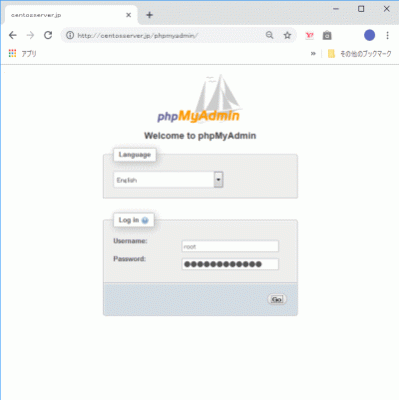
Webブラウザを起動し、「http://centserver.jp/phpmyadmin/」にアクセスし、登録したユーザーで認証してログインします。(管理画面から MariaDB を操作することができます。)

phpmyadmin

CentOS8:セキュリティ対策

アンチウィルスソフトの導入(Clam AntiVirus)

Clam AntiVirus をインストールします。

[root@www ~]# dnf --enablerepo=epel -y install clamav clamav-update
[root@www ~]# sed -i -e "s/^Example/#Example/" /etc/freshclam.conf

パターンファイルを更新します。

[root@www ~]# freshclam
ClamAV update process started at Sun Jun 30 23:51:01 2019
main.cvd is up to date (version: 58, sigs: 4566249, f-level: 60, builder: sigmgr)
daily.cld is up to date (version: 25496, sigs: 1606212, f-level: 63, builder: raynman)
bytecode.cvd is up to date (version: 328, sigs: 94, f-level: 63, builder: neo)

スキャンを実行して動作確認します。

[root@www ~]# clamscan --infected --remove --recursive /home

----------- SCAN SUMMARY -----------
Known viruses: 6163086
Engine version: 0.101.2
Scanned directories: 38
Scanned files: 23
Infected files: 0
Data scanned: 0.00 MB
Data read: 0.00 MB (ratio 0.00:1)
Time: 179.738 sec (2 m 59 s)

テスト用無害ウィルスをダウンロードします。

[root@www ~]# wget http://www.eicar.org/download/eicar.com

スキャンを実行して動作確認します。

[root@www ~]# clamscan --infected --remove --recursive .

----------- SCAN SUMMARY -----------
Known viruses: 6163097
Engine version: 0.101.2
Scanned directories: 3
Scanned files: 10
Infected files: 1
Data scanned: 0.00 MB
Data read: 0.00 MB (ratio 0.00:1)
Time: 179.738 sec (2 m 59 s)

ファイル改竄検知システムの導入(Tripwire)

Tripwire をインストールします。

[root@www ~]# dnf --enablerepo=epel -y install tripwire

Tripwire の初期設定をします。

[root@www ~]# tripwire-setup-keyfiles

サイトキーファイルのパスフレーズを設定します。

Enter the site keyfile passphrase: サイトキーファイルのパスフレーズ(英数字)
Verify the site keyfile passphrase: サイトキーファイルのパスフレーズ(英数字)

ローカルキーファイルのパスフレーズを設定します。

Enter the local keyfile passphrase: ローカルキーファイルのパスフレーズ(英数字)
Verify the local keyfile passphrase: ローカルキーファイルのパスフレーズ(英数字)

サイトキーファイルのパスフレーズを入力します。

Please enter your site passphrase: サイトキーファイルのパスフレーズ

サイトキーファイルのパスフレーズを入力します。

Please enter your site passphrase: サイトキーファイルのパスフレーズ

「/etc/tripwire」へディレクトリを移動します。

[root@www ~]# cd /etc/tripwire

初期設定をします。

[root@www tripwire]# vi twcfg.txt

12行目:報告レベルを最大に変更します。

REPORTLEVEL = 4

設定ファイルを生成します。

[root@www tripwire]# twadmin -m F -c tw.cfg -S site.key twcfg.txt

サイトキーファイルのパスフレーズを入力します。

Please enter your site passphrase: サイトキーファイルのパスフレーズ
Wrote configuration file: /etc/tripwire/tw.cfg

ポリシーを最適化します。

[root@www tripwire]# vi twpolmake.pl

行頭に「#」が自動挿入される場合は2回に分けて作成します。

#!/usr/bin/perl
# Tripwire Policy File customize tool
# ----------------------------------------------------------------
# Copyright (C) 2003 Hiroaki Izumi
# This program is free software; you can redistribute it and/or
# modify it under the terms of the GNU General Public License
# as published by the Free Software Foundation; either version 2
# of the License, or (at your option) any later version.
# This program is distributed in the hope that it will be useful,
# but WITHOUT ANY WARRANTY; without even the implied warranty of
# MERCHANTABILITY or FITNESS FOR A PARTICULAR PURPOSE. See the
# GNU General Public License for more details.
# You should have received a copy of the GNU General Public License
# along with this program; if not, write to the Free Software
# Foundation, Inc., 59 Temple Place - Suite 330, Boston, MA 02111-1307, USA.
# ----------------------------------------------------------------
# Usage:
# perl twpolmake.pl {Pol file}
# ----------------------------------------------------------------
#
#ここまでを1回目で作成して行頭に「#」の無い行を作成して、以下をコピペします。
$POLFILE=$ARGV[0];

open(POL,"$POLFILE") or die "open error: $POLFILE" ;
my($myhost,$thost) ;
my($sharp,$tpath,$cond) ;
my($INRULE) = 0 ;

while (<POL>) {
    chomp;
    if (($thost) = /^HOSTNAME\s*=\s*(.*)\s*;/) {
        $myhost = `hostname` ; chomp($myhost) ;
        if ($thost ne $myhost) {
            $_="HOSTNAME=\"$myhost\";" ;
        }
    }
    elsif ( /^{/ ) {
        $INRULE=1 ;
    }
    elsif ( /^}/ ) {
        $INRULE=0 ;
    }
    elsif ($INRULE == 1 and ($sharp,$tpath,$cond) = /^(\s*\#?\s*)(\/\S+)\b(\s+->\s+.+)$/) {
        $ret = ($sharp =~ s/\#//g) ;
        if ($tpath eq '/sbin/e2fsadm' ) {
            $cond =~ s/;\s+(tune2fs.*)$/; \#$1/ ;
        }
        if (! -s $tpath) {
            $_ = "$sharp#$tpath$cond" if ($ret == 0) ;
        }
        else {
            $_ = "$sharp$tpath$cond" ;
        }
    }
    print "$_\n" ;
}
close(POL) ;

[root@www tripwire]# perl twpolmake.pl twpol.txt > twpol.txt.new
[root@www tripwire]# twadmin -m P -c tw.cfg -p tw.pol -S site.key twpol.txt.new

サイトキーファイルのパスフレーズを入力します。

Please enter your site passphrase: サイトキーファイルのパスフレーズ
Wrote configuration file: /etc/tripwire/tw.pol

データベースを作成します。

[root@www tripwire]# tripwire -m i -s -c tw.cfg

ローカルキーファイルのパスフレーズを入力します。

Please enter your local passphrase: ローカルキーファイルのパスフレーズ

ディレクトリを戻ります。

[root@www tripwire]# cd

チェックを実行します。(定期チェックは日次でチェック実行されます。)

[root@www ~]# tripwire -m c -s -c /etc/tripwire/tw.cfg
Open Source Tripwire(R) 2.4.2.2 Integrity Check Report

Report generated by:          root
...
...
...
All rights reserved.

チェック結果を確認します。

[root@www ~]# ll /var/lib/tripwire/report
total 4
-rw-r--r-- 1 root root 1821526 6月 29 07:58 centosserver.jp-20190629-075230.twr
-rw-r--r-- 1 root root 1830182 6月 30 06:09 centosserver.jp-20190630-060029.twr
-rw-r--r-- 1 root root 1829590 7月 1 09:29 centosserver.jp-20190701-092314.twr
-rw-r--r-- 1 root root 1828518 7月 1 17:27 centosserver.jp-20190701-171400.twr

レポートを指定してデータベースを更新します。

[root@www ~]# tripwire -m u -a -s -c /etc/tripwire/tw.cfg -r /var/lib/tripwire/report/centosserver.jp-20190701-171400.twr

ローカルキーファイルのパスフレーズを入力します。

Please enter your local passphrase: ローカルキーファイルのパスフレーズ

rootkit検知システム導入(RkHunter)

RKHunter をインストールします。

[root@www ~]# dnf --enablerepo=epel -y install rkhunter

RKHunter を設定します。

[root@www ~]# vi /etc/sysconfig/rkhunter

レポートを送信する宛先とスキャンモードを設定します。

#レポートを送信する宛先
MAILTO=root@localhost
#スキャンモード
DIAG_SCAN=no

データベースをアップデートします。

[root@www ~]# rkhunter --update

システムのファイル情報をアップデートすます。

[root@www ~]# rkhunter --propupd

チェック実行します。

[root@www ~]# rkhunter --check --sk
[ Rootkit Hunter version 1.4.2 ]

Checking system commands...
...
...
No warnings were found while checking the system.

SSHサーバー公開鍵認証方式接続の設定

windows PCの任意の場所に「SSH鍵」フォルダを作成し、その中に「公開鍵」フォルダ、「秘密鍵」フォルダを作成します。

windows PCのTeraTermを起動し、「設定」→「SSH鍵生成」を選択します。
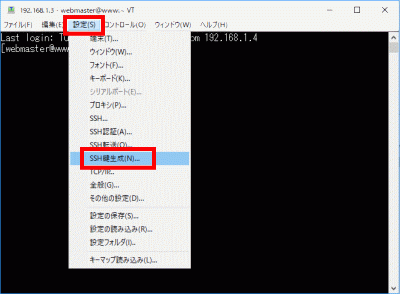
SSH鍵生成

「鍵の種類」で鍵の暗号方式(例:ECDSA-521)を選択し、「生成」をクリックします。
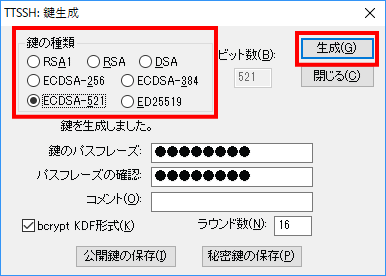
鍵の種類

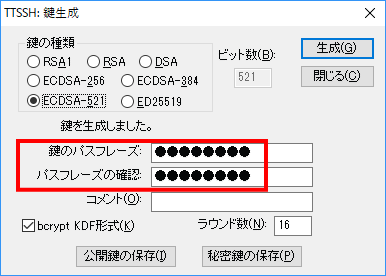
「鍵のパスフレーズ」を設定します。

鍵のパスフレーズ

「公開鍵の保存」をクリックして、作成した「公開鍵」フォルダに保存します。(公開鍵ファイル名を「id_rsa.pub」に変更します。)
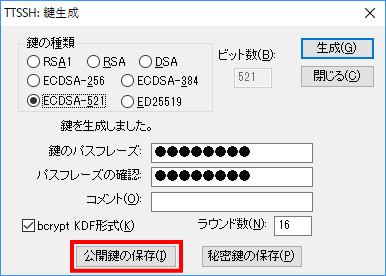
公開鍵の保存

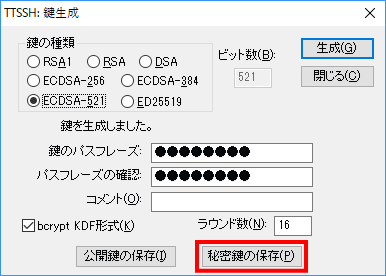
「秘密鍵の保存」をクリックして、作成した「秘密鍵」フォルダに保存します。

秘密鍵の保存

サーバーの公開鍵の作成

TeraTermを起動し、ユーザーでログインします。

[webmaster@www ~]$ mkdir .ssh
[webmaster@www ~]$ chmod 700 .ssh/
[webmaster@www ~]$ touch .ssh/authorized_keys
[webmaster@www ~]$ chmod 600 .ssh/authorized_keys

TeraTermで公開鍵を転送します。

「ファイル」→「SSH SCP…」を選択します。
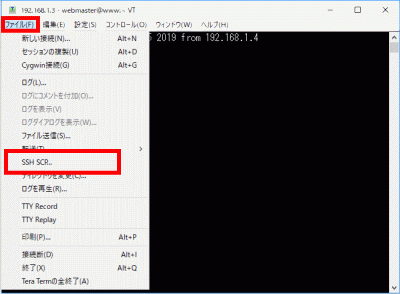
SSH SCP...

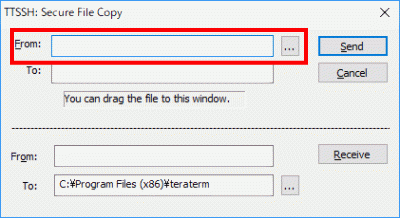
「…」をクリックして、「公開鍵」を選択します。

公開鍵

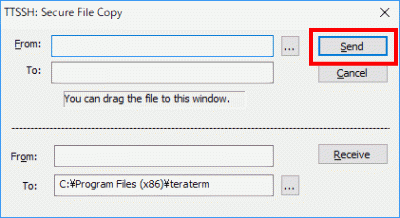
「Send」をクリックしてユーザーホームに転送ます。

Send

公開鍵を「.ssh/」へ転記します。

[webmaster@www ~]$ cat id_rsa.pub >> .ssh/authorized_keys

接続テスト

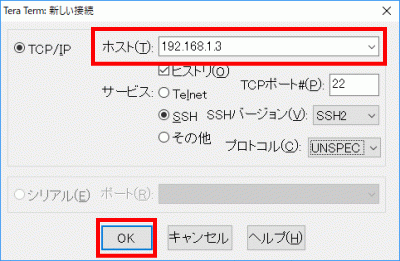
「新しい接続」を選択します。
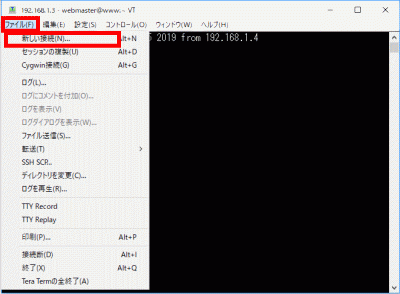
新しい接続

「ホスト」にIPアドレスを入力して、「OK」をクリックします。

IPアドレス

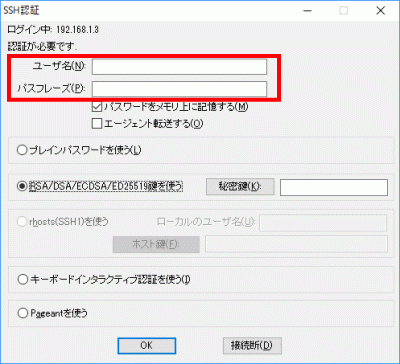
「ユーザー名」、「パスフレーズ(鍵のパスフレーズ)」を入力します。

「ユーザー名」、「パスフレーズ(鍵のパスフレーズ)」を入力

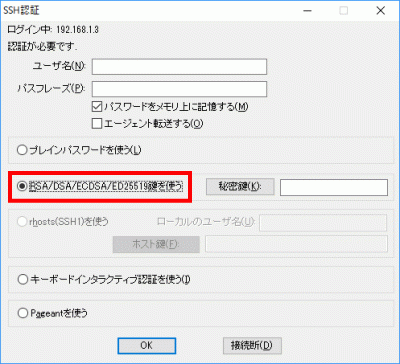
「RSA/DSA/ECDSA/ED25519鍵を使う」を選択します。

RSA/DSA/ECDSA/ED25519鍵を使う

「秘密鍵」をクリックして、保存した「SSH鍵/秘密鍵/id_rsa」を選択します。
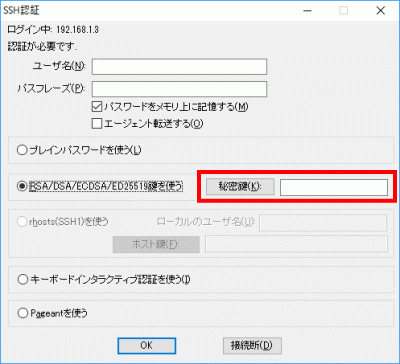
SSH鍵/秘密鍵/id_rsa

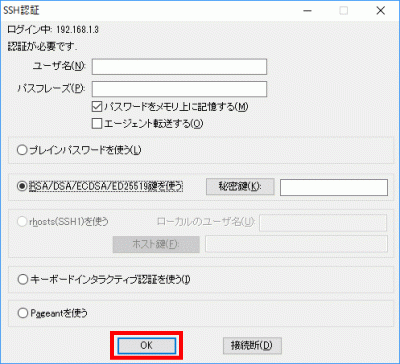
「OK」をクリックして接続を確認します。

「OK」をクリックして接続を確認

rootへログインします。

[webmaster@www ~]$ su -
パスワード:

「/etc/ssh/sshd_config」を編集して、秘密鍵での認証接続

バックアップを作成します。

[root@www ~]# cp -p /etc/ssh/sshd_config /etc/ssh/sshd_config_bck

編集します。

[root@www ~]# vi /etc/ssh/sshd_config

73行目:「yes」→「no」に変更します。

PasswordAuthentication no

SSHを再起動します。

[root@www ~]# systemctl restart sshd

CentOS8:デスクトップ環境設定

VNCサーバーの設定

デスクトップ環境は GNOMEデスクトップを導入しておきます。
VNCサーバーをインストールします。

[root@www ~]# dnf -y install tigervnc-server

VNC 接続を設定したいユーザーでログインし、VNC サーバーでパスワード(英数字8桁以内)を設定します。

[root@www ~]# vncpasswd
Password:
Verify:

VNC サーバーを起動します。

[root@www ~]# vncserver
New 'sentosserver.jp:1 (root)' desktop is sentosserver.jp:1

Starting applications specified in /root/.vnc/xstartup
Log file is /root/.vnc/sentosserver.jp:1.log

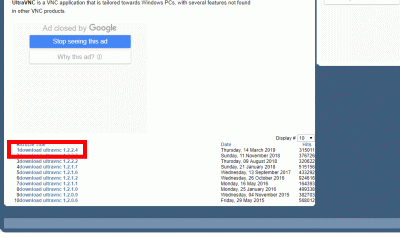
クライアントPCにUltraVNCUltraVNC_1_2_40_X64_Setup.exeをダウンロードします。(ページの下部にダウンロードリンクがあります。)

UltraVNCをダウンロード

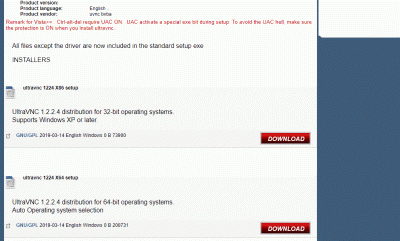
23bit、64bitを選択して「DOWNLOAD」をクリックします。

23bit、64bitを選択して「DOWNLOAD」

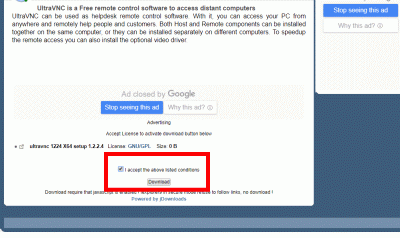
「I accept the above listed conditions」を選択して「Download」をクリックします。

「I accept the above listed conditions」を選択して「Download」

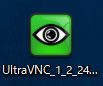
ダウンロードした「UltraVNC_***_Setup.exe」のアイコンをWクリックしてインストールします。

UltraVNC_***_Setup.exe

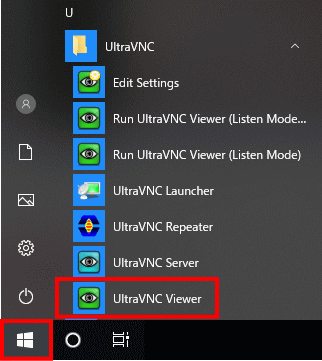
「Windowsスタートメニュー」をクリックし、「UltraVNC Viewer」を起動します。

Windowsスタートメニュー

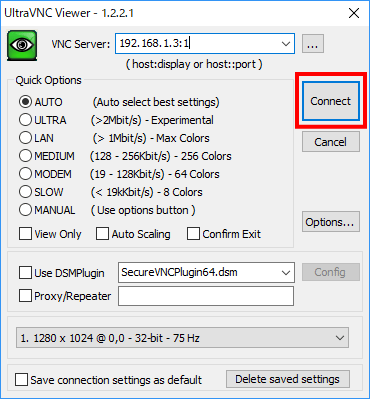
先に起動したVNCサーバーのIPアドレス:ディスプレイ番号を入力をして「Connect」をクリックします。

VNCサーバーのIPアドレス:ディスプレイ番号を入力

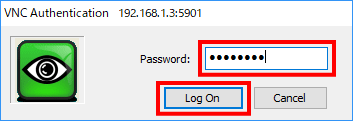
VNCパスワードを入力し「Log on」をクリックします。

VNCパスワードを入力

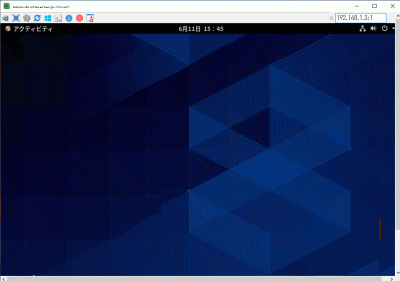
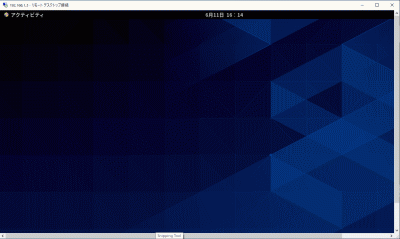
ディスクトップが表示されます。

Xrdpサーバーの設定

Windows のリモートデスクトップ機能で接続できるようにXrdpサーバーをインストールして設定します。

[root@www ~]# dnf --enablerepo=epel -y install xrdp

自動起動を設定します。

[root@www ~]# systemctl enable --now xrdp

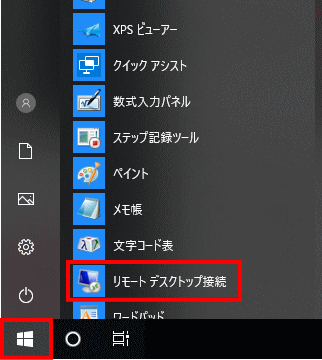
Windows スタートメニューから「アクセサリ」→「リモートデスクトップ接続」 を選択して接続画面を起動します。

スタートメニュー

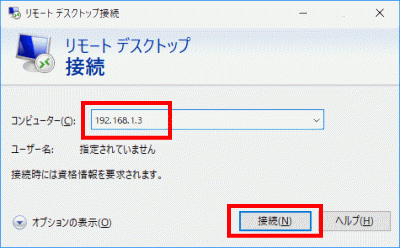
サーバーIPアドレスを入力し「接続」をクリックします。

サーバーIPアドレスを入力し「接続」をクリック

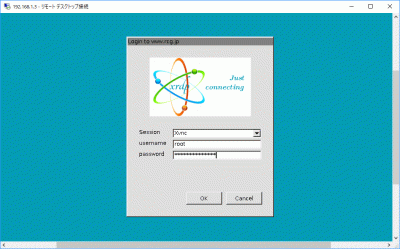
「usermame」(ユーザー名)、「password」(パスワード)を入力し「OK」をクリックします。

「usermame」(ユーザー名)、「password」(パスワード)を入力し「OK」をクリック

ディスクトップが表示されます。

日本語環境の設定

日本語環境のパッケージをインストールします。

[root@www ~]# dnf -y install ibus-kkc vlgothic-*

システムの文字セットを設定します。

[root@www ~]# localectl set-locale LANG=ja_JP.UTF-8
[root@www ~]# source /etc/locale.conf

設定を確認します。

[root@www ~]# echo $LANG
ja_JP.UTF-8


CentOS8:ファイルサーバー設定

sambaのインストール

sambaをインストールします。

[root@www ~]# dnf install samba samba-client samba-common -y

sambaの初期設定

sambaの設定ファイルをバックアップ。

[root@www ~]# mv /etc/samba/smb.conf /etc/samba/smb.conf.bk

sambaを設定します。

[root@www ~]# vi /etc/samba/smb.conf

ファイルを作成します。

[global]
workgroup = WORKGROUP
server string = Samba Server %v
netbios name = centos
security = user
map to guest = bad user
dns proxy = no
ntlm auth = yes
#==========================================================
[Share]
#共有フォルダ
path = /samba/share/
#マイネットワークに表示の有無
browsable = yes
#書き込み許可
writable = yes
#ゲストユーザのログイン許可
guest ok = yes
#読込みの許可
read only = no
#ファイル属性
force create mode = 0777
#ディレクトリ属性
force directory mode = 0777

共有フォルダを作成します。

root@www:~# mkdir /samba
root@www:~# mkdir /samba/share
root@www:~# chown nobody:nobody /samba/share
root@www:~# chmod 0777 /samba/share

起動します。

[root@www ~]# systemctl enable --now smb.service
[root@www ~]# systemctl enable --now nmb.service

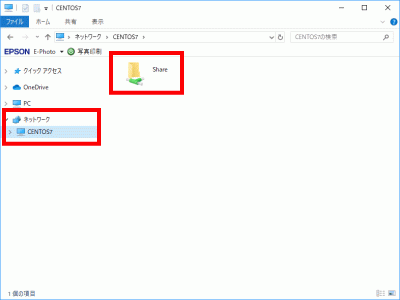
クライアントWindowsPCを再起動し、「ネットワーク」→「centos」→「Share」を開いて書き込みができることを確認します。(「ネットワーク」→「centos」が表示されない場合はディスクトップの任意の場所で右クリックで新規フォルダを作成して、その新規フォルダを右クリックしてショートカットを作成し、そのショートカットを右クリックしてプロパティを開いてリンク先を「\\centos」に変更し接続します。)

WindowsPC

CentOS8:初期設定

一般ユーザーの作成

rootユーザーにログインします。

[webmaster@www ~]$ su -
パスワード:
[root@www ~]#

一般ユーザーを作成します。(初期設定では一般ユーザーは必要ありません。)

[root@www ~]# useradd ユーザー名

パスワードを設定します。

[root@www ~]# passwd ユーザー名
新しいパスワード:
新しいパスワードを再入力してください:

rootになれるユーザーを限定

rootになれるユーザーを限定します。

[root@www ~]# usermod -G wheel webmaster
[root@www ~]# vi /etc/pam.d/su

#を削除してコメント解除

#%PAM-1.0
auth            sufficient      pam_rootok.so
# Uncomment the following line to implicitly trust users in the "wheel" group.
#auth           sufficient      pam_wheel.so trust use_uid
# Uncomment the following line to require a user to be in the "wheel" group.
auth            required        pam_wheel.so use_uid
auth            substack        system-auth
auth            include         postlogin
account         sufficient      pam_succeed_if.so uid = 0 use_uid quiet
account         include         system-auth
password        include         system-auth
session         include         system-auth
session         include         postlogin
session         optional        pam_xauth.so

一般ユーザーの削除

ユーザーのみ削除する場合

[root@www ~]# userdel ユーザー名

ホームディレクトリも削除する場合

[root@www ~]# userdel -r ユーザー名

ファイアウォールとSELinuxを無効化

ファイアウォールサービス停止します。

[root@www ~]# systemctl stop firewalld

自動起動設定を無効にします。

[root@www ~]# systemctl disable firewalld
rm '/etc/systemd/system/dbus-org.fedoraproject.FirewallD1.service'
rm '/etc/systemd/system/basic.target.wants/firewalld.service'

SELinux を無効にします。

[root@www ~]# vi /etc/selinux/config

disabled に変更します。

# This file controls the state of SELinux on the system.
# SELINUX= can take one of these three values:
# enforcing - SELinux security policy is enforced.
# permissive - SELinux prints warnings instead of enforcing.
# disabled - No SELinux policy is loaded.
SELINUX=disabled #変更
# SELINUXTYPE= can take one of these two values:
# targeted - Targeted processes are protected,
# minimum - Modification of targeted policy. Only selected processes are protected.
# mls - Multi Level Security protection.
SELINUXTYPE=targeted

再起動します。

[root@www ~]# reboot

ネットワークの設定

IPv6 を無効にします。

[root@www ~]# vi /etc/default/grub

7行目:「crashkernel=auto」→「ipv6.disable=1」に変更します。

GRUB_CMDLINE_LINUX="ipv6.disable=1 rd.lvm.lv=centos/root..

変更を反映します。

[root@www ~]# grub2-mkconfig -o /boot/grub2/grub.cfg
[root@www ~]# reboot

ルーター設定

ルーターでDHCP固定IPアドレス設定ができる場合は「MACアドレス」、「サーバーIPアドレス」を設定します。

DHCP固定IPアドレス設定

MACアドレス(例:0c:2e:48:2b:dg:f4)

サーバーIPアドレス:192.168.1.3

システムの最新化

システムを最新化します。

[root@www ~]# dnf -y update

リポジトリを追加

標準リポジトリを追加します。

[root@www ~]# dnf -y install epel-release

標準リポジトリを最優先にします。

[root@www ~]# vi /etc/yum.repos.d/epel.repo

「priority=10」を追記します。

[epel]
name=Extra Packages for Enterprise Linux $releasever - $basearch
#baseurl=https://download.fedoraproject.org/pub/epel/$releasever/Everything/$basearch
metalink=https://mirrors.fedoraproject.org/metalink?repo=epel-$releasever&arch=$basearch&infra=$infra&content=$contentdir
failovermethod=priority
enabled=1
priority=10 #追記

EPELリポジトリを追加します。

[root@www ~]# dnf -y install elrepo-release

EPELリポジトリを最優先にします。

[root@www ~]# vi /etc/yum.repos.d/elrepo.repo

「priority=10」を追記します。

[elrepo]
name=ELRepo.org Community Enterprise Linux Repository - el8
baseurl=http://elrepo.org/linux/elrepo/el8/$basearch/
        http://mirrors.coreix.net/elrepo/elrepo/el8/$basearch/
        http://jur-linux.org/download/elrepo/elrepo/el8/$basearch/
        http://repos.lax-noc.com/elrepo/elrepo/el8/$basearch/
mirrorlist=http://mirrors.elrepo.org/mirrors-elrepo.el8
enabled=1
priority=10 #追記

Remi’s RPM repositoryリポジトリを追加します。

[root@www ~]# dnf -y install https://rpms.remirepo.net/enterprise/remi-release-8.rpm

Remi’s RPM repository リポジトリを最優先にします。

[root@www ~]# vi /etc/yum.repos.d/remi-safe.repo

「priority=10」を追記します。

[remi-safe]
name=Safe Remi's RPM repository for Enterprise Linux 8 - $basearch
#baseurl=http://rpms.remirepo.net/enterprise/8/safe/$basearch/
#mirrorlist=https://rpms.remirepo.net/enterprise/8/safe/$basearch/httpsmirror
mirrorlist=http://cdn.remirepo.net/enterprise/8/safe/$basearch/mirror
enabled=1
priority=10

モジュラーリポジトリを追加します。

[root@www ~]# dnf --enablerepo=remi-modular --disablerepo=AppStream module list

パッケージ自動更新設定

dnf-automaticをインストールします。

[root@www ~]# dnf install dnf-automatic dnf-utils -y

dnf-automaticを設定します。

[root@www ~]# vi /etc/dnf/automatic.conf

自動ダウンロード&自動アップデートを行うようにする

# Whether updates should be applied when they are available, by
# dnf-automatic.timer. notifyonly.timer, download.timer and
# install.timer override this setting.
apply_updates = yes #変更

パッケージ自動更新自動起動設定

[root@www ~]# systemctl enable --now dnf-automatic.timer

開発ツールパッケージのインストール

開発ツールパッケージをインストールします。

[root@www ~]# dnf -y groupinstall base "Development tools"

Web 管理コンソールの設定

Cockpit を有効にして Web 管理コンソールが利用可能にします。

[root@www ~]# systemctl enable --now cockpit.socket
[root@www ~]# ss -napt
State Recv-Q Send-Q Local Address:Port Peer Address:Port 
LISTEN 0 128 0.0.0.0:22 0.0.0.0:* users:(("sshd",pid=831,fd=6)) 
LISTEN 0 128 [::]:22 [::]:* users:(("sshd",pid=831,fd=8)) 
LISTEN 0 128 *:9090 *:* users:(("systemd",pid=1,fd=24)) 

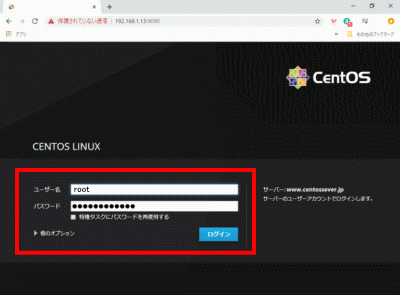
クライアントPCのWebブラウザで、[http://192.168.1.3:9090/] へアクセスし「root」でログインします。

Vim(テキストエディタ)の設定

Vim(テキストエディタ)をインストールします。

[root@www ~]# dnf -y install vim-enhanced

コマンドエイリアスを適用します。

[root@www ~]# vi /etc/profile

最終行に追記します。

alias vi='vim'

変更を反映します。

[root@www ~]# source /etc/profile

vim を設定します。

[root@www ~]# vi ~/.vimrc

行番号を表示する(サーバー設定を行番号で説明いたします。)

set number

Sudo(root権限)のを設定

root権限を特定のユーザーに設定します。

[root@www ~]# visudo

最終行に追記します。

webmaster    ALL=(ALL)       ALL

Cronの設定

従来通りの Cron の設定に戻したい場合は以下のように設定します。

[root@www ~]# dnf -y install cronie-noanacron

インストール後に、Anacron設定のパッケージは削除します。

[root@www ~]# dnf -y remove cronie-anacron

nkfコマンドツールインストール

文字コード変換コマンド nkfダウンロードします。

[root@www ~]# wget "http://sourceforge.jp/frs/redir.php?m=jaist&f=%2Fnkf%2F59912%2Fnkf-2.1.3.tar.gz" -O nkf-2.1.3.tar.gz

nkfを展開します。

[root@www ~]# tar zxvf nkf-2.1.3.tar.gz

nkfを展開先ディレクトリへ移動します。

[root@www ~]# cd nkf-2.1.3/

nkfをインストールします。

[root@www  nkf-2.1.3]# make && make install

展開先ディレクトリを抜けます。

[root@www  nkf-2.1.3]# cd

展開先ディレクトリを削除します。

[root@www ~]# rm -rf nkf-2.1.3

ダウンロードしたnkfを削除します。

[root@www ~]# rm -f nkf-2.1.3.tar.gz

/usr/local/bin/nkfから/usr/bin/nkfへリンクします。

[root@www ~]# ln -s /usr/local/bin/nkf /usr/bin/nkf

再起動します。

[root@www ~]# reboot

CentOS8:CentOS7.0からCentOS8にアップグレード

アップグレード

「http://mirror.centos.org/centos/8/BaseOS/x86_64/os/Packages/」より最新の「centos-repos-8.*****.el8.x86_64.rpm」のURLをコピーして上記の変更フォームにて文中のURLを変更します。(エラーがでるばあいはURLを「https://rcg.jp/wordpress/download/centos-release-8.0-0.1905.0.9.el8.x86_64.rpm」に変更します。

クライアントPC(Windows)でTera Termを起動します。

Tera Termの使い方

バックアップ設定を行います。

バックアップ設定

ツールをインストールします。

[root@www ~]# yum -y install epel-release rpmconf yum-utils

アップグレードします。

[root@www ~]# yum -y update

「Rpmconf」の初期設定を行います。

[root@www ~]# rpmconf -a;

CentOS8.0にアップグレード

[root@www ~]# package-cleanup --leaves
[root@www ~]# package-cleanup --orphans
[root@www ~]# yum install -y dnf
[root@www ~]# dnf remove -y yum yum-metadata-parser
[root@www ~]# rm -Rf /etc/yum
[root@www ~]# dnf upgrade -y
[root@www ~]# dnf upgrade -y https://rcg.jp/wordpress/download/centos-release-8.0-0.1905.0.9.el8.x86_64.rpm
[root@www ~]# dnf upgrade -y https://dl.fedoraproject.org/pub/epel/epel-release-latest-8.noarch.rpm
[root@www ~]# dnf clean all
[root@www ~]# rpm -e `rpm -q kernel`
[root@www ~]# rpm -e --nodeps sysvinit-tools
[root@www ~]# dnf -y --releasever=8 --allowerasing --setopt=deltarpm=false distro-sync
[root@www ~]# dnf install -y kernel-core
[root@www ~]# dnf groupupdate -y "Core" "Minimal Install"

再起動します。

[root@www ~]# reboot now

再起動後、クライアントPC(Windows)でTera Termを起動します。(Tera Termの使い方

アップグレードを確認します。

[root@www ~]# cat /etc/redhat-release;
CentOS Linux release 8.2.2004 (Core)

リポジトリを追加

標準リポジトリを追加します。

[root@www ~]# dnf -y install epel-release

標準リポジトリを最優先にします。

[root@www ~]# vi /etc/yum.repos.d/epel.repo

「priority=10」を追記します。

[epel]
name=Extra Packages for Enterprise Linux $releasever - $basearch
#baseurl=https://download.fedoraproject.org/pub/epel/$releasever/Everything/$basearch
metalink=https://mirrors.fedoraproject.org/metalink?repo=epel-$releasever&arch=$basearch&infra=$infra&content=$contentdir
failovermethod=priority
enabled=1
priority=10 #追記

EPELリポジトリを追加します。

[root@www ~]# dnf -y install elrepo-release

EPELリポジトリを最優先にします。

[root@www ~]# vi /etc/yum.repos.d/elrepo.repo

「priority=10」を追記します。

[elrepo]
name=ELRepo.org Community Enterprise Linux Repository - el8
baseurl=http://elrepo.org/linux/elrepo/el8/$basearch/
        http://mirrors.coreix.net/elrepo/elrepo/el8/$basearch/
        http://jur-linux.org/download/elrepo/elrepo/el8/$basearch/
        http://repos.lax-noc.com/elrepo/elrepo/el8/$basearch/
mirrorlist=http://mirrors.elrepo.org/mirrors-elrepo.el8
enabled=1
priority=10 #追記

Remi’s RPM repositoryリポジトリを追加します。

[root@www ~]# dnf -y install https://rpms.remirepo.net/enterprise/remi-release-8.rpm

モジュラーリポジトリを追加します。

[root@www ~]# dnf --enablerepo=remi-modular --disablerepo=AppStream module list

システムを最新化します。

[root@www ~]# dnf upgrade -y

再起動します。

[root@www ~]# reboot now

再起動後、クライアントPC(Windows)でTera Termを起動します。(Tera Termの使い方

アップグレードを確認します。

[root@www ~]# cat /etc/redhat-release;
CentOS Linux release 8.2.2004 (Core)

インストールDVD作成

CentOS8.0 復元用にインストールDVDを作成します。

CenuOS8.0ダウンロード

ダウンロードページからインストールディスクイメージ(CentOS-8-x86_64-DVD-****.iso)をダウンロードします。

インストールDVDを作成

ファイルサイズ 約 7Gb なので片面 2 層 式DVD-R(8.5Gb)を使用します。

ImgBurnを使いCentOS-8-x86_64-DVD-****.isoでCentOS7インストールディスクを作成し大切に保管します。

初心者におすすめ!コピペ(コピー&ペースト)でできる自宅サーバーCentOS8(Linux)の構築方法。

自宅サーバーCentOS8(Linux)の作り方

初心者の方でもコピー、貼付けでLinux自宅サーバーを簡単に作れるように説明しています。
Webサーバー、メールサーバー、VPNサーバー、WordPressなどを設定します。

ご自身の設定情報を入力して、文章中の値を変更できますので簡単に設定できます。

DHCPのIPアドレス/マスク長:192.168.1.1/24
WebサーバのIPアドレス:192.168.1.3

CentOS8サーバー構築

Topへ戻る

サーバー構築準備:自宅サーバー準備作業

  • モデム設定(ご自身の環境に合わせてお調べください。)
  • サーバー本体
  • ルーターの設定
  • 有料ドメイン取得
  • isoファイルの容量確認
  • ImgBurnのダウンロード・インストール
  • インストールディスクの作成方法
  • Rufusのダウンロード
  • インストールUSBの作成方法
  • Tera Termのダウンロード・インストール
  • Gmailの登録
  • Thunderbirdのダウンロード・インストール

SentOS8:インストール

  • CenuOS8ダウンロード
  • インストールDVD作成
  • CentOS8インストール

サーバー構築準備:SSHサーバーリモート接続(Tera Term)

  • SSHサーバーリモート接続の準備
  • Tera Termの使い方

SentOS8:初期設定

  • 一般ユーザーの作成
  • rootになれるユーザーを限定
  • 一般ユーザーの削除
  • ファイアウォールとSELinuxを無効化
  • ネットワークの設定
  • システムの最新化
  • リポジトリを追加
  • パッケージの自動更新
  • 開発ツールパッケージのインストール
  • Vim(テキストエディタ)の設定
  • Sudo(root権限)の設定
  • Cronの設定
  • root宛メールを転送(フリーメール使用)
  • メールの送信テスト
  • Gmailのメール転送設定
  • root宛メールの受信確認
  • nkfコマンドツールのインストール

SentOS8:デスクトップ環境設定

  • VNCサーバーの設定
  • Xrdpサーバーの設定
  • 日本語環境の設定

SentOS8:ファイルサーバー設定

  • sambaのインストール
  • sambaの初期設定

SentOS8:NTPサーバー設定(Chrony)

SentOS8:セキュリティ対策

  • アンチウィルスソフトの導入(Clam AntiVirus)
  • ファイル改竄検知システムの導入(Tripwire)
  • rootkit検知システムの導入(RkHunter)
  • SSHサーバー公開鍵認証方式接続の設定

SentOS8:ドメイン設定

  • DiCEのインストール
  • DiCE の設定
  • DiCEのイベントの追加

SentOS8:DNSサーバー設定

  • BINDのインストール
  • ゾーン情報の設定
  • TCP/UDP53番ポート開放
  • ポート開放テスト
  • BINDの起動と作動確認
  • chroot環境に移行
  • ホスト別名の設定
  • ホームネットワーク内PCのDNSを設定変更
  • 第二DNSの確認

SentOS8:Webサーバー設定

  • httpdのインストール
  • TCP80番ポート開放
  • ポート開放テスト
  • Perlのインストール
  • PHPのインストール
  • Rubyのインストール
  • Perlモジュールのインストール
  • ImageMagikのインストール
  • サーバー証明書の取得
  • SSLの設定

SentOS8:データベース設定

  • MariaDBの インストール

SentOS8:FTPサーバー設定

  • Vsftpd のインストール
  • FTPクライアントの設定

SentOS8:MAILサーバー設定

  • Postfixの設定
  • SMTP認証設定
  • Maildir形式メールボックスの作成
  • TCP25番、TCP587番ポート開放
  • ポート開放テスト
  • OP25B対策
  • Dovecotのインストール
  • TCP110番またはTCP143番ポート開放
  • ポート開放テスト
  • メールユーザーの追加
  • sendmailパスの確認
  • メールソフトの登録
  • サーバー証明書の取得
  • SSLの設定
  • TCP465番ポート開放
  • ポート開放テスト
  • TCP587番ポート閉鎖
  • ポート開放テスト
  • Dovecot設定
  • TCP995番またはTCP993番ポート開放
  • ポート開放テスト
  • メールソフトの設定変更
  • アンチウィルスソフトの連携(Clamav+Amavisd)

SentOS8:ログ解析設定

  • Webアクセスログ解析(AWStats)のインストール
  • メールログ解析(Pfiogsumm)のインストール

SentOS8:システム監視設定

  • Nagiosのインストール
  • Nagiosプラグインインストール
  • Nagios設定
  • Apache設定
  • Nagios起動

共通設定:VPNサーバー設定(Soft Ether VPN Saver)

  • Soft Ether VPN Serverインストール
  • Soft Ether VPN Server起動
  • UDP500番ポート、UDP4500番ポート開放
  • ポート開放テスト
  • Soft Ether VPN Server設定
  • Soft Ether VPN Serverダウンロード、インストール
  • Soft Ether VPN Server初期設定
  • 外部から固定ひかり電話子機接続

SentOS:サブドメイン設定

  • サブドメイン用ディレクトリ作成
  • テストページ作成
  • サーバー証明書取得
  • メインドメインSSL設定
  • サブドメインSSL設定

SentOS:複数ドメイン設定

  • 複数ドメイン用ディレクトリ作成
  • テストページ作成
  • サーバー証明書取得
  • 複数ドメインSSL設定
  • BIND設定
  • ゾーン情報の設定

SentOS8:ブログサイト構築(Word Press)設定

  • Webサーバー、PHP設定
  • データベース設定
  • ブログ用データーベースを作成
  • WordPressインストール
  • WordPress設定
  • Apache設定
  • WordPress初期設定
  • WordPressをドメイン直下での表示設定

WordPress:使いやすいWordPressの作り方

  • 初期設定
  • 記事エディターの拡張
  • SEO対策
  • Site Kit by Google
  • 投稿記事ごとのSEO対策
  • ウィジェット追加
  • カスタムCSS
  • クイックタグの追加
  • スライドショー設置
  • コメント欄非表示
  • 関連記事表示
  • もくじ表示
  • リダイレクト検知
  • Google にインデックスさせる
  • マルチバイト機能の拡張
  • サイトマップを出力
  • お問い合わせフォーム
  • 予約自動投稿
  • 投稿記事の表示順
  • 代替え入力

共通設定:サーバー自動起動設定

  • BIOS設定

SentOS:起動不能をインストールDVDで復旧

共通設定:ディスクのクローン作成

  • Ubuntu Desktopダウンロード
  • ライブDVD作成
  • ディスクのクローン作成

CentOS8:CentOS7.0からからCentOS8.0にアップグレード

  • アップグレード
  • インストールDVD作成

CentOS8:インストール

CentOS8ダウンロード

ダウンロードページからインストールディスクイメージ(CentOS-8-x86_64-DVD-****.iso)をダウンロードします。

インストールDVD作成

ImgBurnを使いCentOS-8-x86_64-DVD-****.isoでCentOS8インストールディスクを作成します。

CentOS8インストール

インストール前にBIOSでDVDブートができるように設定します。

ご自身のサーバーの設定方法をメーカーサイトでお調べください。

作成したインストールDVDでインストールします。

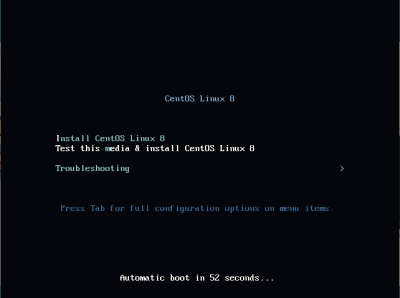
下の画面が表示されたらキーボードの「Enter」を押下します。

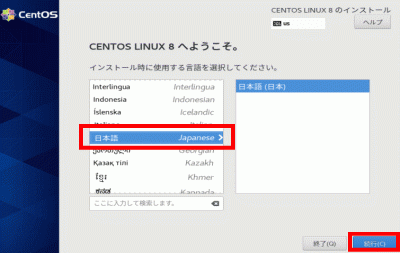
「日本語」を選択して「続行」をクリックします。

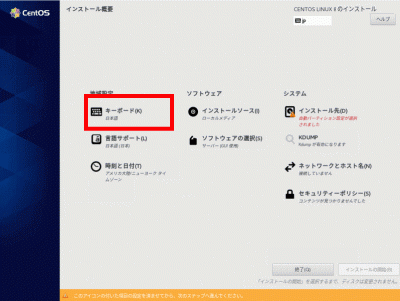
「キーボード」で日本語に設定します。

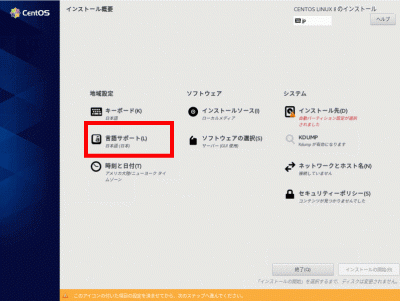
「言語サポート」で日本語(日本)に設定します。

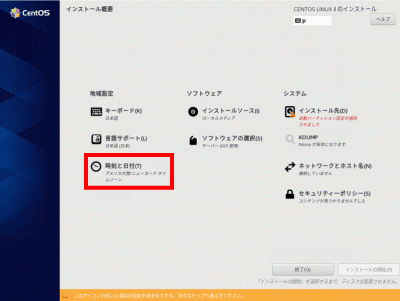
「日付と時刻」でアジア/東京 タイムゾーンに設定します。

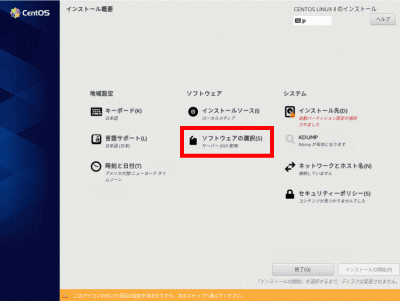
「ソフトウェアの選択」をクリックします。

「ベース環境」で「サーバー」を選択して、「選択した環境のアドオン」で「GNOME 」を選択して「完了」をクリックします。

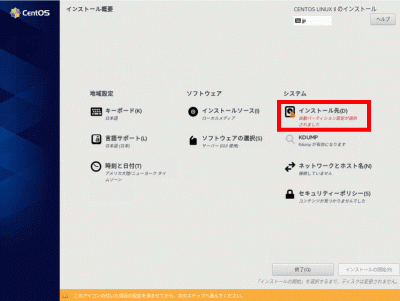
「インストール先」で自動パーティションを選択します。

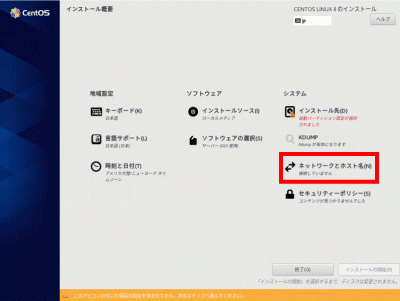
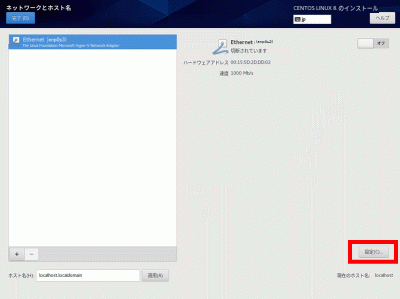
「ネットワークとホスト名」をクリックします。

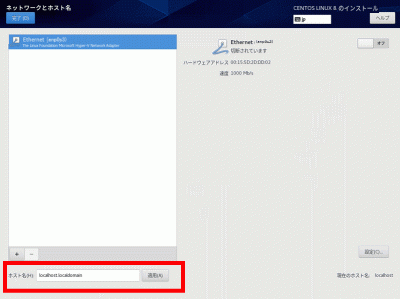
「ホスト名」をcentserver.jpに変更して「適用」をクリックします。

「設定」をクリックします。

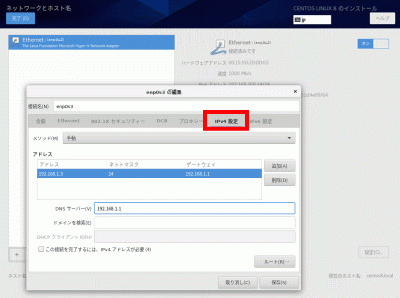
「IPv4のセッティング」をクリックします。

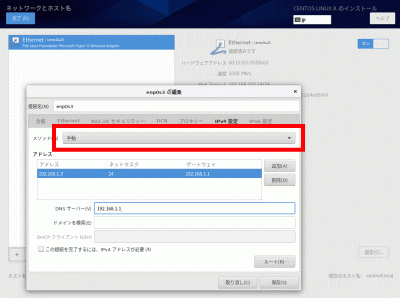
方式の「手動」を選択します。

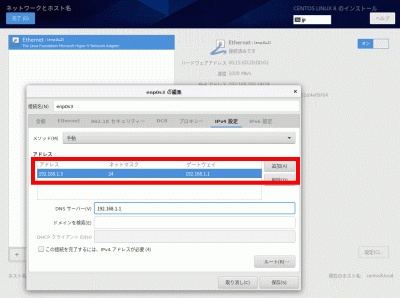
「追加」をクリックして、「アドレス」に192.168.1.3 、「ネットマスク」に24 、「ゲートウェイ」に192.168.1.1を入力します。

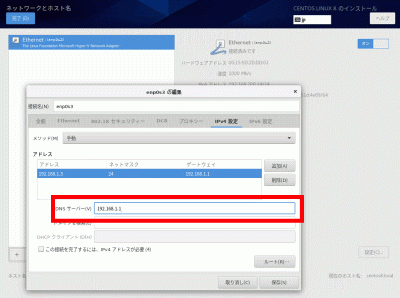
「DNSサーバー」に192.168.1.1を入力します。

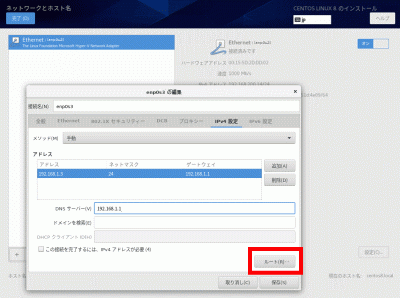
「保存」をクリックします。

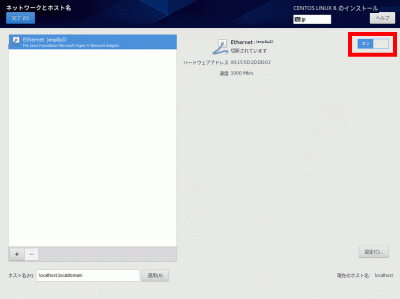
「オン」を選択します。

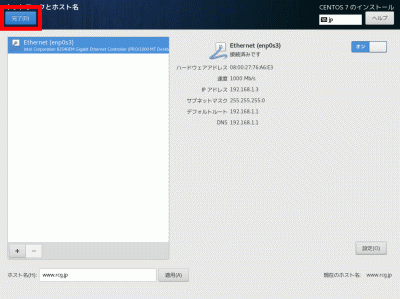
「完了」をクリックします。

「完了」をクリック

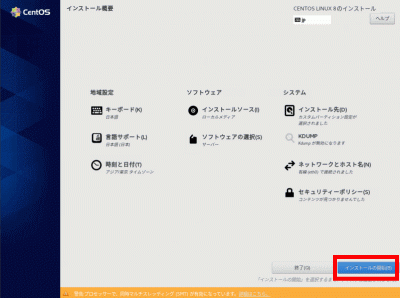
「インストール開始」をクリックします。

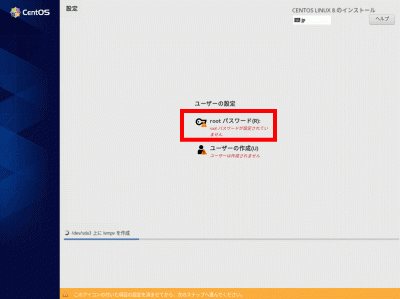
「rootパスワード」をクリックします。

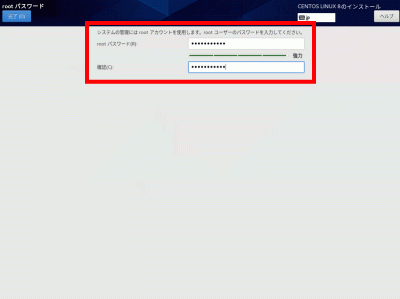
「rootパスワード」を入力します。

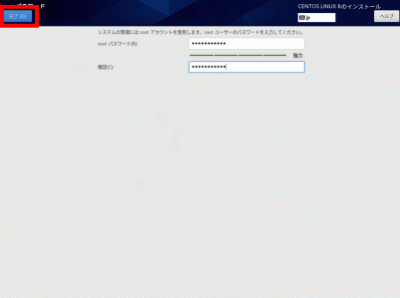
「完了」をクリックします。

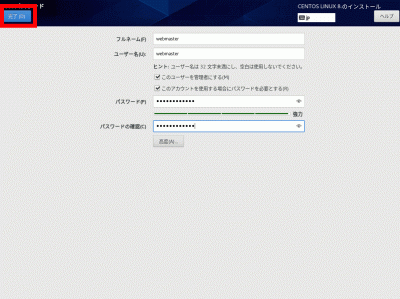
「ユーザーの作成」をクリックします。

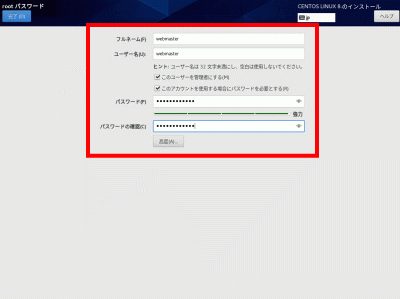
「フルネーム」「ユーザーネーム」にwebmasterを入力します。

「このユーザーを管理者にする」を選択します。

「このアカウントを使用する場合にパスワードを必要とする」を選択します。

「パスワード」を入力します。

「完了」をクリックします。

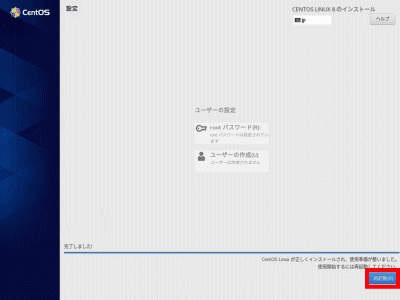
この画面が表示されたら「再起動」をクリックします。

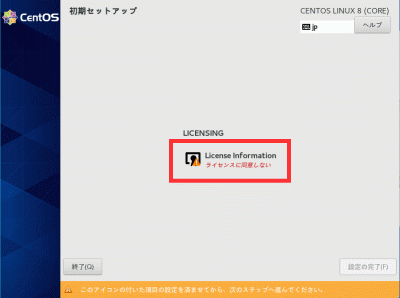
「ライセンスに同意しない」をクリックします。

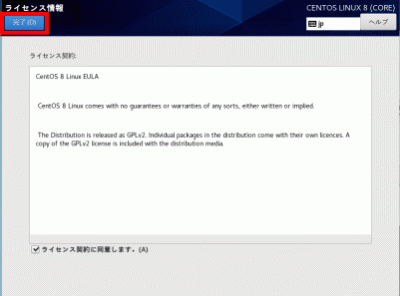
「ライセンス契約に同意します」を選択します。

「完了」をクリックします。

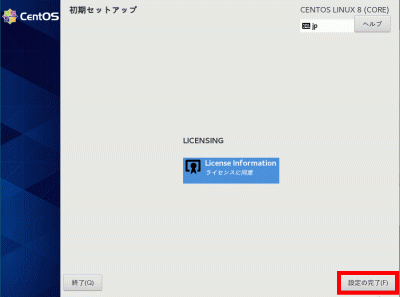
「設定の完了」をクリックします。